How to Fix Amazon Prime Video Buffering / Stuttering / Freezing

| Quick Overview |
| Many viewers ask why Amazon Prime keeps freezing. Freezes typically occur due to network issues, device performance problems, or incorrect playback settings. However, you can prevent or stop these issues with various methods, including updating the app, clearing storage space, and adjusting streaming quality. |
A Reddit user explained that they had been trying to watch Dune 2 on Prime Video, but the stream kept freezing every few seconds. The same issue appeared when they played the file locally, and only lower resolutions worked properly.
You are not alone if you are facing similar interruptions. This guide explains the most common causes and provides practical steps to help you stop Amazon Prime Video from freezing. So, let’s break down the common reasons of ‘why does Amazon Prime keep freezing’ and what you can do to fix it quickly.

Why Does Amazon Prime Keep Freezing
Part 1. Why Does My Amazon Prime Video Keep Freezing / Buffering?
This section explores the common root of ‘why does Amazon Prime keep freezing’:
- Network Problems: Weak Wi-Fi, or a congested home network with numerous connections.
- Device Performance: Low free storage, overheating, or old hardware.
- App or OS bugs: Corrupted cache, outdated app, or problematic app update.
- Playback Settings: Very high resolution or HDR that your device struggles to decode.
- Outdated Software: Using an obsolete app can cause compatibility issues that lead to lagging.
Part 2. How to Stop Amazon Prime Freezing? (7 fixes)
Now that you understand why Amazon Prime keeps freezing, let’s explore the top 7 fixes that you can try to enjoy smooth playback.
Method 1. Check your Internet Connection
A weak or unstable internet can prevent videos from playing smoothly. You must be connected to a stable Wi-Fi to watch Prime videos. When you’re facing lag issues, switch from Wi-Fi to mobile data or vice versa. Additionally, restart your phone to help refresh the network connection.
Method 2. Clear Cache and Restart the Prime Video App
Cached data and temporary files can become corrupted over time. This can cause the Prime Video app to malfunction, leading to buffering issues. You must clear the cache and data of the app to help restore the app’s performance and functionality. Take help from the guide to clear the app cache on your TV.
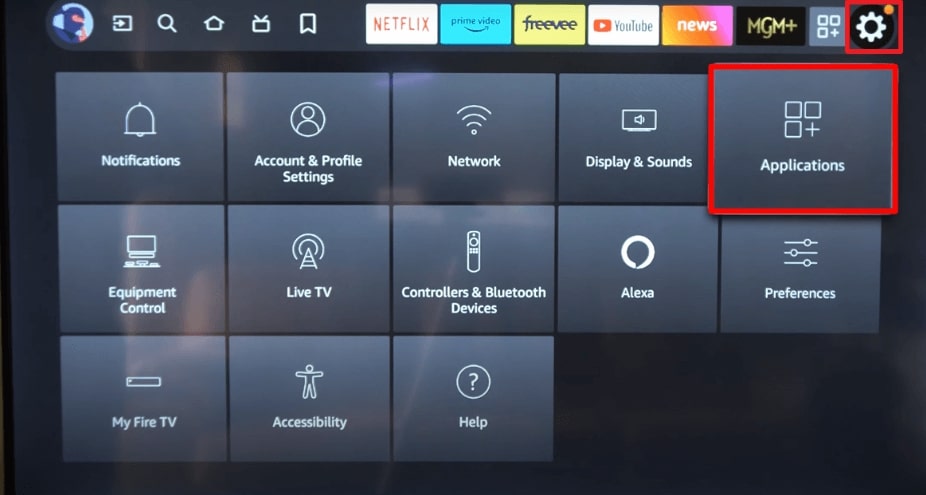
Step 1. Go to the Gear Icon on your TV and select Applications.
Select Applications
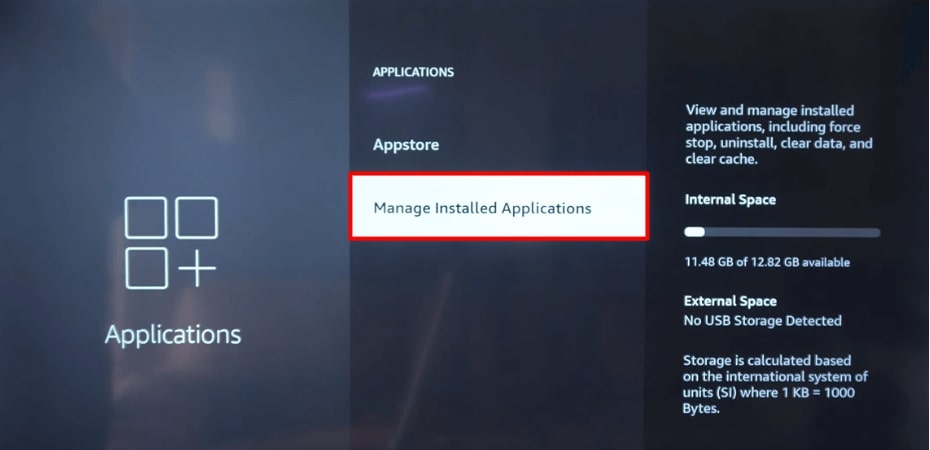
Step 2. Choose the Manage Installed Applications option from the new screen.
Choose Manage Installed Applications
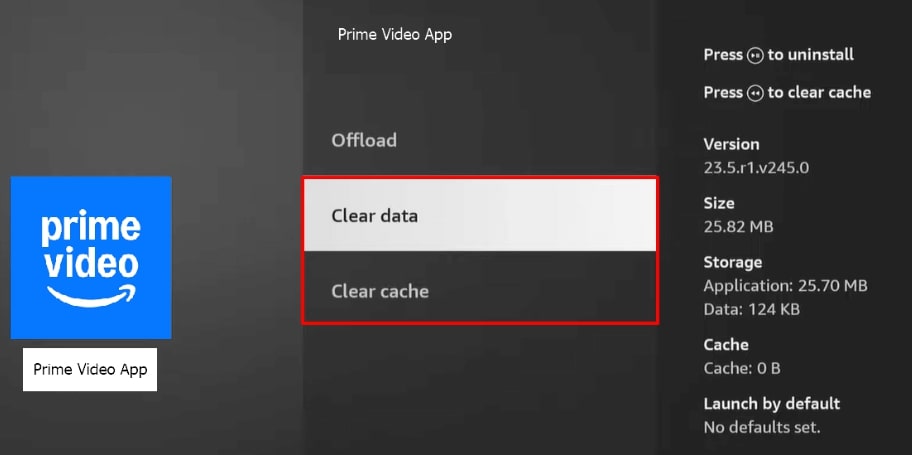
Step 3. Pick the Prime Video app in the list of pre-installed applications.
Step 4. Afterward, choose either the clear data or clear cache option. Then, restart the app and play the video again.
Choose Clear Data or Cache
On phone:
Open Settings > Apps (or App Management) > Amazon Prime Video > Clear Cache or Offload App > Reopen the app.
Method 3. Update or Reinstall Prime Video App
Old app versions might include bugs that can lead to freezing out of nowhere. To avoid all that, keep your app updated to the latest version. While learning why Amazon Prime keeps freezing, here’s what you need to do to update the app on your phone:
Step 1. Open the App Store on your phone. Then, go to your Profile to see which apps have new updates. Tap the Update button next to the Prime Video app. After updating the app, check again if the freezing issue has been resolved.
Step 2. If the freeze issue persists, long-press the app and select the Remove app option. Install the app again and sign in to your account.
TV: Open Prime Video app > Settings > Check for Updates > Update if available > Restart the app.
Method 4. Check Device Storage and Background Apps
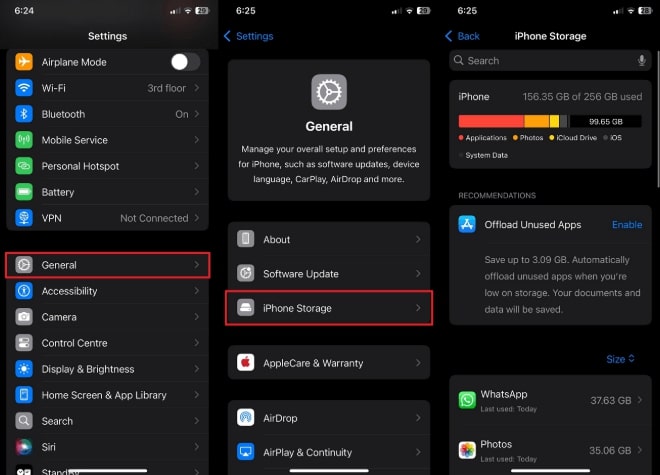
Low storage can cause Prime Video to freeze. So, you must delete the unused apps to free up space. Plus, close unnecessary background apps to reduce CPU and memory load. Check device storage on your device with the help of the provided step guide.
Step 1: Open the Settings app and select General. Then, tap iPhone Storage to see the list of apps and delete the ones that you don’t need.
Tap iPhone Storage
For TV: Open Settings > Device Preferences> Storage > Internal Shared Storage > Check available space.
Method 5. Adjust Video Quality Settings and Playback Options
One of the easiest ways to prevent stuttering is to adjust video quality and playback settings. You can reduce internet usage and reduce the load on your device by lowering the resolution. Follow the guide below to adjust these settings on the Amazon Prime Video app.
Step 1. Open the Amazon Prime Video app and go to the home page. After that, tap the Profile icon and press the Settings icon at the upper right corner. Next, tap on the Stream & Download option.
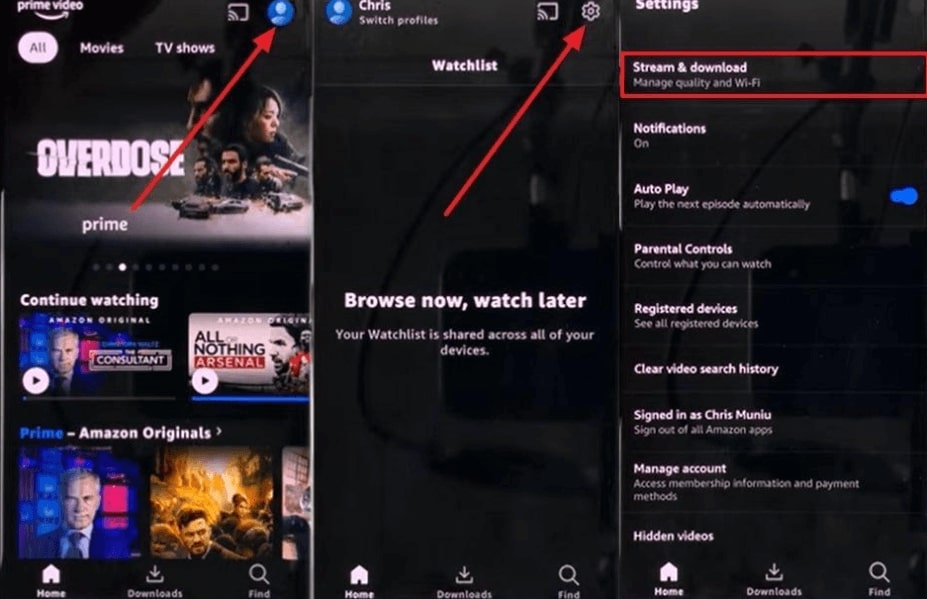
Choose Stream and Download
Step 2. At last, tap on Streaming Quality and select the Data Saver to reduce resolution and save bandwidth.
Method 6. Try Another Device or Browser
The last method you can try is to open the app on a different browser or device. By doing so, you can identify whether the issue is within your device or your internet.
Extra Tip: Download Amazon Prime Video for Smooth Offline Viewing
The best option is to download videos for offline playback to avoid streaming freezes. For that purpose, Keeprix Video Downloader is a reliable tool. This tool lets you save high-quality Amazon Prime videos in MP4 or MKV format. Moreover, it removes DRM restrictions and even allows you to batch download videos.
Follow the given guide to download Amazon Prime videos using Keeprix Video Downloader.
Step 1. After opening the Keeprix Video Downloader on your PC, select the Download Video button and tap the Amazon platform.
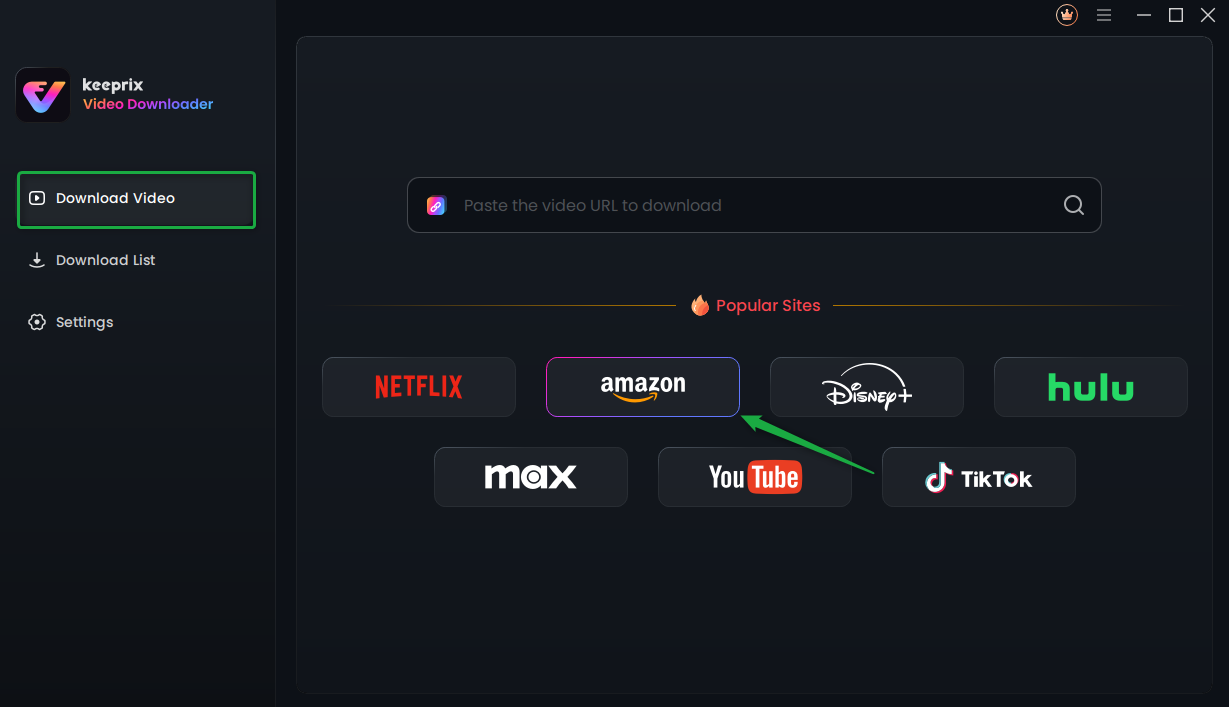
Choose Amazon Prime in Keeprix Video Downloader
Step 2. Then, click the Go to Amazon.com to watch button and sign in to Your Amazon Account.
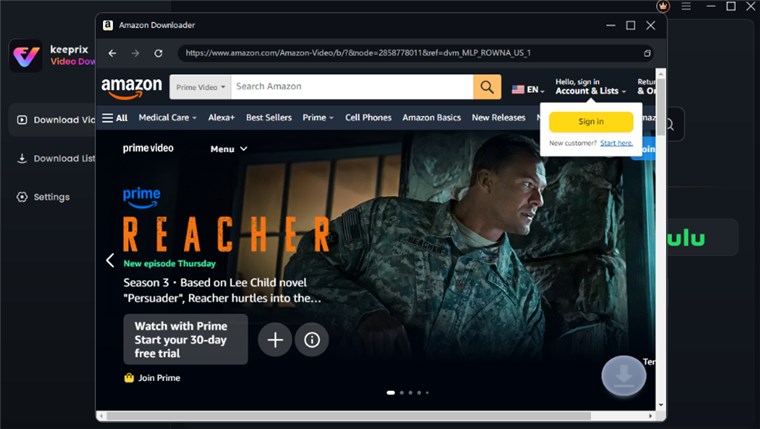
Sign in to Amazon Prime Video Account
Step 3. As you’re logged in, you can either enter video keywords in the search bar or paste the video link directly into the address bar of your desired title. After that, hit the Download Icon at the bottom-left corner.
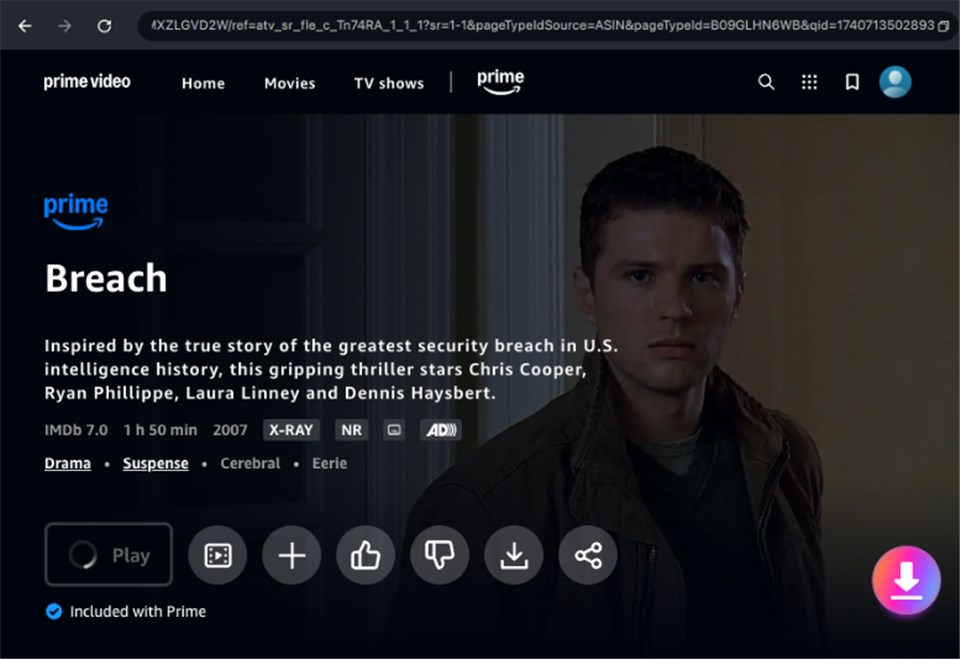
Click on Download Icon
Step 4. Next, a download settings pop-up will appear in front of you. Here, you can choose the Resolution, Audio, Subtitle, Subtitle Type, and Output Path settings. After choosing the desired settings, press the Download button again to save the video locally on your computer.
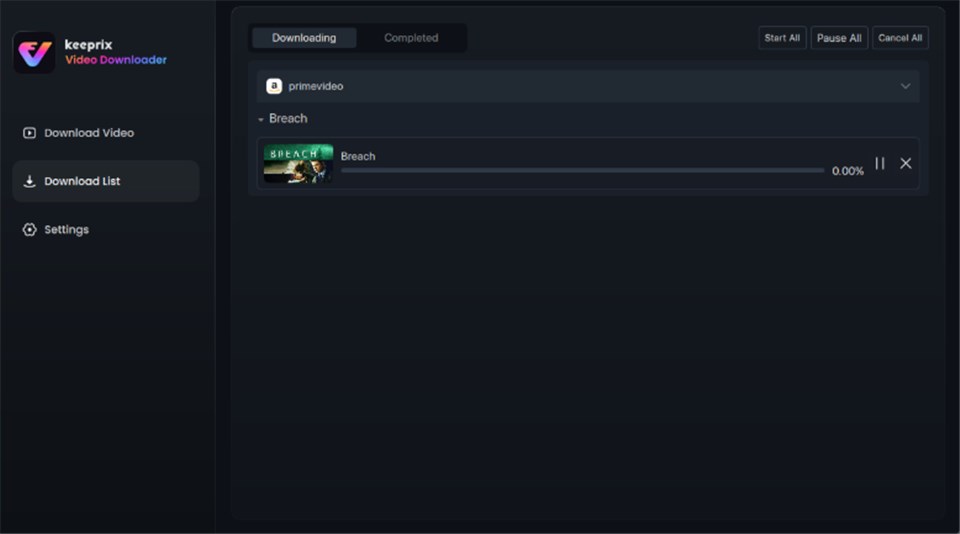
Download in Progress
FAQs
Q1. Why does Amazon Prime keep disconnecting?
The app may disconnect due to network interruptions, weak Wi-Fi, or overloaded home networks.
Q2. Why does Amazon Prime Video keep freezing, but the audio continues?
Video freezing while audio continues can be due to device decoding issues, app glitches, or hardware acceleration problems.
Q3. Can I stop Prime Video from lagging on Smart TV?
Update the app, free up storage, close background apps, or lower streaming quality to prevent lag issues.
Conclusion
Freeze is a common issue on Amazon Prime that viewers face. Multiple factors, like Network issues, outdated apps, or bugs, can cause these interruptions. You can prevent unnecessary freezes while watching your favorite shows by following the provided methods above.
If you’re wondering why Amazon Prime keeps freezing, the fixes explained in this guide will help you resolve it quickly. For the best experience, using Keeprix Video Downloader is recommended to download videos for offline viewing.