Why Is Netflix Not Working on Your Samsung TV?

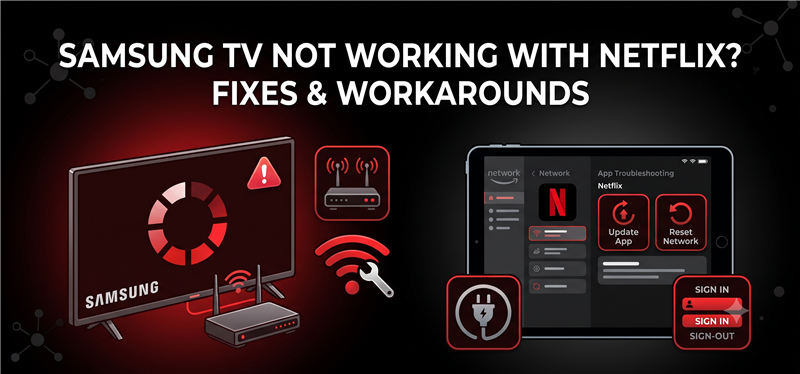
Netflix failing on a Samsung TV is usually caused by a temporary app or network glitch, or the TV model officially losing Netflix support. If your screen is black or stuck on a loading screen, a simple cold boot often clears the cache and fixes the problem.
However, if you are using an older Samsung Smart TV—especially models manufactured between 2010 and 2014—no amount of resetting will work because Netflix has officially ended native support for these devices.
In this guide, we will first walk you through the most effective troubleshooting steps for temporary glitches, and then explore practical workarounds like streaming sticks and USB playback for TVs that are no longer supported.
1. Quick Fixes: How to Resolve Temporary Netflix Glitches
When you are frustrated by endless loading screens or app crashes, it is best to start with basic resets. Skip the complex settings and try these practical steps to fix a temporary software glitch:
- Perform a cold boot: This is the most effective first step. Unplug your Samsung TV from the wall outlet, wait 1 to 2 minutes, and plug it back in. Alternatively, while the TV is on, press and hold the Power button on your remote until the TV turns off and turns back on again. This clears the TV’s memory cache.
- Check your internet connection: Unstable Wi-Fi often causes Netflix to time out or freeze on the logo. Run a network test in your TV settings or try moving your router closer to the television.
- Update and reinstall the app: Go to your TV’s Apps menu, search for Netflix, and check for an update. If the app is up to date but still crashing, try deleting it and reinstalling it to clear out corrupted files.
2. Did Your Samsung TV Lose Official Netflix Support?
If you have tried restarting your TV and checking your network but Netflix still will not load, your device may have aged out of the platform. Due to technical limitations, Netflix has officially discontinued support for certain older Samsung Smart TVs, typically affecting models manufactured between 2010 and 2014.
If you see a specific error message stating “Netflix is no longer available on this device,” the native app is permanently dead. At this stage, no amount of software resets, firmware updates, or router reboots will make the official app work again. It is time to stop troubleshooting the software and instead look at hardware or file-based workarounds to keep watching your favorite shows on your current TV.
3. Workarounds for Unsupported Samsung TVs: Streaming Sticks vs. USB Playback
Finding out your TV is no longer supported does not mean you need to buy a brand new television. There are two main workarounds to get Netflix back on your screen: plugging in a new streaming stick or playing local video files via your TV’s native USB media player.
Streaming sticks are a great standard option if you have strong Wi-Fi and do not mind purchasing extra hardware. USB playback is a smart, hardware-free alternative for users with unstable internet or those who prefer to download Netflix videos offline for a reliable file-based workflow.
| Feature | Streaming Sticks (Roku, Fire TV) | USB Playback (Local Files) |
|---|---|---|
| Hardware Required | Buy a new plug-in stick | Existing TV USB port and standard flash drive |
| Internet Reliance | Requires stable TV-room Wi-Fi | No internet needed during TV playback |
| Setup Cost | $30 – $50+ | Free (if you already own a USB drive) |
| Best Fit For | Standard streaming with good internet | Poor Wi-Fi, travel, or avoiding new hardware |
4. Keeprix: A Hardware-Free USB Workaround for Unsupported TVs
If your official Netflix app is dead and you prefer not to buy a new streaming stick, Keeprix Video Downloader provides a practical “Plan B” local-file workaround.
Keeprix is a desktop tool for Windows and Mac that helps you save accessible Netflix videos directly to your computer as MP4 or MKV files. Because older Samsung Smart TVs generally support native USB playback, you can use these saved files to bypass the broken Netflix app entirely.
Instead of fighting with app crashes or buffering Wi-Fi, Keeprix helps you turn app-only viewing into a flexible Netflix MP4 download. Depending on your active subscription plan and the source video quality, Keeprix supports Netflix downloads up to 1080p, allowing you to prepare your watchlist on your PC and enjoy it smoothly on your big screen.
5. Step-by-Step: Saving Netflix Shows for USB Playback
Moving from a PC download to your Samsung TV is a simple process. Here is how to use Keeprix to build your personal offline media library and watch it via USB:
Keeprix Video Downloader
Download streaming videos from Netflix as MP4/MKV files. Enjoy seamless offline watching on Windows and Mac computers.
Step 1: Download and install Keeprix on your PC or Mac. Launch the software and sign in to access your Netflix account.
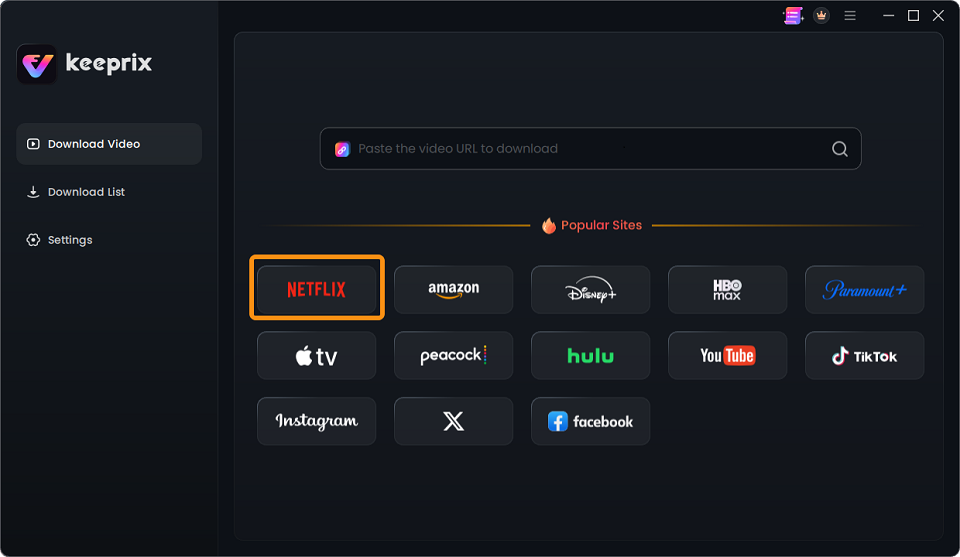
Choose Netflix
Step 2: Access your subscribed Netflix account.
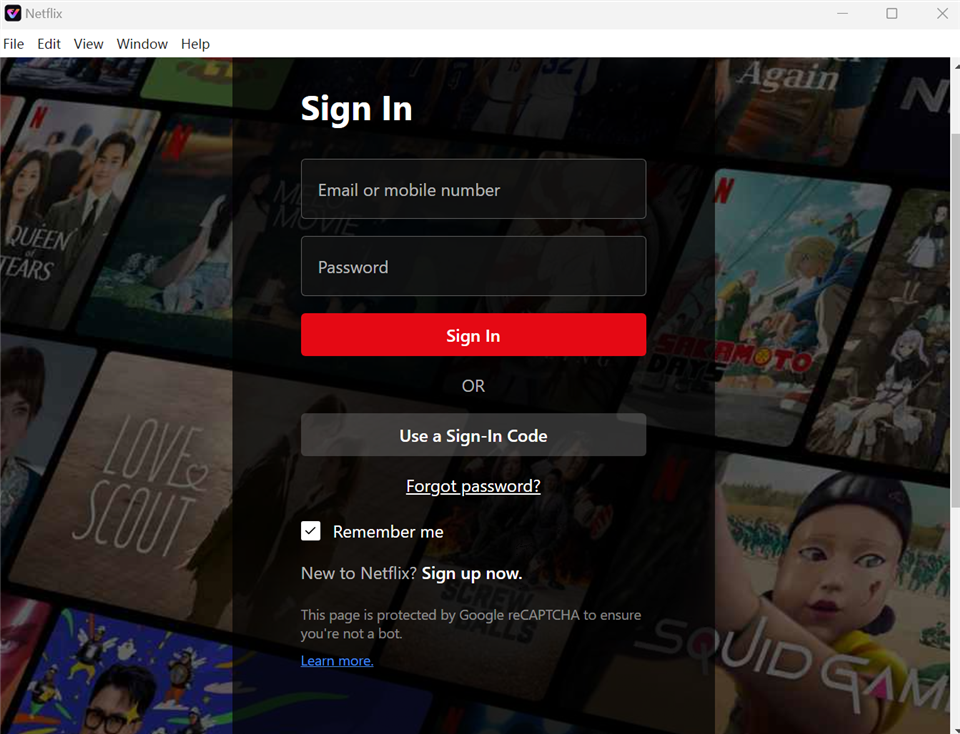
Sign In to Your Netflix Account
Step 3: Find the show or movie you want to watch. Choose MP4 or MKV as your output format, ensuring you preserve the subtitles and audio tracks you need. Keeprix also supports batch downloading, so you can queue up full seasons at once.
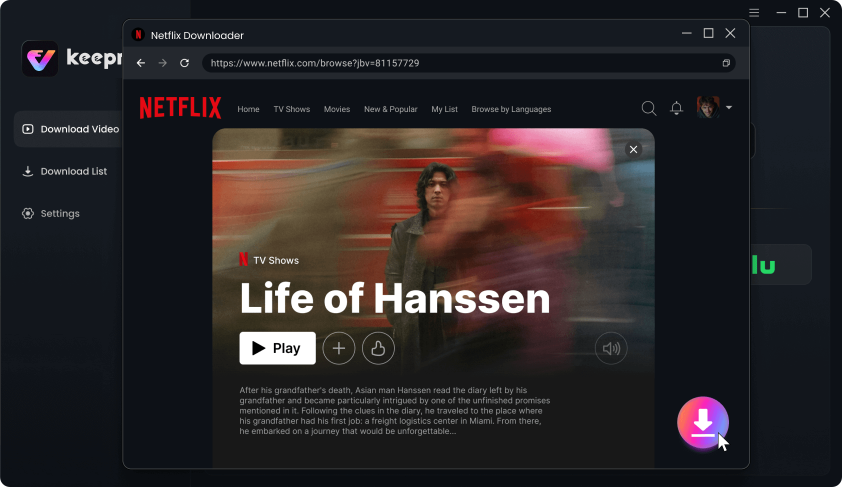
Download Movies You Want on Netflix
Step 4: Choose your preferred available audio and subtitle tracks, and select MP4 or MKV as the output format.
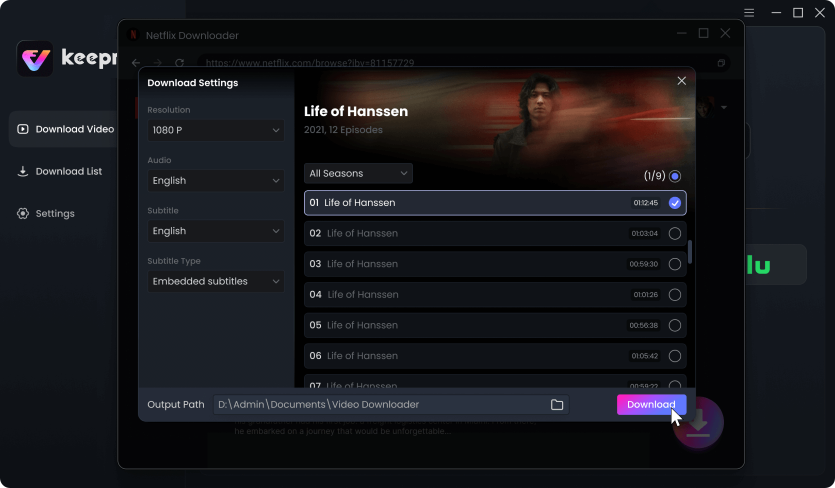
Customize Download Setting
Once the download is complete, insert a standard USB flash drive into your computer. Tip: Ensure your USB drive is formatted to a compatible file system like FAT32 or exFAT, as older 2010–2014 Samsung TVs can be strict about drive formats. Copy the newly saved MP4 or MKV files onto the drive.
Step 5: Play on your Samsung TV: Safely eject the USB drive, plug it into the USB port on your older Samsung TV, and use the TV’s built-in media player to watch your shows completely offline.
Frequently Asked Questions
How do I fix Netflix on my Samsung smart TV?
Start with a cold boot by unplugging your TV for 1 to 2 minutes. If that does not work, check your internet connection and reinstall the app from the Apps menu.
Why is my Samsung TV screen black when opening Netflix?
A black screen usually indicates a temporary app hang or a memory cache issue, which can often be fixed by unplugging the TV to perform a hard restart.
Why is Netflix stuck on the loading screen?
This is typically caused by a network timeout or an app glitch. Restarting your router and performing a cold boot on your TV usually resolves this.
Can I update an older Samsung TV to run Netflix?
No. If your TV model has officially lost support due to hardware limitations (common in 2010-2014 models), firmware updates will not bring the native app back.
How can I play Netflix on an unsupported Samsung TV via USB?
You can use a PC-based desktop tool to save your accessible Netflix shows as MP4 files, transfer them to a USB flash drive, and play them using your TV’s native media player.
Does a cold boot fix Netflix issues on Samsung TVs?
Yes, a cold boot clears the TV’s temporary memory cache and is the most effective first step for resolving sudden app crashes or loading errors.
Why did Netflix stop working on my older Samsung TV?
Netflix routinely updates its software, and older TVs eventually lack the processing power or technical requirements to run the modern app natively, leading to official technical obsolescence.
How do you reset the Netflix app on a Samsung TV?
You can reset or reinstall the app by navigating to your TV’s Apps menu, deleting the Netflix app, and downloading it again to clear out corrupted data.
Final Thoughts
Lost Netflix support on your 2010-2014 Samsung TV? A cold boot won’t fix an unsupported app. Skip the expensive streaming sticks and buffering Wi-Fi. Use Keeprix Video Downloader to save your Netflix videos as MP4s and play them directly from a USB drive for a seamless offline experience.

Keeprix Video Downloader
- Download Netflix videos on Windows & Mac.
- Save streaming videos as local MP4/MKV files.
- Batch download streaming videos and TV series.
- Watch videos offline, no ads, no interruption.