How to Watch Apple TV Without an Apple Device – All Devices

| Quick Overview |
| This guide answers the key question: Can you watch Apple TV without an Apple device? We explain how to stream Apple TV+ on smart TVs, game consoles, computers, and mobile devices. You can watch through supported apps or any modern web browser. For limitless viewing, we have introduced a tool that keeps your favourite shows forever. |
Are you looking to play Apple TV without an Apple device or on your Android? Many people often wonder if they can stream or watch Apple TV on non-Apple devices.
For example, one Reddit user asked if they could keep using their AirPods with Apple TV 4K without an iPhone. Updating features and firmware seemed tricky. This brings up a question many people ask: Can you watch Apple TV without an Apple device?
This guide breaks it all down clearly. It covers computers, smart TVs, streaming devices, and even Android phones. Every method is explained in simple, easy steps. By the end, anyone can enjoy Apple TV without owning a single Apple product.

Watch Apple TV Without Apple Devices
Part 1. Can I Get Apple TV Without Having an Apple Device?
Yes, you can definitely watch Apple TV without owning an Apple device. Apple has expanded support for Apple TV+ across many platforms, so an iPhone or Apple TV box is no longer required.
Today, the Apple TV app is available on major smart TV brands and popular game consoles. And if your device doesn’t support the app, you can still stream Apple TV+ through any modern web browser at tv.apple.com. Many TVs even come with the Apple TV app preinstalled, so your current setup may already be compatible.
You will need an Apple ID to sign in, just like any other streaming service. Your Apple ID manages your subscription and watch history across devices.
Part 2. How to Watch Apple TV+ on Computers?
Watching Apple TV+ on a computer is straightforward. You only need your computer and a steady browser. Chrome works, Firefox works, and Edge works too. Follow these clear steps:
Step 1. Open your browser and type tv.apple.com in the bar. This is the official site for every Apple TV+ show.
Step 2. You will see a sign-in button on the screen. Click it and enter your Apple account details.
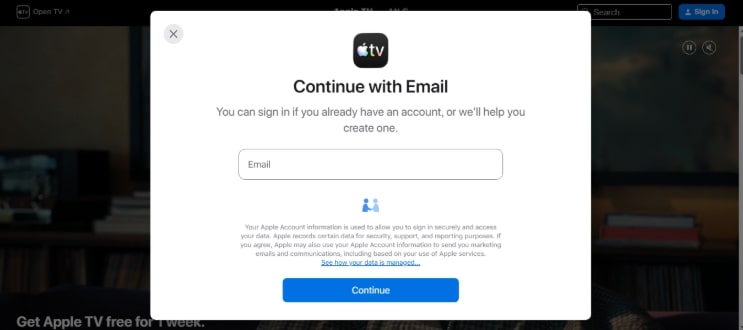
Enter Your Apple TV Account
Step 3. Once you’re in, the full library appears. Pick a show, press play, and enjoy watching your Apple TV content on your computer.
Mac computers already have the dedicated Apple TV app installed. This app offers a slightly better viewing experience for some users.
Part 3. How to Watch Apple TV+ On Smart TV and Streaming Devices
Many TV brands currently support the Apple TV+. This includes Samsung, LG, Sony, Roku, and Amazon Fire TV sticks, and even Android TV boxes. If your TV is only a few years old, the app is probably already there. Here are the easy steps to watch Apple TV+ on smart TV and smart devices:
Step 1. Head over to your smart TV’s or device’s main menu screen and find the Apps Store.
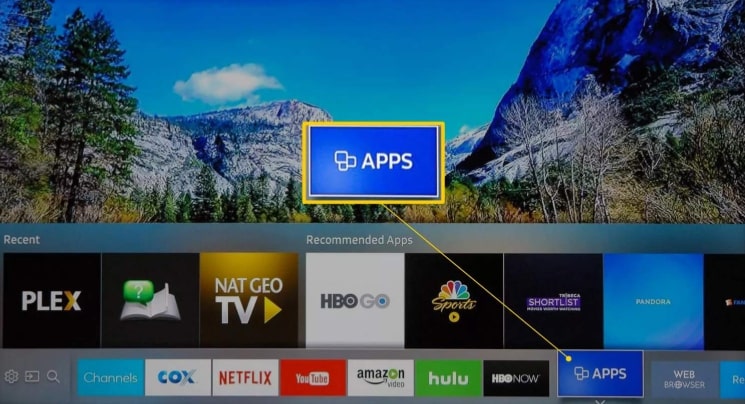
Locate the App Store
Step 2. Next, search for the real Apple TV app and install it on your device.
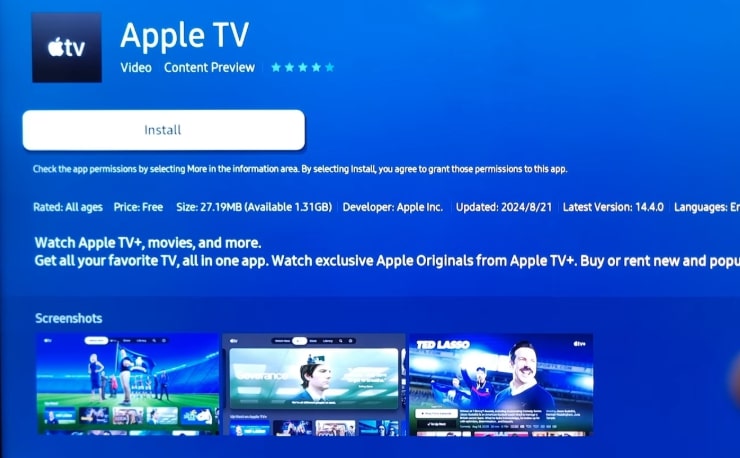
Install Apple TV
Step 3. Open the app and sign in with your simple Apple Account.

Sign in to Your Apple Account
Step 4. Start enjoying great movies and shows on your biggest screen!
Part 4. How to Watch Apple TV+ Android Mobile Device
The question “Can you watch Apple TV without an Apple device?” might also include Android devices. The answer is yes, and watching Apple TV on Android is simple. There are two ways to do so. Apple has finally launched its official app for Android devices. It gives you a better and smoother viewing experience.
Here is how you can watch Apple TV on Android devices:
Step 1. Open the Google Play Store, and look for the official Apple TV app.
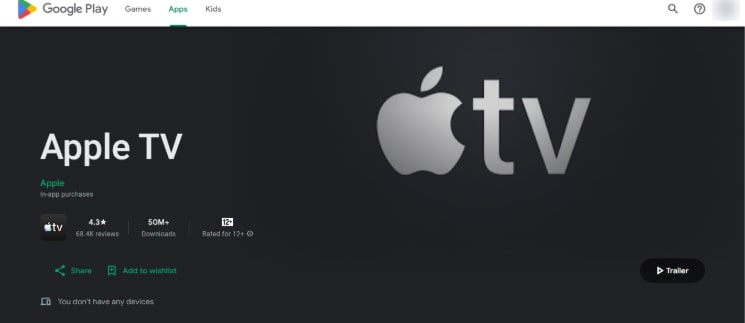
Apple TV on the Playstore
Step 2. Click the install button to install the app.
Step 3. Next, open the app and sign in using your existing Apple Account.
Step 4. Browse the amazing shows and start watching immediately.
The second simple option is still using the web browser on your phone. If you do not want another app, this method works well. Open any browser, like Chrome or Firefox, on your device. Open the official website: tv.apple.com. Sign in with your Apple Account details right there. You can then stream all the Apple TV+ content instantly.
This browser method is fast and works on any mobile device.
Part 5. Watch Apple TV Using Game Consoles
Your favorite video game console is more than just for playing games. They are already connected to your big screen TV and sound system. Sony PlayStation and Microsoft Xbox both offer the Apple TV app.
The process of getting the app is exactly like setting up a smart TV. You simply need to navigate to the console’s special store section.
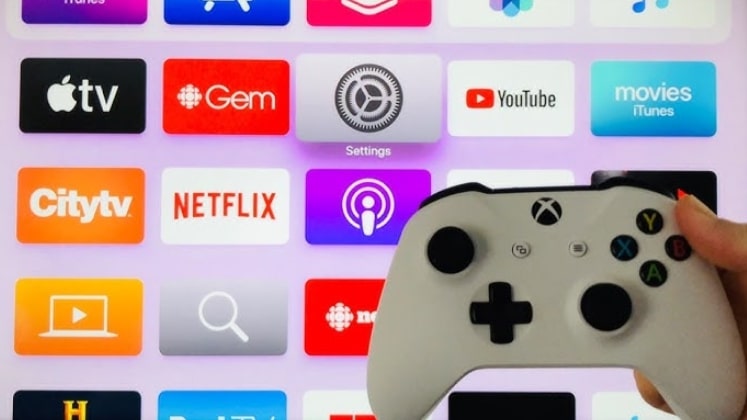
Apple TV on Xbox
For PlayStation, this is found in the Media Hub or TV & Video area. Xbox users can easily find it right inside the Xbox Store.
Download the official Apple TV app quickly from that store. Then you just sign in with your same Apple Account details. Your gaming machine is now an awesome movie and TV streamer!
Part 6. Recommended: Watch Apple TV Effortlessly Without Limitation
We have shown you many great ways to stream Apple TV on your devices. If you want to watch Apple TV+ videos without installing devices or downloading limits, try the powerful Video Downloader!
Keeprix Downloader is a smart tool that lets you download videos from various streaming sites. You also will not face any device limits when watching the files. Once downloaded, you can move the MP4 or MKV file to any device. This gives you complete freedom to watch your shows offline, anytime, and anywhere.
Steps to Download Apple TV Shows Using Keeprix
First, you need to download and install Keeprix Downloader on your PC/laptop. Then follow the instructions given below:
Step 1. Now, open Keeprix Downloader on your computer. You will see many options; please be sure to pick the “Apple TV platform.” You can also paste your Apple TV show link here instead. The tool knows exactly where to find the video information.
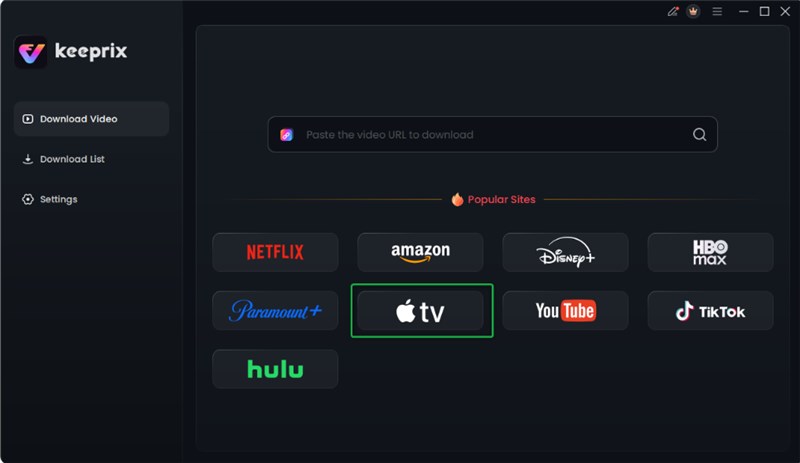
Choose Apple TV Platform
Step 2. Next, the tool will take you to the official Apple TV website. You must log in to your Apple TV account to continue easily. Enter your account email and your secret password now. Keeprix uses this login only to find the correct video details safely.
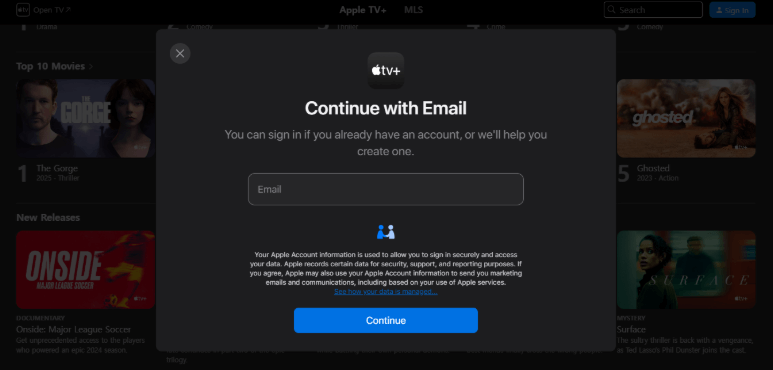
Sign in Your Apple TV Account
Step 3. You can now browse all the shows and movies available to download quickly. If you used a link, the program shows your specific video result. Find the show or movie you want and click the “Download” icon.
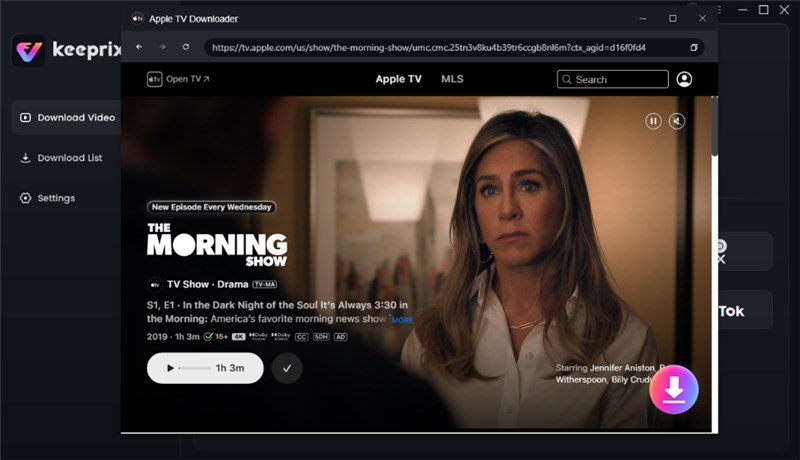
Click Download Button
.
Step 4. A new window will pop up. You are supposed to configure the downloading settings here. Select the “Resolution,” “Audio,” “Subtitle,” “Subtitle Type,” and “Output Path” as you like. You can also select all videos in a collection in batches. Once done, click the “Download” button.
Step 5. Finally, your download will begin. You can watch the progress in the “Download List” section. Once it finishes, find your file in the “Completed” section. Now you have your video saved with no time limits!

Apple TV Video Download Completed
Conclusion
We have explored all the easy ways to watch Apple TV today. The simple answer to Can you watch Apple TV without an Apple device is definitely yes. You truly do not need an iPhone or a Mac computer at all. You are covered with your smart TV, game console, or any web browser. Remember that using Keeprix gives you the freedom to keep shows forever. You can easily download and save all your favorite series without limits.
Go ahead and start enjoying all the amazing Apple Original content quickly! Click here and download Keeprix Downloader right now.