4 Ways to Watch Apple TV on Windows PC 2026

Apple TV+ is known as an excellent app for streaming videos. The app offers lots of original films and series, and extensive content for Apple users. Want to watch Apple TV+ on a PC without fuss? Many users expect offline downloads on Windows, but Apple TV+ limits that feature.
This blog explains four practical ways to use Apple TV+ on Windows: the official Apple TV app, streaming in a browser, playing purchased content in iTunes, and downloading Apple TV+ videos for offline use with a downloader. Read on to get clear steps for each method and a legal option to keep your own or licensed videos available offline. You’ll learn which method fits travel, weak Wi-Fi, or simple day-to-day viewing. Follow the steps here to set up Apple TV+ on your PC today and enjoy it reliably.
Method 1. Use the Apple TV App on Windows
Want to access your favourite content on Apple TV+ on Windows? First of all, you will need to download the official Apple TV app. Apple has already released the preview of the Apple TV app in Windows 11. These are the steps to use Apple TV+ on Windows.
Step 1: First, visit the Microsoft Store. Search for Apple TV, then click Get.
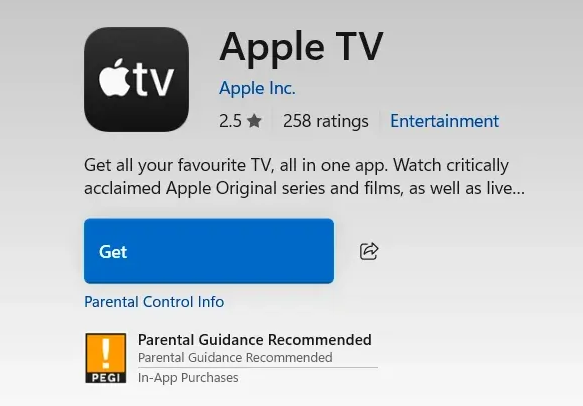
Install Apple TV in Microsoft Store
Step 2: After it is installed, open Apple TV. Then sign in with your Apple ID credentials or create a new one.
Step 3: Browse, find, and watch any Apple TV+ content as you like.
Pro Tip: To install the Apple TV Preview on Windows 11, you can also open Command Prompt (admin) > run the “winget install –id 9NM4T8B9JQZ1” command.
Method 2. Watch Apple TV on a PC Browser
Don’t you want to use Windows 11 or install the Apple TV app on your PC? Not an issue! You can still enjoy your desired Apple TV shows, dramas, and other content directly from your PC browser. This method is easy and quick. Plus, it works in any modern browser.
Step 1: Firstly, open a web browser on your PC. Then go to the Apple TV+ website.
Step 2: Now, enter your App ID login credentials to access its library.
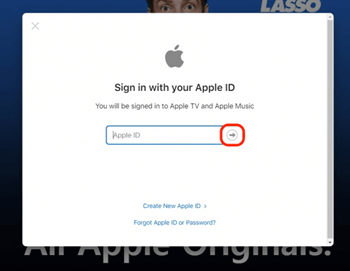
Log in to Apple TV Account in Browser
Step 3: Search for your preferred movie or show. Now play it online on Apple TV+ on a PC browser.
Whether you use the Apple TV website or the official Apple TV app, you can only stream Apple TV+ on a Windows computer. Windows computers do not support the offline watch feature despite having an Apple TV+ subscription.
Method 3. Watch Apple TV in iTunes on PC
You can also stream purchased or downloaded content on your Windows computer that you would usually watch on your Apple TV device. The only thing you need is the latest version of iTunes.
Step 1: To begin with, open the iTunes app on your Windows device.
Step 2: In the top-left dropdown menu, choose TV Shows or Movies of your choice.
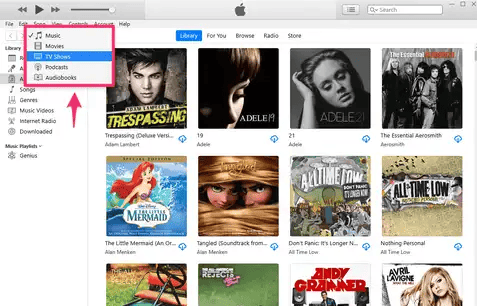
Watch Apple TV in iTunes
Step 3: Now, you can see all your downloaded content in your iTunes account. Choose your favorite content that you really want to watch and enjoy.
Method 4. Watch Apple TV Offline Without Limits
Keeprix Downloader makes offline viewing simple and reliable on a PC. The tool lets you save videos you own or have permission to use. It converts files to common formats like MP4 and MKV to keep good picture quality. The interface stays clean and easy to use. So downloads are quick to start and simple to manage. You can build a local library, rename files, and store episodes for travel or places with weak internet.
Additionally, you can stream your favorite Apple TV+ content without ads or download restrictions. Therefore, you are assured of a stress-free offline viewing experience. Download and use Keeprix Video Downloader to keep your media ready when you need it.
Key Features of Keeprix Downloader:
- Download videos from famous streaming services, including Apple TV+, Netflix, Disney Plus, etc.
- Download videos without restrictions (time limit or geographical restrictions).
- Download up to 4K videos from social media platforms such as YouTube and Instagram.
- Download streaming videos in MP4 or MKV without DRM protection.
- Fast video download speed without lag and latency.
- Save videos from streaming platforms without expiration.
Step 1. Download and install Keeprix Video Downloader. Launch it and select Download Video from the left. Then, choose Apple TV+ or paste the video link in the search box.
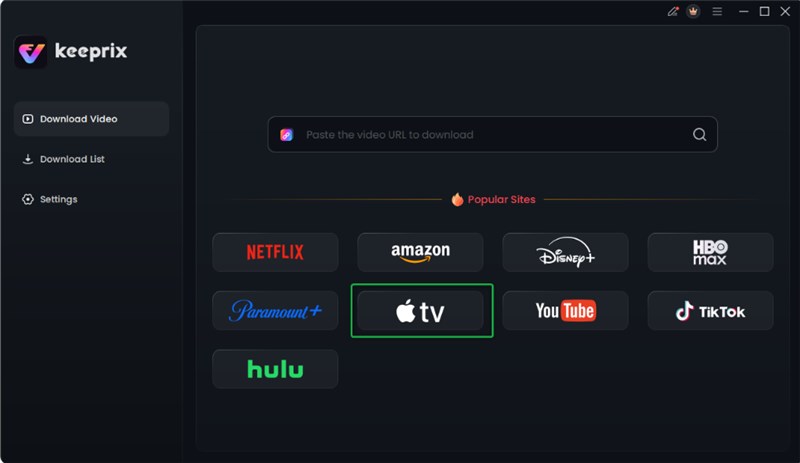
Choose Apple TV Platform
Step 2. Keeprix Video Downloader guides you to the built-in streaming feature on Apple TV+. Enter your Apple TV+ details here to log in.

Log in Apple TV Account
Step 3. Begin by searching for your favourite Apple TV+ shows or films to download. If you have a link to the Apple TV+ content, then just enter it into the search box to get a quick shortcut.
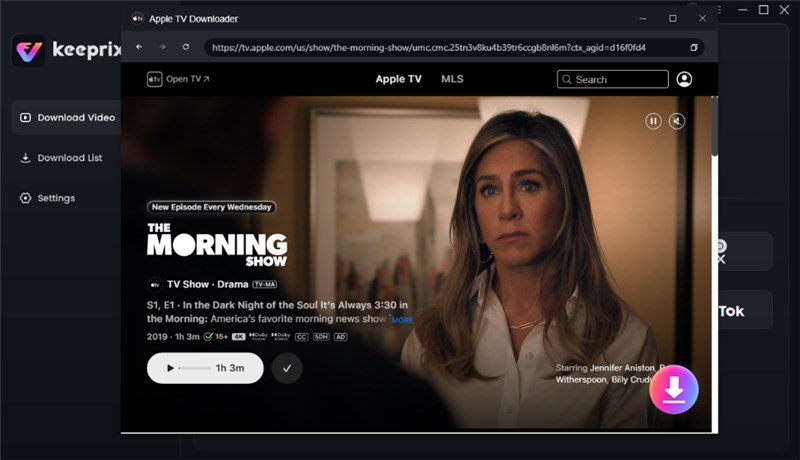
Click Download Button
Step 4. Your selected video will open with the playback page. From here, click the Download icon.
Step 5. Select your favorite video resolution, audio language, and type of subtitle (internal or external) of the video. Next, select your File Save Location and download. Your download will start. You can track it in the Download List menu.

Apple TV Video Download Completed
Conclusion
This article lists four ways to watch Apple TV on Windows: install Apple’s TV app, stream via a browser, play purchases in iTunes, or use a downloader for offline access. Native offline downloads aren’t available for Apple TV+ on Windows. So Keeprix Video Downloader fills that gap for legally owned or licensed content.
The efficient tool converts content to common formats like MP4 and MKV, maintains good picture quality, and offers straightforward settings. The interface is clean and easy for nontechnical users. Use the tool to create a local library for flights, commutes, or spots with flaky Wi-Fi. Download Keeprix Video Downloader now for a hassle-free offline viewing experience.