Disney Plus Not Working on Roku: Fixes and Alternatives

If Disney Plus is not working on your Roku, the issue is typically a temporary server outage, a corrupted app cache, or an outdated Roku OS. To quickly isolate the problem, start by checking Downdetector for widespread Disney+ server outages to avoid wasting time on unnecessary hardware resets. If Disney’s servers are down, you simply have to wait for them to fix the issue.
If the servers are online, perform a quick network isolation check. Open another app on your Roku, like YouTube, and try playing a video. If YouTube works flawlessly, your internet is fine, and the problem is isolated to the Disney Plus app or a Roku glitch.
Here is your immediate troubleshooting flow for local errors:
- System Restart: Do not just press the power button on your remote, as this only puts the TV to sleep. Go to Settings > System > Power > System Restart to fully reboot the Roku software.
- Power Cycle: Unplug your Roku device or Roku TV directly from the wall outlet. Wait a full 60 seconds before plugging it back in. This clears out temporary memory errors.
- Check for Roku OS Updates: Disney Plus requires the latest firmware to run correctly. Navigate to Settings > System > System Update and select “Check Now” to ensure your device is fully up to date.
How to Fix the Disney Plus Black Screen and App Crashes
A recurring black screen or sudden app crash on the Roku often happens when the app cache becomes corrupted, typically immediately after a background Roku OS update. When the outdated cache data clashes with the new operating system, the Disney Plus app freezes or boots you back to the home screen.
You can manually force your Roku to clear its cache using a specific button combination on your remote.
Step-by-Step: How to Clear Roku Cache
1. Ensure you are on the main Roku Home screen.
2. Press the Home button 5 times.
3. Press the Up arrow 1 time.
4. Press the Rewind button 2 times.
5. Press the Fast Forward button 2 times.
6. Wait 15 to 30 seconds. Your Roku will freeze briefly, go to a black screen, and automatically restart.
If clearing the cache does not resolve the crashing, you need to perform a clean installation of the app.
Step-by-Step: The Correct Reinstall Sequence
1. Highlight the Disney Plus app on your home screen and press the Asterisk () button on your remote.
2. Select Remove app and confirm.
3. Restart your Roku device (Settings > System > Power > System Restart). This step is crucial to wipe the residual app data.
4. Once the Roku reboots, go to Streaming Channels, search for Disney Plus, and reinstall the app.
Resolving Specific Disney Plus Error Codes (73, 83, and Household)
Sometimes Disney Plus won’t just crash—it will display a specific error code. Understanding what these codes mean can save you hours of frustrating troubleshooting.
Error Code 73 (Location/IP Mismatch)
This error occurs when Disney Plus detects that your IP address does not match your expected region. This is most commonly caused by an active VPN on your router or your internet service provider (ISP) unexpectedly rotating your dynamic IP address. To fix this, disable any VPN network connections. If you don’t use a VPN, restart your router to force your ISP to assign a fresh IP address.
Error Code 83 (Device Compatibility or Timeout)
Error 83 is a general device compatibility or server timeout error. On a Roku, this usually means the app is struggling to communicate with Disney’s servers, or your Roku OS is out of sync with the app’s current security requirements. Fixing this usually requires updating your Roku OS (Settings > System > System Update) or waiting out a temporary server timeout.
The “Not Part of Household” Error
This error is related to Disney’s recent account-sharing enforcement rules. Even if your Roku is physically in your living room, dynamic IP changes can confuse the app into thinking the TV is in a new location. To resolve this, you must update your household location via the primary Disney Plus mobile app or web browser while connected to your home Wi-Fi network.
Why Manual Fixes Fail (And Why Roku Apps Keep Crashing)
If you find yourself unplugging your TV, clearing the cache, or reinstalling the Disney Plus app multiple times a month, you are not alone. Manual fixes often fail long-term because they only address the symptoms, not the root cause of the fragile smart TV ecosystem.
Roku OS updates happen quietly in the background, and they frequently break heavy, resource-intensive streaming apps like Disney Plus. Because you are relying entirely on cloud servers and automatic app patches, you are effectively locked out of your movie night whenever servers go down, the internet drops, or a new software bug is introduced.
Streaming forums are full of frustrated users who end up buying alternative hardware like an Apple TV or Fire Stick just to get a working app. But buying a new device every time an app updates isn’t a sustainable fix. If you are tired of being at the mercy of buggy streaming servers, the most reliable long-term solution is to shift from fragile apps to a stable, local-file viewing experience.
Watch Disney Plus on Roku Without the App
When the official app refuses to load and you just want to enjoy family movie night, the best backup plan is to watch your Disney Plus movies on your Roku without relying on the app at all.
Keeprix Video Downloader is a desktop application for Windows and Mac that helps you move from app-only viewing to file-based freedom. Instead of hoping the Roku app doesn’t crash, Keeprix allows you to turn the Disney Plus videos you can already access into flexible, local MP4 or MKV files. By saving your movies as physical files, you completely bypass Roku OS bugs, black screens, and unexpected server timeouts.

Try Keeprix Disney+ Downloader
- Download Disney+ videos on Windows & Mac.
- Save streaming videos as local MP4/MKV files.
- Batch download streaming videos and TV series.
- Watch videos offline, no ads, no interruption.
1. Open Keeprix on your computer: Use the built-in browser to log into your legitimate Disney Plus account (Keeprix does not bypass household subscription rules or give unauthorized access).
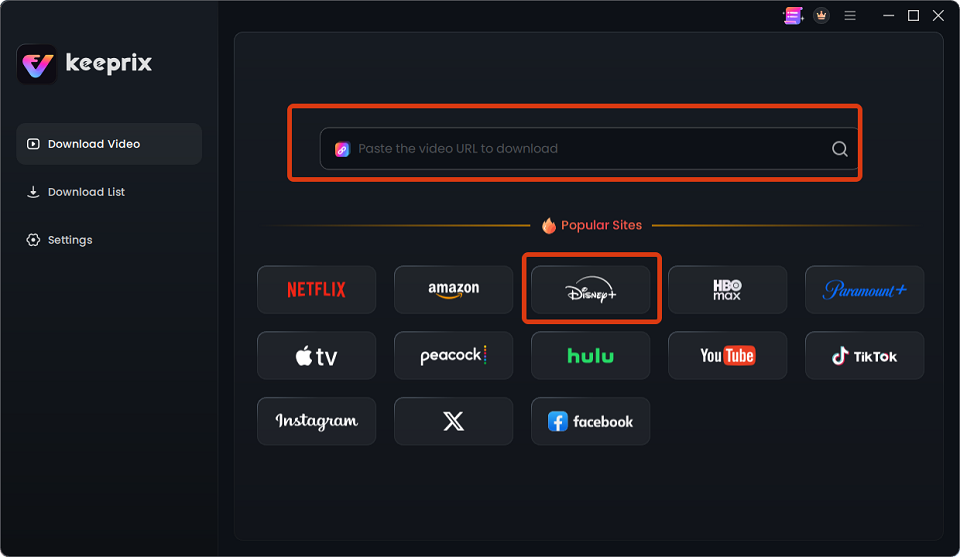
log into Disney Plus account
2. Select your movie: Choose the accessible video you want to prepare for offline viewing.
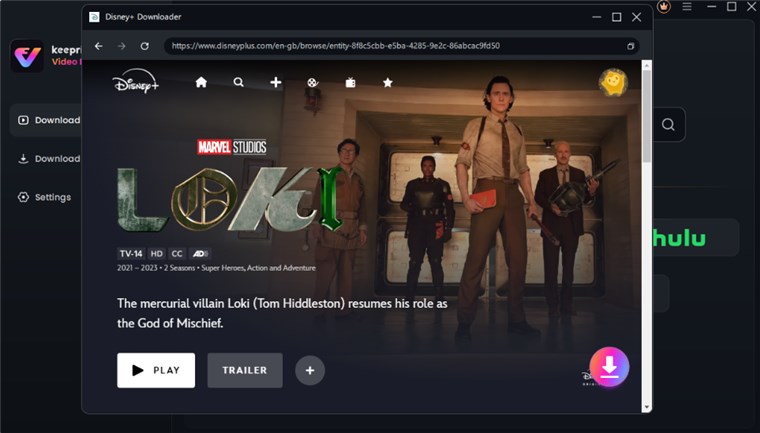
Choose the accessible video
3. Save as MP4/MKV: Keeprix preserves up to 4K resolution (when source quality is available), along with the original subtitles and audio tracks. Keeprix offers 3 full free downloads per supported streaming platform, so you can test it before committing.
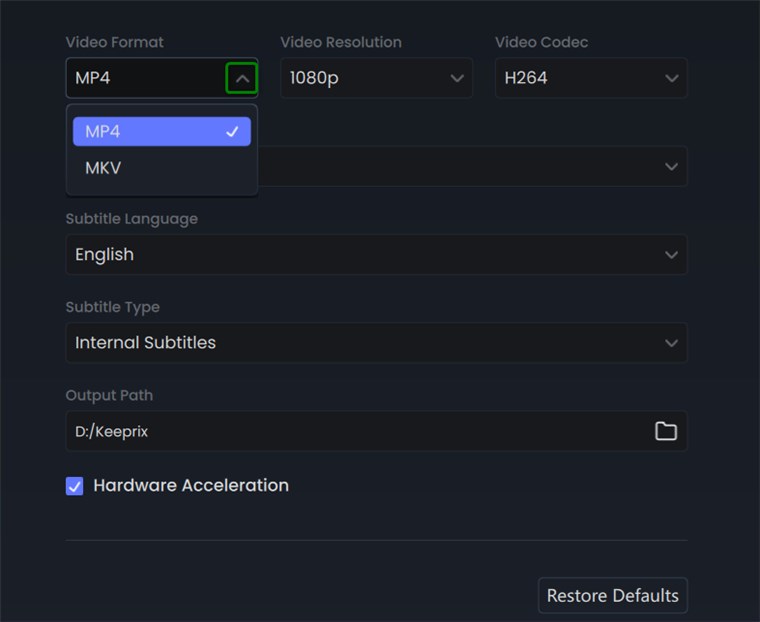
Choose MP4 Format
4. Build your local library: Your movies are now safely stored on your computer, ready to be watched on your terms.
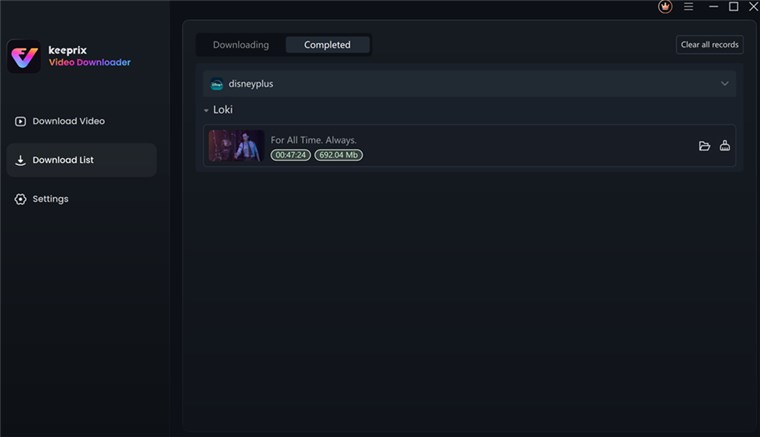
Disney Plus Video Downloaded
How to Play Keeprix Files on Your Roku via USB
Once you have built a personal offline library of MP4 or MKV files using the Keeprix Disney Plus Downloader, getting them onto your Roku TV is incredibly simple. You don’t need the Disney Plus app installed, and you don’t even need an active internet connection on your TV to watch them.
Here is how to play your downloaded movies on your Roku:
- Save the file: Ensure you have saved your chosen Disney+ movie or show as an MP4 or MKV file using Keeprix on your Windows or Mac computer.
- Transfer to a USB drive: Plug a standard USB flash drive into your computer and copy the downloaded video files onto it.
- Connect to your Roku: Unplug the USB drive from your computer and plug it into the USB port located on the back or side of your Roku TV or Roku device.
- Watch via Roku Media Player: Turn on your Roku and open the free Roku Media Player app (download it from the Roku Channel Store if you don’t already have it). Select your USB drive, navigate to your movie, and press play.
By using this file-based workflow, you guarantee a flawless movie night with no buffering, no server checks, and no unexpected app crashes.
Frequently Asked Questions
Why does Disney Plus go to a black screen on my Roku?
A black screen usually points to a corrupted app cache or a conflict following a recent Roku OS update. The app tries to load outdated temporary data, causing it to freeze on a blank screen.
How do I clear the cache on my Roku device?
To clear the cache, go to the Home screen and use this remote button sequence: press Home 5 times, Up 1 time, Rewind 2 times, and Fast Forward 2 times. The Roku will freeze for a moment and automatically restart.
What should I do if reinstalling the Disney Plus app doesn’t fix the issue?
If a fresh reinstall fails, check Downdetector for widespread Disney+ server outages, ensure your Roku firmware is fully updated, or switch to local playback via a USB drive until the app receives an official patch.
Can I play downloaded Disney Plus movies on a Roku TV without the app?
Yes. To watch Disney Plus offline on your TV, save your accessible videos as MP4 or MKV files using a desktop tool like Keeprix. You can then transfer the files to a USB flash drive and play them locally using the free Roku Media Player app, completely bypassing the official Disney Plus app.
Are Disney Plus servers down, or is it just my Roku?
You can quickly verify this by checking outage tracking websites like Downdetector. Alternatively, perform a network isolation check: open another app like YouTube on your Roku. If YouTube streams perfectly, your internet is fine and the issue is either with Disney’s servers or the specific Disney Plus Roku app.
Why does the Disney Plus app keep crashing after a Roku OS update?
Heavy streaming apps require exact software environments to run smoothly. When Roku pushes a firmware update, it can introduce incompatibilities with the current version of the Disney Plus app, causing it to crash until Disney releases a software patch to catch up.
Final Thoughts
Stop worrying about recurring app crashes. Try Keeprix to build a personal offline library of MP4 and MKV files. With 3 full free downloads per supported streaming platform, you can easily prepare your watchlist on your computer, transfer it to a USB drive, and enjoy a flawless, uninterrupted viewing experience on your Roku.
Keeprix Video Downloader
Download streaming videos from Disney+ without trouble. Enjoy seamless offline watching on Windows and Mac computers.