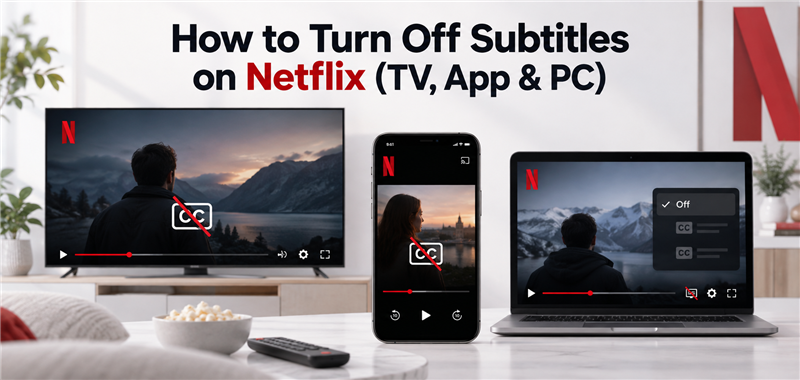
How to Turn Off Subtitles on Netflix (TV, App & PC)

To turn off subtitles on Netflix, simply click or tap the Audio & Subtitles icon (which looks like a speech bubble) during active video playback, then select Off under the Subtitles menu. If you find that the subtitles keep coming back on the next episode or after you log back in, the issue is likely tied to a profile-level setting rather than your active player.
Profile-level glitches require a slightly different fix via your account settings, which will be covered later in this guide.
How to Turn Off Subtitles on Smart TVs and Roku
Finding the subtitle toggle on a television screen can be slightly confusing since the playback controls hide automatically to give you a clear view of the show. Follow these steps using your Smart TV, Roku, or Apple TV remote:
- Start playing your movie or TV show.
- Press the Up or Down arrow on your remote’s directional pad during active playback to reveal the hidden playback controls overlay.
- Navigate to the Audio & Subtitles icon, which resembles a small speech bubble.
- Select Off from the available subtitle options.
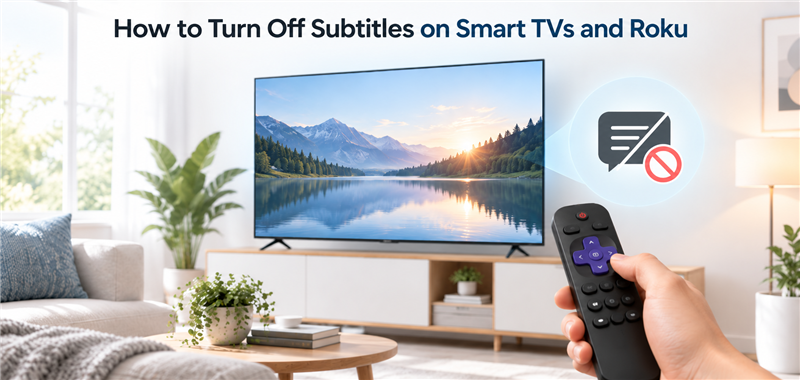
Keep in mind that pressing the directional pad is the crucial step to waking up the hidden menu on streaming sticks and smart TVs without accidentally pausing the video.
How to Disable Subtitles on Netflix via PC or Mac
To turn off closed captions on a computer web browser or desktop app, simply move your mouse to reveal the playback menus. Here is how to complete the process:
- Move your mouse or tap your trackpad during active video playback to wake up the screen overlay.
- Look to the bottom right corner of the screen and click the Audio & Subtitles icon.
- Toggle the subtitle setting to Off.
The subtitles will disappear immediately, allowing you to return to watching your content without visual interruptions.
How to Remove Subtitles on the Netflix Mobile App
Mobile users often get frustrated trying to clear text from a small screen, as touch interfaces have slightly different behaviors. Follow these exact steps to get rid of closed captions on the Netflix app for iPhone or Android:
- Tap anywhere on the screen while your video is playing to bring up the playback controls.
- Tap the Audio & Subtitles option located at the bottom of your screen.
- Choose Off from the list of available subtitle tracks.
- Tap the Apply button.
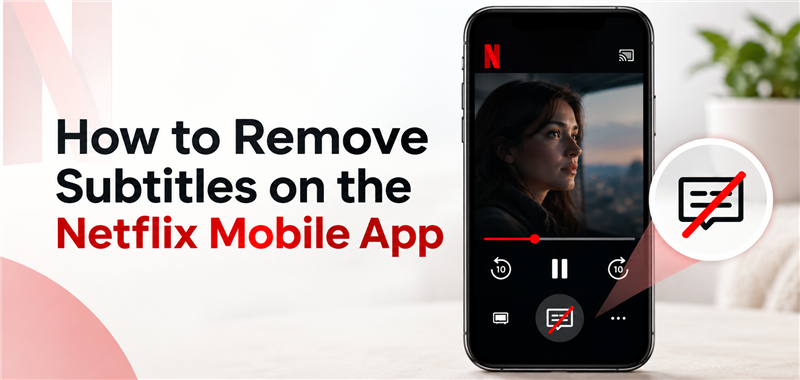
Many mobile users forget to hit Apply and mistakenly think the toggle didn’t work. Always ensure you confirm your choice before tapping back to your video.
Why Do Netflix Subtitles Keep Turning Back On?
If you manually turn off subtitles but they return as soon as the next episode starts or the next time you log in, there is a conflict between your active playback settings and your profile-level settings.
Active playback settings only apply to your current viewing session. However, profile-level subtitle settings affect all devices using that specific profile. To fix this permanently, you need to adjust your defaults:
- Log into your Netflix account via a web browser on a computer or mobile device.
- Go to your Account settings and navigate to Profile & Parental Controls.
- Select your profile, then click on Subtitle Appearance or Playback Settings.
- Adjust your default subtitle preferences here and save your changes.
Unfortunately, even with the correct profile settings, native app-based glitches can sometimes cause the application to ignore your preferences. When a streaming app repeatedly refuses to cooperate with your viewing choices, many users prefer to prepare Netflix videos for offline viewing using a more reliable local file workflow.
The Alternative: Watch Offline with Keeprix
If you are tired of dealing with app glitches that ignore your playback preferences, transitioning from app-only viewing to file-based flexibility is the most reliable solution. Keeprix Video Downloader is a desktop video downloader for Windows and macOS 12 or later that helps you save accessible streaming videos as local MP4 or MKV files for personal offline viewing.
Keeprix does not modify the Netflix app itself. Instead, it bypasses app limits by creating a flexible local file workflow. When you save a video, Keeprix preserves the available subtitle and audio tracks within the file.
Here is how you can build a flexible offline workflow:
Step 1: Download and Open Keeprix on your computer and navigate to the streaming platform using the built-in browser.
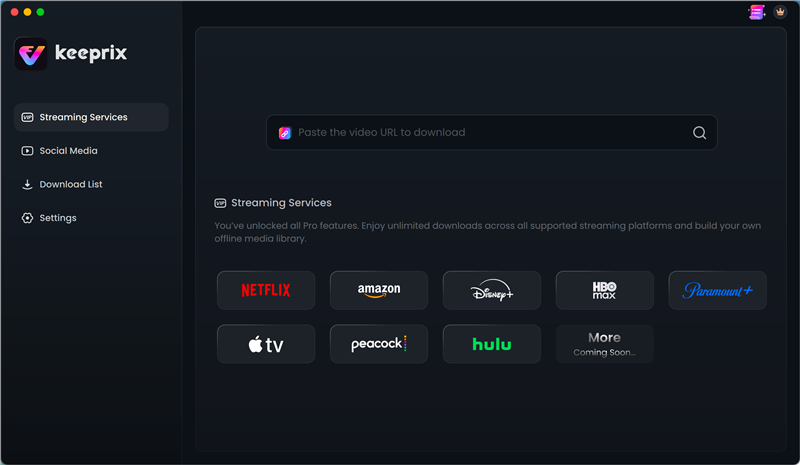
Step 2: Select the video you already have access to and click the Download button to continue.
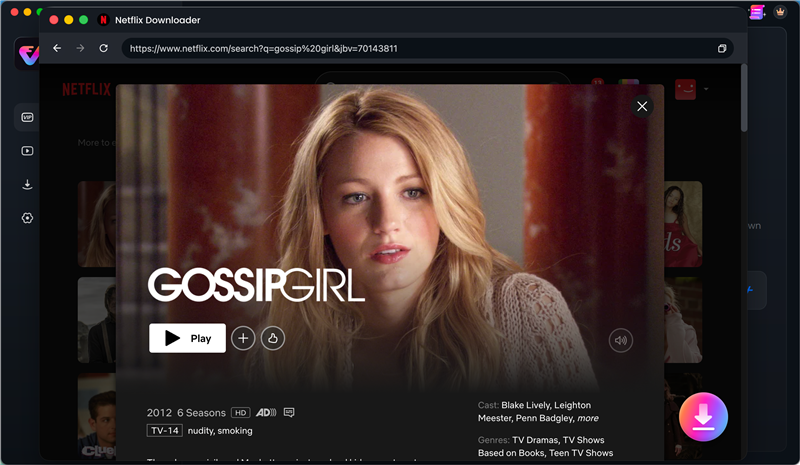
Step 3: Choose MP4 or MKV as your output format, ensuring your preferred subtitle tracks are selected. Start the download and play the saved file in a local media player, where you control exactly when subtitles appear.
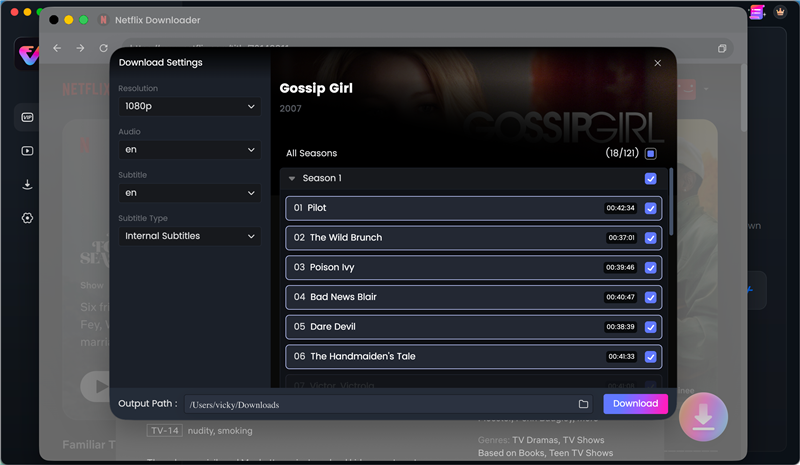
Keeprix provides 1 full free video download per supported streaming platform, including Netflix, making it easy to test how much better offline playback control can be with the Keeprix Netflix Downloader.
Frequently Asked Questions
Q1: Why do Netflix subtitles keep turning back on?
This usually happens because your profile-level settings are overriding your temporary playback settings. Changing the default in your account settings via a web browser will sync your preferences and usually stop this issue.
Q2: How do I turn off subtitles on Netflix on a Roku or Smart TV?
Press the Up or Down arrow on your remote while watching a show to bring up the hidden player controls. Navigate to the Audio & Subtitles speech bubble icon and select Off.
Q3: How do I get rid of closed captions on Netflix permanently?
You must log into your Netflix account on a web browser, navigate to Profile & Parental Controls, and update your default subtitle preferences for your specific user profile.
Q4: Can I change the subtitle language or appearance?
Yes. You can customize the font size, color, and background of your subtitles by accessing your Account settings on a web browser and modifying the Subtitle Appearance menu.
Q5: Do Netflix subtitle settings sync across all my devices?
Yes, as long as the settings are tied to your specific profile defaults in your account rather than just temporarily toggled during a single active playback session.
Final Thoughts
Managing your Netflix viewing experience shouldn’t be a constant struggle against the user interface. For active playback, quickly using the Audio & Subtitles icon solves the immediate problem. If you encounter recurring subtitle issues where closed captions refuse to stay away, updating your profile-level settings through a web browser is the most effective native fix.
However, if you want to build a personal offline media library without worrying about ongoing app-based glitches, saving your videos locally is the most reliable option. File-based viewing gives you total control over your playback environment and subtitle tracks without app restrictions.
Keeprix Video Downloader
Download videos from Netflix as MP4/MKV. Enjoy seamless offline watching on Windows and Mac computers.