Why Is My Netflix Download Not Working or Stuck at 0%?

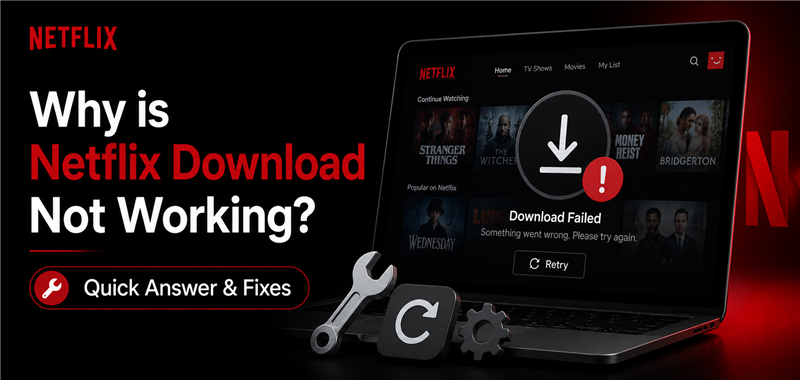
Is your Netflix download stuck at 0%, frozen at 99%, failing, or missing its Download button? First, try downloading a different title.
If only one movie or episode fails, that title may not be available for download. If every title fails, check your connection, storage, app version, and download-device limit.
Netflix downloads are no longer available in the Windows app. Windows users can download on a mobile device or use the desktop option in this guide.
Is It an App Bug or a Netflix Download Limit?
Before spending time resetting your app, it helps to know exactly what kind of problem you are facing. Use this diagnostic table to determine if your issue is a fixable local bug or a hard platform restriction.
| Problem | Most Likely Cause | First Fix |
| Download stuck at 0% or 99% | Network, storage or app problem | Try another title, reconnect and restart Netflix |
| “Download Failed” | Title-specific problem or error code | Open the warning icon and check the exact code |
| Download button missing on one title | The title is not downloadable | Test another movie or episode |
| Download button missing on Windows | Windows downloads are no longer supported | Use a supported mobile device or desktop alternative |
| “Downloads on too many devices” | Your plan’s device limit | Remove an old download device |
| “Download Max Reached” | Monthly ad-supported-plan limit | Wait for the next month or change plans |
| Download expired or will not renew | Availability or renewal restriction | Delete and download again if the title remains available |
How to Fix Netflix Download Stuck at 0% or 99%
If a Netflix download stays at 0%, does not start, or stops at 99%, try these fixes in order.
1. Try a different downloadable title
Download another movie or episode first. If the second title works, the problem is probably limited to the original title rather than your device or connection.
2. Reconnect to a stable network
Turn Wi-Fi off and back on, then reopen Netflix. If you use mobile data, check whether Netflix is allowed to download over cellular data. Pause any VPN or proxy connection while testing.
3. Check available device storage
Open your device’s storage settings and make sure there is enough space for the movie or episodes. Delete completed Netflix downloads or other files if storage is nearly full.
4. Force-close Netflix and restart the device
Close Netflix completely instead of leaving it in the background. Restart the phone or tablet, reopen Netflix, and try the download again.
5. Update Netflix and the device system
Install the latest Netflix app and the latest operating-system version supported by your device.
6. Reset or reinstall Netflix only as the final app fix
On Android, clearing Netflix app data signs you out and removes existing downloads. On iPhone or iPad, reinstalling Netflix also deletes downloaded titles. Use this step only after the earlier fixes fail.
7. Check the exact error code
If Netflix shows “Download Failed,” tap the warning icon beside the failed title. Search the exact code in the Netflix Help Center instead of applying an unrelated fix.
Why Is the Netflix Download Button Missing?
If the Download button is missing for only one movie or series, try another title. Not every Netflix title is available for offline download because download rights can vary by title and region.
If the Download button is missing for every title, check your device. Netflix currently supports downloads on Android phones and tablets, iPhone and iPad, Amazon Fire tablets, and compatible Chromebooks.
The current Netflix app for Windows does not support downloads. Updating or reinstalling the Windows app will not restore the old download feature.
Netflix Download Limits, Expiration, and Device Errors
Ad-free Netflix plans can have up to 100 active downloads per device, depending on the number of download devices included in the plan. Ad-supported plans are limited to 15 downloads per device per calendar month.
If Netflix says you have downloads on too many devices, open your account’s Manage Download Devices page and remove a device you no longer use.
Netflix downloads expire after a period of time, but the exact deadline can vary by title and licensing agreement. If a title expires, delete it and download it again. Some titles cannot be renewed or downloaded again after they leave Netflix.
Netflix Downloads Are Not Available on Windows: What Can You Do?
Netflix no longer supports offline downloads in its Windows app. If you only need offline viewing on a phone or tablet, use a supported Netflix mobile app.
If you need to watch Netflix offline on a Windows PC or Mac, Keeprix Video Downloader provides a desktop workflow for saving videos you can access as local MP4 or MKV files.

Keeprix Video Downloader
- Save accessible straming movies, episodes as MP4 or MKV files.
- Batch download episodes or full seasons when source supported.
- Free downloads trial for each streaming platform like Netflix.
- 100% free for all social platforms like YouTube, Instagram.
Download Netflix Videos as MP4 or MKV with Keeprix
Keeprix Video Downloader is a desktop option for saving Netflix videos you can access as local MP4 or MKV files. It supports up to 1080p when the source and account allow it, along with batch downloads, available audio tracks, and subtitles.
Keeprix works on Windows 10/11 and macOS 12 or later. The free trial allows one full Netflix video download, so users can test the workflow before upgrading.
Step 1: Install Keeprix on a Windows 10/11 PC or a Mac running macOS 12 or later.
Step 2: Open Keeprix, choose Netflix, and sign in through the built-in Netflix page.
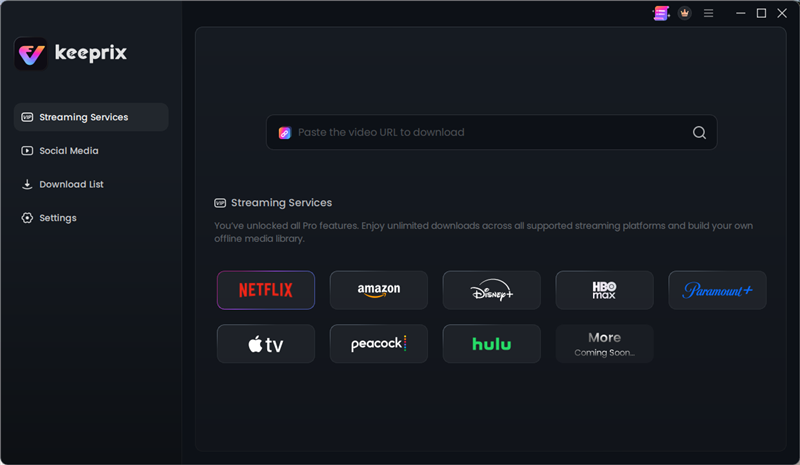
Choose Netflix
Step 3: Click on Sign In and log in to your Netflix account to access the video content.
Step 4: Check the available movies or search for specific titles. Select the movie that you want to download and click the Download icon.
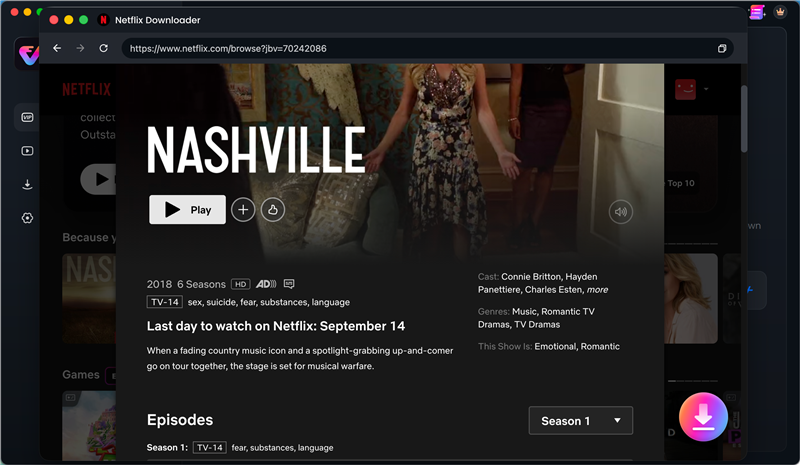
download from Netflix
Step 5: Choose the available resolution, MP4 or MKV, audio track, subtitles, and output folder. Start the download and find the finished file under Completed.
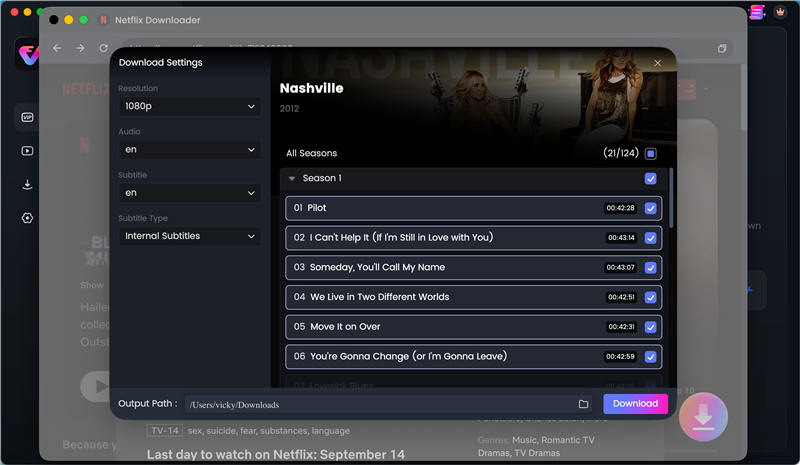
Choose shows you want, and save them on your device!
FAQs
Q1: Why is my Netflix download stuck at 0%?
A Netflix download can stay at 0% because of an unstable connection, insufficient storage, outdated app data, or a problem with the selected title. Try another downloadable title first, then reconnect, restart Netflix, and check storage.
Q2: Why does my Netflix download get stuck at 99%?
A download that stops at 99% may be waiting to complete the final file operation or may have lost its connection. Keep Netflix open, confirm that storage is available, reconnect to a stable network, and restart the download if it does not finish.
Q3: Why did the Netflix Download button disappear?
If the button is missing from one title, that movie or series may not be available for download. If it is missing from every title on Windows, this is expected because the current Windows app no longer supports downloads.
Q4: How do I fix “You have downloads on too many devices”?
Open Netflix’s Manage Download Devices page and remove a device you no longer use. The number of devices allowed depends on your Netflix plan.
Q5: What does “Download Max Reached” mean?
On an ad-supported plan, Netflix allows 15 downloads per device per calendar month. Wait for the limit to reset on the first day of the next month or change to an eligible plan.
Q6: Can I download Netflix movies on Windows or Mac?
Netflix does not offer official offline downloads on Windows or Mac. Supported mobile devices can use the Netflix app. For computer-based offline files, Keeprix supports Windows 10/11 and macOS 12 or later.
The Bottom Line
Start by matching the fix to the symptom. A download stuck at 0% or 99% usually needs app, connection, or storage troubleshooting. A missing button may be caused by title availability or an unsupported device. Device-limit and monthly-limit messages must be resolved through the Netflix account.
If the official Windows limitation is the problem and you need offline files on a computer, try one Netflix video free with Keeprix before deciding whether to upgrade.
Keeprix Video Downloader
Download videos from Netflix as MP4/MKV. Enjoy seamless offline watching on Windows and Mac computers.