How to Add Movies to Plex (Step-by-Step Guide)

To add movies to Plex, place your video files in a folder that Plex Media Server can access, then add that folder to a Movies library. The files can be stored on the server computer, an attached drive, or an accessible network location. Opening Plex in a browser does not upload files from that device to your server.
Make sure Plex Media Server is installed and running, then follow these four steps to create a new Movies library:
- Open the Plex Web App, go to Settings, and select the correct Plex Media Server.
- Under Manage, select Libraries, then click Add Library.
- Choose Movies, enter a library name, select a metadata language, and click Next.
- Open Add folders, select Browse for Media Folder, choose your movie folder, click Add, and finish by clicking Add Library.
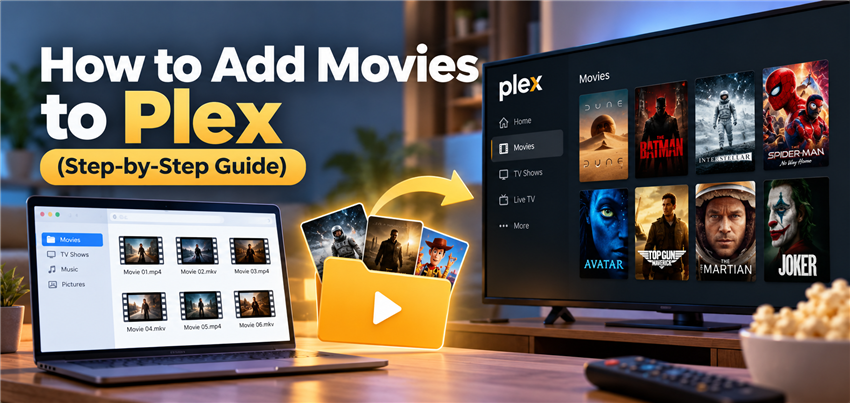
Already have a Movies library? You do not need to create another one. Copy the completed movie file into an existing library folder and run Scan Library Files. The detailed steps for both situations are below.
What You Need Before Adding Movies to Plex
Before choosing a folder, check that you have:
- A running Plex Media Server: Installing only a Plex player app on a phone or smart TV does not create a server.
- Access to the server’s library settings: Sign in with the account that manages the server.
- Accessible movie files: Store your files in a folder that Plex Media Server can read.
- A dedicated movie folder: Keep movies separate from TV episodes and other media.
If your server runs on a NAS but your movie files are on a laptop, transfer the files to the NAS or make their folder accessible to the server before continuing. The folder picker in Plex shows locations available to the server, not necessarily the device where you opened the browser.
Best Practices for Naming Plex Movie Files
Clear filenames help Plex match your movies with the correct titles, posters, and descriptions. Organize the files before adding their folder to your library.
Use the Movie Title and Release Year
Name each file using the movie title and release year, followed by its actual extension. For example, use Inception (2010).mp4 for an MP4 file or Inception (2010).mkv for an MKV file.
Do not change an MKV extension to MP4 simply to follow an example. Renaming the extension does not convert the video.
Give Each Movie Its Own Folder
Place each movie inside a folder with the same title and release year. This keeps the video together with any external subtitles or artwork.
Movies/
  Inception (2010)/
    Inception (2010).mkv
  Avatar (2009)/
    Avatar (2009).mp4
Add the parent Movies folder to Plex. Keep TV episodes in a separate folder and add them to a TV Shows library.
Keep Names Clear and Consistent
Remove unrelated promotional text from filenames, but keep the movie title and release year accurate. If Plex matches a movie incorrectly, check those details before using Fix Match.
Your collection does not have to fit on one drive. You can add multiple source folders to the same Movies library.
Step-by-Step: Adding Your Movie Folder to Plex
Once your files are organized, use Plex Web to create the library and select its source folder.
- Open the server settings: Open the Plex Web App, click the Settings icon, and select the Plex Media Server you want to manage.
- Go to Libraries: Under the Manage section, select Libraries and click Add Library.
- Choose the library type: Select Movies, enter a display name, choose the language for movie information, and click Next.
- Select the movie folder: Click Add folders, then Browse for Media Folder. Select the folder as seen by the computer or NAS running Plex Media Server, and click Add. If the folder is missing, check that the drive or network share is available and that the server has permission to access it.
- Create the library and check the results: Click Add Library and wait for Plex to scan the folder. Open the new library and confirm that your movies appear with the correct titles and posters. If a title is matched incorrectly, check its filename and release year, then use Fix Match if needed.
Play one of the imported movies on the device you normally use, then check the audio and subtitle tracks. If subtitles are missing, out of sync, or cause buffering when enabled, follow our guide to fix Plex subtitles not working.
Keep the server running and its storage available while watching. Adding a folder to Plex does not create a separate backup of the movie files.
How to Add More Movies to an Existing Plex Library
You do not need to create a new library every time you add a movie.
- Copy the completed movie file into a folder already included in your Movies library.
- Check that the filename contains the movie title and release year.
- In Plex Web, open the three-dot menu beside the library and select Scan Library Files.
- Wait for the scan to finish, then check the library for the new movie.
If the movie is stored in a new location, open the library menu and choose Manage Library > Edit > Add folders. Add the new source folder, save your changes, and scan the library.
Use Scan Library Files to detect newly added movies. Refresh Metadata is mainly used to update information for existing library items, so you do not need to refresh all metadata whenever you add a file.
Can You Add Netflix or Prime Video App Downloads to Plex?
No. Downloads saved inside the official Netflix or Prime Video apps are not ordinary movie files that you can import into a Plex library. Plex Media Server needs access to a readable media file in a folder you have added to the library.
Plex’s Watchlist and Discover features help you track titles and find viewing options, but adding a title to your Watchlist does not copy it to your server.
If you already have suitable local movie files, you do not need a separate downloader. Follow the naming, folder, and scanning steps above.
Optional: Prepare Local Movie Files with Keeprix
If you need to save a supported streaming title as a local file, Keeprix Video Downloader offers MP4 and MKV output on Windows and Mac, with subtitle and audio-track options where available. You can then organize the completed file and place it in a folder that Plex Media Server can access.
This gives you a file you can manage in your own media folders. Playback in Plex still depends on the video’s codecs, selected audio and subtitles, quality settings, and the device you use. MP4 or MKV output alone does not guarantee Direct Play, so test a file on your usual Plex device before preparing a larger collection.
Keeprix Video Downloader
Download streaming videos as MP4/MKV up to 4K. Try One Full Download Before Upgrading.
Step 1. Open the supported streaming service. Launch Keeprix on your Windows PC or Mac, choose the service, and sign in through the built-in browser if required.
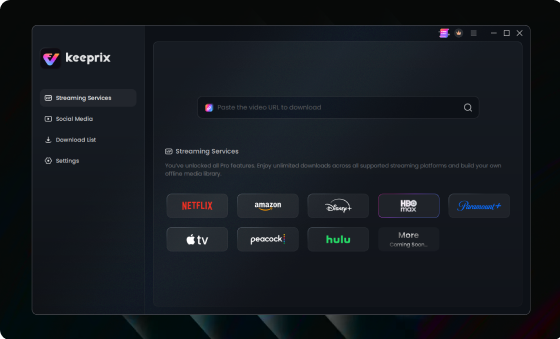
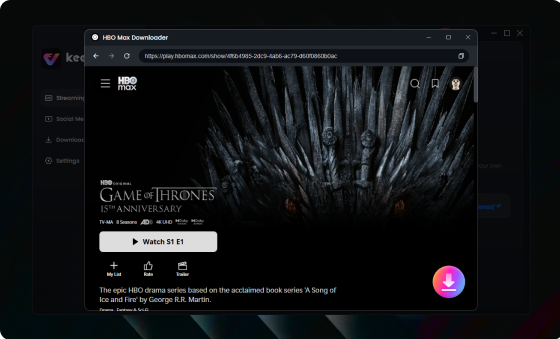
Step 2. Find the movie. Search for a movie available to your account and open its download options. For a Plex Movies library, choose a movie rather than a TV episode.
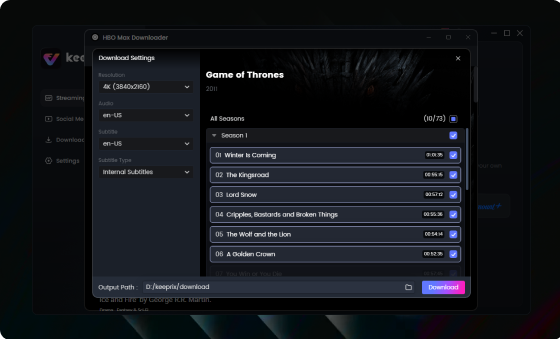
Step 3. Choose the output settings and download. Select MP4 or MKV, then choose the available audio and subtitle options you need. Save the movie to a local folder and wait for the download to finish.
Step 4. Add the completed file to Plex. Rename the file using the movie title and release year, then move it into your Plex movie folder. If Plex Media Server runs on a different computer or NAS, transfer the file there or use a shared folder the server can read. Run Scan Library Files and test playback.
Keeprix’s free trial includes one full-video download per supported streaming platform. Use it to check the saved file’s picture, audio, subtitles, and playback in your Plex setup before deciding whether to purchase a plan.
Frequently Asked Questions
1. What file formats does Plex support for movies?
Plex can work with movie files in containers such as MP4 and MKV. Whether a file plays directly or needs conversion depends on its video and audio codecs, subtitles, quality settings, and the playback device. The file extension alone does not determine whether transcoding is needed.
2. Why are my added movies not showing up in Plex?
Check that the movie is inside a folder included in the correct library, that Plex Media Server can read the file, and that the transfer has finished. Then check the title and release year in the filename and run Scan Library Files. Also make sure you have not placed TV episodes in a Movies library.
If the entire folder is missing from Plex’s folder picker, check the server’s access permissions and whether the drive or network share is connected.
3. Can I add movies to Plex from my phone?
A movie stored only on your phone does not automatically become available to Plex Media Server. Transfer it to the server or a storage location the server can access, then add or scan that folder through Plex Web. The server needs access to the actual file, regardless of which device you use to manage the library.
4. Do I need Plex Pass to add movies?
No. You do not need Plex Pass to create a Movies library or add local files. Local playback of personal media on the same network is free in current supported apps. Features such as hardware-accelerated transcoding and DVR recording require Plex Pass. Remote playback of personal video has separate subscription requirements.
Ready to Build Your Plex Movie Library?
Adding movies to Plex comes down to three steps: organize your files, make the folder accessible to Plex Media Server, and create or scan your Movies library. Before adding a large collection, test one movie and check its title match, audio, and subtitles on your usual playback device.
If you need local files from supported streaming services, Keeprix provides an optional download workflow. Once a download is complete, follow the same naming, folder, and scanning steps used for your other movie files.