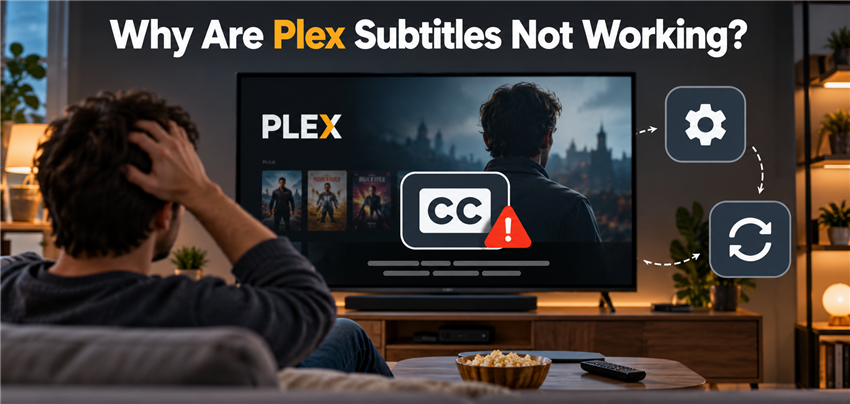
If Plex subtitles are not working, first check whether the subtitle track is missing, available but not selected, out of sync, or causing buffering. These symptoms have different fixes: a missing track may need a file-naming check, while buffering may require checking whether Plex is transcoding the video.
This guide covers movies and TV shows in your own Plex Media Server library. Start by opening the subtitle menu during playback and selecting the intended track. If the track is missing or still does not work, follow the matching checks below.
| What you see | What to check first | Next action |
|---|---|---|
| The subtitle track is missing | File location and matching filename | Rename the subtitle file and scan the library |
| The track appears but subtitles do not display | Selected track and subtitle file encoding | Select the track manually and test a UTF-8 SRT file |
| Subtitles work on one device but not another | Subtitle support on the playback device | Test another Plex client or a text-based subtitle track |
| Playback buffers when subtitles are enabled | Whether enabling subtitles triggers video transcoding | Compare playback with subtitles off and on |
| Subtitles appear too early, too late, or gradually drift | Timing offset and release/version match | Adjust a constant offset or use subtitles matching the video |
How to Properly Name Local SRT Subtitles for Plex
Place the external subtitle file in the same folder as the video and match the video’s base filename, without its .mp4 or .mkv extension. Add a two- or three-letter language code so Plex can identify the subtitle language. Save text subtitles in UTF-8 to reduce character-display problems.
Example:
Video: The.Matrix.1999.1080p.mkv
Subtitle: The.Matrix.1999.1080p.en.srt
After saving the file, scan the library and check the subtitle menu again.
Here is how to properly name your subtitle files so Plex recognizes them:
- Ensure the external subtitle file is placed in the exact same folder as the video file.
- Copy the exact filename of your video.
- Paste that filename onto your subtitle file.
- Add the two-letter language code (like
.enfor English or.esfor Spanish) right before the.srtextension.
Before: The.Matrix.1999.1080p.mkv and subtitles.srt
After: The.Matrix.1999.1080p.mkv and The.Matrix.1999.1080p.en.srt
Once you have renamed the file, go back to your Plex interface and rescan the library files so the server can detect the newly updated SRT asset.
Check Your Library Agent: Modern vs. Legacy Libraries
Libraries using the modern Plex Movie or Plex TV Series agent automatically detect local subtitle files. You do not need to move Local Media Assets to the top of an agent list.
For these libraries, check the subtitle filename, location, and encoding, then scan the library.
If your library uses a legacy agent, make sure Local Media Assets is enabled for that agent. If you have just enabled it, refresh the library’s metadata and check the available subtitle tracks again.
This forces Plex to rescan the folder, recognizing your local SRT files and pulling them into the player interface.
Why Plex Buffers Constantly When Subtitles Are Turned On
Enabling subtitles can trigger video transcoding when the playback device cannot display the selected subtitle format directly. Image-based formats such as PGS or VOBSUB may need to be burned into the video on some clients, but support varies by device. SRT is often a useful compatibility test, though it does not guarantee Direct Play.
To check whether subtitles are causing the slowdown:
1. Play the same video with subtitles turned off.
2. Open the Plex Dashboard and check whether the video is using Direct Play, Direct Stream, or transcoding.
3. Enable the subtitle track and check whether the video switches to transcoding.
4. If it does, test a valid external SRT track or try another Plex client.
While some users try to fix this by using third-party tools like Handbrake to manually re-encode the video and hardcode the subtitles permanently, this process takes hours and can reduce the overall video quality. This server strain highlights why having cleaner, text-based source files is essential for smooth playback.
OpenSubtitles (Built-in Search)
Plex has a built-in OpenSubtitles search feature, but the results are notoriously hit-or-miss. Because subtitle timings are tied to specific video framerates and director cuts, fetching a random SRT file often results in out-of-sync text that drifts further apart as the movie plays.
Automated Fetchers (Bazarr)
Advanced users sometimes recommend Bazarr to automate subtitle downloads, but it requires setting up and maintaining a complex Sonarr/Radarr software stack. This easily intimidates casual users, and these intricate integrations frequently break after standard software updates.
Ultimately, hunting for the right external subtitle file is half the battle. This constant workflow gap highlights a simpler truth: sourcing videos properly from official platforms with embedded subtitles eliminates these syncing and buffering issues entirely.
Optional: Prepare New Media Files with Keeprix
Keeprix Video Downloader can save supported videos as MP4 or MKV files with available subtitle and audio options. This is a separate workflow for adding new media; it does not repair existing Plex subtitle files or change Plex server settings.
After importing a file into Plex, select the subtitle track and test playback on your intended device. Direct Play still depends on the video, audio, subtitle format, and client settings.
Keeprix offers one full-video trial download per supported streaming platform.
Keeprix Video Downloader
Download videos from streaming sites as MP4/MKV. Enjoy seamless offline watching on Windows and Mac computers.
Step 1: Open the Keeprix desktop app on your Windows or Mac and use the built-in browser to access your supported streaming account.
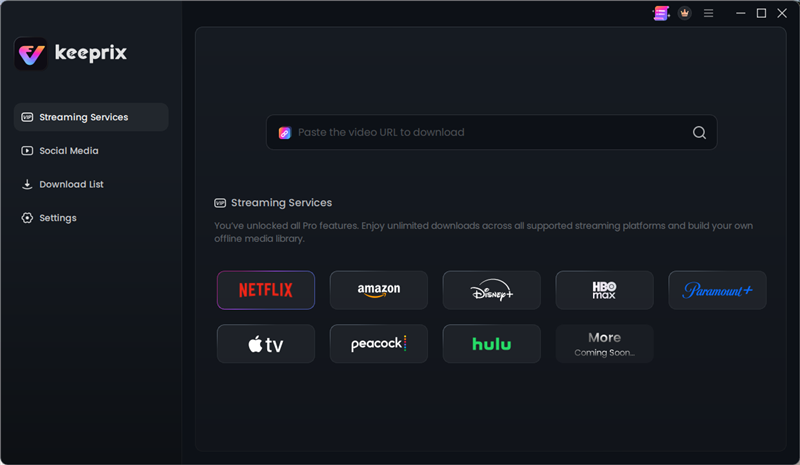
Choose Netflix
Step 2: Select your video and choose your preferred original subtitle and audio tracks from the available source options.
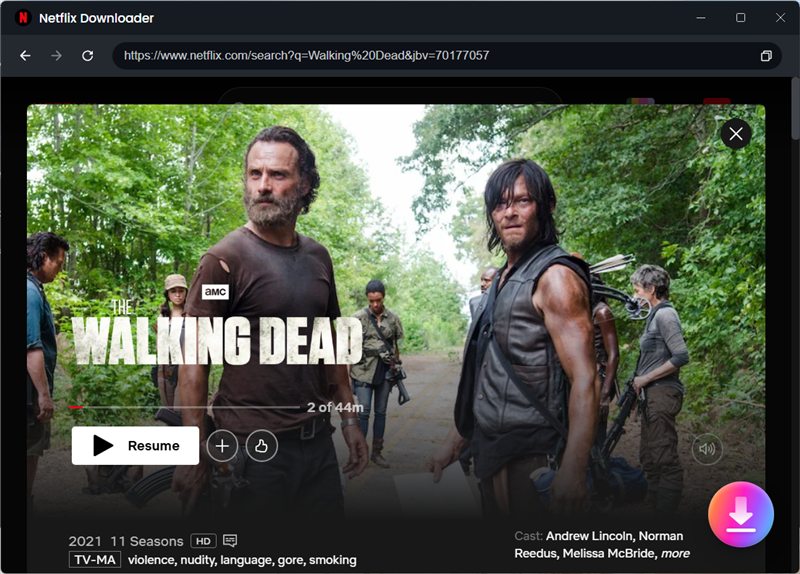
Search The Walking Dead
Step 3: Save the video as a standard MP4 or MKV file.
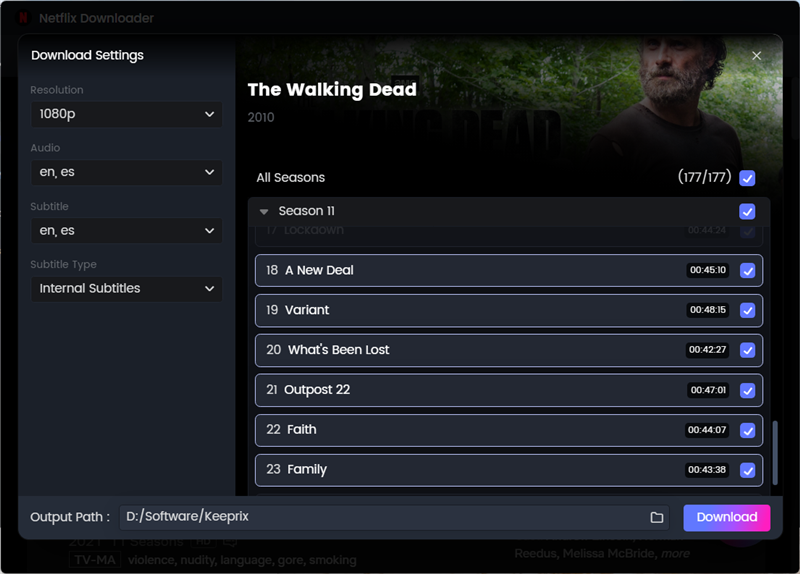
Download The Walking Dead
Step 4: Add the finished file directly to your Plex library.
Move the completed movie file into a folder that Plex Media Server can access, then scan your Movies library. If you need help with folder selection or file naming, follow our guide to add movies to your Plex library.
Frequently Asked Questions About Plex Subtitles
Why are my subtitles not showing on Plex?
Most often, Plex ignores local subtitles because they are not named correctly. The subtitle file must exactly match the video file’s name and include the specific language code, such as movie.en.srt.
Why does Plex buffer constantly when I turn subtitles on?
If your subtitles use an image-based format like PGS or VOBSUB, Plex must transcode the video stream to “burn” the image onto the screen. This heavy processing causes weaker servers, like NAS drives, to buffer continuously.
How do I name SRT files so Plex sees them?
Place the SRT file in the same folder as the video. Copy the exact video filename, paste it onto the SRT file, and add the two-letter language code right before the extension (e.g., video.1080p.en.srt).
Why are my Plex subtitles out of sync?
Subtitles go out of sync when the SRT file’s framerate or specific cut (like a Director’s Cut vs Theatrical) doesn’t match your exact video file. This is very common when using built-in OpenSubtitles to fetch text for random media files.
How do I fix Plex ignoring my downloaded subtitles?
Go to your Plex Web App, navigate to Settings > Agents, and drag “Local Media Assets” to the top of the list. Then, click “Refresh Metadata” on your library to force Plex to rescan the folder.
What is the best subtitle format for Plex to avoid transcoding?
The best format is SRT. SRT files are text-based, which allows Plex to Direct Play the video without taxing the server’s CPU.
Why is OpenSubtitles not syncing correctly on Plex?
OpenSubtitles hosts thousands of community-uploaded files. If the version Plex automatically downloads was timed for a different frame rate or broadcast version of the show, the dialogue simply will not align with your file’s audio.
Final Thoughts: Stop Fighting with Subtitle Sync
Start with the symptom: check file naming and track selection when subtitles are missing, compare playback modes when enabling subtitles causes buffering, and check timing or release compatibility when subtitles are out of sync. Test one change at a time on the device where the problem occurs.