Apple TV+ Not Working: Reasons & 10 Fixes [Latest]

| Quick Overview |
| Summary: To fix Apple TV+ not working, check your internet, restart the app, clear the cache, or update the Apple TV+ app. Or easily use Keeprix Video Downloader to download and watch Apple TV+ shows offline without worrying about streaming issues. |
Many users have recently reported issues with Apple TV Plus not working properly across devices. On Reddit, one frustrated user mentioned trying multiple browsers without success, pointing to playback and connectivity errors. These mixed reviews highlight persistent playback and connectivity problems. This article explores why Apple TV+ stops responding and offers simple yet practical fixes for Apple TV+ Not Working, helping you watch Apple TV offline without hassle.
How to Fix Apple TV+ Not Working
Why Apple TV+ Is Not Working?
Sometimes, the Apple TV+ not working issue happens for simple and avoidable reasons. Before applying any fix, it helps to know what might be causing the trouble:
- Poor Internet: A slow or unstable internet link often stops Apple TV+ from loading shows.
- Expired Subscription: Your Apple TV+ plan might have ended, causing access errors during streaming.
- Cache Buildup: Too much saved cache data can slow the app and interrupt smooth playback.
- System Glitch: Minor software bugs on your device may cause Apple TV+ to not work properly.
- Server Down: Apple servers may be temporarily down, making streaming and access impossible.
How to Fix Apple TV Plus Not Working?
When you face Apple TV plus not working issues, there are easy ways to fix them. Follow these practical methods below to restore your streaming and enjoy your favorite shows.
Way 1. Reset Apple TV+ App
Resetting the Apple TV+ app is a quick way to fix many small problems easily. It helps clear unwanted data and brings the app back to default settings safely. If Apple TV+ not working due to minor glitches or freezing, this method can refresh everything. Review the given steps to reset the app without hassle:
Step 1. Access the app’s settings and head to the “System” section.
Step 2. Tap the “Reset” option on the following screen.
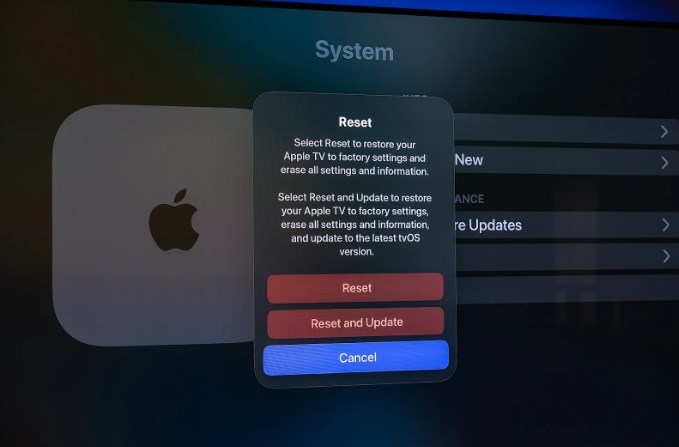
Factory Reset Apple TV
Step 3. When you see a new prompt, press the “Reset” button.
Way 2. Clear Apple TV+ App Cache
Clearing Apple TV+ app cache can help refresh the app and fix playback or loading errors. Since iPhone doesn’t support clearing cache directly, you can instead offload the Apple TV+ app to remove temporary data while keeping your personal content safe. This process helps free up storage and resolve minor glitches effectively. Follow the steps below to offload Apple TV+:
Step 1. Navigate to the “General” section and tap the “iPhone Storage” option.
Step 2. Choose the “Apple TV+” app and press the “Offload App” option.
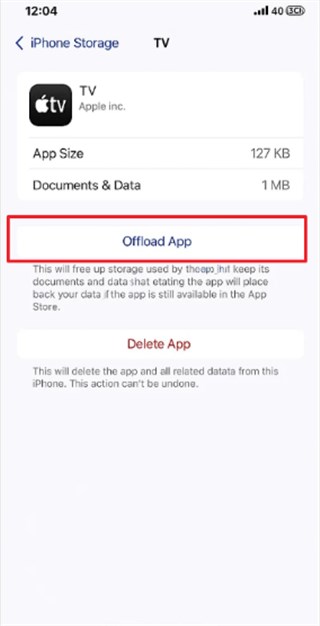
Offload Apple TV App
Way 3. Reinstall the Apple TV+ App
You can also try to reinstall Apple TV+ app to remove all damaged files and get a fresh working version. It helps delete any hidden errors that slow down or block video playback. This method ensures the app runs with the latest performance improvements. Go through the steps below to reinstall the app when Apple TV+ not working:
Step 1. Press the “Apple TV+” app icon for a few seconds and choose the “Remove App” option.
Step 2. Opt for the “Delete App” button and tap “Delete” on the next prompt.
Step 3. Search for the “Apple TV+” app on the “App Store” and tap the “Install” icon.
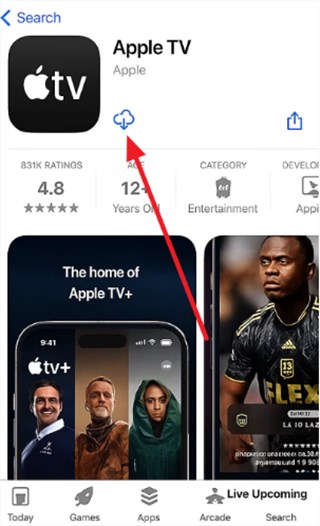
Install Apple TV App
Way 4. Restart Your Device
Another simple yet effective fix is restarting your device to refresh its system. It clears background tasks and removes small glitches that affect app performance. This method also ensures smoother operation and stable streaming without hassle. Follow the given guide to restart your iPhone when Apple TV Plus not working and keeps showing issues:
Step 1. Press both the “Power” and “Volume Up” keys together for a few seconds.
Step 2. Drag the “Slide To Power Off” slider from left to right and restart your phone after a while.
Way 5. Update Device System Software
Keeping your system software updated ensures your device is operating smoothly and in an improved manner. It fixes bugs and compatibility problems that affect Apple TV+ app performance. Take guidance from the steps to update your iPhone software:
Step 1. Access the “General” settings and head to the “Software Update” section.
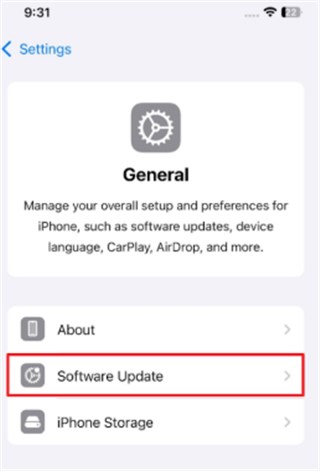
Software Update
Step 2. When there is an update available, press the “Update Now” button.
Way 6. Check Apple TV+ Subscription Status
Sometimes, Apple TV+ stops working simply because your subscription has expired, payment failed, or the account is paused. In such cases, the app won’t let you stream content even if everything else seems fine. Therefore, it’s important to verify that your Apple TV+ plan is active and properly billed. Follow these steps to check your subscription status:
Step 1. As you run the app, tap the “Profile” icon from the main screen.
Step 2. Head to the “Manage Subscriptions” section to view the status.
Step 3. You can then examine the subscription state, whether it is active or not.
Way 7. Sign Out and Sign Back In
Another practical fix for Apple TV+ not working issues is signing out and back in. This refreshes your account connection and clears temporary sign-in conflicts with Apple’s servers. It helps renew access permission and update user data. Let’s explore the steps below to sign out and sign in again:
Step 1. Search for Apple TV website on your preferred device and click the “Profile” icon to choose “Settings.”
Step 2. Access the “Account Access” section and click “Sign Out All Browsers.”
Step 3. Hit the “Sign Out” button on the upcoming dialogue box.
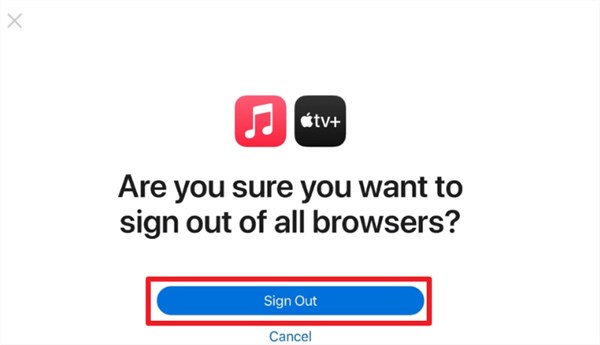
Sign Out Apple TV Account
Step 4. Press the “Sign In” button to log back into your account.
Way 8. Restart the Modem & Router
Apple TV+ not loading or keeps buffering might also result from your network. Restarting your modem and router many times will refresh your internet and clear the network glitches. It assists in solving the slowness of speed or connection failure, leading to streaming.
Way 9. Switch to a Faster Wi-Fi Network
When Apple TV+ lags or stutters, slow or crowded Wi-Fi is often the cause. Switching to a faster and more stable network helps improve streaming speed and prevents playback interruptions, fixing the Apple TV Plus not working issue.
Alternative: Download & Watch Apple TV+ Content Offline Smoothly
When the Apple TV+ not working problem still interrupts streaming, downloading videos becomes the best backup option. To cater to this need, using Keeprix Video Downloader ensures you can keep watching your favorite Apple TV+ shows offline. As a professional Apple TV+ Downloader, this tool provides high-speed downloads to save time while fetching your favorite shows quickly. The software supports 4K high video quality to ensure clear and sharp playback on all devices. You can save videos in MP4 and MKV formats at a fast speed for versatile use.
Key Feature of Keeprix Video Downloader:
- Works smoothly on both Windows and macOS.
- Save Apple TV+ movies and shows in up to 1080p full HD.
- Enjoy high-speed, no-buffer downloads with consistent performance.
- Watch your saved videos without ads or interruptions, anytime you want.
- Choose internal or external subtitles based on your preference.
Detailed Steps to Download & Watch Apple TV+ Content Offline via Keeprix Video Downloader:
Step 1. Free download and Launch Keeprix Video Downloader on your computer and select the “Apple TV” option.
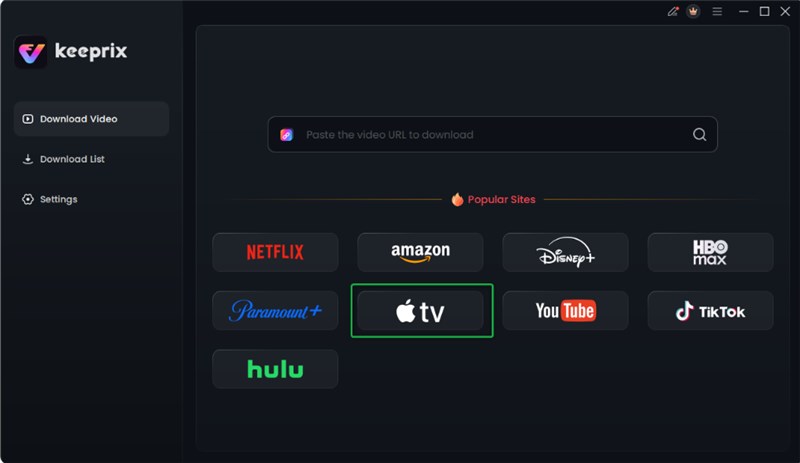
Choose Apple TV Platform
Step 2. Enter your Apple ID credentials to log in and have access to your favorite content.

Log in Apple TV Account
Step 3. Pick the movie or TV show you want and click “Download” to initiate fetching it.
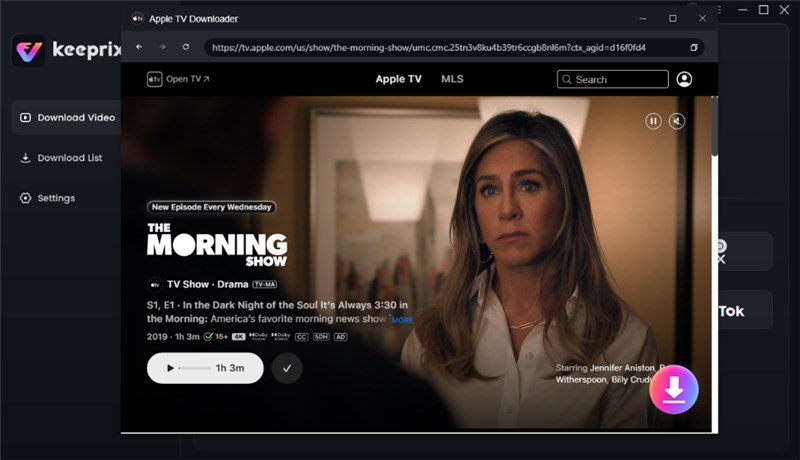
Click Download Button
Step 4. Set your desired video quality or audio track and press the “Download” button. Once downloaded, your videos play smoothly without Apple TV+ not working problems.

Apple TV Video Download Completed
FAQs about Apple TV Plus Not Working
Q1. How to reboot Apple TV+?
To reboot Apple TV+, access App Drawer by swiping up from the bottom of the screen and swipe up Apple TV, and reopen the app afterward. This operation can refresh its state and fix minor playback glitches effectively.
Q2. Why is Apple TV saying “try it free” when I have a subscription?
Apple TV may show “try it free” if it does not detect your active subscription. This issue often happens due to login problems or even outdated app versions. Signing out and back in or checking subscription status usually resolves the problem quickly.
Q3. Is Apple TV+ down?
You should visit Apple’s official System Status page to see the current service status. Also, use real‑time tracking sites like DownDetector to view outage reports. If both show normal operations, but you still face issues, the problem may be on your end.
Q4. Why is Apple TV+ not recognizing my subscription?
Incorrect login details or an expired plan can stop the app from recognizing your subscription. Reinstall the app and sign out, then back in to refresh account info and fix recognition.
Conclusion
In conclusion, Apple TV+ may face issues for various reasons, such as app or subscription issues. You have explored 10 quick and easy solutions for the Apple TV Plus not working problem. For more uninterrupted entertainment, Keeprix Video Downloader can help you save and watch Apple TV shows offline anytime. Try Keeprix Video Downloader to enjoy Apple TV+ content without playback issues effortlessly.
 Must Read