Disney Plus Download Limit: Official Rules and Solutions

Facing a locked device when you need it most is a massive headache. If you are confused about whether Disney+ has a title limit, a device limit, or if it simply relies on your storage space, this guide provides a clear, tested solution.
We are going to cut through the misinformation, give you the exact rules, and provide a step-by-step checklist to ensure your movies never expire mid-trip.

Disney Plus Download Limit
Managing Expectations: The 5 Official Disney+ Download Limits
The most common mistake users make is treating the download limit as a single, straightforward number. In reality, the official app relies on five distinct constraints. If you understand these rules, you will immediately know why your device is throwing an error.
Let’s clarify exactly what constraints you are working with based on current platform guidance:
1. Plan Eligibility
You must have a Disney+ Premium plan or a Premium bundle. If you are currently subscribed to the ad-supported tier, offline viewing is entirely across all of your devices.
2. The 10-Device Limit
You are restricted to 10 supported mobile devices per account at any given time. If you attempt to download a movie on an 11th device, you will receive a “limit reached” error.
How to fix this: You must manually remove old devices from your account.
1. Open the Disney+ app on your phone or tablet.
2. Tap your Profile icon in the bottom right corner.
3. Tap Account.
4. Select Device Management.
5. Here, you will see a list of all devices logged into your account. Find the old phones or tablets you no longer use, and select Log Out to free up a slot for your current device.
3. Available Storage Space
This is the real answer to the common question, “How many titles can I save?” There is no arbitrary cap. The number of movies you can keep offline depends entirely on your device’s available storage space.
How to check your storage:
1. Open the Disney+ app and tap your Profile icon.
2. Go to App Settings.
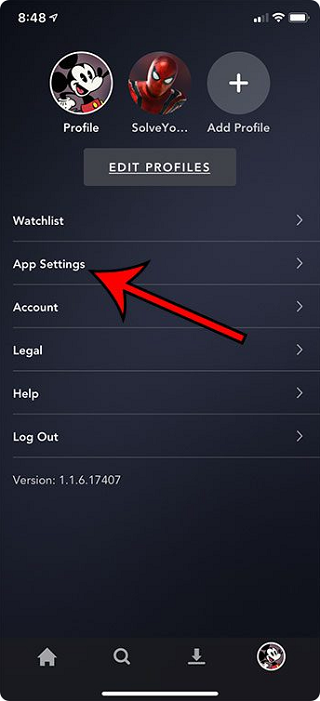
Go to App Settings
3. Tap on Downloads.
4. Look at the bottom of the screen. You will see a dedicated storage bar showing exactly how much space your Disney+ app is using versus the free space left on your device.
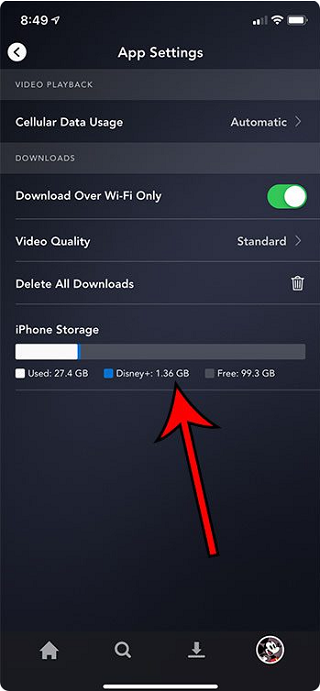
Available Storage Space
4. Expiration and Sync Rules
To maintain access to your library, your device must reconnect to the internet at least once every 30 days. However, there is a much shorter timer you need to be aware of when traveling.
Critical Travel Warning: The 48-Hour Rule
Once you press “Play” on a downloaded file—even for just a few seconds—Disney’s digital rights management (DRM) activates a secondary timer. You typically have exactly 48 hours after starting the playback to finish the movie or episode. After 48 hours, the download expires and will require an internet connection to renew. Never “test” play a movie at home if you don’t plan to finish it until your flight two days later!
5. Device Compatibility Restrictions
Official mobile downloads are restricted strictly to iOS, Android, and Amazon Fire OS. TV-connected devices, smart displays, and computers are excluded from offline viewing.
Debunking the Myth: You may have read on forums that there is a strict 25-title limit. This is a persistent internet myth. Disney’s official resources only enforce the 10-device limit and your device’s available storage space. You can download 50 episodes of a show as long as your tablet has the gigabytes to hold them.
Why is the Download Button Missing? Device Compatibility Matrix
If you are frustrated because the download icon is completely missing from your screen, you are almost certainly facing a hardware compatibility issue. Disney makes a firm distinction between devices that can stream content and devices that can store content.
If you find yourself asking why you can’t save movies to your computer, the official answer is simply that computer downloads are not supported. If you need to know how to screen record on Mac or PC, that is an entirely separate, third-party process.
Here is a clear device matrix explaining where you can actually access the offline feature:
| Device Category | Offline Viewing Supported | Official App Notes |
| Apple iPhone & iPad | Yes | Requires iOS/iPadOS 16.5 or later. |
| Android Phones & Tablets | Yes | Requires Android OS 5.0 or later (Tested smoothly on Android 12-15). |
| Amazon Fire Tablets | Yes | Requires Fire OS 5.0 or later (Ideal for Fire HD 8/10). |
| Windows 10 / Windows 11 | No | You can stream via the desktop app or browser, but downloads are. |
| Apple Mac | No | Browser streaming only. |
| Smart TVs & Consoles | No | TV-connected device downloads are not permitted. |
Troubleshooting Decision Tree: “I Can’t Download!”
If you are trying to prepare for a trip and things aren’t working, follow this step-by-step troubleshooting tree to isolate your specific problem:
- Scenario A: The download button is completely missing.
- Step 1: Check your device. Are you on a Windows laptop, a Mac, or a Smart TV? If yes, you cannot download titles. You must use an iOS, Android, or Fire device.
- Step 2: If you are on a supported mobile device, verify your plan. Go to your account settings and ensure you are subscribed to the Premium (No Ads) tier.
- Scenario B: The button is there, but I get a “Limit Reached” error.
- Step 1: You have hit the 10-device limit. Follow the instructions in Section 2 above to navigate to Device Management and log out of old tablets or phones.
- Scenario C: The download starts but immediately fails or stalls.
- Step 1: Check your storage bar (Profile > App Settings > Downloads). You likely do not have enough gigabytes left.
- Step 2: Change your download quality. In the App Settings, switch the Video Quality from “High” to “Standard” to shrink the file sizes.
- Step 3: Delete old content. Tap the Downloads tab at the bottom of the screen, select the checkmark next to an old video, and tap Remove Download.
Alternative Option: Third-Party DRM Removal Software
For the vast majority of families taking a weekend trip, the official app is perfectly fine. However, some users face unique challenges—such as needing to entertain kids on a multi-week overseas trip without internet access, or wanting to watch movies specifically on a laptop where the official app forbids offline viewing.
In these specific edge-cases, some users turn to professional software solutions like the Keeprix Video Downloader.

Keeprix Video Downloader
- Save accessible straming movies, episodes as MP4 or MKV files.
- Batch download episodes or full seasons when source supported.
- 3 Free downloads for each streaming platform like Disney+.
- 100% free for all social platforms like YouTube, Instagram.
Should you use this? If you are just prepping an iPad for a weekend road trip, stick to the free, official app. But if you require permanent files, are traveling entirely off-grid for months, or absolutely must watch offline on a laptop, a third-party tool is a functional, albeit paid, workaround.
Here is the stepwise guide to download Disney+ movie.
Step 1. Download and Install Keeprix Video Downloader to your PC/Mac. Launch it and choose the Disney Plus platform.
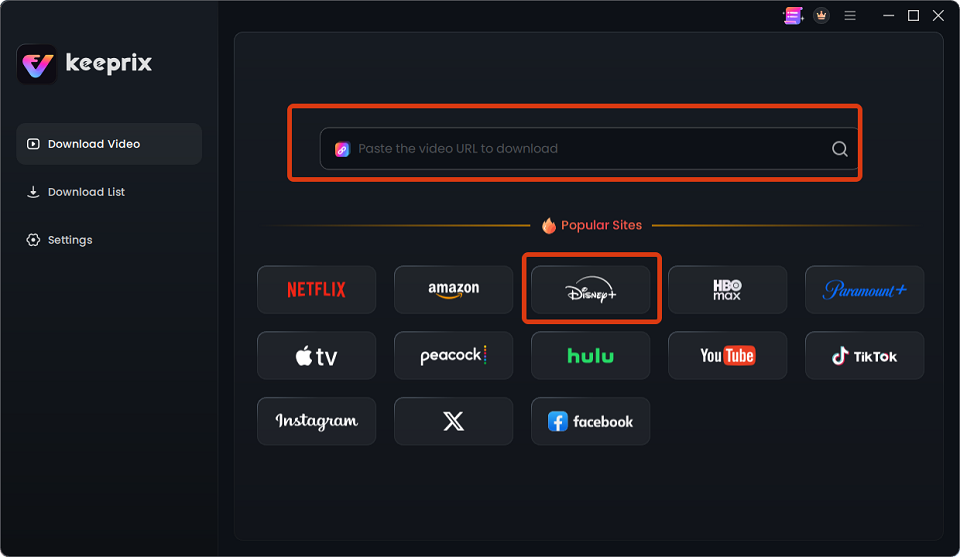
Choose Disney
Step 2. After choosing the Disney+ platform or pasting the Disney+ video link, log into your Disney+ account.
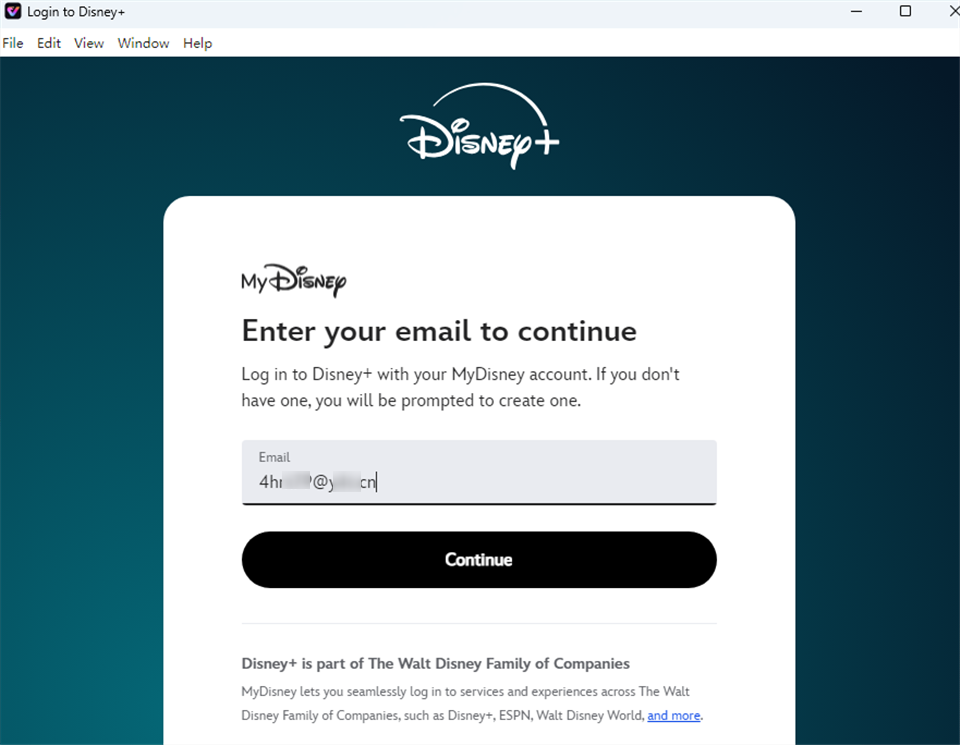
Log Into Disney Plus Account
Step 3. Choose TV shows or movies you need for Download. Then you can customize your download settings.
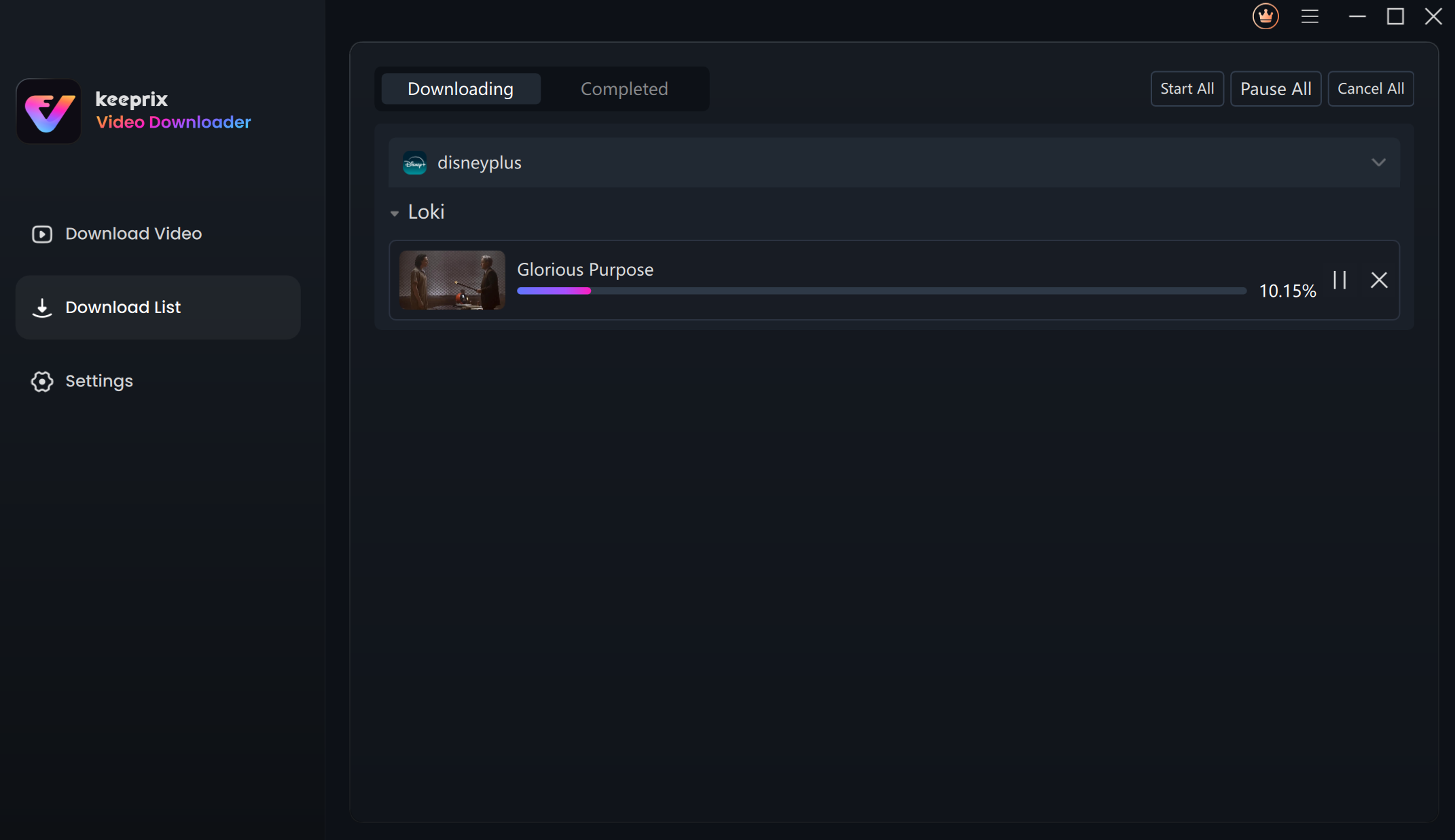
Downloading Disney Plus Videos
Step 4. After the Video is downloaded, you can see the below interface.
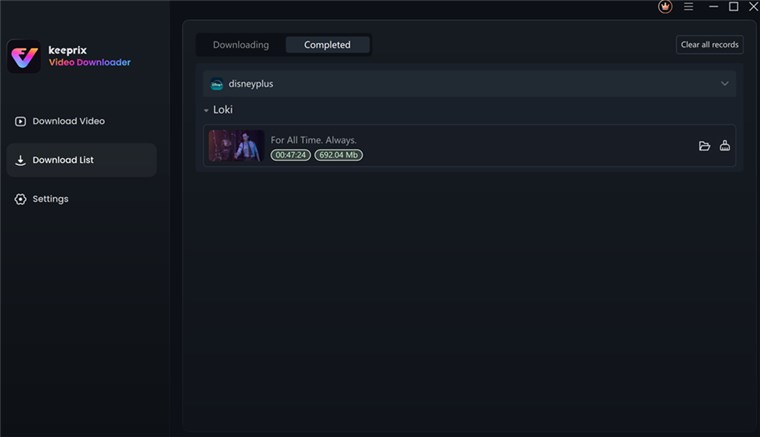
Disney Plus Video Downloaded
Step 5. Find the Disney Plus downloads on the local file. Then you can watch it offline on any player.
The Ultimate Pre-Travel Procedure for Offline Viewing
If you are sticking to the official app, you must follow a strict procedure to ensure your profiles survive the journey. If you need a simple checklist before traveling, run through these exact steps the night before you leave.
- Verify Your Premium Status: Open your account settings and confirm you are on the Premium plan. You cannot download anything if you are on an ad-supported tier.
- Clear Storage and Adjust Quality: Go to your App Settings > Downloads. Look at the storage bar at the bottom. If you are low on space, delete old apps on your device, or delete old episodes. To fit more shows, change your download quality setting from “High” to “Standard.”
- Audit Your Mobile Devices: Remember that you can only have active files on up to 10 devices. Check your Device Management tab and log out of old hardware to ensure your current tablet has permission to save files.
- Force a Sync to Reset Timers: Do not skip this step. The night before your trip, open the app on every single tablet while still connected to your home Wi-Fi. Click around for a few seconds so the app connects to the servers. This resets the internal clock, giving you a fresh 30 days of offline access.
- Test Airplane Mode: Before you leave the house, put the tablet in Airplane Mode and turn off Wi-Fi entirely. Attempt to play a downloaded title. Do not watch more than a few seconds (remember the 48-hour rule!), but confirm that the video launches successfully without an internet connection.
You might like: Download Disney Plus Movies on Laptop [Step-by-step Guide]
Frequently Asked Questions
Even after mastering the main rules, a few specific nuances can cause frustration. Here are concise answers to the most common streaming service download limits compared to Disney’s rules.
How many downloads can I have at once?
There is no specific title cap. Your only limit is the available storage space on your physical device. If you have 100 GB of free space, you can fill it all with movies.
How many devices can hold content?
You can store content on up to 10 supported mobile devices simultaneously per account.
How long do the files last before expiring?
Unplayed content lasts for 30 days as long as the device does not connect to the internet. However, once you start watching a movie, you have exactly 48 hours to finish it before it expires and requires a Wi-Fi connection to refresh.
Why did my saved movies suddenly disappear?
Your files will vanish if you log out of the app, if you uninstall the app, if your Premium subscription lapses, or if that specific movie is removed from the streaming platform’s library entirely.
Can I store my movies on an SD card?
Yes. On supported Android and Amazon Fire tablets, you can navigate to the App Settings, tap on Downloads, and change your “Download Location” from Internal Storage to an external SD card. This is a fantastic way to drastically increase your storage capacity for long trips.
Conclusion
Constantly worrying about limit errors or sudden playback expirations adds unnecessary stress to your travel prep. By understanding the difference between your 10-device limit and your physical storage limit, and by respecting the strict 48-hour playback timer, you can take total control of your offline library. Run through the pre-travel checklist the night before your trip, verify your devices are properly synced, and you will secure unlimited, high-quality entertainment for your family’s next journey, completely uninterrupted.
Keeprix Video Downloader
- Download streaming videos on Windows & Mac.
- No restriction on the downloaded videos.
- Support downloading from Netflix, Amazon Prime and more.
- Up to 4K videos without DRM protection.