How to Download Movies for a Flight on Phone or Laptop

The most reliable way to watch a movie on a flight is to download it before boarding. On a phone or tablet, you can usually use the Downloads feature inside a supported streaming app. On a Windows laptop or Mac, it depends on the streaming service.
This guide shows you how to choose the right download option, prepare your device, test the movie in Airplane Mode, and avoid discovering an incomplete or expired download after takeoff. It also explains what to do when streaming app does not support downloads.

How To Download Movies For A Flight
How to Download a Movie Before Your Flight
Step 1: Open the streaming app on the device you will use during the flight.
Step 2: Find a movie that displays a Download button.
Step 3: Choose the available video quality, audio and subtitles.
Step 4: Wait until the movie appears as completed in the Downloads section.
Step 5: Turn on Airplane Mode and test the movie before leaving.
Choose the Right Method for Your Device
| Device | Recommended Method |
| iPhone, iPad or Android device | Use the official streaming app first |
| Windows or Mac supported by the platform | Use the official computer app |
| Windows or Mac without official download support | Consider Keeprix for accessible titles |
| USB drive or another compatible device | Use a local-file workflow where permitted |
Dear mobie users: Keeprix runs on Windows 10/11 and macOS 12 or later. Send the setup page to your computer and try 1 video free from each supported streaming platform.
Which Streaming Apps Support Offline Downloads
The most common frustration travelers face is assuming every streaming service works on every device. If you are traveling with a laptop and Hulu, you will be deeply disappointed at 30,000 feet. Here is exactly what each major app supports for offline viewing:
| Platform | Mobile Downloads | Laptop Downloads | Subscription Requirements / Notes |
| Netflix | ✅ iPhone, iPad, Android phones & tablets, Amazon Fire devices, Chromebooks via Google Play Store app | ❌ | Downloads work in supported mobile apps |
| Prime Video | ✅ iOS, Android, Fire tablets | ✅ Mac app(macOS 11.4+); Windows 10/11 app | Typically limited to 15–25 downloads across the account |
| Disney+ | ✅ iPhone, iPad, Android tablets, Fire tablets | ❌ | Mobile-only offline viewing |
| Hulu | ✅ iOS, Android, Fire OS phones & tablets | ❌ | Requires the No Ads tier |
| Max | ✅ Mobile phones & tablets | ❌ | Requires a premium Ad-Free subscription tier |
| Apple TV | ✅ iPhone, iPad | ✅ Mac, Windows PC, Apple Vision Pro | Available across the Apple ecosystem and Windows app |
| YouTube Premium | ✅ iOS and Android apps | ✅ Supported desktop browsers, such as Chrome and Edge | Requires a paid YouTube Premium subscription |
Download availability can vary by title, plan, device and country. Check the current rules inside your streaming app before traveling.
How to Download Movies on a Laptop or Save Them to a USB Drive
Some streaming services do not provide offline downloads on Windows or Mac. If you want to prepare movies on a laptop or move a local file to compatible storage, Keeprix Video Downloader offers a desktop workflow for videos that are already accessible through your streaming account.
Keeprix supports Windows 10/11 and macOS 12 or later. The trial allows 1 free video download from each supported streaming platform.

Keeprix Video Downloader
- Save accessible streaming movies as local MP4 or MKV files.
- Choose available audio tracks, subtitles and output settings.
- Prepare videos on Windows or macOS 12 or later.
- Try 1 video free from each supported streaming platform.
Steps to Download Movies on a Laptop
Step 1: Download and install Keeprix on Windows 10/11 or macOS 12 or later.
Step 2: Open Keeprix and select the platform that contains the movie you want to watch.
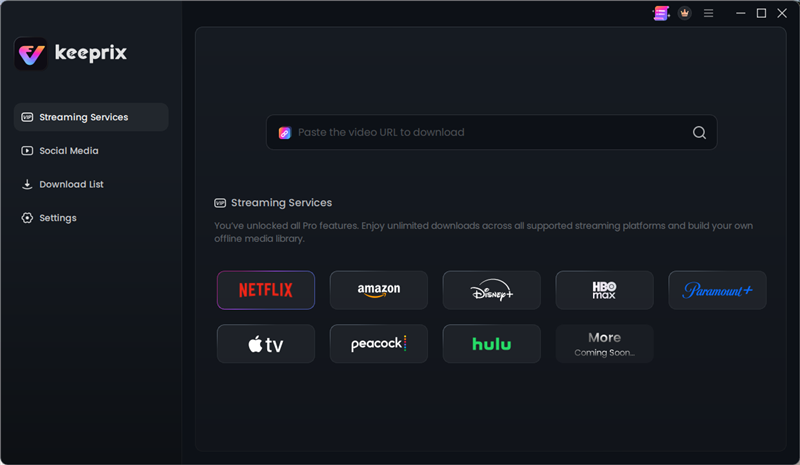
Choose Netflix
Step 3: Click on Sign In and log in to your Netflix account to access the video content.
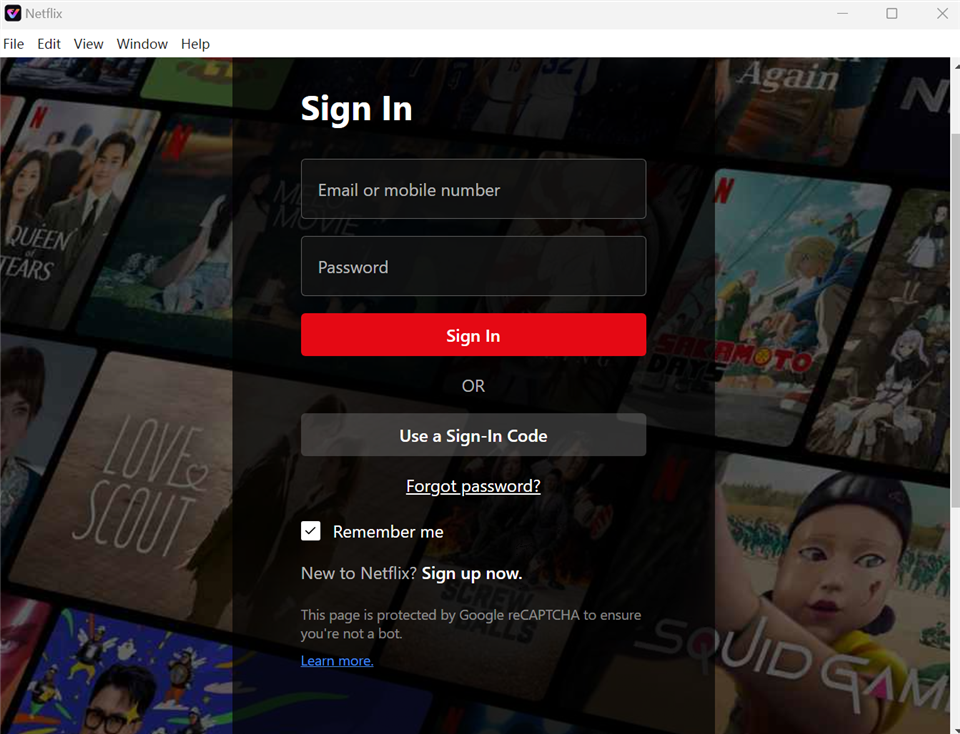
Sign In to Your Netflix Account
Step 4: Check the available movies or search for specific titles. Select the movie that you want to download and click the Download icon.
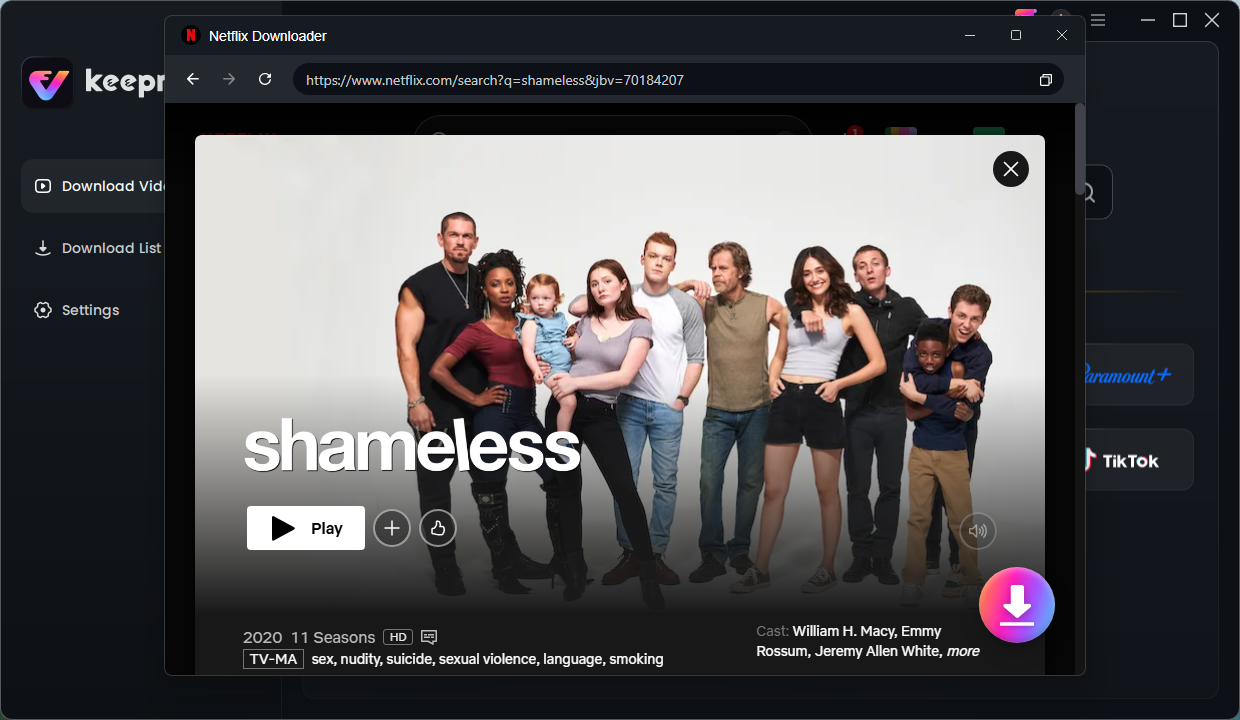
select Shameless
Step 5: Choose your preferred video resolution, audio language, subtitles, subtitle type, and output path. Then, click the Download button again to begin the download.
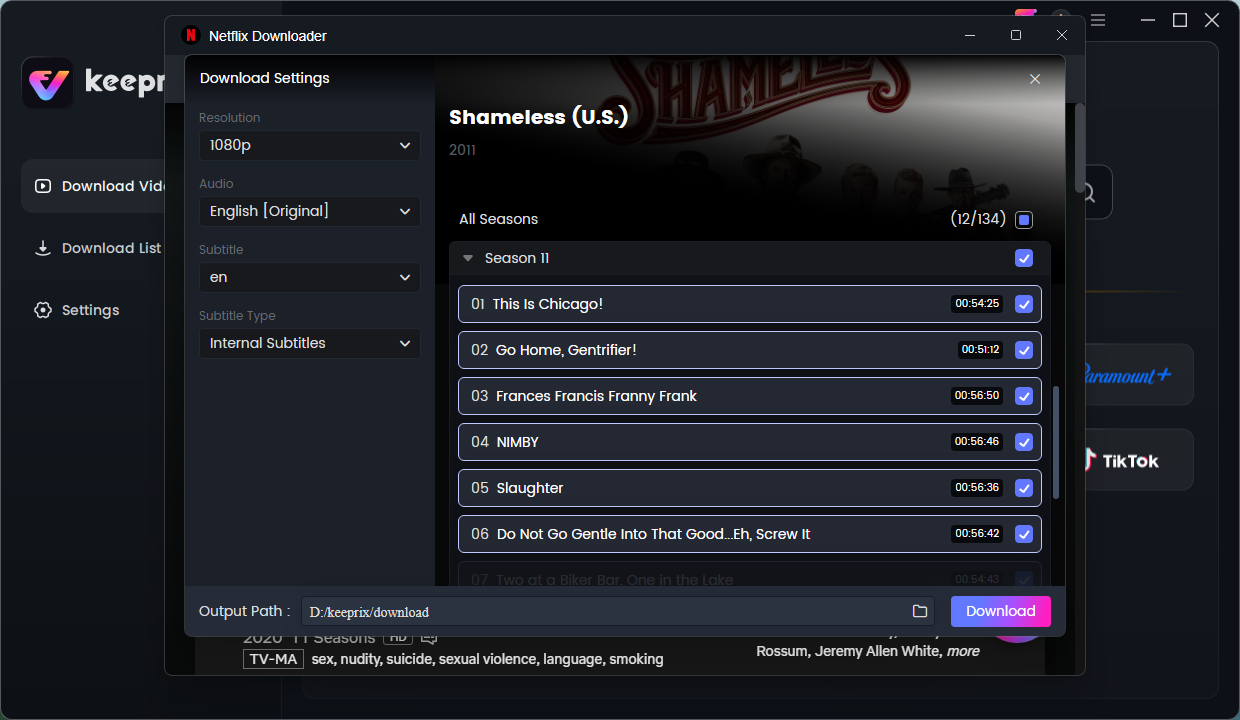
choose episodes
Step 6: Go to the “Download List” and you can monitor the download progress. Once the download is complete, you can find the videos in the “Completed” section.
Legal Disclaimer: It is important to strictly note that saving files via Keeprix or any third-party software is for personal, offline viewing only. Distributing, sharing, or selling these files violates copyright protections.
Pre-Flight Download Checklist
| Check | What to Confirm |
| Download | The movie shows a completed status |
| Airplane Mode | The movie starts without Wi-Fi |
| Audio | The correct language plays |
| Subtitles | Required subtitles appear |
| Account | The app opens on the correct profile |
| Expiration | The viewing window covers the trip |
| Battery | The device and headphones are charged |
| Storage | Enough space remains for every title |
Frequently Asked Questions
Can I watch downloaded movies in Airplane Mode?
Yes, if the download is complete and the app still recognizes your account and viewing license. Test the movie in Airplane Mode before leaving so you have time to reconnect and fix any problem.
Should I test the movie before my flight?
Yes. Enable Airplane Mode and play the movie briefly to confirm the video, sound and subtitles work. If the app starts a limited viewing window, check the displayed deadline and renew or download the movie again closer to departure.
Can I save downloaded movies to an external USB drive?
Using official apps, you cannot transfer files to an external USB drive due to strict DRM limits. (Though Android and Fire tablets do allow routing to an internal SD card). To save movies to a USB drive for a laptop, a professional tool like Keeprix is required.
Can I depend on in-flight Wi-Fi?
Some flights support streaming, but speed, pricing, availability and content restrictions vary by airline, route and aircraft. Download important movies before boarding instead of depending on in-flight Wi-Fi.
Conclusion
By downloading early on home Wi-Fi, understanding which apps actually support your specific devices, and strictly avoiding the 48-hour playback trap, you can guarantee a seamless offline viewing experience.
Remember to launch your apps in the terminal before turning on Airplane Mode, and if you are traveling with an unsupported laptop, keep an alternative MP4 solution in mind. Secure your downloads today, and take control of your travel entertainment well before you reach the boarding gate.
Keeprix Video Downloader
- Download streaming videos on Windows & Mac.
- No restriction on the downloaded videos.
- Support downloading from Netflix, Amazon Prime and more.
- Up to 4K videos without DRM protection.