Disney Plus Not Working on Firestick: Fixes & Alternatives

It is incredibly frustrating when Disney+ fails to load while other streaming apps work perfectly fine, but this is a common, known issue on Fire OS. While many users look up why their Disney Plus downloads not working on mobile devices, a failing smart TV app requires different diagnostic steps.
In this guide, we will walk you through exactly how to clear the cache safely without losing your personal data, check for updates, and explore alternative offline viewing options if the Firestick app remains permanently buggy.
Step 1: How to Clear Cache and Force Stop Disney Plus
Clearing the app cache removes temporary, corrupted files that often cause the Disney Plus app to crash or loop infinitely on the loading screen. Unlike clearing your data, clearing the cache does not delete your login information or personalized settings, making it the safest first step.
Here is how to safely navigate the Fire OS interface to unfreeze the app:
1. Go to the Firestick home screen and select Settings (the gear icon on the far right).
2. Choose Applications.
3. Scroll down and select Manage Installed Applications.
4. Scroll through your list of apps and choose Disney+.
5. Select Force Stop to halt any frozen background processes.
6. Select Clear Cache (be careful not to click Clear Data).
Once the cache is cleared, unplug your Firestick from the power source for 30 seconds, then plug it back in. This hard restart, combined with the cleared cache, resolves the vast majority of loading issues.
Step 2: Check for Updates and Network Issues
If clearing the cache did not fix the freezing, the next step is to rule out outdated software and network communication errors. Even if your internet speed seems perfectly fine for other apps, Disney+ might buffer heavily if the Firestick is struggling to maintain a stable connection or if the app version is too old to communicate properly with the streaming servers.
Run through this quick diagnostic checklist:Check for a Disney+ app update: Highlight the Disney+ app on your home screen, press the Menu button (three horizontal lines) on your remote, and select More Info. If an update is available, click Update.
Restart your router: Unplug your Wi-Fi router for 60 seconds and plug it back in. This refreshes the connection and clears out IP conflicts that might be interrupting the stream to your TV.
Verify the Firestick’s network status: Go to Settings > Network, highlight your active Wi-Fi network, and press the Play/Pause button on your remote. This tool checks the device’s connection status and confirms if the Firestick is actually receiving a strong signal.
The Last Resort: Should You Factory Reset Your Firestick?
Many online troubleshooting guides suggest performing a full factory reset when the Disney+ app refuses to work. However, you should treat this as an absolute last resort. A factory reset is a destructive action that will completely wipe your Firestick clean. It deletes all of your downloaded apps, erases your personalized settings, logs you out of every account, and forces you to set up the entire device from scratch.
If you are worried about losing your custom home theater setup just to get one single show to play, your hesitation is completely valid. Wiping your device is often an extreme overreaction to a buggy app. Before you take the drastic step of resetting your Firestick, it is much better to try non-destructive, alternative viewing methods that bypass the smart TV app entirely.
How to Watch Disney+ Without Buffering Using Keeprix
If you want to avoid Firestick buffering entirely, Keeprix Video Downloader offers a frustration-free “Stream to File, File to Freedom” bypass. Keeprix does not fix the Firestick directly; instead, it is a desktop tool for Windows and Mac that lets you save accessible Disney+ videos as local MP4 or MKV files. Once you download the video on your computer, you simply transfer it to a USB drive and plug it into your TV or media player for flawless offline playback.

Try Keeprix Disney+ Downloader
- Download Disney+ videos on Windows & Mac.
- Save streaming videos as local MP4/MKV files.
- Batch download streaming videos and TV series.
- Watch videos offline, no ads, no interruption.
Here is how the local-file workflow works:
1. Download on PC or Mac: Open Keeprix on your computer, log into your Disney+ account using the built-in browser, and select the movie or episode you want to save.
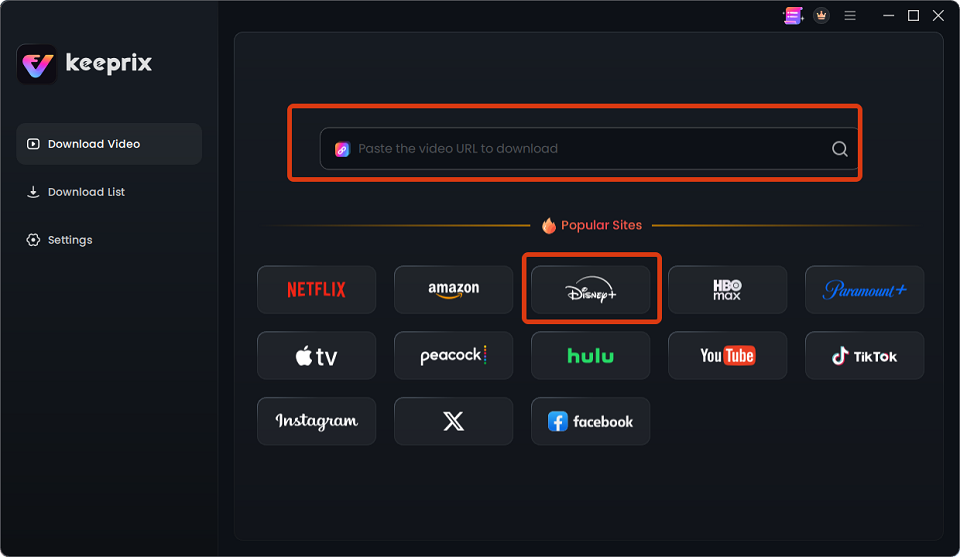
log into Disney Plus account
2. Choose the format: Export the accessible video as an MP4 or MKV file, which preserves available subtitles and audio tracks.
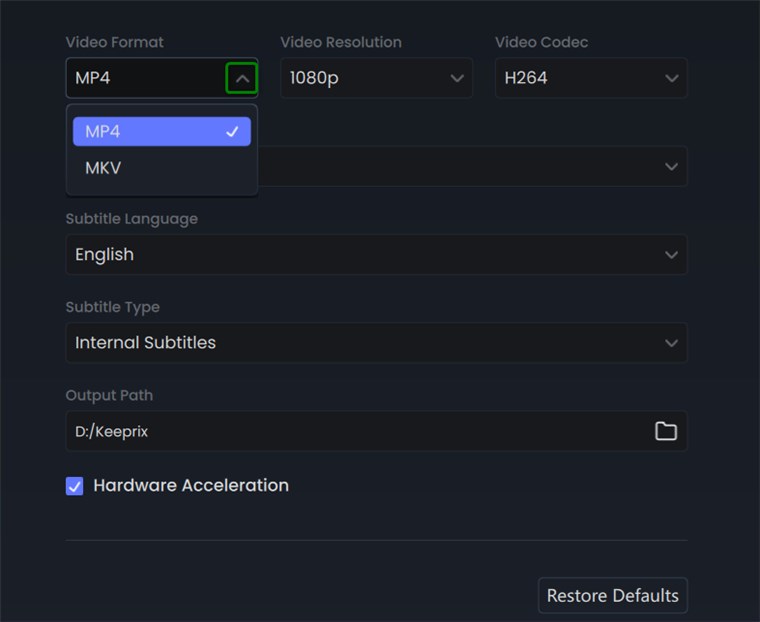
Choose MP4 Format
3. Transfer to USB: Once the download finishes, drag and drop the file onto a standard USB flash drive.
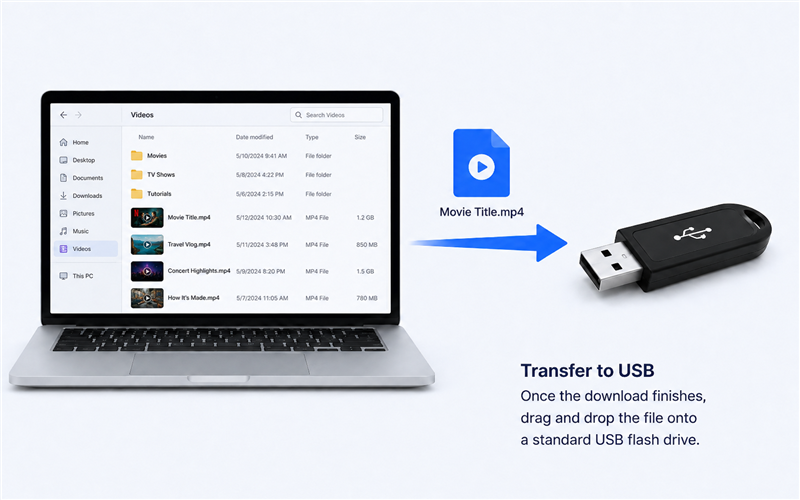
transfer to USB
4. Watch on your TV: Plug the USB drive directly into your TV, media player, or Firestick (via OTG cable) and watch the video with zero buffering.
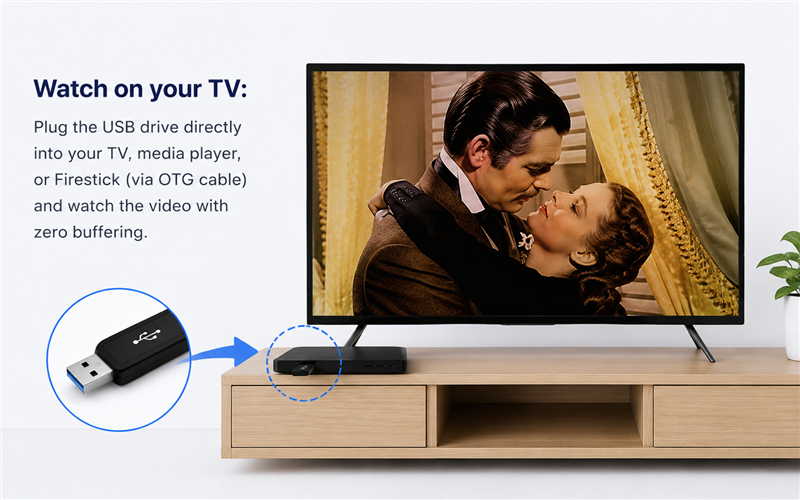
watch on your tv
By using this workflow, you can stop fighting with the Disney+ loading screen and enjoy uninterrupted playback. Download Keeprix for free to test your 3 free downloads and It allows up to 4K resolution when source quality is available.
Frequently Asked Questions
Why is Disney Plus not working on my Firestick?
Disney Plus typically stops working on a Firestick due to a corrupted app cache, outdated Fire OS software, or weak Wi-Fi communication. Clearing the cache and performing a hard restart fixes the majority of freezing and loading screen issues.
How do I clear the cache for Disney Plus on Fire TV?
To clear the cache safely, go to Settings > Applications > Manage Installed Applications. Select Disney+, click Force Stop, and then select Clear Cache. Be careful not to click Clear Data, as that will log you out of your account.
Why is Disney+ the only app not working on my TV?
Disney+ requires highly stable network communication and specific DRM checks to stream its content. Even if your internet is fast enough for other streaming services, a minor network drop or an outdated app version can cause Disney+ to crash or buffer exclusively.
How can I watch Disney Plus on my TV if the app keeps crashing?
If the native smart TV app remains completely broken, the most reliable alternative is playing a local video file. You can download the video on a computer, transfer it to a USB flash drive, and plug it directly into your TV or media player for uninterrupted offline viewing.
Final Thoughts: Stop Struggling with Firestick Buffering
Dealing with a frozen Disney+ app on your Firestick shouldn’t ruin your movie night. In most cases, taking a moment to clear the app cache and performing a hard restart will quickly resolve temporary glitches and loading loops. Remember to avoid jumping straight into a factory reset, as it will needlessly wipe all your personal data and force you to set up your device from scratch.
However, if the app continues to fail despite your best troubleshooting efforts, transitioning to local MP4 or MKV files via a USB drive is the most reliable way to guarantee uninterrupted playback. Build your personal offline media library and test the smooth USB playback method for yourself so you can stop struggling with constant buffering.