Why Is Disney Plus Not Working on Your Samsung TV?

Disney Plus usually stops working on Samsung TVs because of a full Tizen OS app cache, outdated TV firmware, or because the TV is a pre-2016 model that is no longer officially supported.
If you are staring at a black screen, a frozen menu, or an endless blue spinning wheel while other apps like Netflix work perfectly fine, you are not alone. The native Disney+ app on Samsung’s operating system is notoriously resource-heavy and prone to freezing or buffering issues. In this guide, we will walk you through how to properly force-restart your TV, clear the app cache, and use a reliable USB file workaround if your TV is completely unsupported or if you are tired of Disney Plus downloads not working reliably.
Disney Plus Not Working on Your Samsung TV
Check Your Compatibility: Is Your Samsung TV Supported?
Before spending time on basic troubleshooting, you need to check if your Samsung TV is still officially supported by Disney. Disney+ natively supports most 2016 or newer Samsung Smart TVs running Tizen OS. However, if you own a pre-2016 model running the older Orsay OS, the app is no longer officially supported and will not launch, even if it is still installed on your device.
If your TV is unsupported, no amount of restarting or resetting will fix the app. In that case, you must bypass the TV’s native software by using external streaming hardware or a local USB file workaround (which we will cover later in this guide). If your TV was manufactured in 2016 or later, move on to the troubleshooting steps below.
3 Ways to Fix Disney Plus on Supported Samsung TVs
If your TV is a 2016 or newer Tizen OS model, the black screen or freezing app is likely a temporary software glitch. Try these three standard fixes:
- Perform a cold boot: Unlike turning the TV off normally, a cold boot fully refreshes the system memory. You can do this by unplugging the TV from the wall for 60 seconds, or by holding down the power button on your Samsung remote until the TV turns off and the start-up logo appears again.
- Clear the app cache by reinstalling: Tizen OS does not have a simple clear cache button like Android devices. To clear corrupted Disney+ files, press the Home button, go to Apps, find the Disney+ app, and select Delete. Once removed, search for the app in the Smart Hub and install it again.
- Update your TV firmware: Outdated system software often causes streaming apps to crash. Navigate to Settings, Support, Software Update, and select Update Now.
While these steps can clear temporary glitches, the Tizen version of Disney+ is known to be buggy. If your app continues to freeze or you are tired of reinstalling it, you may need to look at an alternative viewing method.
What If the App Still Won’t Work? (Hardware vs. Software Fix)
When standard troubleshooting fails, or if your TV is a pre-2016 unsupported model, standard advice usually tells you to buy a new external streaming device like a Roku, Apple TV, or Amazon Fire TV Stick.
However, if you do not want to spend money on extra hardware just to bypass one broken app, you can use a free PC-to-USB file playback workaround instead.
Here is a quick comparison of the two alternative paths:
| Feature | Hardware Streaming Stick | USB File Playback Workaround |
|---|---|---|
| Cost | Requires buying new hardware | Uses your existing TV and a USB drive |
| Playback Experience | Uses native streaming apps | Plays highly stable, offline MP4/MKV files |
| Requirements | Spare HDMI port and internet connection | A PC to prepare files and a USB flash drive |
| Best For | Users who want to completely replace the Samsung Smart Hub | Users who want to bypass a buggy app without buying new devices |
The USB Workaround: Save Disney Plus Videos as Files
If you prefer the USB playback method over buying a new streaming stick, Keeprix Disney Plus Downloader offers a practical software alternative. This desktop tool for Windows 10/11 and macOS 12 or later helps you save videos you can already access on Disney+ as local MP4 or MKV files.
Instead of fighting a buggy Tizen app, this Stream to File, File to Freedom approach lets you bypass the TV’s native software entirely. Keeprix Video Downloader can save accessible videos in up to 4K resolution (when source quality is available) while preserving available subtitles and audio tracks.
Here is how to prepare your local files:
Step 1. Open Keeprix on your Windows or Mac computer.
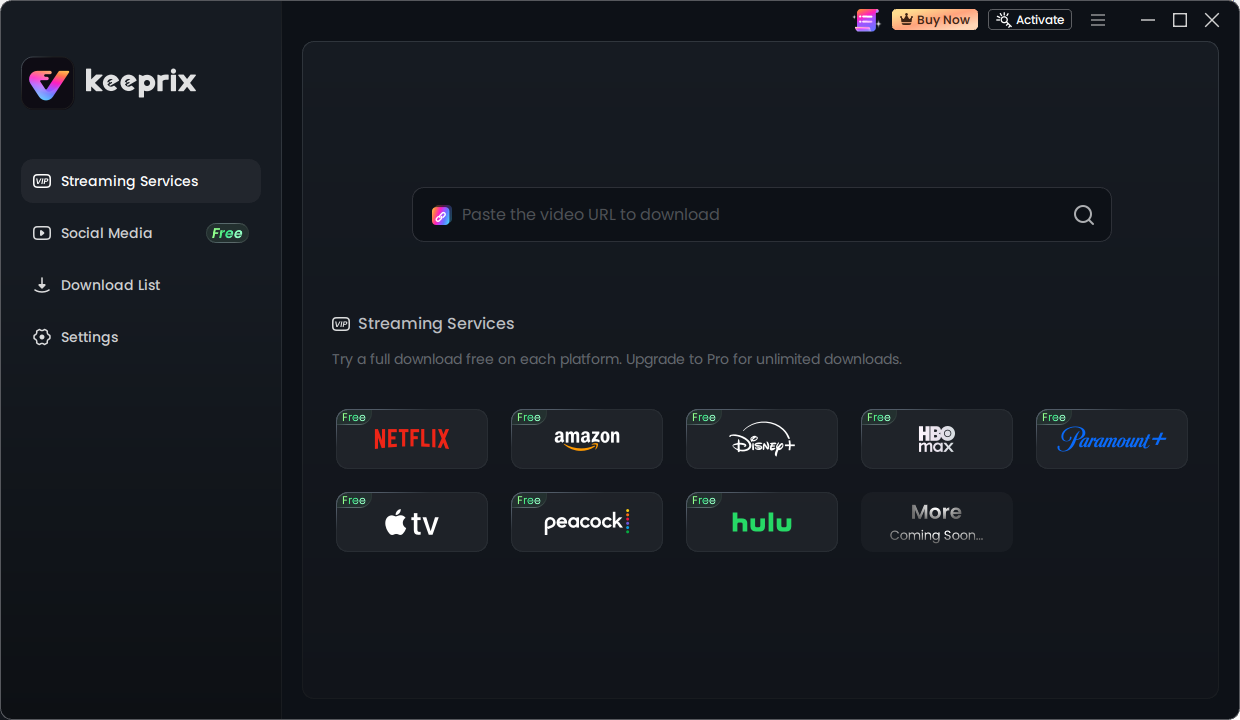
Keeprix streaming services
Step 2. Use the built-in browser to log into your Disney+ account and locate the video you want to watch.
Step 3. Choose your preferred format (MP4 or MKV) so it plays easily on your TV.
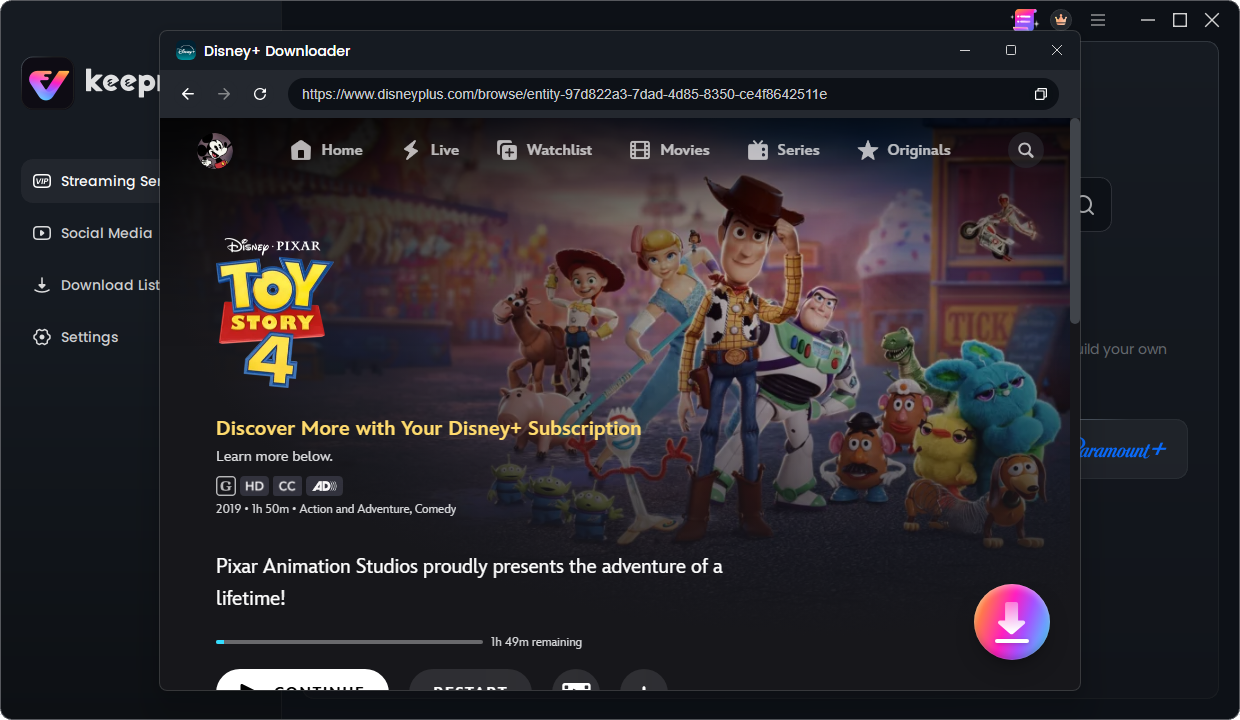
Choose a Disney+ movie you want
Step 4. Start the download to save the video directly to your computer.
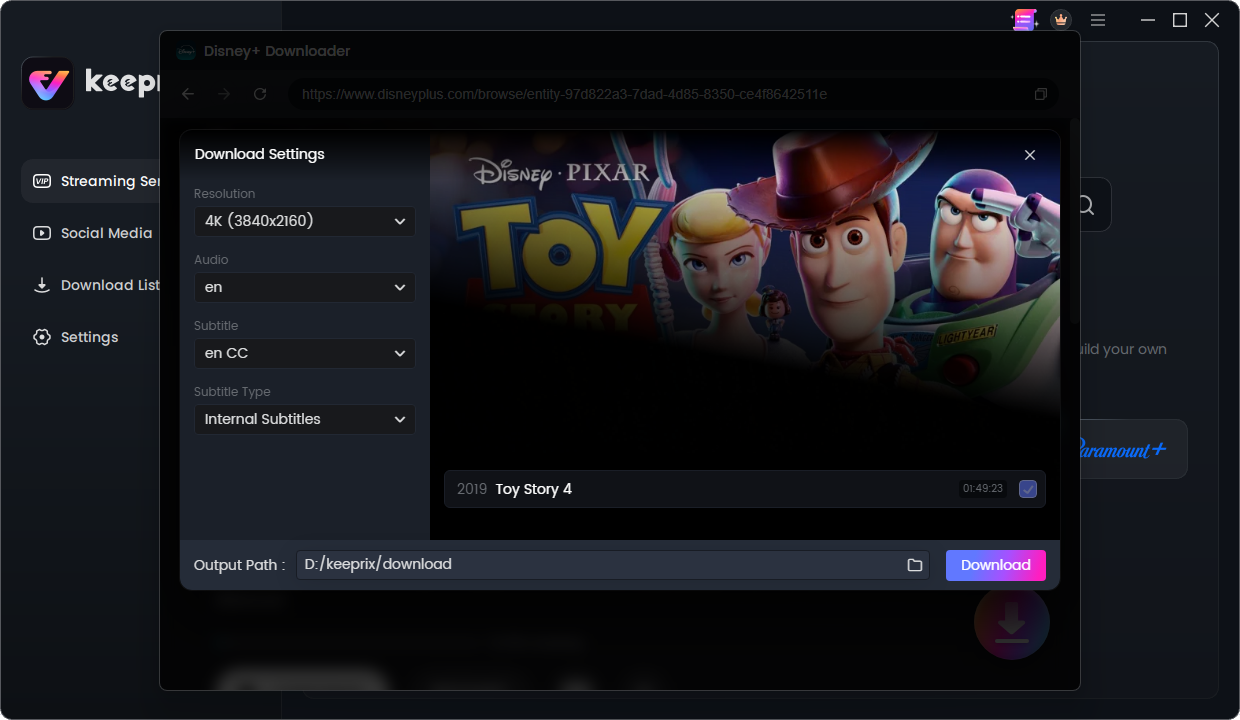
Download movies from Disney Plus
Keeprix allows one full free video download per supported streaming platform, giving you a risk-free way to test this USB playback method for your Samsung TV.
How to Play Your Downloaded Videos on Samsung TV via USB
Once you have saved your accessible Disney+ videos as local files, playing them on your Samsung TV is incredibly straightforward. Because you are playing a local file, you completely eliminate internet buffering, app crashes, and blue spinning wheels.
Follow these steps to play your files natively:
Transfer the file: Copy the exported MP4 or MKV file from your computer to a standard USB flash drive.
Plug it in: Insert the USB drive into an available USB port on the back or side of your Samsung TV.
Select the source: Press the Home or Source button on your Samsung remote and navigate to the connected USB drive.
Play the video: Select your video file. The TV’s built-in media player will open and play the MP4 or MKV file smoothly, completely bypassing the Disney+ app.
Frequently Asked Questions
Why is my Disney Plus app just showing a blue spinning wheel?
A blue spinning wheel usually indicates an overloaded Tizen OS app cache or a stalled network connection. Because the native app is resource-heavy, it struggles to load when the TV’s memory is full. Performing a cold boot is the fastest way to refresh the memory and clear the wheel.
How do I clear the cache on my Samsung Smart TV?
Samsung’s Tizen OS does not offer a dedicated “Clear Cache” button for individual apps. To clear the Disney+ cache, you must either cold boot the TV (unplug it from the wall for 60 seconds) or delete the app entirely from the Smart Hub and reinstall it.
Is my Samsung TV too old for Disney Plus?
If your TV was manufactured before 2016 and runs the older Orsay operating system, it is no longer officially supported by Disney+. You will need to use a hardware streaming stick or the PC-to-USB file workaround to watch your shows.
Why does Disney+ freeze but other streaming apps work fine?
Streaming apps require different amounts of system memory. The Disney+ app for Samsung TVs is heavily coded and requires significant resources. If your TV has limited memory or older firmware, Disney+ may crash while lighter apps like Netflix continue to run without issue.
How do I update the Disney Plus app on Samsung TV?
Press the Home button, navigate to Apps, and select the Settings gear icon in the top right corner. Make sure Auto Update is toggled on. You can also select the Disney+ app from this menu to see if a manual update is available.
Can I watch Disney Plus on an unsupported Samsung TV without buying a Roku?
Yes. Instead of buying a new hardware device, you can use a desktop program on your PC or Mac to save your accessible videos as MP4 files. Once saved, transfer the files to a USB flash drive and watch them using your Samsung TV’s built-in media player.

Keeprix Video Downloader
- Download streaming videos on Windows & Mac.
- No restriction on the downloaded videos.
- Support downloading from Netflix, Amazon Prime and more.
- Up to 4K videos without DRM protection.