How to Turn Off Subtitles on Disney Plus

While a video is playing on Disney Plus, tap the screen or press the ‘Up’ button on your remote to reveal the playback controls. Select the Audio & Subtitles icon (a small keyboard or speech bubble in the top right corner). Under the Subtitles menu, select ‘Off’.
Turn Off Subtitle on Disney+
Step-by-Step Guide by Device
Because the Disney Plus interface varies depending on how you watch, the subtitle toggle location can look a little different. Here is how to turn off closed captions on your device:
Smart TVs and Apple TV
- While watching a video, swipe down (Apple TV) or press the ‘Up’ or ‘Down’ arrow on your remote.
- Open the Audio & Subtitles menu.
- Select ‘Off’ under the Subtitles column.
Roku
- Press the Star button on your Roku remote during playback.
- Select the accessibility menu.
- Scroll to Closed Captioning and switch it to ‘Off’.
Mobile App (iOS and Android)
- Tap your screen to bring up the playback controls.
- Tap the Audio & Subtitles icon in the top right corner.
- Choose ‘Off’ under Subtitles.
Web Browser
- Hover your mouse over the video to reveal the menu bar.
- Click the Audio & Subtitles icon in the top right corner.
- Under Subtitles, click ‘Off’.
Why Won’t Disney Plus Subtitles Turn Off?
Sometimes you might turn subtitles to ‘Off’ in the settings, but the text remains stuck on the screen. This is a common Disney Plus app glitch where closed captions freeze or re-enable themselves automatically. If you cannot get them to disappear, try these fixes:
- Force close and restart: Close the Disney Plus app entirely or refresh your web browser, then resume your video. This resets the player interface.
- The double toggle: Open the Audio & Subtitles menu, switch the subtitles to a completely different language, and then switch them back to ‘Off’.
- Check device settings: On streaming devices like Apple TV and Roku, system-level accessibility settings can sometimes override the Disney Plus app. Navigate to Settings > Accessibility > Subtitles and Captioning from your device’s main menu to ensure global closed captioning is properly.
The Offline Problem: Subtitle Glitches Without Wi-Fi
App glitches become significantly more frustrating when you are watching offline. If you often wonder can you watch Disney Plus offline without dealing with these interruptions, it helps to understand the app’s limits.
When you use official Disney Plus offline downloads, you are still locked into the app’s player interface. If a subtitle glitch occurs on a flight or you find your Disney Plus downloads not working properly during a road trip, you often cannot fix it because restarting the stream or updating the app requires an active internet connection.
Relying solely on app-based downloads means you are stuck with whatever interface bugs happen during your trip. Playing local video files via standard media players avoids these app-specific glitches entirely, giving you reliable control over your viewing experience.
How to Get Complete Subtitle Control with Keeprix
If you are tired of dealing with app limits and offline playback bugs, Keeprix Video Downloader offers a reliable local-file workflow. Available for Windows and macOS 12 or later, Keeprix helps you move from app-only viewing to file-based freedom by saving accessible Disney Plus videos as local MP4 or MKV files.
|
Playback Interface | Subtitle Control | Internet Dependency | |
| Official App Downloads | Locked to the official app (prone to UI glitches) | Relies on app sync, can freeze without Wi-Fi | Wi-Fi needed to restart and refresh app bugs | |
| Keeprix Local Files | Your choice of media player (e.g., VLC) | 100% reliable local toggle control | Completely independent once saved |
Because Keeprix preserves available subtitles and audio tracks from the source video, you can play your saved files in VLC or any standard media player. This gives you 100% reliable toggle control over subtitles without having to rely on a glitchy app interface.
The Keeprix Disney Plus Downloader module makes this process simple:
Step 1. Download and Install Keeprix Video Downloader to your PC/Mac. Launch it and choose Disney Plus.
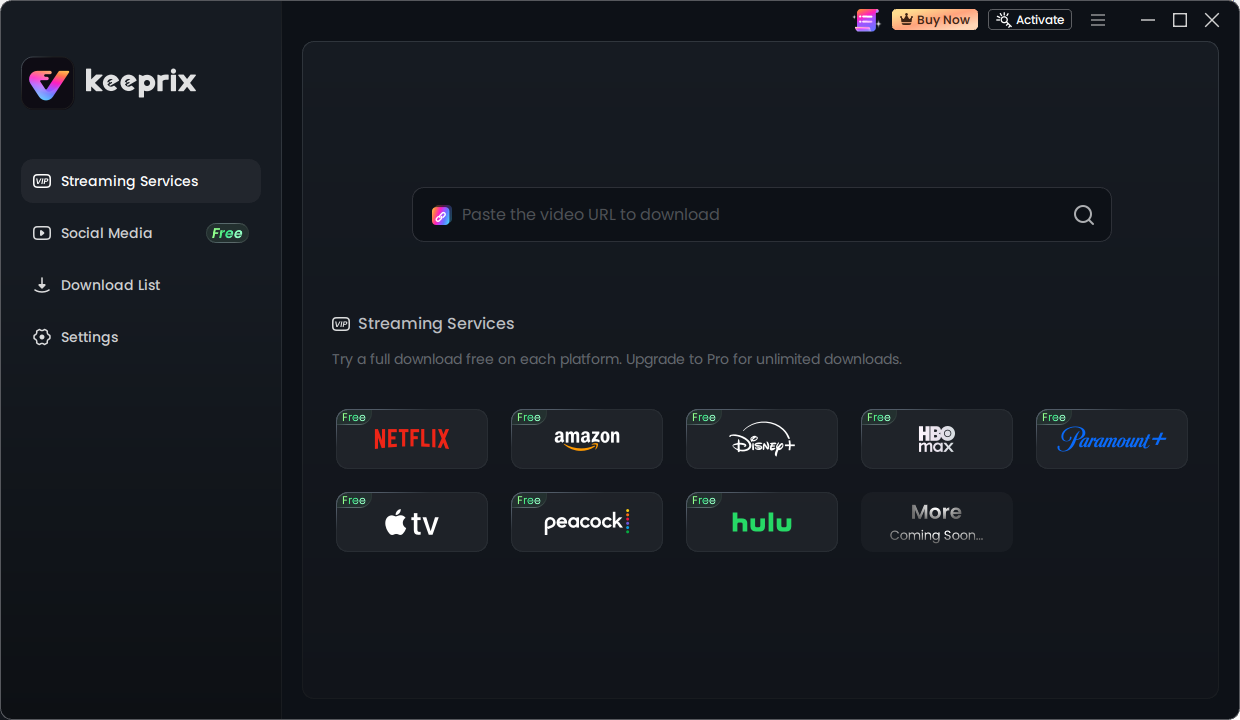
Keeprix streaming services
Step 2. Login in your Disney+ account or paste the Disney+ video link you want to download.
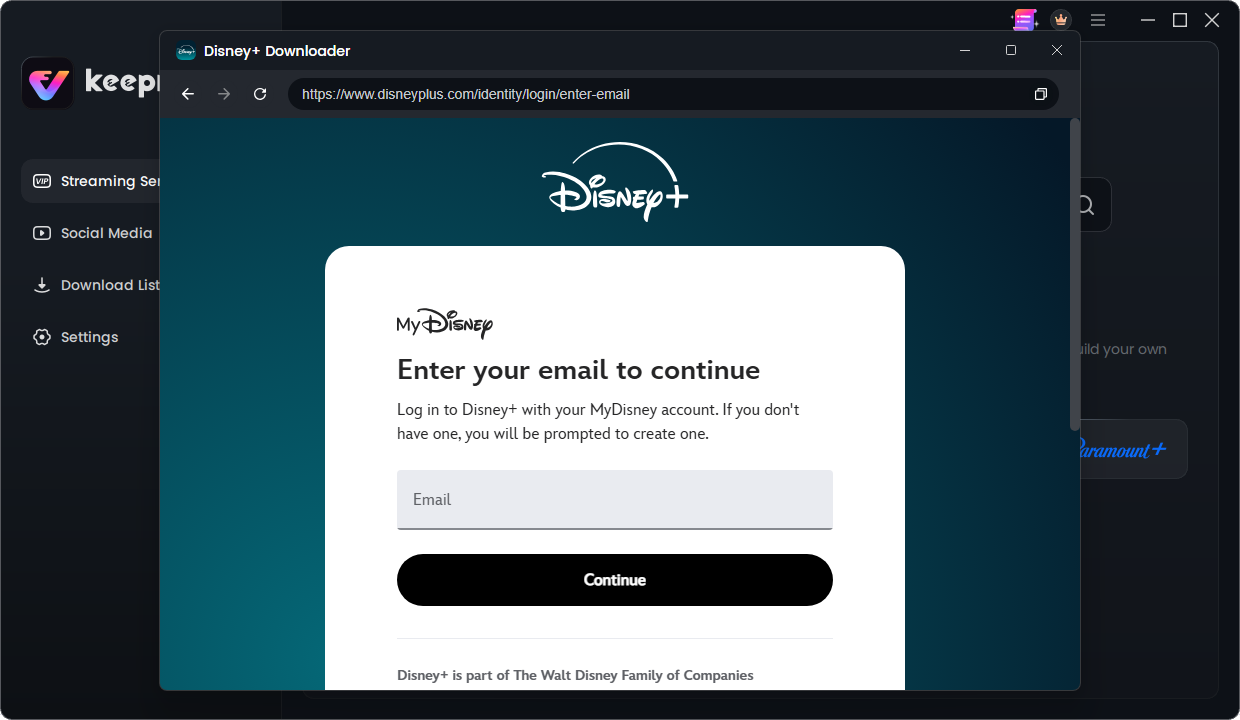
login your Disney Plus account
Step 3. Choose the eposides or seasons for Download. Then you can customize your download settings.
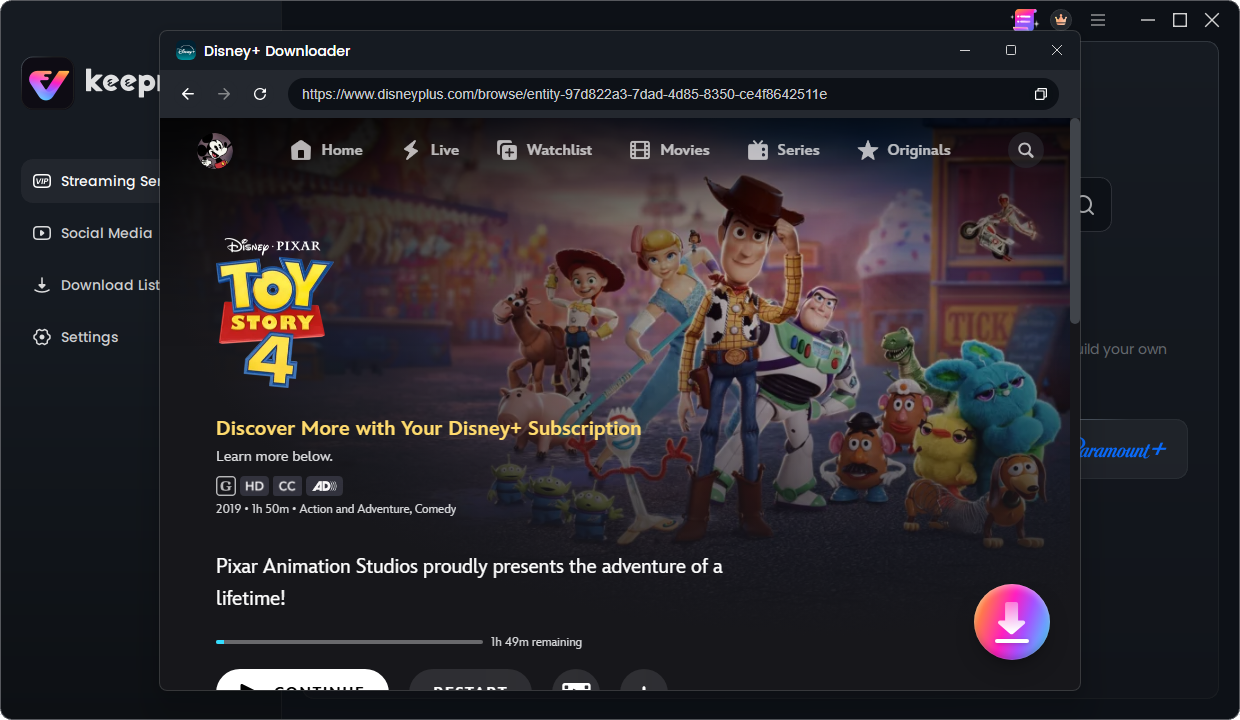
Choose a Disney+ movie you want
Step 4. Choose the preferred settings for resolution and format. Click the Download button. Then watch it offline on any player!
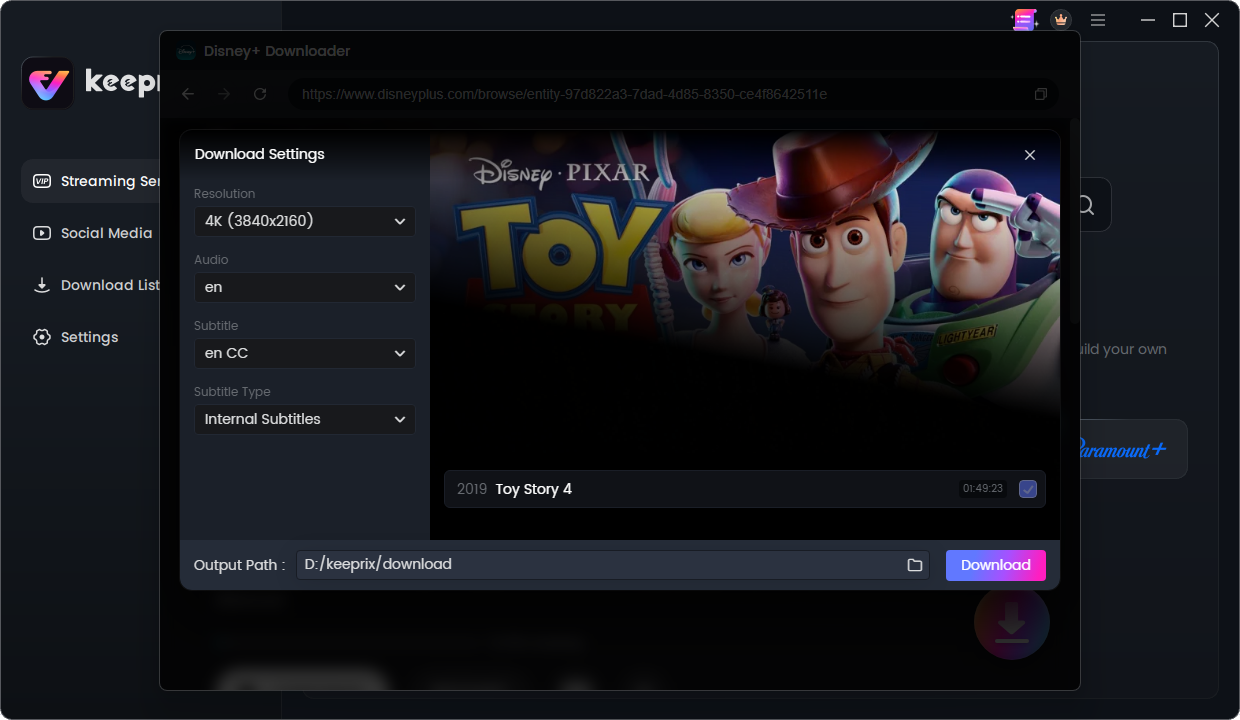
Download movies from Disney Plus
You can try the workflow before committing. Keeprix offers 1 full free download per platform, so you can test how local files improve your offline viewing.
Frequently Asked Questions
Why do subtitles keep turning back on automatically?
Subtitles often turn back on automatically because your account profile settings sync across all your devices. If subtitles are enabled on one device, the app may apply that preference to your entire profile on every screen.
How do I change the subtitle language on Disney Plus?
While watching a video, open the Audio & Subtitles menu (the speech bubble icon) and select your preferred language from the list under the Subtitles column.
How do I turn off closed captions on the Disney Plus mobile app?
Tap the screen during playback to bring up the playback controls, tap the subtitle icon in the top right corner, and select ‘Off’.
Can I watch offline with full subtitle control using Keeprix?
Yes. By using Keeprix to save accessible Disney Plus videos as local MP4 or MKV files, you can play them in a standard media player like VLC and toggle the preserved subtitles on or off freely, completely avoiding app-based glitches.
Summary: Get Distraction-Free Disney Plus Playback
Turning off subtitles on Disney Plus is usually a quick fix: just open the Audio & Subtitles menu during playback and select ‘Off’. If they refuse to disappear, device-level accessibility settings or common app bugs are likely the culprit, especially when watching offline.
If you are tired of restricted app limits and want a truly distraction-free offline experience, consider building a personal offline library. Try Keeprix to save accessible videos as local MP4 or MKV files, giving you ultimate playback and subtitle control on the media player you actually use.
Keeprix Video Downloader
Download streaming videos from Disney+ without trouble. Enjoy seamless offline watching on Windows and Mac computers.