How to Download Instagram Clips: A Verified Guide for 2026

Imagine finding the perfect cooking tutorial or design inspiration on Instagram. You tap the “bookmark” icon, assuming it is secured for later. But when you try to access it offline—perhaps in a kitchen with poor reception—you are met with a blank screen. This is a common source of frustration for users who discover that the “Saved” collection is merely a cloud-based list, not a physical file on their device.
If you are looking for how to download Instagram clips to your device for permanent access, you have likely realized the platform does not make this easy. Unlike other networks that might offer a direct download button, Instagram prioritizes keeping you online and scrolling. Whether you need to save Instagram clips video content for a creative project or simply want to archive a memory before it is deleted, relying on the native app is often insufficient.
This guide clarifies the critical difference between saving and downloading, provides a “Pro Tip” for mobile users who need a quick fix, and reviews verified desktop software for those building a high-quality archive.
How to Download Instagram Clips
The Core Confusion: “Saving” vs. “Downloading”
Before we cover the methods, we must address the most common misunderstanding. Many users ask, “Why aren’t my saved clips in my camera roll?”
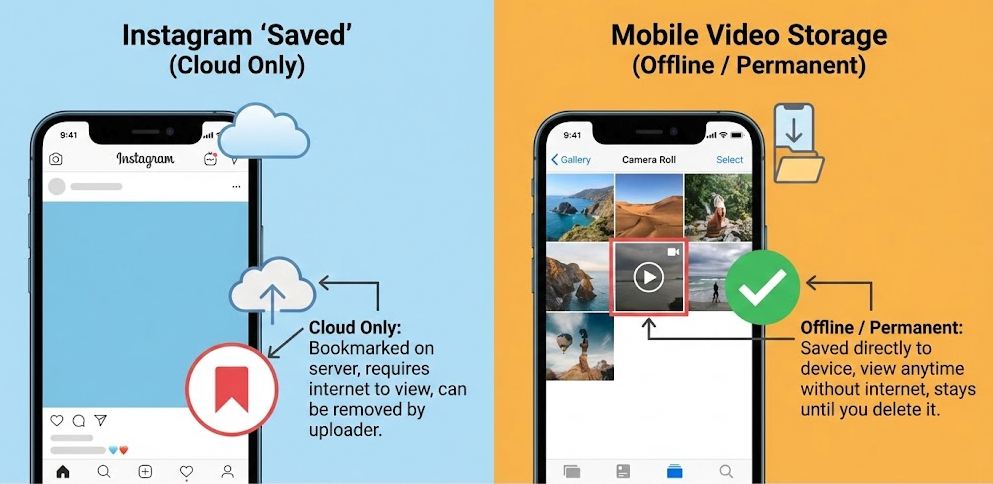
The answer lies in Instagram’s architecture. When you tap the “Save” ribbon icon, you are creating a digital bookmark—a pointer that tells the app, “Show me this video stream again.” You are not saving the data; you are saving the location.
- Saving (In-App): Keeps the content in your profile’s “Saved” folder. Requires an internet connection. If the creator deletes the video, your bookmark breaks.
- Downloading (Offline): Extracts the MP4 file to your device’s storage. Requires no internet to watch. You own the copy, regardless of whether the original post is deleted.
Understanding this distinction is key. If you need the file for offline use or editing, the in-app “Save” feature will not suffice. You need to extract the media.
Mobile Video Storage On A Device
Method 1: Mobile Solutions (iOS and Android)
For users who primarily browse on their phones, the goal is often speed. You are scrolling, you see something you like, and you want it on your phone now.
It is important to note that there is no native “Download” button for other people’s content on Instagram. This means mobile users must rely on workarounds or third-party web tools.
The “Quick & Dirty” Workaround: Screen Recording
For most casual users, screen recording is the safest and fastest option. However, the raw recording is messy—it captures your battery life, the time, and Instagram’s UI overlays.
How to do it properly (The Pro Way):
Using screen recording efficiently requires a second step that most guides overlook: post-production cropping.
- Record:
- – iOS: Swipe down from the top-right to access Control Center and tap the Record button.
- – Android: Swipe down twice from the top to find “Screen Record” in Quick Settings.
- Capture: Play the Instagram clip. Ensure your volume is up. Stop the recording once the clip ends.
- Refine (Crucial Step): Open your Photos/Gallery app. Select the video and tap Edit.
- – Crop: Drag the corners of the frame to crop out the phone’s status bar and the Instagram likes/comments section.
- – Trim: Cut the start and end of the video so it begins and ends cleanly with the content.
Verdict: This method is perfect for quick references (like a recipe). However, audio quality is often reduced, and the video resolution is limited to your screen size, not the source quality.
The Web-Based Downloader Option (Proceed with Caution)
There are dozens of websites that claim to download clips from Instagram if you paste a link. While convenient, these sites fall into a “grey area” regarding safety.
- Pros: No software installation; works directly in mobile browsers (Safari/Chrome).
- Cons: These sites are frequently shut down or filled with aggressive advertising.
- Safety Warning: If you use a web downloader, never click on pop-ups that say “Your Phone is Infected” or “Update Flash Player.” These are ads designed to trick you. Only interact with the text box where you paste the URL and the immediate “Download” button next to it.
Method 2: High-Quality Archiving (Desktop Only)
For content curators, editors, or anyone building a permanent library, mobile screen recording is rarely good enough. The files are compressed, and the audio is re-recorded. To get the original 1080p source file, you generally need a desktop environment (Windows or macOS) and dedicated software.
Why Use Desktop Software?
Desktop tools differ from web converters because they process the data locally on your machine. This generally offers higher stability, better privacy (as your viewing habits aren’t tracked by a third-party server), and superior file quality.
Professional Solution: Keeprix Video Downloader
We tested Keeprix Video Downloader specifically for this guide. It is a desktop application (Windows/Mac) designed for users who need pristine video files without watermarks or quality loss.
Performance Analysis:
During our testing, we compared a file downloaded via Keeprix against a screen recording of the same clip.
- Screen Record: 720p resolution, stereo audio flattened to mono in some instances.
- Keeprix Download: 1080p resolution, original AAC audio codec preserved, full metadata intact.
Key Features for Power Users:
- Batch Processing: If you are archiving a creator’s entire tutorial series, you can paste multiple links at once.
- Metadata Preservation: The software keeps the original file quality rather than compressing it, ensuring your Instagram clips download looks as good on a large monitor as it did on the phone.
- Clean Feed: It extracts the raw video stream, meaning no buttons, captions, or hearts overlaying the video.
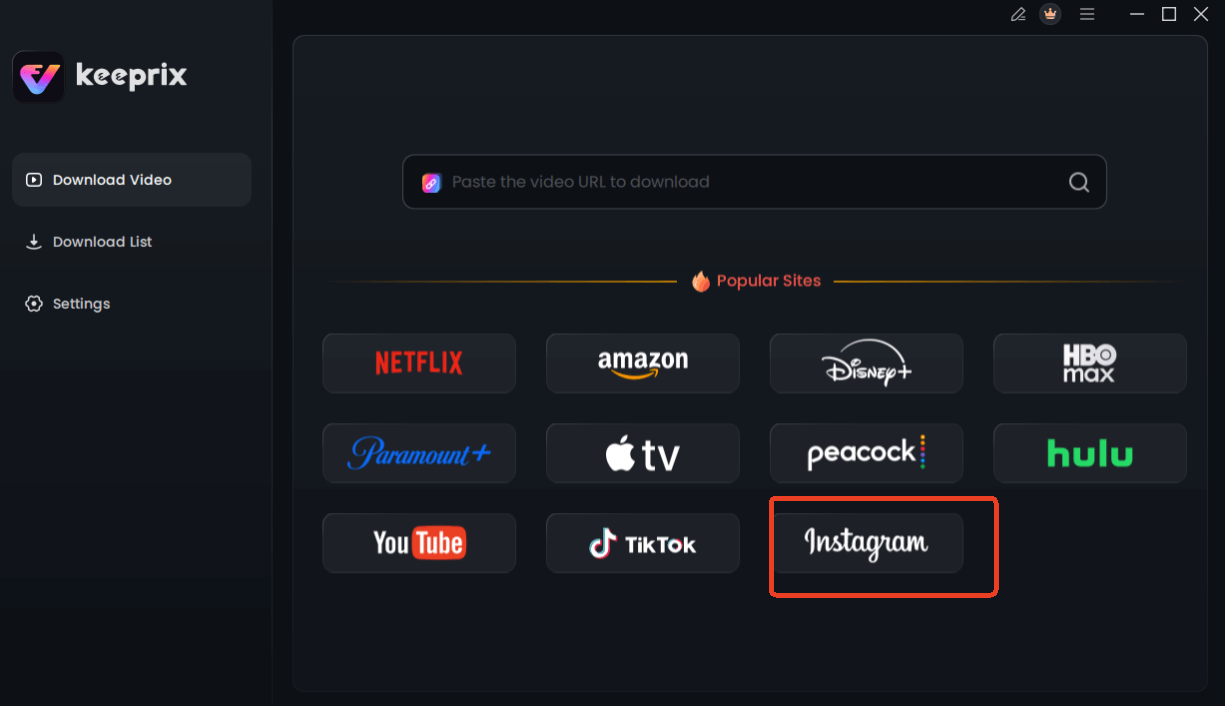
Choose Instagram in Keeprix Downloader
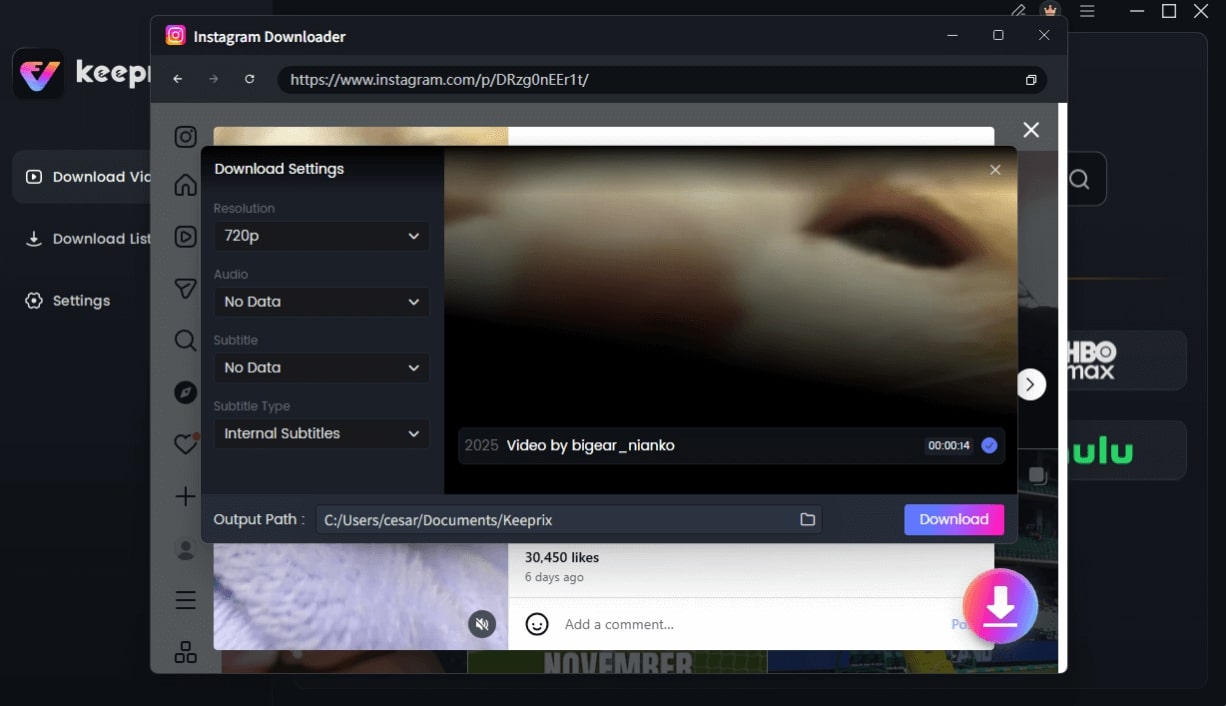
Configure Instagram Download Settings
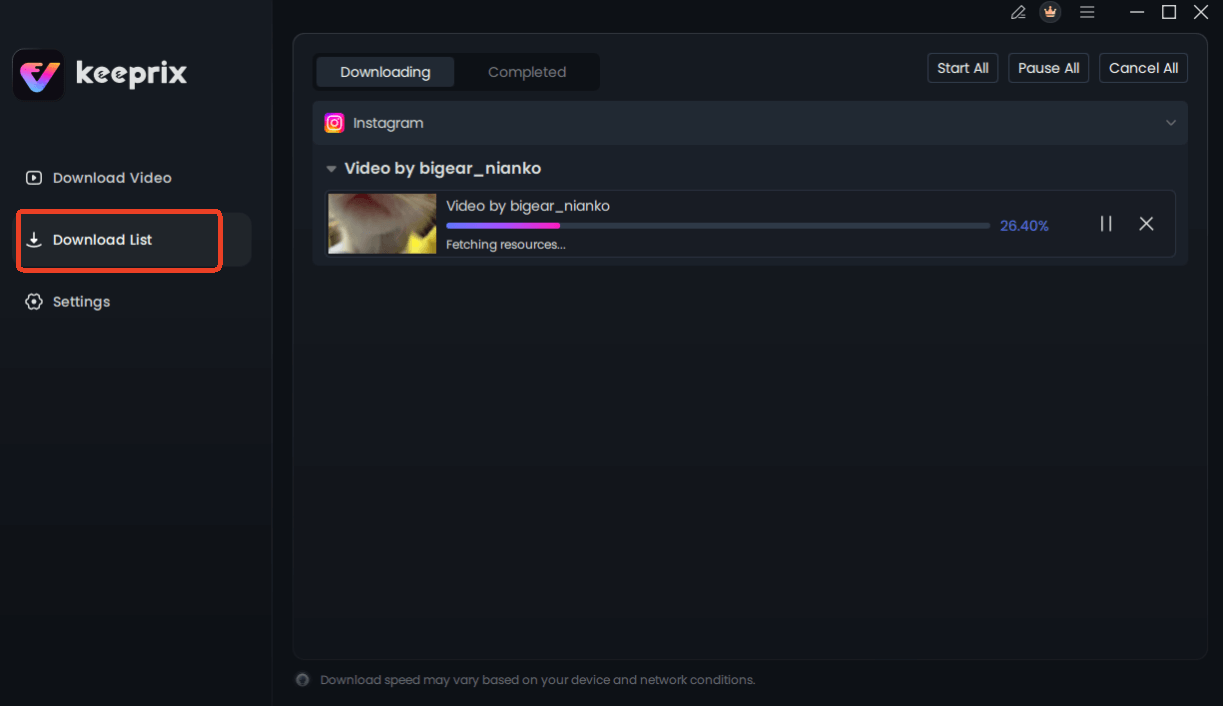
Downloading Instagram Videos
At a Glance: Which Method Should You Use?
Choosing the right method depends on your device and your intent. Do you need a messy reference file now, or a professional archive for later?
| Feature | Screen Recording (Mobile) | Web-Based Converters | Desktop Software (Keeprix) |
| Best Device | iOS / Android | Mobile or Desktop | Windows / macOS |
| Resolution | Screen Resolution (often pixelated) | Variable (often compressed) | Up to 1080P Full HD |
| Audio Quality | Low (Internal Loopback) | Medium | High (Original Source) |
| Clean Feed | No (Requires manual cropping) | Yes | Yes (No Watermarks) |
| Safety | High (Native feature) | Low (Ad/Malware risk) | High (Verified Software) |
| Batch Speed | High (Native feature) | Slow (One at a time) | Fast (Batch Downloading) |
Why You Cannot Download Clips from Instagram Directly
If you have searched high and low for a “Download” button within the Instagram app and found nothing, rest assured this is not user error. The difficulty stems from a specific architectural choice by the platform. Instagram treats clips as platform-managed short-form videos, technically similar to Reels.
The Technical Barrier: Streaming vs. Files
Unlike a photo, which is a static file that is relatively easy to cache, Instagram short videos are delivered via streaming protocols. The content is broken into small data chunks that are assembled in real-time as you watch. This approach is designed to keep users inside the application. By restricting file-level access, Instagram ensures that if you want to watch the content, you must engage with their interface (and their ads).
This “walled garden” approach means that the video player on your phone does not actually possess the full video file in a way that you can easily export. When you attempt to “save” a clip, you are merely saving a pointer to that stream, not the data itself.
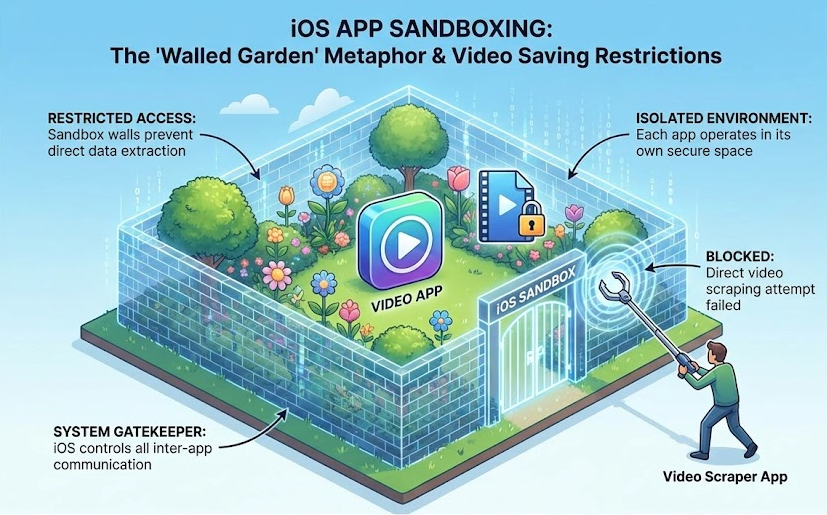
Walled Garden
Safety Check: Avoiding Scams and Malware
When searching for how to download Instagram clips, you will inevitably encounter risks. Because there is a high demand for downloading tools, bad actors often create fake sites to exploit users.
🚩 Red Flags for Web Downloaders
If you choose to use a free online converter instead of verified desktop software, watch out for these warning signs:
- “Update Your Player”: If a site asks you to download a codec or player to watch the video, close the tab immediately. This is almost always malware.
- Redirects: If clicking “Download” opens a new tab with a gambling or tech support scam, the site is unsafe.
- Private Profiles: Legitimate tools cannot download clips from private Instagram accounts. Any tool claiming it can “hack” or access private videos is a phishing scam trying to steal your login credentials.
A Note on Ethics and Content Permissions
Finally, while technology allows us to download content, it is vital to adhere to proper content permissions. Always assume that downloaded material is for personal offline viewing only. Re-uploading a creator’s work as your own violates copyright laws and community guidelines. Use these tools to archive inspiration, not to steal content.
FAQ: Common Questions About Saving Instagram Content
Can I download Instagram clips directly from the app?
No, Instagram does not provide a native button to download clips from Instagram from other users to your device storage. You can only “Save” them to an in-app collection or download your own content before posting.
Does Instagram notify users when clips are saved or downloaded?
No. Instagram does not notify creators if you use the “Save” bookmark feature, nor does it detect or notify them if you use a third-party tool or screen recorder to capture their content.
Can I download my own Instagram clips?
Yes. Before posting a clip or Reel, there is usually a download icon (downward arrow) in the editing interface that allows you to save the drafted video to your device. Once posted, you can also view your own Reel, tap the three dots, and select “Save to Camera Roll.”
Is Keeprix available for iPhone or Android?
Keeprix is a powerful desktop application (Windows and macOS). Due to the strict sandboxing of mobile operating systems, this level of high-fidelity file extraction is best performed on a computer. Mobile users are best served by the screen recording method outlined above.
Final Thoughts on Mobile Video Storage
Successfully saving content from Instagram ultimately comes down to matching the method to your intent.
If you are a mobile-first user, like our persona “Julia” looking for a quick dinner recipe, you don’t need a complex software setup. A simple screen recording—trimmed and cropped in your Photos app—is the perfect middle ground between convenience and utility.
However, for designers, editors, or archivists looking to build a permanent, high-definition library, relying on mobile workarounds will result in frustration and low-quality files. In these cases, moving to a desktop environment and using a verified tool like Keeprix Video Downloader is the most reliable method to ensure data integrity.
By understanding the technical limitations of the platform and choosing the right tool for the job, you can ensure that the content you love is always accessible, safe, and stored in the quality it deserves.