How to Save an Instagram Story with Music: The 2026 Guide

You spent time crafting the perfect Instagram story—the right photo, clever text, and a song that sets the perfect mood. You post it, and later decide to save that memory, only to open the video and find it completely silent. The music is gone. This frustrating experience is the primary reason users search for how to save an Instagram story with music. The feeling that your memory is incomplete because the audio disappeared is a common problem.
This guide provides clear, tested solutions to save Instagram story music to your camera roll. We’ll explain exactly why this happens and walk you through the most reliable methods to ensure your memories are saved with their soundtracks intact.

Save Instagram Story with Music
Also Read: How to Download Instagram Video Without Watermark
Why Music Disappears From Your Saved Instagram Stories
If you’ve ever saved a posted story and wondered why it’s silent, you are not alone. The reason is not a bug or an error on your part; it’s an intentional function related to copyright music restrictions.
Instagram has licensing agreements with music labels that allow you to use songs from its library within the app. These licenses, however, do not extend to distributing the audio as part of a downloadable video file that you can save and share elsewhere.
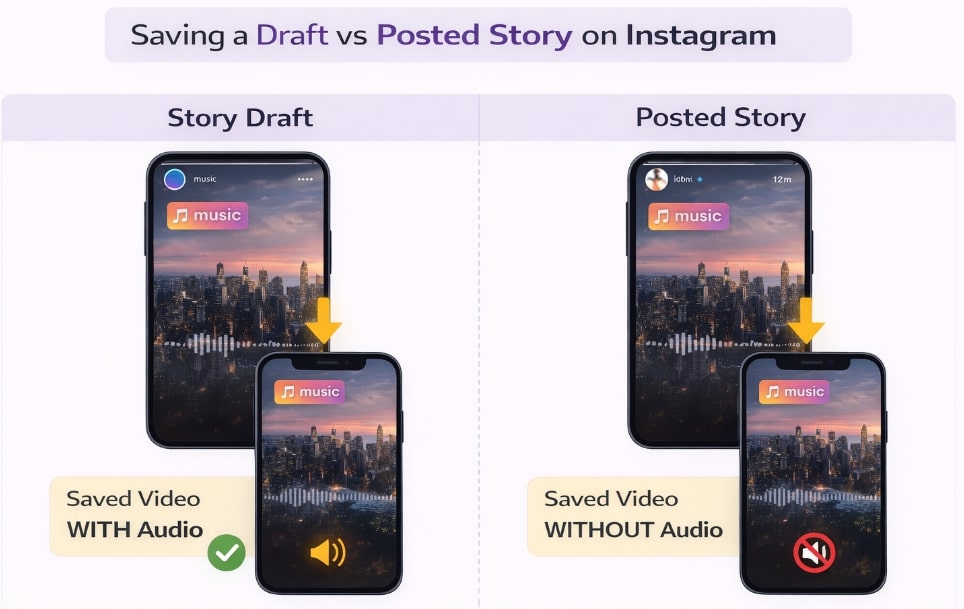
Here’s the critical difference between saving a draft and a posted story:
- When you save an unposted story (a draft): The video file is generated and saved locally on your device. The music from the Instagram music sticker is rendered directly into the video file for your personal use. At this stage, the licensing is contained within Instagram’s creation process.
- When you download a posted story: You are requesting a file from Instagram’s servers. To comply with its licensing agreements and avoid copyright infringement, Instagram is legally required to strip the licensed music from the file before providing it to you. This is why the camera roll save option for a live or archived story results in a video without sound.
Save Draft or Story on Instagram
Understanding this distinction is the first step to solving the problem.
Method 1: Save Your Story with Music Directly (Before Posting)
The most reliable in-app technique for saving a story with its music involves using the native save function before you share it. This method works because Instagram processes the video and audio differently in the draft stage. For users asking, “How do I save a story before posting?” this is the direct answer.
Follow these steps carefully to save the complete story to your device’s camera roll.
Step-by-Step Guide
- Open Instagram and Create Your Story: Tap the plus icon (+) at the top or swipe right from your feed to open the story camera. Add the photo or video you want to use.
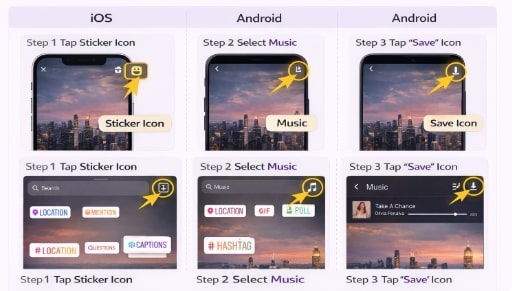
- Add Your Music: Tap the sticker icon (a square smiley face) at the top of the screen and select the ‘Music’ sticker. Search for and select your song. Customize the clip duration, lyrics display, and sticker appearance as you normally would.
- Save the Story: This is the most important step. Before you tap ‘Your Story’ or ‘Close Friends’ to post, look for the download icon (an arrow pointing down) at the top of the screen. Tap it. On some devices, you may need to tap the three-dots menu icon (…) in the upper-right corner and then select ‘Save’.
- Confirm the Save: Instagram will process the video for a few moments and save it directly to your phone’s photo gallery or camera roll with the music included.
Once saved, you can proceed to post the story or discard the draft.
Save Instagram Story with Audio
Choosing Your Method: Pre-Post Save vs. a Dedicated Downloader
Now you know how to save stories before you post them. But what about stories that are already live? Or stories from your archive? Or even a public story from another account that you want to save?
This is where you face a choice. The in-app method has a zero percent success rate for posted stories with licensed music due to the Instagram audio limitations we discussed. For those situations, a dedicated software tool is the only reliable procedure.
Here’s a direct comparison to help you choose the right approach:
| Feature | Instagram Native Save (Drafts) | Dedicated Downloader (Keeprix) |
| Success Rate | High for your own, unposted stories. Zero for posted stories with licensed music. | Very High for any posted story (yours or public) with music. |
| Use Case | Proactively saving your own creations for personal archives. | Saving live stories, content from your story archive, or public stories. |
| Video Quality | Preserves original story quality | Preserves original story quality, often up to 1080p. |
| Safety | Perfectly safe, as it’s a native Instagram feature. | Requires a reputable tool. Keeprix is secure and does not require your login credentials. |
| Convenience | Fast for single, pre-post saves. | More efficient for downloading multiple or archived stories. |
Method 2: Download Any Instagram Story with Sound Guaranteed
When the in-app “Draft Trick” isn’t an option, a dedicated tool is the most effective solution. We recommend Keeprix Downloader because it’s designed specifically to overcome the platform’s audio restrictions and provide a guaranteed result.
This tool directly addresses the core user frustration of finding saved Instagram stories missing music. Instead of relying on Instagram’s server to provide the file (without music), Keeprix captures the content as it streams, ensuring both video and audio are saved together in a high-quality, DRM-free format. This means the music becomes a permanent part of the video file on your computer, immune to Instagram’s limitations.
For anyone struggling with a story saved without audio, this software provides a dependable and permanent solution.
How Keeprix Downloader Works
The process is incredibly straightforward and works for Reels, feed videos, and IGTV.
Step 1. Find the Instagram video you want to save and copy its URL. (Tap the three-dot menu and select ‘Link’).
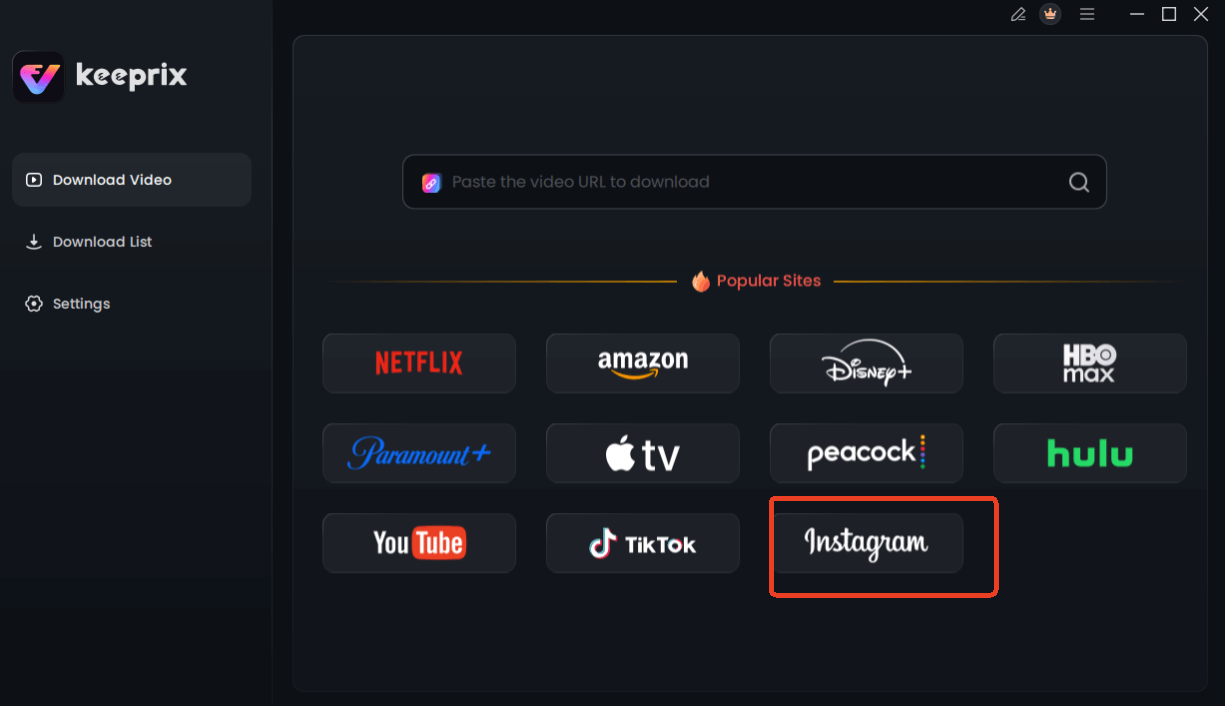
Step 2. Open Keeprix Downloader on your computer. Choose Instagram in Keeprix Downloader, or paste the URL into the input field directly.
Choose Instagram in Keeprix Downloader
Step 3. Customize your download settings. You can choose the resolution, audio, subtitle, and the output path.
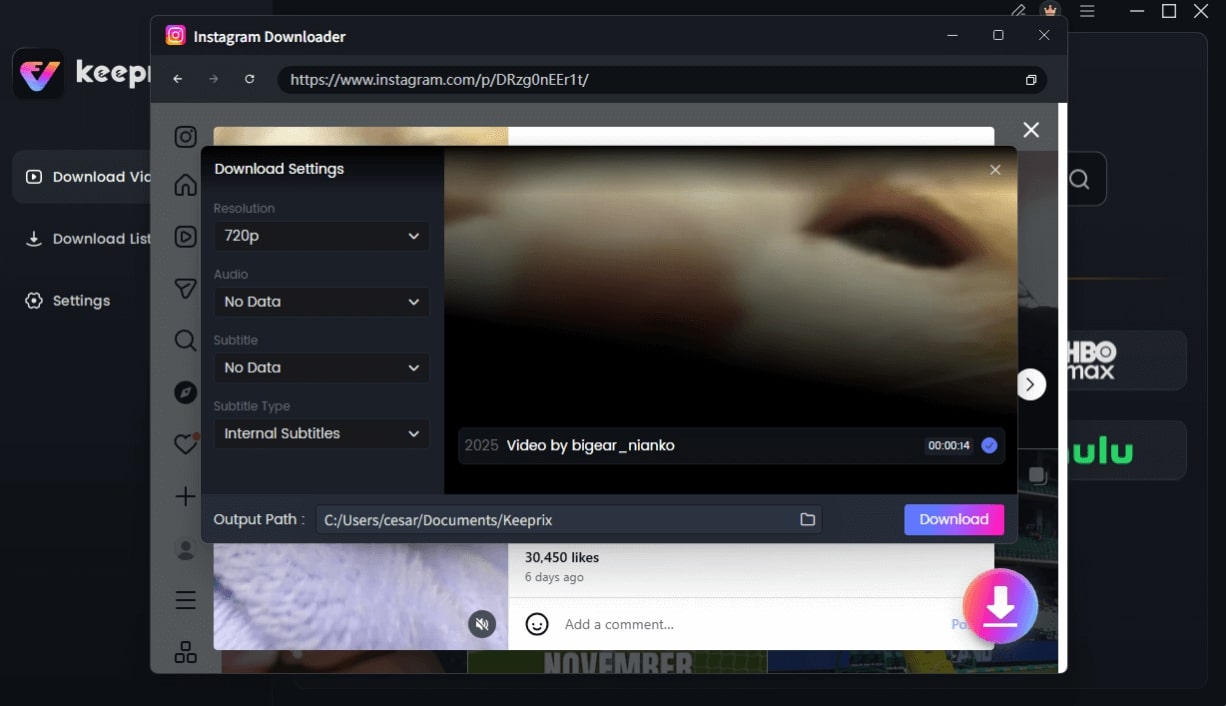
Configure Instagram Download Settings
Step 4. Click the Download button to save the video directly to your computer.
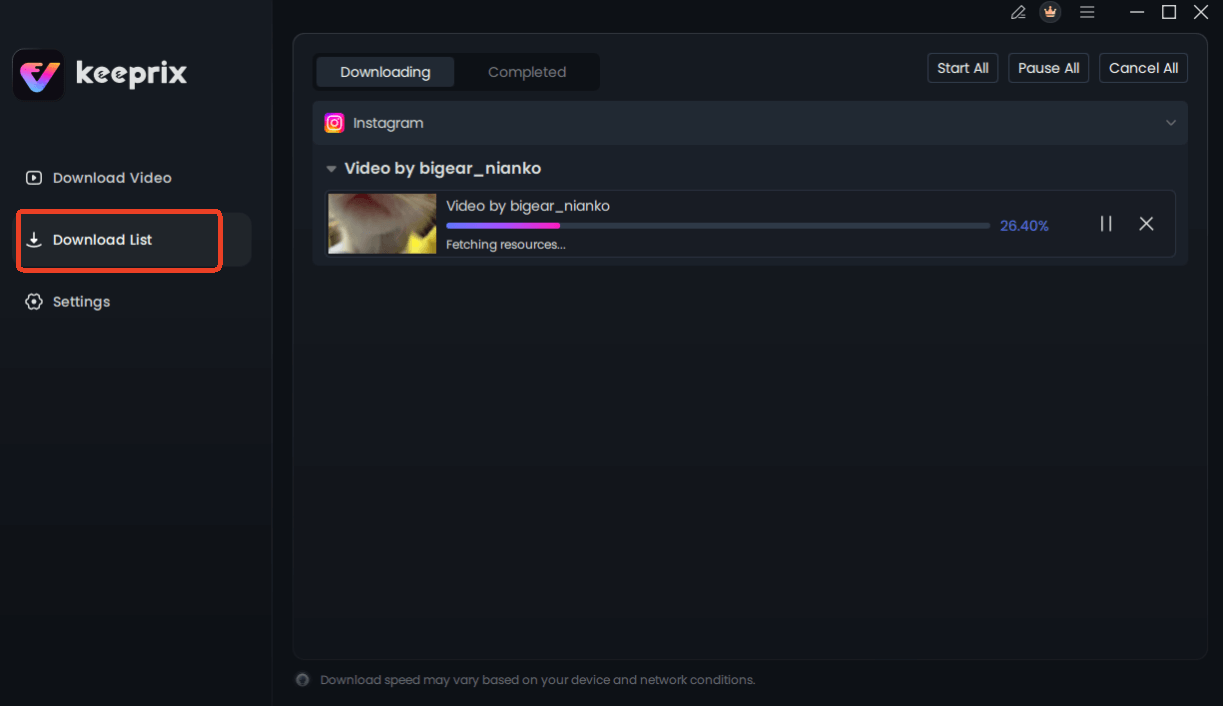
Downloading Instagram Videos
If you frequently need to download an Instagram story with sound or want to preserve memories from your archive, a specialized tool like this is a worthwhile investment.
Troubleshooting Common Issues with Saving Story Audio
Even with the “Draft Trick,” you might sometimes find your Instagram story music not saving. If you encounter an issue, run through this quick checklist to diagnose the problem.
- Update the Instagram App: An outdated app is the most common cause of features not working correctly. Go to the App Store or Google Play Store and ensure you have the latest version of Instagram.
- Check for Regional Music Restrictions: The availability of songs in Instagram’s library is subject to regional licensing. If a song isn’t licensed for your region, it may not be included in the saved file. Try using a different, globally popular track to see if the problem persists.
- Test with ‘Original Audio’: Audio from another user’s Reel or post is called ‘Original Audio’. This content is not subject to the same commercial music licenses. Try creating a test story using an ‘Original Audio’ clip; if it saves correctly, the issue is likely with the licensed music track you chose.
- Clear Your App Cache (Android): A corrupted cache can cause unpredictable behavior on Android devices. Go to Settings > Apps > Instagram > Storage and tap ‘Clear Cache’. This action is safe and will not delete your data.
- Check Phone Storage: If your device storage is full, the video file may fail to save correctly or completely. Ensure you have enough free space before saving.
Frequently Asked Questions
Here are direct answers to the most common questions about saving Instagram stories with music.
Q1. Can I save my Instagram story with music?
Yes. The most reliable in-app method is to save the story to your device before you post it. After it’s posted, Instagram’s native download function will remove licensed music. For posted stories, a dedicated downloader like Keeprix is required to save the audio.
Q2. How do I download my own Instagram story?
To download a live story, open it, tap the ‘More’ (three dots) icon, and select ‘Save video’. The saved video will be silent if it contains licensed music. To download from your archive, go to your Profile > Menu (☰) > Archive, select the story, tap ‘More’, and then ‘Save video’. The same audio limitations apply.
Q3. Why is my saved story silent?
Your saved story is silent because Instagram is required to remove licensed music tracks when you download a posted story. This is to comply with music copyright agreements. The app has a license for you to use the music, but not to distribute it as a downloadable file.
Q4. Can I save stories with original audio?
Yes. Stories that use ‘Original Audio’ from another user’s Reel or your own recording usually save with the audio intact, even after being posted. This is because this type of audio is not governed by the same commercial music licensing agreements. [Internal Link Suggestion: Link the preceding phrase to ‘/instagram-reels-vs-stories-explained’]
Q5. Does Instagram allow music to be saved?
Instagram allows music to be saved as part of a video file only under specific conditions—primarily when saving a story draft directly from the creation screen. It does not permit the saving of licensed music from already-posted content via its native download feature.
Sum It Up
The frustration of discovering your saved Instagram stories are missing their music is a solvable problem. You no longer have to accept silent videos as the only way to preserve your favorite moments. By understanding the difference between saving a draft and downloading a posted story, you can proactively use the in-app save feature to archive your creations.
For any story already on Instagram—whether live, in your archive, or from someone else—a reliable tool is essential. Keeprix Downloader provides a permanent solution, giving you the power to save your memories exactly as you created them. You can finally regain control and ensure your stories are always saved with their intended soundtracks.