How to Save Instagram Videos to Your Camera Roll: Your 2026 Guide

Trying to figure out how to save Instagram videos to your camera roll often leads to a moment of confusion. You find a great video, tap the ‘Save’ icon, and assume it’s been downloaded to your phone. Later, you discover it was only bookmarked within the Instagram app, not saved to your gallery. This common frustration—the difference between an in-app bookmark and an actual device download—is precisely why so many people search for a reliable procedure. This guide provides clear, tested methods to solve this problem for good, whether you’re saving your own content or looking for a way to keep memorable videos from other creators. Every step has been verified to work as described.

Save Instagram Videos to Your Camera Roll
Saving Your Own Instagram Reels to Your Camera Roll: The Official Method
For content creators, having a local copy of your work is essential for backups and repurposing content on other platforms like TikTok or YouTube Shorts. Instagram provides a direct method to save your own Reels, but the outcome—specifically whether it includes a watermark—depends on when you perform the save.
Method 1: Before You Post (No Watermark)
The best way to get a clean, watermark-free copy of your video is to download it during the final step of the creation process. This procedure ensures you have the original file for your archives.
Step 1. Create your Reel with your desired video clips, effects, and audio.
Step 2. Proceed to the final Share screen, where you write your caption and add tags.
Step 3. Before you tap the ‘Share’ button, look for a Download icon at the top of the screen (it looks like a small arrow pointing down).
Step 4. Tap this icon. The video will process and save directly to your phone’s camera roll or gallery without the Instagram watermark. This is the ideal technique for mobile video storage when you plan to reuse the footage.
Method 2: After You Post (With Watermark)
If you need to download a Reel that is already live on your profile, the process is also straightforward. However, be aware that this version will include a watermark with the Reels logo and your username.
Step 1. Open the Instagram app and navigate to the Reel on your profile grid.
Step 2. Tap the three-dot icon (●●●) to open the More options menu.
Step 3. From the menu that appears, select Save to your device.
The video will be downloaded to your camera roll, complete with the watermark. This is useful for quick sharing but less ideal for professional repurposing.
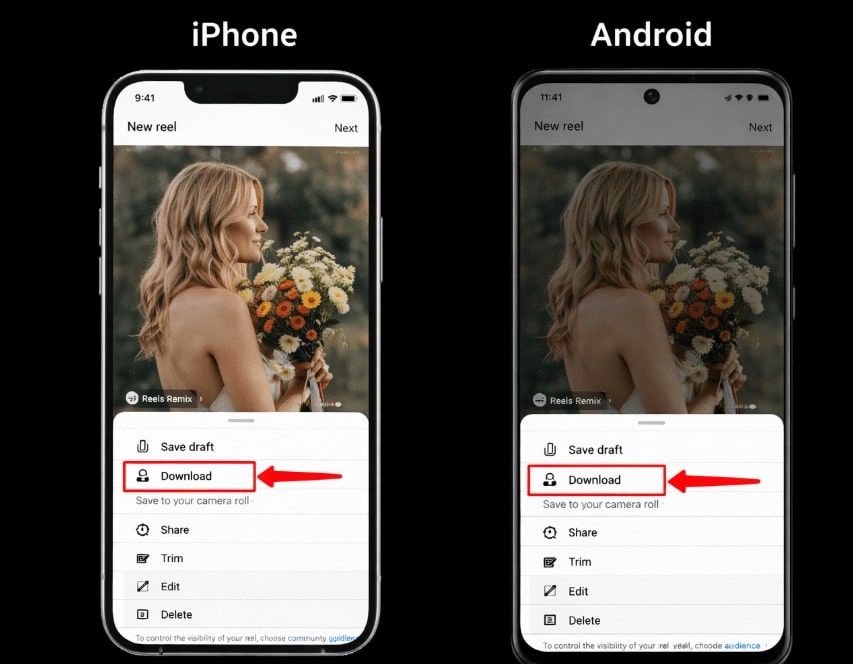
Download Instagram without Watermark iOS or Android
Why You Can’t Directly Download Instagram Videos from Others
Many users wonder why there isn’t a simple “Download” button for every video. The reason is rooted in Instagram’s design philosophy, which prioritizes Instagram content permissions and copyright protection. Instagram intentionally separates in-app ‘saves’ (which are essentially bookmarks) from device downloads to control how content is distributed. This protects creators from having their work downloaded and redistributed without permission.
This policy leaves users with manual workarounds, the most common being screen recording. However, this technique has significant drawbacks that make it an unreliable solution:
- Quality Loss: Screen recordings capture your screen’s output, not the original video file. This almost always results in lower resolution, compressed audio, and a less sharp image.
- On-Screen Distractions: Any notifications, low-battery warnings, or on-screen interface elements (like the volume slider) that appear during the recording will be permanently embedded in your video.
- Copyright Concerns: Recording and saving someone else’s content without their consent can place you in a legal gray area, depending on how you intend to use the video.
Because of these limitations, screen recording is not an ideal solution for anyone seeking high-quality, clean downloads.
Manual vs. Automated Tools: A Clear Comparison
When you need to save an Instagram video from another user, you have two primary options: manual techniques like screen recording or a dedicated software tool. To help you decide, this table compares the two approaches based on the factors that matter most: success rate, time, required skill, and the quality of the final video.
| Criterion | Manual Methods (e.g., Screen Recording) | Professional Tools (e.g., Keeprix Downloader) |
| Success Rate | Moderate. Prone to errors from notifications, accidental screen taps, or recording mistakes. | High. Directly downloads the source file for a perfect, error-free copy every time. |
| Time Cost | High. You must play the entire video in real time to capture it. Longer videos require more time. | Low. Downloads are typically much faster than the video’s actual playback time, saving you minutes per video. |
| Technical Skill | Low. Uses built-in phone features that are generally easy to access. | Low. Designed with a simple user interface: copy the link, paste it, and click download. |
| Safety & Quality | Low. Always results in some quality loss and does not guarantee privacy. | High. Downloads the original high-resolution file with no watermarks. Your activity is kept private. |
If quality, efficiency, and reliability are your top priorities for Instagram video saving, a professional tool is the superior choice.
The Best Way to Download Instagram Videos to Your Phone: Keeprix Downloader
After testing various methods, the most effective and reliable solution to download any public Instagram video to your phone or computer is Keeprix Downloader. It is specifically designed to overcome the platform’s limitations and the quality issues associated with manual techniques. It directly solves the problem of saving other users’ videos by providing a simple, high-fidelity download procedure.
Keeprix saves videos in original HD, ensuring the downloaded file is identical to the source. For users frustrated by ads in longer IGTV videos, it also automatically removes them for clean, uninterrupted offline viewing. Unlike in-app bookmarks that can disappear if the original post is deleted, this tool provides permanent camera roll storage.
Keeprix Downloader is a premium software solution for users who prioritize high-quality results, speed, and security. It offers a consistently better experience than free, ad-supported web tools that can be unreliable or pose privacy risks.
How to Save Instagram Post Videos with Keeprix
The process is incredibly straightforward and works for Reels, feed videos, and IGTV.
Step 1. Find the Instagram video you want to save and copy its URL. (Tap the three-dot menu and select ‘Link’).
Step 2. Open Keeprix Downloader on your computer. Choose Instagram in Keeprix Downloader, or paste the URL into the input field directly.
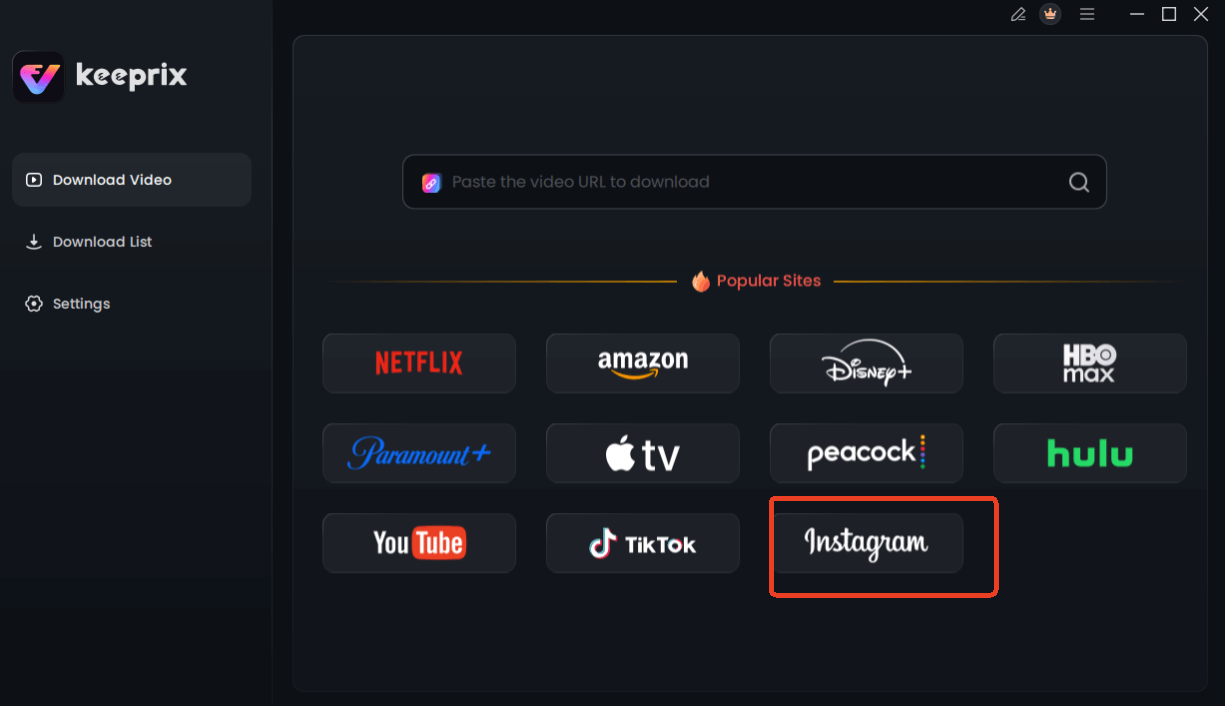
Choose Instagram in Keeprix Downloader
Step 3. Customize your download settings.
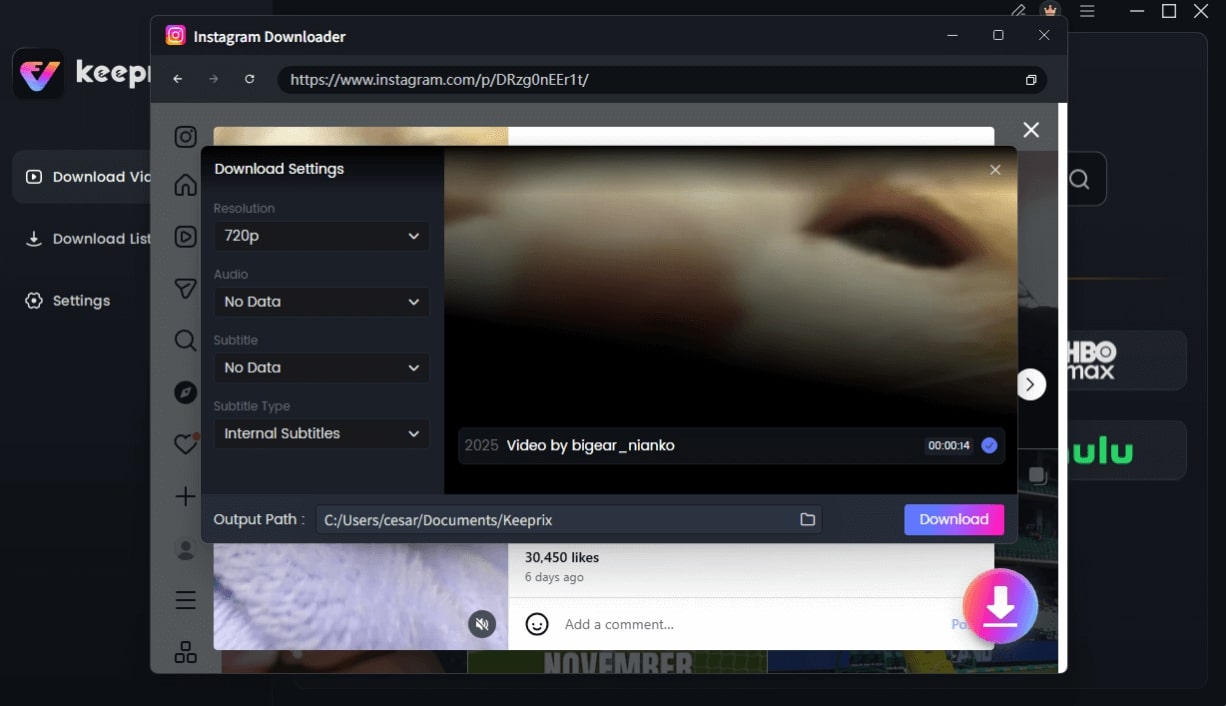
Configure Instagram Download Settings
Step 4. Click the Download button to save the video directly to your computer. From there, you can easily transfer it to your phone’s camera roll.
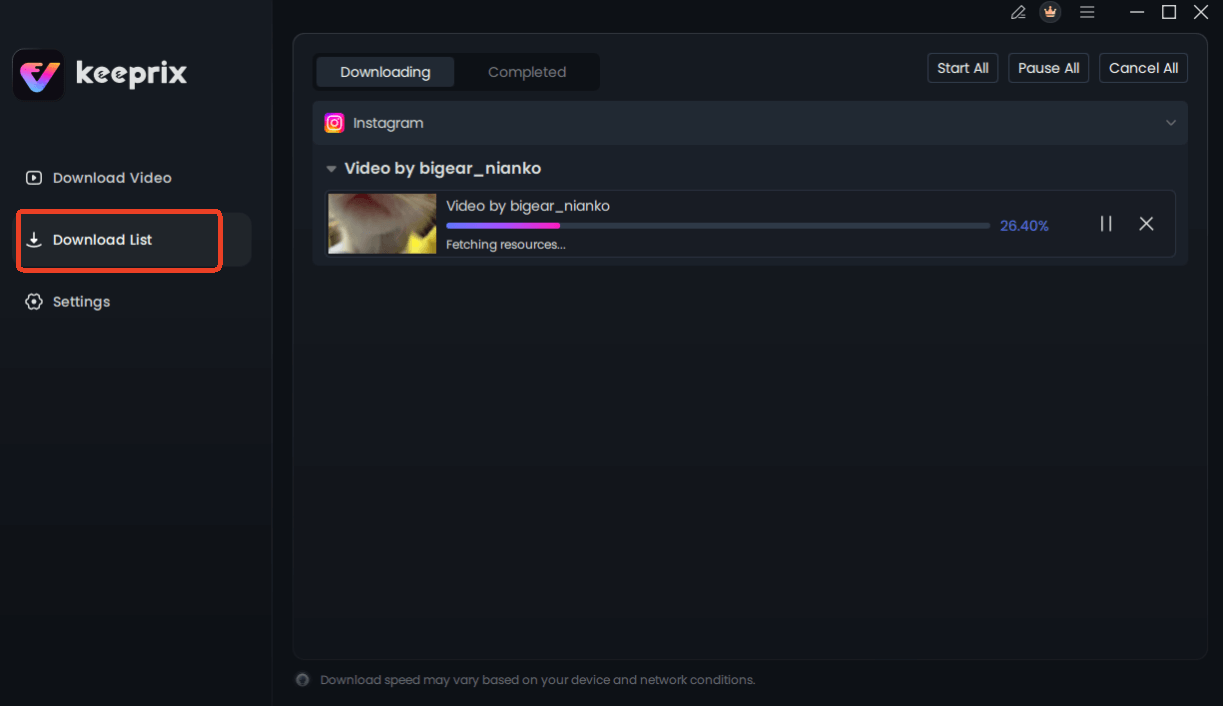
Downloading Instagram Videos
Frequently Asked Questions About Instagram Video Saving
Here are direct answers to the most common questions about saving Instagram videos.
Q1. Can I save Instagram videos to my camera roll?
Yes. You can directly save your own videos and Reels from within the app. To save videos posted by other users, you need to use an external method like a dedicated third-party tool such as Keeprix Downloader, as screen recording often results in poor quality.
Q2. How do I save my own Instagram Reels?
To save your own Reel after posting, open the video, tap the three-dot menu icon, and select Save to your device. To save a version without a watermark, you must use the Download button on the final draft screen before you publish it.
Q3. Why don’t saved videos show in my gallery?
This almost always happens because you used Instagram’s “Save” feature (the bookmark icon). This action only saves the post to a private collection inside the Instagram app for later viewing. It does not download the video file to your device’s camera roll or gallery.
Q4. Can I save someone else’s Instagram video?
Instagram does not offer a built-in feature to download another user’s video to your phone. Doing so requires an external solution. Always be mindful of copyright and get permission from the creator if you plan to use the video for anything other than your own personal viewing. [Internal Link Suggestion: Link the preceding phrase to ‘/digital-content-fair-use-guide’]
Q5. Does Instagram notify users when videos are saved?
No. Instagram does not send a notification if you “Save” (bookmark) someone’s post to your in-app collection, nor does it notify them if you use a screen recorder or a third-party tool to download their video.
Q6. Why do my saved Reels have watermarks?
When you download one of your own Reels that has already been published, Instagram automatically adds a watermark with its logo and your username. This is to ensure attribution when the content is shared on other platforms. The only official way to avoid this is to download the video from the share screen before posting it.
Q7. What is the difference between save and download on Instagram?
Saving on Instagram refers to using the bookmark icon to add a post to your private, in-app collection. It’s for organizing content you want to find again later within the app. Downloading refers to saving the actual video file to your device’s local storage (your camera roll or gallery) for permanent, offline access.
Sum It Up
The confusion over saving Instagram videos stems from the platform’s deliberate design, which separates in-app bookmarking from actual file downloads. While you can easily save your own content, saving others’ videos without quality loss or watermarks requires a better tool. A professional solution like Keeprix Downloader removes the guesswork and frustration, giving you a reliable way to get high-quality copies of any video. Instead of struggling with screen recorders or unreliable websites, you can solve the problem permanently. Take back control of your media and ensure the videos you want to keep are always available, offline and in perfect quality, right in your camera roll.