How to Download Instagram Reel Without Posting (2026 Guide)

You have just spent hours editing a perfect Reel. The transitions are synced to the beat, the text overlays are aligned, and the timing is flawless. But you aren’t ready to hit “Share” just yet. Perhaps you need client approval, you want to back up your hard work in case the app crashes, or you plan to repurpose the footage for TikTok without the Instagram interface cluttering the screen.
The fear that a glitch could wipe out your editing efforts is valid. Relying on Instagram’s “Save Draft” feature keeps your video trapped inside the app’s cache, where it is vulnerable to deletion if you log out or update the app. To truly secure your work, you need the video file safely in your camera roll.
If you are trying to save Instagram reel without posting, you may have noticed that the path to doing so isn’t always obvious. Instagram prioritizes immediate sharing over file management. This guide clarifies the exact workflow to export your drafts, ensuring you never lose an edit again.
How to Download Instagram Reel Without Posting
The Official Method: Save Reel to Camera Roll Before Posting
In our analysis of the content creation workflow, we found that the key to success lies in timing. To save to camera roll effectively, you must act during a specific window of opportunity within the reel editing screen.
Many users miss this because they click “Next” too quickly. Once you move to the final captioning screen, the direct download option disappears, trapping your content inside the app.
Here is the exact procedure to export Instagram reel without sharing:
Step 1: Complete Your Edits
Finish adding your clips, text, stickers, and effects in the main editing interface. Do not rush this stage. Ensure your visual alignment is correct, as you cannot edit the exported file layers later. However, be aware that interactive stickers (like Polls or Questions) will save as static images and will not be clickable in the downloaded file.
Step 2: Locate the Download Icon
Look for the top toolbar on your screen.
- On most devices: You will see a downward-pointing arrow icon (↓).
- On smaller screens: You may need to tap the “three dots” (…) menu to reveal the download option.
Step 3: Tap to Save
Press the icon. You will see a processing wheel, followed by a “Saved” notification. This indicates the original video file has been written to your device’s gallery.
Step 4: Verify and Close
Do not click Next yet. This is the most critical step that many creators overlook. Minimize the Instagram app (do not close it completely) and open your phone’s Photo Gallery or Camera Roll.
- Check that the video plays correctly.
- Check that the resolution looks sharp.
If the file is there, your work is safe. You can now close Instagram or save the draft to the cloud with peace of mind.
Expert Insight: It is critical to understand why you must save here. Instagram allows creators to export reels only at the editing stage because once a reel is published, it becomes a platform-managed asset. By saving early, you retain ownership of the raw file before the platform applies its final compression and distribution protocols.
The Audio Trap: Why Music Disappears (And What Happens to Voiceovers)
When you save Instagram reel without posting using the official method described above, you will likely encounter a frustrating limitation: the video saves, but the trending audio track is missing.
This is not a bug; it is a licensing feature designed to protect copyright holders. However, it can be confusing if you have layered multiple types of audio. Here is exactly what happens to your sound during an export:
1. Licensed Music (Removed)
If you add a song from Instagram’s internal music library (e.g., the latest pop hit), the app will strip this audio track during the export process. The file will save, but a pop-up usually warns you: “Save without audio? Music will be removed.”
- The Result: You get a silent video file.
2. Original Audio & Microphone Recording (Saved)
If you record a voiceover directly into the phone’s microphone using the “Voiceover” tool, or if you upload a video clip that already has sound (like a vlog clip where you are speaking), Instagram considers this your intellectual property.
- The Result: This audio is preserved in the downloaded file.
3. The Mixed Audio Scenario (The Danger Zone)
If you have recorded a voiceover over a licensed music track, things get tricky. In most recent updates, Instagram will separate the tracks upon download. It will strip the music but keep your voiceover. This means your downloaded video will feature your voice speaking into silence, potentially ruining the pacing if you were speaking to the beat of the music.
If your goal is simply to save a visual backup, the native save tool is perfect. However, if you need the music to remain intact—for example, to preview the “vibe” for a client or to repost on TikTok—you cannot use the native save button. You must use the screen recording workaround below.
Workaround: How to Download Reel Draft with Music (Screen Recording)
If you absolutely must download reel draft Instagram files with the music included, you will need to use a screen recording workaround. While not perfect, this method solves the “missing audio” issue.
However, a raw screen recording looks messy. It captures your battery life, the time, and the Instagram interface icons. To make this look professional, follow these refined steps to get the cleanest possible capture.
Step-by-Step Procedure
- Enter Preview Mode:
In the Instagram reel editor, tap “Preview” or “Next” to view the looping video.
- Clear the Interface (Crucial Step):
Before you record, tap the screen once lightly in the center. On most versions of Instagram, this will hide the editing icons, captions, and overlays, giving you a mostly unobstructed view of your video.
- Activate Screen Recording:
- – iPhone: Swipe down from the top-right corner to open the Control Center. Tap the Record button (circle icon). Warning: On older iPhones (with a home button) or non-Pro models, this may create a red “recording bubble” or bar at the top of your screen. You will need to crop this out later.
- – Android: Swipe down twice from the top of the screen to access Quick Settings and select “Screen Record.”
- Capture the Content:
Swipe the Control Center away and let the Reel play through completely. Ensure your volume is up so the recorder captures the internal audio.
- Edit and Crop (The “Pro” Polish):
Stop the recording and open your phone’s Gallery or Photos app.
- On iPhone: Open the video > Tap Edit (top right) > Tap the Crop Icon (bottom row, looks like a square with rotating arrows). Drag the corners in to remove the top status bar (and the red recording bubble) and the bottom home bar.
- On Android: Open Google Photos > Tap Edit > Crop.
Trimming these UI elements ensures the viewer focuses on your content, not your phone’s battery percentage.
Comparison: Native Save vs. Screen Recording vs. Archive Tools
Deciding how to save reels before posting depends on your end goal. Are you saving a rough draft for a client, or are you trying to build a library of high-quality inspiration?
To help you choose the right workflow, we have analyzed the three primary methods.
| Feature | Native Save Button | Screen Recording | Keeprix Video Downloader |
| Best For | High-quality visual backups of your own drafts | Sharing “Concept” drafts with clients (Music included) | Archiving Public Reels & Inspiration |
| Audio Saved? | Original Voiceover Only (No Music) | Yes (All Audio captured) | Yes (All Audio preserved) |
| Resolution | High (Mobile Native) | Medium (Screen Resolution) | 1080P Full HD |
| Watermarks | None | UI Elements (Need cropping) | None (Clean file) |
| Works on Drafts? | Yes | Yes | No (Requires Public URL) |
Analysis of Methods
- Native Save Button: Best for the “Careful Creator” who wants to secure their visual work immediately.
- Screen Recording: The only option if you need to show a client how the music syncs with the video before it goes live.
- Professional Desktop Tools: These are generally misunderstood. Tools like Keeprix cannot access your private drafts inside the app. However, they are essential for the next stage of your workflow: archiving published content.
For Content Planners: Archiving High-Quality Inspiration
While saving mobile drafts is about protecting your current work, professional content planners also need a way to save finished work—either their own (after posting) or competitors’ content for research.
Once you post a Reel, Instagram compresses it. If you lose your original file, downloading your own Reel back from Instagram usually results in a low-quality file stamped with a watermark. This is where a dedicated tool like Keeprix Video Downloader becomes useful for your “Swipe File” or inspiration library.
Why You Need a Post-Publishing Archive Tool
If you are serious about your content creation workflow, you likely look at other creators for trend research. Screen recording other people’s Reels for your mood board is messy and low-quality.
- Download Public Content Without Watermarks: If you want to save a competitor’s Reel to analyze their transitions frame-by-frame in your desktop editor, Keeprix allows you to download the public URL in 1080P Full HD.
- Build an Offline Inspiration Library: Instead of just “saving” a Reel to an Instagram collection (where the creator might delete it later), downloading the file ensures you have a permanent reference for your team.
- Recover Your Own Posted Work: If you forgot to save your draft and deleted the original file, you can use Keeprix to download your own published Reel at the highest possible quality to repurpose on YouTube Shorts.
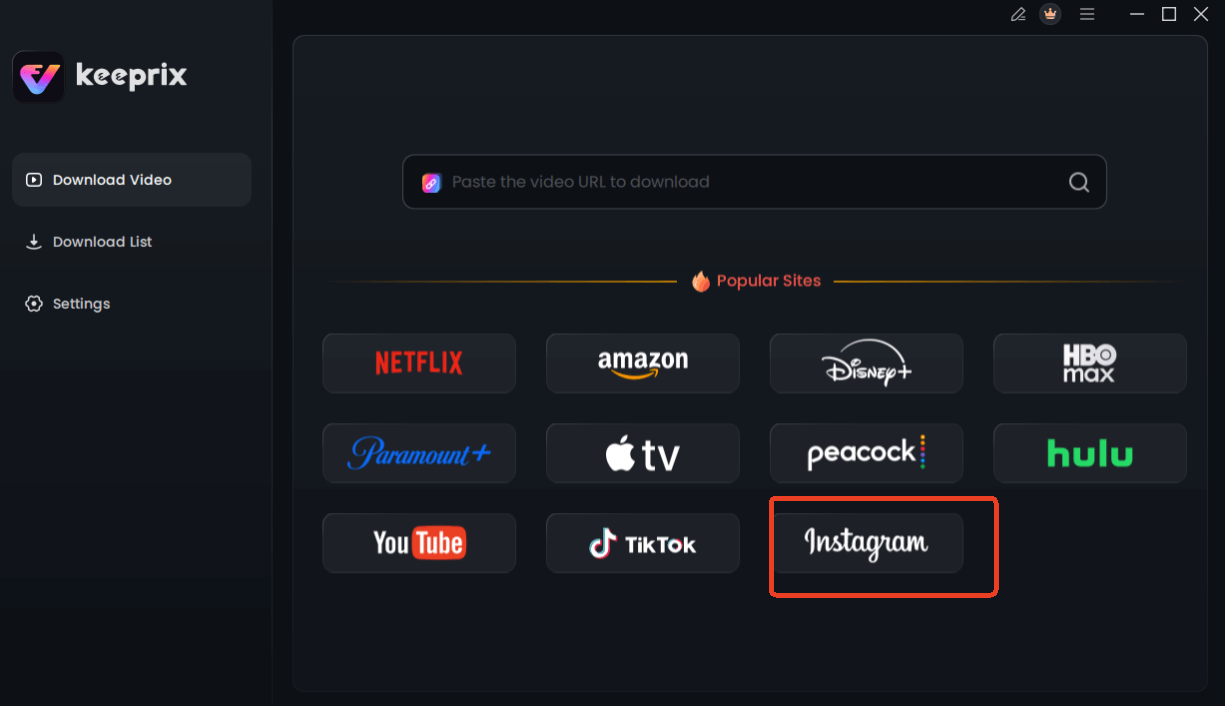
Choose Instagram in Keeprix Downloader
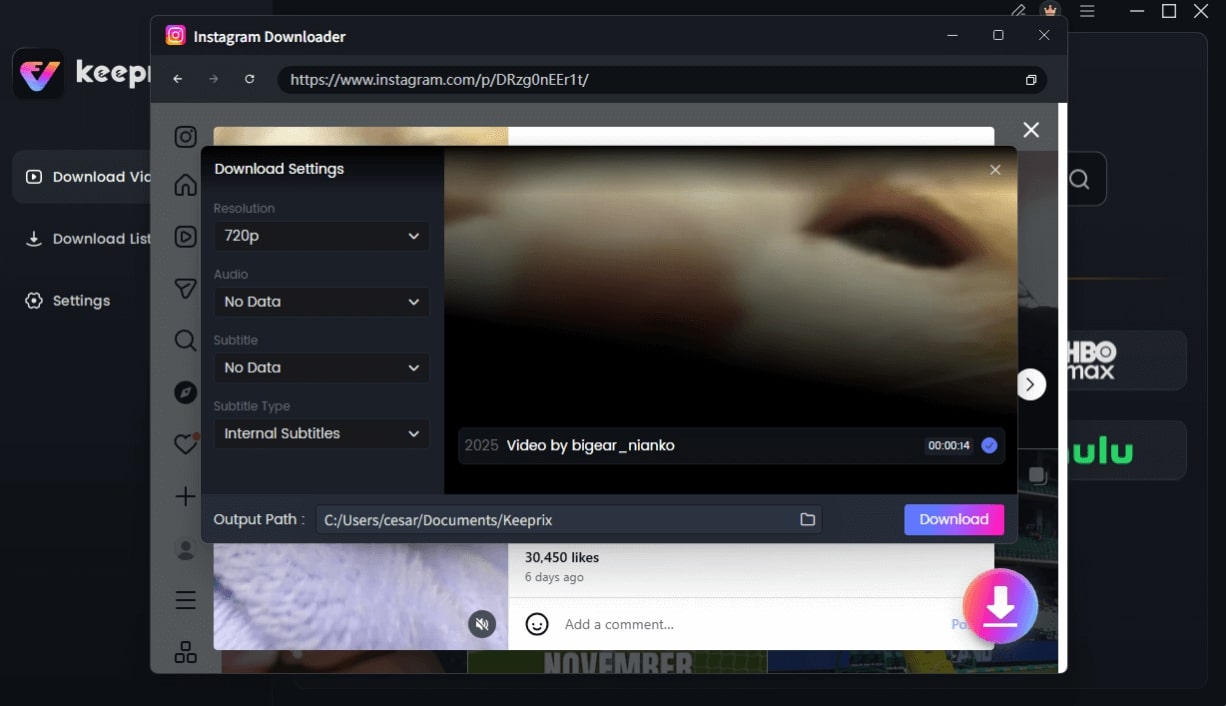
Configure Instagram Download Settings
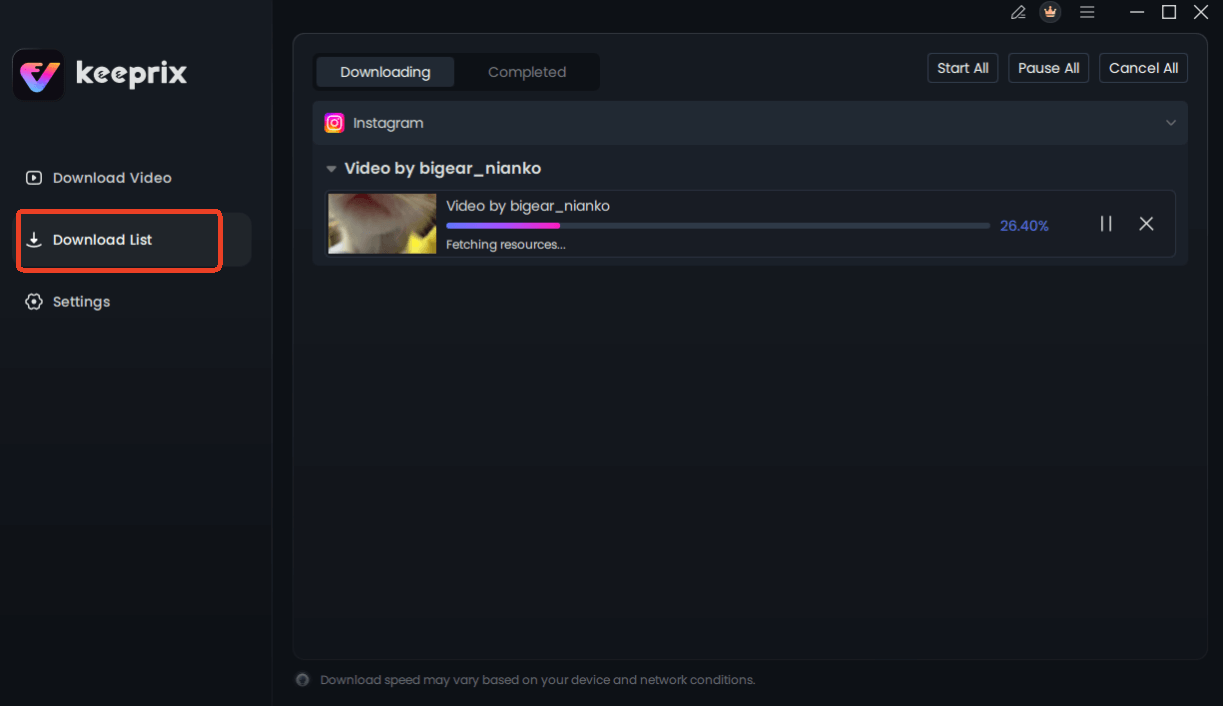
Downloading Instagram Videos
Always respect copyright and intellectual property. Use downloaded content for internal reference, analysis, or archiving your own material—not for reposting other creators’ work as your own.
Frequently Asked Questions About Instagram Drafts
To further clarify the mechanics of Instagram reel drafts and ensure your privacy, here are the answers to the most common questions creators ask.
Can I download an Instagram reel without posting it?
Yes. You can download the video file directly to your camera roll by tapping the download icon (downward arrow) in the editing toolbar before you click “Next” to add a caption.
Where are reel drafts stored?
Reel drafts are stored locally on your device within the Instagram application cache. They are not stored on your camera roll unless you manually save them.
Warning: If you delete the Instagram app or log out, all your saved drafts within the app will be permanently deleted. This is why exporting them to your camera roll is so important.
Does Instagram notify anyone when I save a reel draft?
No. Saving a draft or downloading the video to your phone is a strictly private action. No notifications are sent to followers, and the algorithm does not register the content as “posted.” You can edit and save without fear of accidental exposure.
Can I reuse a saved reel on TikTok?
Yes, provided you have successfully saved the video file to your camera roll. However, if the video contains the Instagram watermark or licensed audio, TikTok may deprioritize the content. Saving the original video file during the editing stage (before the watermark is applied) is the best way to ensure cross-platform compatibility.
How do I save a reel to my camera roll if the button is missing?
If the download button is missing, try tapping the “three dots” menu in the top toolbar. If it is still not there, it is likely because you are using a specific audio track that restricts downloads. In this case, you must use the screen recording workaround detailed above.
Conclusion: Secure Your Content Workflow
Mastering the ability to export Instagram reel without sharing is a small but vital skill for any creator. Whether you are backing up a client project or just ensuring your hard work doesn’t vanish with an app crash, protecting your files is paramount.
Remember the core protocol: Save early, and save often. By using the download button in the editing interface before you ever hit “Next,” you ensure that you possess the original video file regardless of what happens to the app or your internet connection.
While the native save button protects your daily drafts, consider tools like Keeprix Video Downloader for the broader scope of your creativity—specifically for archiving public content and building a permanent library of high-definition inspiration.
Ready to secure your creative assets?
Start by saving your drafts today, and consider building a professional archive for tomorrow.