How to Download My Own Instagram Videos: The 2026 Guide

If you’re trying to figure out how to download your own Instagram videos, you’ve likely discovered a frustrating reality: there’s no simple, universal “Download” button. Like Sarah, a creator who wanted to back up years of her work, you might feel stuck. The desire to save your own Instagram posts for safekeeping or to repurpose them for another platform is completely reasonable—it’s your content, after all. The confusion over where saved files go, uncertainty about video quality, and the cumbersome data export process are common obstacles. This guide provides the clear, tested solution you’ve been looking for.
How to Download My Own Instagram Videos
Quick Save vs. Full Archive: Understanding Your Two Official Options
Before diving into the steps, it’s crucial to understand the two main, built-in methods Instagram provides. Choosing the right one depends entirely on your goal, and knowing the difference is key to avoiding frustration.
A quick point of clarification: using Instagram’s “Save” feature (the bookmark icon) does not download the video file to your device. It only adds the post to a private collection inside your Instagram account. To get an actual MP4 file on your phone or computer, you must use one of the following export techniques.
- Method 1: In-App Download (For a Single Video): This is the fastest way to save an individual Reel directly to your phone’s photo gallery. It’s perfect when you need to grab one or two recent clips right away. Its main drawbacks are that it must be done one video at a time, and the downloaded video will include a watermark.
- Method 2: Instagram Data Download (For a Complete Backup): This is the platform’s official tool for creating a complete archive of your account. By requesting your data, you receive a link to a ZIP file containing all your content. This is the best method for securing all your original video files and asserting your content ownership over your entire library.
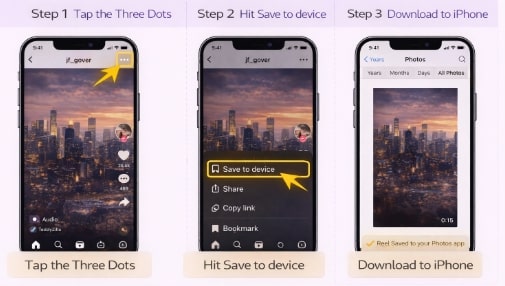
Method 1: How to Download Your Instagram Reels to Your Camera Roll
When you only need a specific Reel or video post, the in-app download feature is your most direct solution. This process facilitates a camera roll save, placing the video directly into your device’s local storage (the Photos app on iOS or Gallery on Android).
Step-by-Step Procedure:
Step 1. Open the Instagram App and navigate to your profile page.
Step 2. Select the Reel or Video Post you wish to save. Tap to open it in the full-screen viewer.
Step 3. Tap the Three-Dot Menu Icon (…). For Reels, this is located on the right side of the screen. For standard in-feed video posts, it is in the top-right corner.
Step 4. Select the Download Option. In the menu that appears, look for an option labeled “Download” or “Save to your device.” The wording can vary slightly, but it is typically accompanied by a download icon (an arrow pointing down).
Step 5. Confirm the Download. The video will begin processing and then save to your phone, usually with an Instagram watermark that includes your username.
Once complete, you can find the downloaded video in your phone’s main photo application. This technique is incredibly convenient for quick access but is not efficient if you need to download my Instagram videos in bulk.
Download Instagram Reels to iPhone
Method 2: How to Export All Your Original Video Files with Instagram Data Download
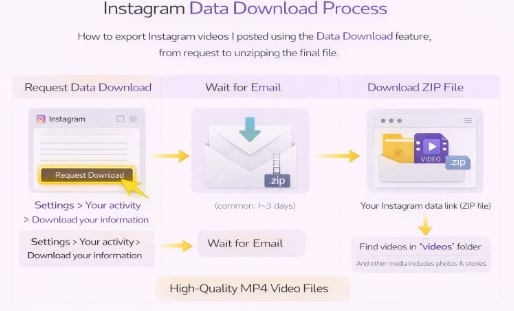
For a complete and high-quality backup of your content, the Instagram Data Download feature is the official and most thorough method. This is the solution for anyone looking to create a full personal Instagram archive.
A critical insight many guides miss is related to quality. The video files included in your data download are often the original video files you uploaded, meaning they are typically of higher quality than those saved individually through the app. This process bypasses the additional compression that can occur with single in-app downloads.
How to Request Your Data Archive:
Step 1. Go to your Instagram profile and tap the three-line menu (☰) in the top-right corner.
Step 2. Select “Your Activity,” then scroll down and tap “Download Your Information.”
Step 3. You can request a complete copy or select specific types of information. To get just your videos and photos, choose “Select types of information,” then check the box for “Content.”
Step 4. Confirm your request. Instagram will begin preparing your file. This process can take up to 14 days, but for most accounts, the link arrives via email within a few hours.
You will receive an email with a secure link to download your data as a ZIP file. After downloading and unzipping the file on a computer, you will find your videos organized into subfolders (e.g., “reels,” “posts,” “videos”), making it easy to find what you need.
Instagram Data Donwload Process
Which Method Is Right for You? A Side-by-Side Comparison
Instagram’s built-in tools are effective, but they come with trade-offs. To help you decide on the best approach for your needs, here is how the native methods compare to a dedicated tool.
| Feature | In-App Save (Single Video) | Instagram Data Export | Keeprix Downloader |
| Time Cost | Seconds per video | Hours to Days | Seconds per video |
| Video Quality | Compressed, Watermarked | High (Original Upload) | Highest Available (Up to 1080p) |
| Ease of Use | Very Simple | Complex (Menus, Email, ZIP file) | Simple (Copy & Paste URL) |
| Batch Processing | No (One at a time) | Yes (All content at once) | Yes (Multiple videos) |
| Best For | Quickly saving 1-2 recent Reels. | Creating a complete, one-time backup. | Efficiently downloading multiple videos at high quality. |
The Smart Solution: Instantly Download Instagram Videos in High Quality
For users who value speed, control, and quality, a dedicated application like Keeprix Downloader is the superior solution. This software is designed to solve the exact problems that make Instagram’s native tools inconvenient: the slow wait for the Instagram data download, the quality loss from in-app saves, and the inability to easily download multiple specific videos.
Keeprix offers a unified, simple process for Reels, in-feed videos, and Stories. You can select video quality up to 1080p, ensuring you get a crisp, clean copy without a watermark. The batch-download feature is ideal for efficiently creating a selective backup or moving content to a new platform.
Keeprix Downloader is a paid software tool built for reliability and performance. Here is the simple procedure:
Step 1. Copy the Video URL from the Instagram app or website.
Step 2. Open Keeprix Downloader and paste the link into the analysis bar.
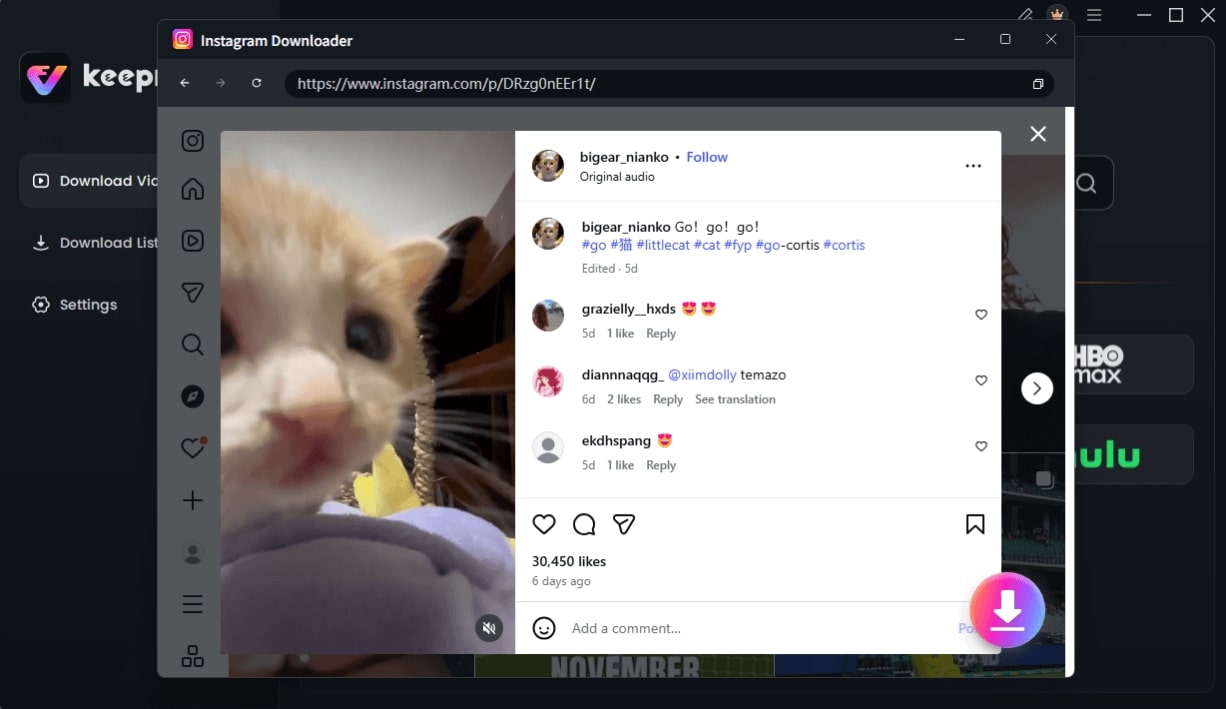
Choose Instagram Video and Click Download
Step 3. Select the Video Quality (e.g., 1080p) and format (MP4) from the options.
Step 4. Click “Download” to save the video file directly to your computer.
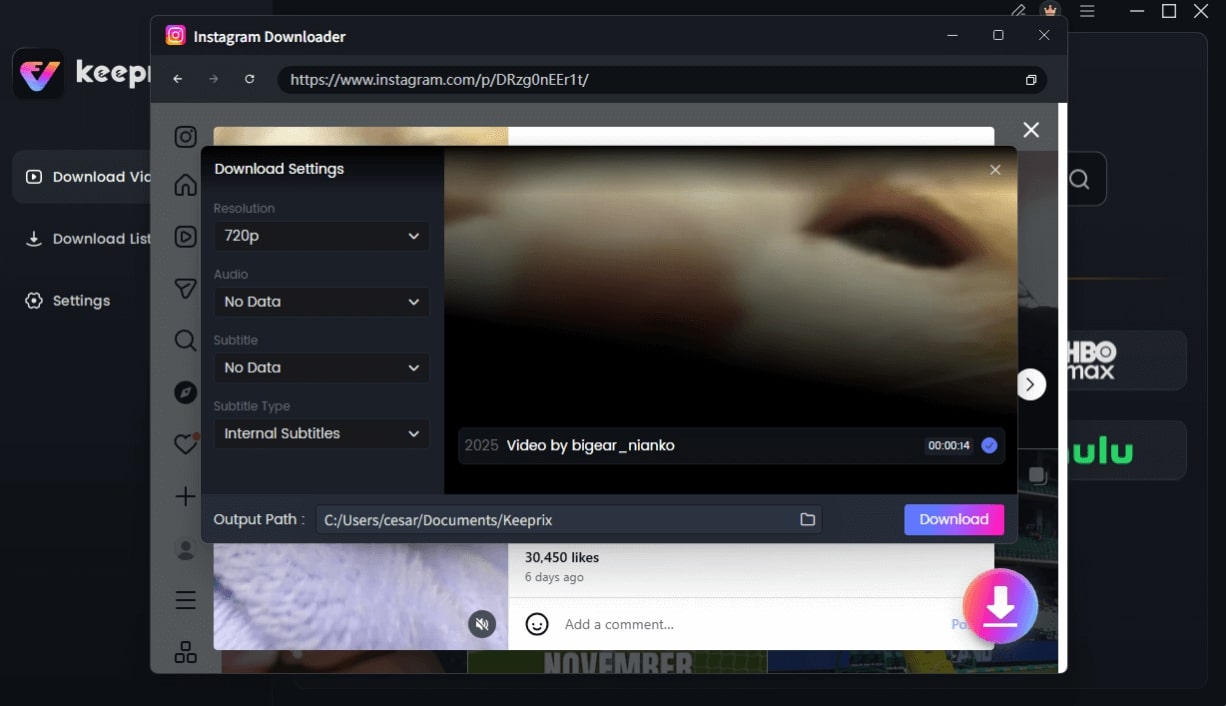
Configure Instagram Download Settings
This streamlined method gives you full control over your content, saving you time and ensuring you have the best possible copy of your videos.
Your Instagram Video Download Questions Answered
Here are direct answers to the most common questions about downloading your own Instagram videos.
Q1. Can I download my own Instagram videos?
Yes, absolutely. Instagram provides built-in features that allow you to download your own content, as you retain content ownership. This guide details the exact official steps for doing so, as well as a more efficient third-party tool.
Q2. How do I save my own Instagram Reels?
The fastest way is to open the Reel, tap the three-dot menu, and select “Download.” This will save the video directly to your phone’s camera roll or gallery, though it will likely have a watermark.
Q3. Does Instagram allow video downloads?
Yes. Instagram officially supports downloading your own data, including all videos, through its “Download Your Information” feature in the “Your Activity” settings. It also provides the direct download option for your own Reels within the app.
Q4. How do I download all my Instagram content?
The only official way to download all your content at once is to use the Instagram Data Download feature. This allows you to request a complete Instagram archive containing all of your photos, videos, Stories, and more in a single ZIP file.
Q5. Will downloaded videos keep their original quality?
It depends on the method. Requesting your Instagram Data Download is the best way to get the original video files at the quality you first uploaded them. The direct in-app “Download” option for Reels often results in a slightly compressed version.
Q6. Where do my downloaded videos go?
If you use the in-app download for a Reel, the video is saved to your phone’s main photo gallery. If you use the Data Download feature, your videos will be located in specific subfolders (e.g., ‘reels’) inside the ZIP file you download to your computer.
Q7. Does Instagram notify anyone when I download my own videos?
No. Downloading your own content is a private action. Instagram does not send any notifications to your followers or anyone else when you save your own Reels or request your data archive.
Conclusion: Secure Your Video Content the Easy Way
You no longer need to struggle with confusing menus or wait days for an archive link. The frustration of not being able to easily save your own Instagram posts is a common, but solvable, problem. While Instagram’s built-in tools offer a basic solution for a full backup, they lack the speed and convenience required for modern content management. By using a dedicated tool, you regain control, eliminate uncertainty about quality, and save valuable time.
Stop wrestling with cumbersome exports. Download Keeprix Downloader to secure your videos in minutes and ensure you always have a high-quality copy of your content, whenever you need it.