How to Get Captions on Instagram Reels: A Step-by-Step Accessibility Guide (2026)

You are likely here because you are trying to watch Instagram Reels without sound—perhaps on a commute or in a quiet waiting room—and the context is completely missing. You see a video that looks interesting, but without headphones, it is just moving images. You check your settings, but you still encounter inconsistent caption availability, leaving you to guess the punchline of a joke or the instructions of a tutorial.
If you are struggling with captions not showing on reels, the issue is rarely just “user error.” Whether due to hidden menus, language not supported for captions, or the creator simply failing to add them, the barrier to accessibility is real.
This guide provides a verified procedure to enable text overlays on your device using the 2025 interface. Crucially, we will also help you distinguish between a broken app setting and a video that simply has no text data, and introduce a method to secure valuable captioned content (like tutorials) for offline reference.
How to Get Captions on Instagram Reels
The procedures detailed below were validated on two distinct smartphones (iOS and Android). We specifically tested the “glitch state” of the toggle switches to describe exactly what troubleshooting looks like.
Turn On Captions Instagram Reels: The Native Method
The most effective starting point is to globally turn on captions for Instagram Reels through the application’s internal accessibility menu. This feature instructs the app to display auto-generated text whenever the underlying data is available.
Many users report difficulty finding caption settings because Instagram frequently shifts its menu structure. Use the following procedure to activate this feature on your account.
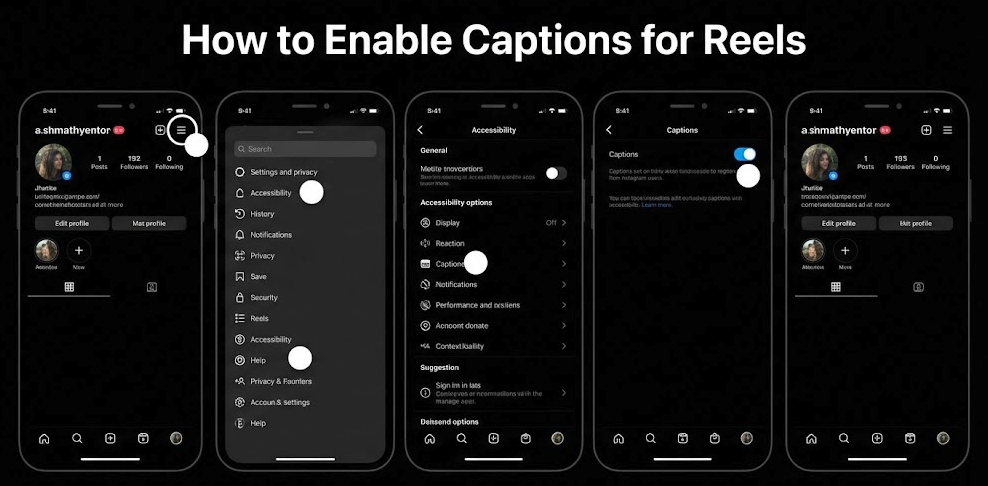
Step-by-Step Activation Procedure
- Access Your Profile: Open the Instagram app and tap your profile picture in the bottom right corner.
- Open Settings: Tap the hamburger menu (three horizontal lines) in the top right corner. Select Settings and privacy.
- Locate Accessibility: Scroll down to the section labeled “Your App and Media.” Tap on Accessibility.
- Enable Captions: Tap on Captions.
- Toggle On: Switch the toggle to the “On” position. The switch should turn blue.
Pro-Tip on “Glitch States”: During our testing, we noticed that on older versions of the app, this toggle may flick back to gray immediately after you tap it. If this happens, force-close the app and check your internet connection before trying again. If the toggle remains blue, the setting is active.
Once enabled, Instagram auto captions will appear on any video where the creator has allowed auto-generation. This setting applies to your specific account ID, meaning it should sync across devices if you log in elsewhere.
How to Enable Captions for Reels
Why Instagram Reels Captions Are Not Showing (The Creator Factor)
A major point of confusion is that even after following the steps above, text still does not appear on every video. This highlights a critical limitation of the platform: Instagram Reels captions not showing is frequently a result of creator choice rather than a technical failure on your device.
It is vital to understand that Instagram captions on reels are only generated when creators enable auto captions or manually add text. Unlike YouTube, which can force auto-generation on almost any clear audio track, Instagram requires the uploader to add the reels caption sticker or enable the auto-caption feature during the editing process. If the creator skips this step, there is no metadata for your app to display.
How to Spot the Difference: Broken App vs. Missing Data
Before you waste time reinstalling your app, look for these visual cues to determine why you are seeing silence:
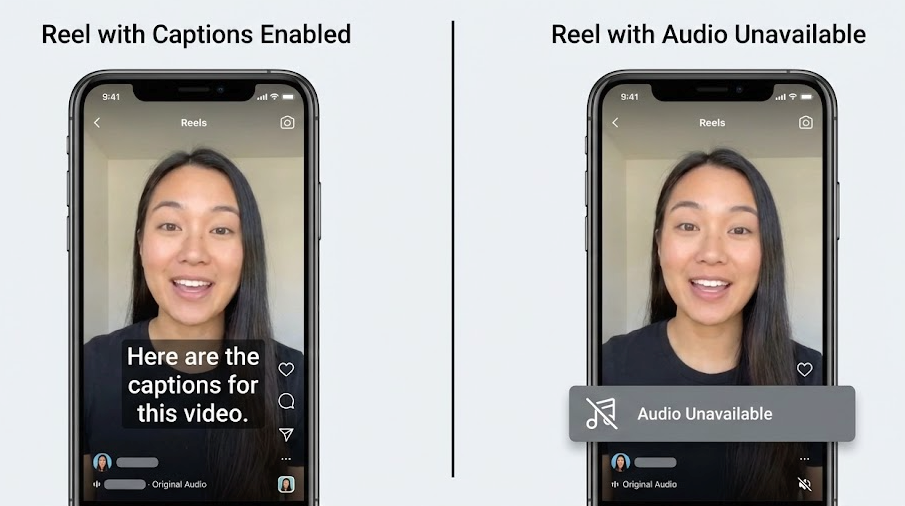
- Check the Audio Tag (Bottom Left):
- – If you see a Music Note/Song Title, the audio track is active. If you have captions toggled “On” and see nothing, the creator likely did not generate them.
- – If you see “Audio Unavailable,” the sound has been removed due to copyright or deletion. In this case, captions will never appear because there is no audio source to transcribe.
- Look for Burned-In Text:
- – Some creators manually type text on the screen (burned-in). This will appear regardless of your settings. If you see this but not the scrolling “auto-captions,” the creator chose manual text over the accessibility feature.
The Dependencies of Accessibility
For speech-to-text captions to function correctly, three conditions must align:
- Creator Activation: The uploader must initiate the captioning feature during the upload workflow.
- Language Support: The audio must be in a language supported by Instagram’s speech-to-text engine.
- Viewer Settings: You must have the global setting enabled (as detailed in the previous section).
If you are relying on auto captions on Instagram Reels to understand content, your experience is partially out of your control. You cannot force video subtitles Instagram on a file that does not contain the necessary data.
Reel with Captions Enabled VS Reel with Audio Unavailable
Streaming vs. Downloading: Saving Content for Reference
Let’s be honest: downloading every video just to scroll through your feed is not practical. However, if you are watching educational content—like a recipe, a DIY tutorial, or a lecture—relying on the app can be risky.
You may find a perfect tutorial, only to return later and find the captions not showing on reels because the audio was removed for copyright reasons, or the video simply buffers endlessly. For specific, high-value content where you need to read the instructions, saving the video offline is a superior strategy for retention.
The following table evaluates casual viewing against the method of archiving content for reference.
Comparison: In-App Viewing vs. Offline Reference
| Feature | In-App Viewing (Casual) | Offline Archiving (Reference) |
| Purpose | Quick entertainment and scrolling. | Saving tutorials, recipes, or lectures. |
| Accessibility Reliability | Low; glitches or connectivity can hide text. | High;
captures the video exactly as it was displayed. |
| Playback Control | Limited; text size/speed is fixed. | Flexible; use media players (like VLC) to zoom or pause on text. |
| Permanence | Low; videos/audio often deleted. | High; content is saved permanently on your device. |
If your goal is casual browsing, the app is sufficient. However, if you need to analyze speech-to-text captions for a study guide or project, moving the file offline ensures the data isn’t lost to a platform update.
How to Save Reels for Offline Viewing with Keeprix Video Downloader
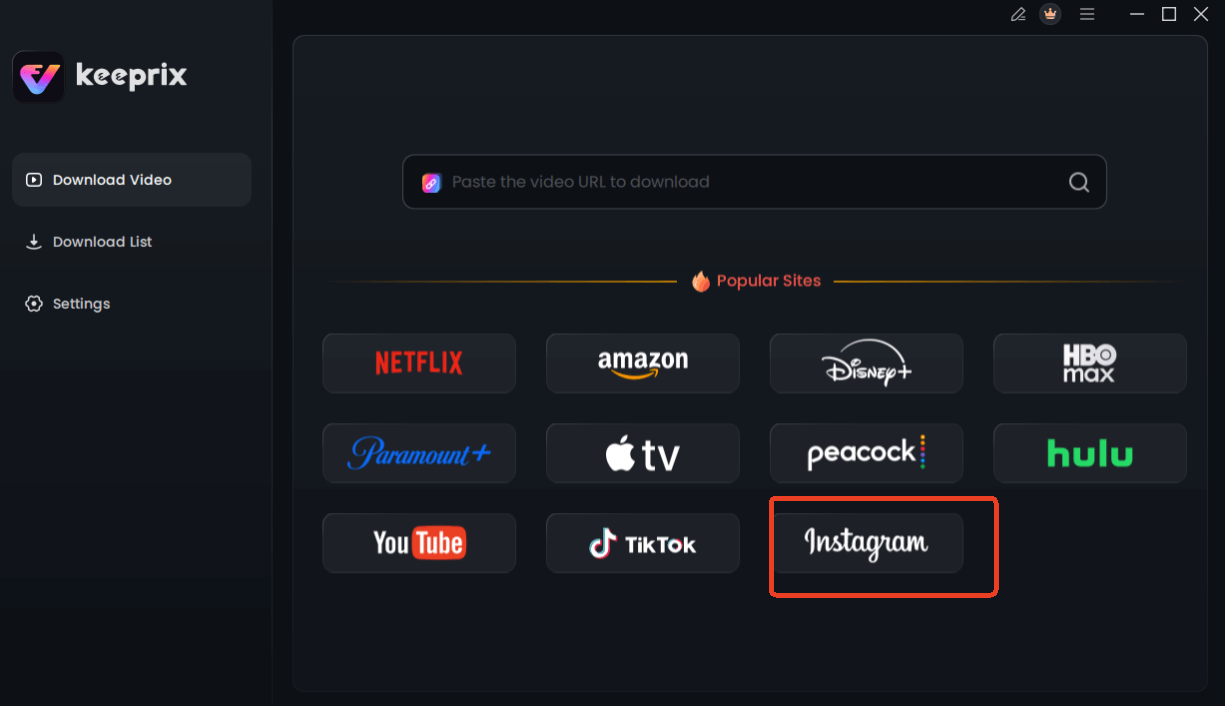
For users who have found a valuable video with working captions and want to ensure it stays that way, downloading the content is a robust solution. Keeprix Video Downloader allows you to save Reels—including those with hard-coded text overlays and stickers—ensuring you have permanent access to the accessible version of the video.
Important Note on Capabilities: Keeprix preserves the video exactly as it is. It does not generate new AI captions if the creator failed to add them. Its primary value is in saving videos where the creator did add text, preventing that text from being lost due to buffering or platform glitches.
Keeprix addresses the limitations of screen recording through features designed for media archiving:
- High-Quality & DRM-Free: To solve the issue of pixelated text that is hard to read, Keeprix saves videos in up to 1080P Full HD. The files are DRM-free, meaning you can play them on any device without restriction.
- Preserve Visual Context: By downloading the raw file, you ensure that any stickers, burned-in text, or open captions provided by the creator are locked into the file and cannot be removed by a future Instagram update.
- Ad-Free Offline Viewing: Keeprix automatically removes ads from the downloaded content. This provides a clean viewing experience, allowing you to focus entirely on the visual content and embedded text without distraction.
By using Keeprix, you move valuable tutorials from a volatile social feed to a stable, offline library.
Choose Instagram in Keeprix Downloader
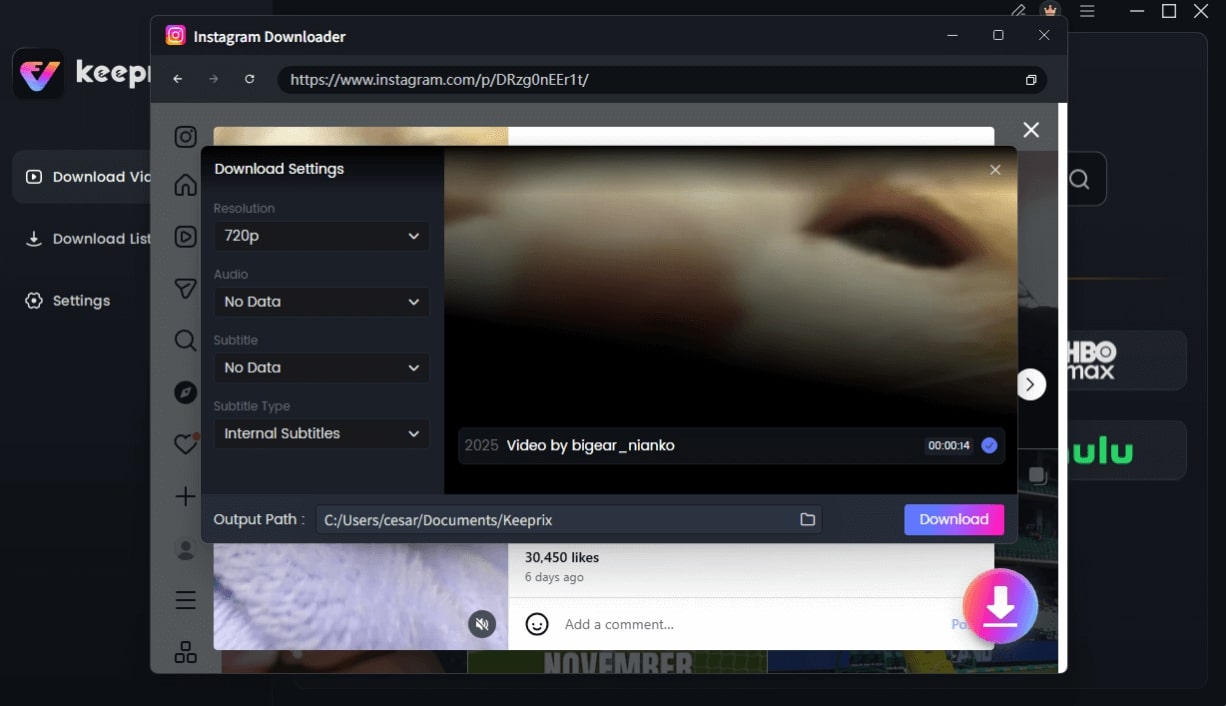
Configure Instagram Download Settings
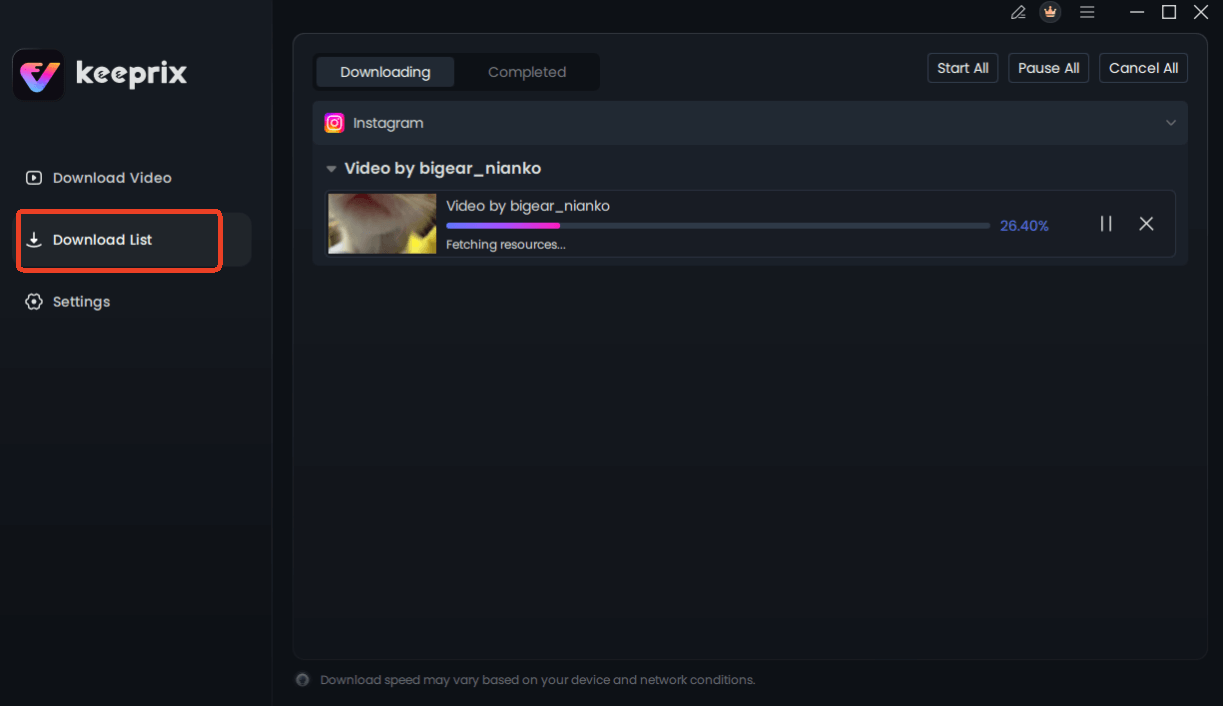
Downloading Instagram Videos
Troubleshooting: Fix Auto Captions Instagram Reels Glitches
If you have followed the steps to turn on captions for Instagram Reels and confirmed the video should have text (via the music icon check), you may be encountering a technical conflict.
Use this checklist to resolve common issues where Instagram auto captions fail to display:
1. Update the Application
Outdated versions of Instagram often lack the latest accessibility patches. Navigate to the App Store (iOS) or Google Play Store (Android) and ensure you are running the latest version. This is the most common fix for speech-to-text captions not rendering correctly.
2. Clear App Cache (Android Only)
Corrupted temporary files can prevent overlay features from loading.
- Go to Settings > Apps > Instagram > Storage.
- Select Clear Cache.
⚠️ Critical Warning: Clearing your cache is generally safe, but do not select “Clear Data” unless absolutely necessary. Clearing data will log you out and will delete any Reels drafts you have saved on your phone. Always back up your drafts before performing deep troubleshooting.
For iOS users: You may need to “Offload App” in your iPhone settings to achieve a similar result without deleting your documents and data.
3. Verify Language Support
One frequent cause for captions not showing on reels is a language mismatch. Instagram’s auto-captioning supports a limited list of primary languages. If the audio is in a dialect or language not yet supported by the specific region’s rollout, the system cannot generate text. Ensure your app’s language setting matches the content’s audio language where possible.
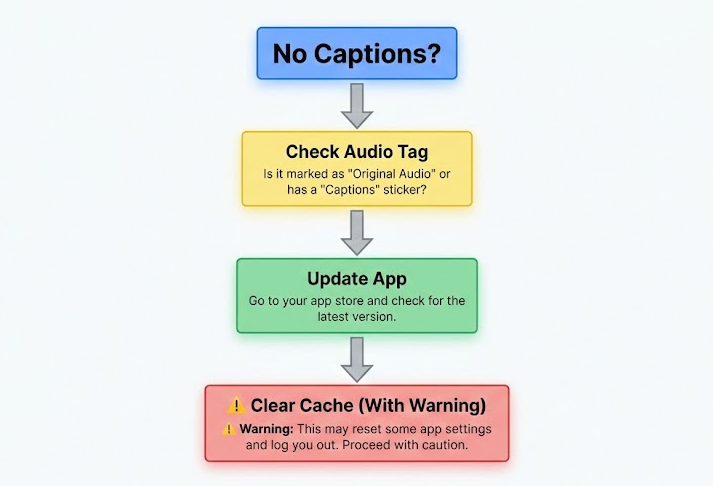
How to Get Captions on Instagram Reels
Frequently Asked Questions About Instagram Subtitles
Can I force captions on all Reels?
No. You cannot force video subtitles on Instagram to appear if the creator has not enabled them. The accessibility features on your device can only display text that exists within the video’s data. If the creator did not use the reels caption sticker or auto-caption tool, no text will appear.
Why are the captions sometimes inaccurate?
Accuracy depends on the audio clarity and the AI’s interpretation. Background noise, mumbling, or slang can cause errors in Instagram auto captions. Since an algorithm generates these, they may not perfectly reflect the spoken audio.
How do I turn on captions for Instagram reels?
Navigate to your Profile -> Menu (three lines) -> Settings and privacy -> Accessibility -> Captions, and toggle the switch to “On.”
Does downloading a video add captions?
No. Downloading a video via tools like Keeprix saves the video exactly as it exists. If the video has burned-in text or stickers, they will be saved. If the video has no captions at all, downloading it will not create them.
Conclusion: Improving Your Instagram Accessibility Experience
Future Outlook: As Instagram’s AI evolves, caption accuracy and language support are expected to improve, but creator dependency will likely remain a factor.
Navigating social media without sound should not feel like solving a puzzle. By enabling the native accessibility settings, you ensure that whenever a creator supports enabling subtitles on Instagram Reels, you receive that vital visual context. While the platform still relies heavily on creators to activate these features, knowing how to configure your account puts you in the best position to consume content effectively.
For those times when you find a crucial tutorial or recipe that you need to reference later without worrying about glitches or deleted audio, taking control of your media is the solution. Keeprix Video Downloader provides the ability to save high-quality videos permanently. Don’t let a missing setting or a deleted video block your access to information. Try Keeprix today to secure your content and watch on your own terms.