How to Save Videos from Instagram: The Verified Guide for 2026

Learning how to save videos from Instagram often leads to a specific, frustrating moment that users like “Lily” know too well. You find a perfect cooking tutorial or a vital reference clip while scrolling on your lunch break. You tap the “ribbon” icon, assuming the content is safe. Later, when you are offline—perhaps at a cabin with poor reception or on a flight—you open your gallery only to find nothing there.
This confusion stems from a lack of clarity in the app’s interface. Users frequently discover that the videos they thought they secured are merely digital bookmarks, not physical files. If you need to secure a video for offline viewing, bypass the platform’s restrictions on Reels and Stories, or simply want to know how to save videos from Instagram without losing quality, you require a different approach.
This guide clarifies the often unclear Instagram rules and provides tested solutions to move content from the cloud to your local storage. We will cover the quick mobile workarounds for immediate reference and the professional desktop methods for permanent, high-quality archiving.

How to Save Videos from Instagram
Quick Decision: Instagram Save vs. Download Options
Before selecting a method, it is vital to understand the technical difference between saving within the app and downloading a file. These terms are often used interchangeably, but they result in entirely different outcomes regarding your mobile video storage.
- Saving (In-App): This action uses the native ribbon icon. It bookmarks the post within your Instagram profile. The content remains on Meta’s servers. If the creator deletes the post or your internet disconnects, you lose access.
- Downloading (Local Storage): This process extracts the file (MP4 or MKV) and saves it to your hard drive or camera roll. This allows for offline playback and permanent archiving.
To help you decide which procedure fits your needs, we have compared the three primary methods based on quality, safety, and the “friction” involved in the process.
| Feature | In-App Collections | Screen Recording (Manual) | Keeprix Downloader (Desktop) |
| Primary Use | Organizing Ideas | Quick Reference / Sharing | Permanent Archiving |
| File Location | Instagram Cloud | Phone Gallery | Computer Hard Drive |
| Offline Access | No | Yes | Yes |
| Video Quality | Streaming Quality | Low (Screen Resolution) | High (Up to 1080p/4K) |
| Visual Clutter | None | High (UI overlays, comments) | None (Clean Video) |
| Safety Risk | None | Low | Low (Local Processing) |
For casual organization, the native “Save” feature is sufficient. However, if you are tired of finding that your saved videos are only accessible inside the Instagram app, you need to choose between the quick-and-dirty method of screen recording or the high-fidelity method of desktop downloading.
A Note on Mobile Downloader Apps
You might be wondering why we haven’t recommended a specific mobile app to download videos directly to your phone. During our testing of the top five free “Instagram Downloader” apps on the App Store and Google Play Store, we encountered significant issues:
- Safety Risks: Many required logging into Instagram through their unverified browser, posing a security risk to the account.
- Adware: Most apps forced us to watch 30-second full-screen ads before processing a single video.
- Reliability: These apps frequently break whenever Instagram updates its API.
Because of these security and usability flaws, we recommend sticking to Screen Recording for mobile-only needs, and Desktop Software for high-quality archiving.
Option 1: High-Fidelity Archiving (Desktop Required)
For users who need a robust solution that bypasses the quality degradation of screen recording, the Keeprix Video Downloader offers a streamlined workflow for Windows and Mac. This professional tool addresses the primary frustration of limitations regarding Reels, Stories, and clips by extracting the source file directly to your hard drive.
Unlike manual recording, which captures user interface clutter, Keeprix downloads clean video files in up to 1080p Full HD. This is the most effective solution for users with valid concerns about third-party tools, as the software processes downloads locally rather than relying on obscure, ad-heavy websites.
Bridging the Gap: From Mobile Discovery to Desktop Download
Since most of us browse Instagram on our phones, you might wonder how to get that content to your computer. Here is the most efficient workflow to find content on mobile and archive it on desktop:
- Bookmark on Mobile: When you see a video on your phone that you want to keep, tap and hold the Ribbon icon and save it to a collection named “To Download.”
- Open Keeprix on Desktop: Later, when you are at your computer, launch the Keeprix application.
- Retrieve the Link:
- – Open Instagram.com in your desktop browser.
- – Go to your Profile > Saved > “To Download.”
- – Click the post and copy the URL from the address bar.
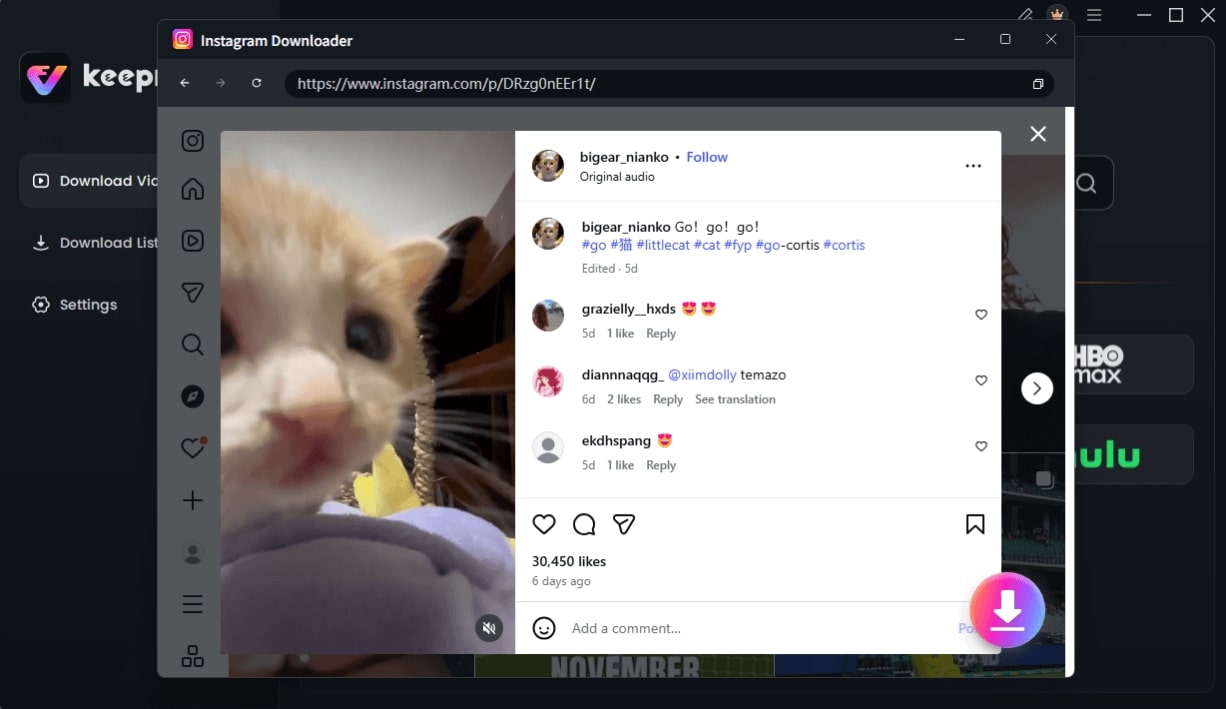
Choose Instagram Video and Click Download
- Paste and Analyze: Click the “Paste Link” button in Keeprix.
- Download: Select MP4 or MKV to save the file permanently to your device.
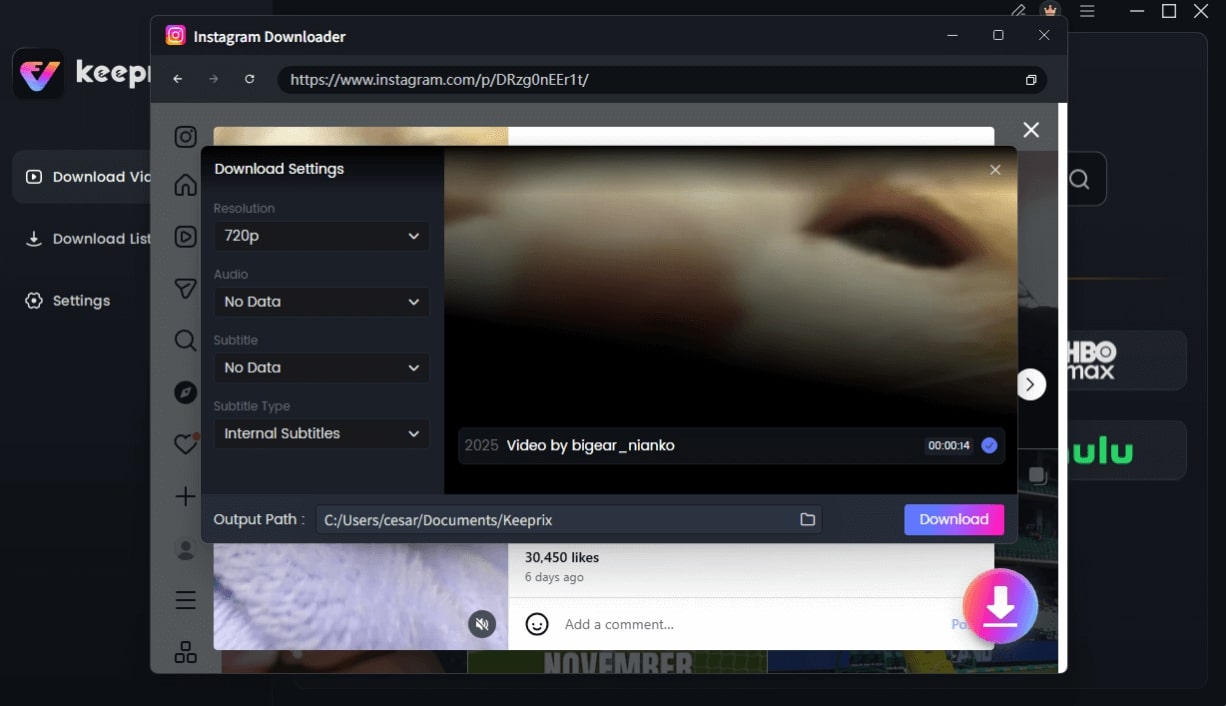
Configure Instagram Download Settings
Keeprix also features batch downloading, allowing you to queue multiple videos at once. This effectively solves the “cabin at the lake” problem: spend five minutes downloading your saved collection before you leave, and you will have high-quality video files ready to watch offline, anywhere.
Option 2: The Mobile “Quick Fix” (Screen Recording)
If you are already at the airport and do not have access to a computer, or if you simply need a quick reference clip and don’t care about 1080p quality, native screen recording is the most practical solution. This method utilizes the built-in recording tools on iOS and Android to capture the video while it plays on your screen.
Procedure for iOS and Android
- Prepare the Video: Open the Instagram post you want to capture. Ensure the audio is on.
- Activate Recorder:
- – iPhone: Swipe down from the top-right corner to open Control Center and tap the “Record” button.
- – Android: Swipe down twice to access Quick Settings and select “Screen Record.”
- Capture: Play the video. Once finished, stop the recording.
- Edit: Open your Photos or Gallery app and crop the video to remove the top and bottom toolbars.
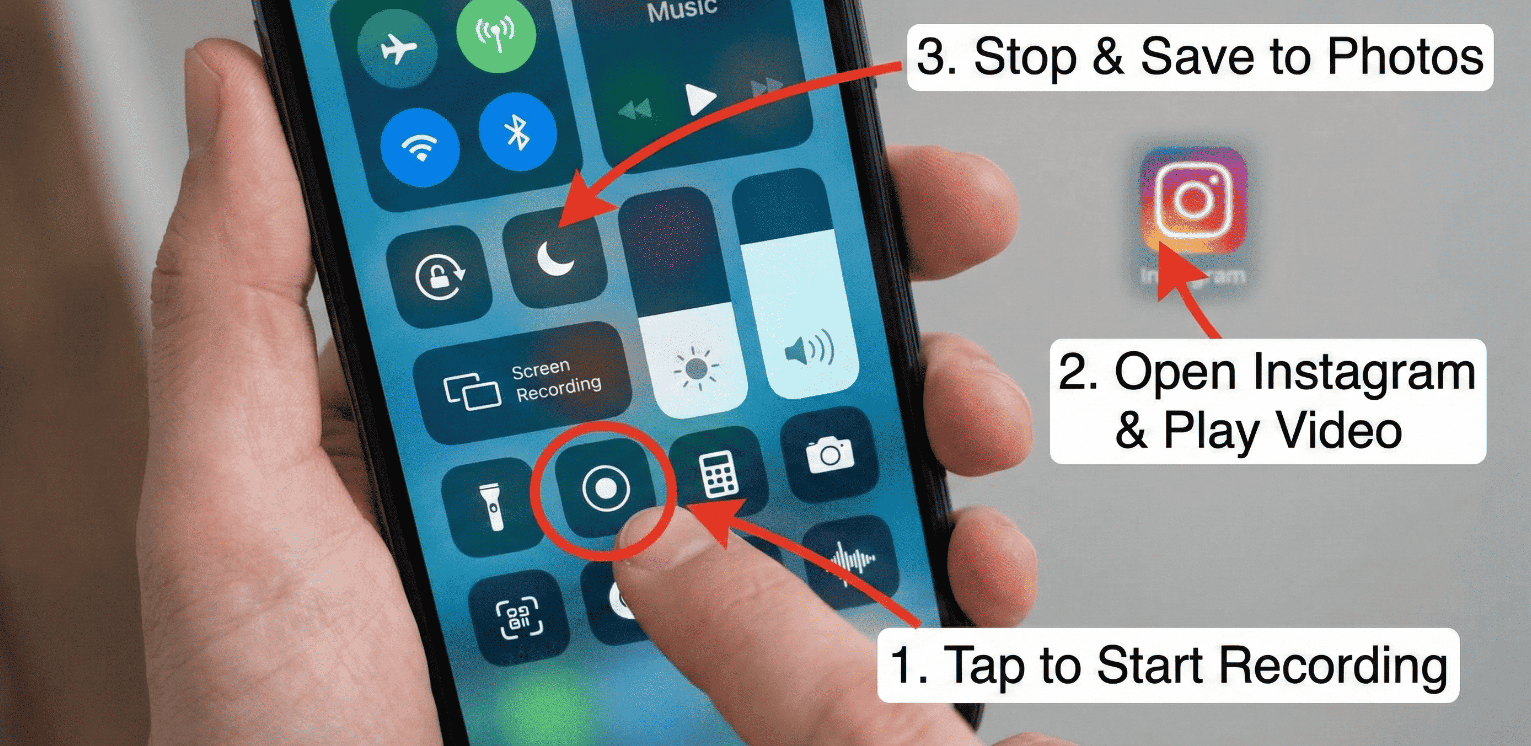
How to Save Sideos from Instagram Using Screen Recording
Note the Downsides: This method records everything on your display. You will capture notification pop-ups, the volume slider, and Instagram’s UI overlays (like the heart and comment icons). Furthermore, the resolution is limited to your screen size. This serves as a quick hack for mobile video storage, but it is not suitable for professional archiving or reposting.
Using In-App Features: Managing Saved Collections
If you do not require the video file for offline use, Instagram’s native “Collection” feature is the most efficient method for organizing content. Returning to Lily’s story, this was the source of her confusion: she expected the “Save” ribbon to act like a download button. In reality, this feature functions strictly as a cloud-based bookmark.
When you tap the ribbon icon under a post, Instagram adds a shortcut to that post in your profile. It does not take up camera roll storage, nor does it perform a hard save to your physical device.
How to Organize Saved Collections
To make your bookmarks useful, you should organize them rather than letting them pile up in a generic “All Posts” folder.
- Tap and Hold: Instead of a quick tap, press and hold the ribbon icon under a video.
- Select a Collection: A menu will appear allowing you to save the post to a specific folder (e.g., “Dinner Recipes,” “Tech Tips”).
- Access Later: Go to your Profile, tap the three-line menu, and select “Saved.”
This method is ideal for curating inspiration boards or reference lists, provided you have consistent internet access.
For Creators: Content Ownership and Archiving Your Work
For content creators, the rules for how to save videos from Instagram are significantly different. Because you own the content, Instagram provides official tools to download your work, but there are critical nuances regarding watermarks and audio licensing.
The Watermark Trap
A common frustration for creators is the Instagram Watermark. If you post a Reel and then try to download it later by tapping the three dots and selecting “Download,” Instagram will often bake a watermark and a bouncing end-screen onto the video file. This makes it difficult to repurpose that content for TikTok or YouTube Shorts without it looking unprofessional.
The Solution: Save Drafts Before Posting
To avoid the watermark and ensure you have a clean, high-quality archive of your work, you must save the video before it goes live.
- Edit in App: Create your Reel as usual.
- Download from Editor: On the final editing screen (before you add the caption), tap the download icon (downward arrow) at the top of the screen.
- Result: This exports the video with your edits intact but without the Instagram watermark or end-screen.
Important Note on Audio: If you used a copyrighted track from Instagram’s library, the downloaded file will often be silent due to licensing restrictions. To archive videos with audio, you may still need to use a desktop tool like Keeprix or record your screen while the draft preview plays.
Safety & Ethics: Understanding Instagram Video Saving Policies
You might wonder why a simple “Download” button isn’t available for every video. Here is a critical insight: Instagram intentionally separates “saving” (bookmarking) from “downloading” (file transfer) specifically to protect creator rights. This architectural choice is designed to keep users on the platform and prevent unauthorized distribution.
When using tools to save Instagram videos, it is vital to navigate these policies correctly. Think of it like a traffic light system:
- Green Light (Personal Use): Downloading a video to watch offline, archive for personal inspiration, or view where internet is unstable is generally considered acceptable personal use.
- Yellow Light (Sharing): Sending a downloaded video to a friend via private chat is usually acceptable, but sharing a direct link to the original post is always preferred to support the creator.
- Red Light (Reposting): Uploading someone else’s downloaded content to your own feed as if it were yours is a clear violation of copyright and Instagram’s community guidelines.
FAQ: Common Questions About Instagram Video Saving
Can I save videos from Instagram to my gallery directly?
Not natively, unless it is your own content. For videos posted by others, Instagram only allows you to bookmark them within the app. To save them to your gallery for local storage, you must use a screen recorder or transfer the link to a desktop downloader.
Does Instagram notify users when videos are saved or downloaded?
No. Instagram does not notify creators when you save a post to your collection, nor can they detect if you use a third-party downloader or screen recorder to capture their content. However, they do notify users if you take a screenshot of a vanishing photo or video in a private DM.
Why do my downloaded Reels have no sound?
This usually happens because of music licensing. If a video contains copyrighted music from the Instagram Audio Library, the audio is often stripped when you use the official “Save to Camera Roll” feature. Using a tool like Keeprix or Screen Recording captures the audio stream as it plays, usually preserving the sound.
Why don’t saved videos appear in my gallery?
This is the most common confusion regarding the difference between saving and downloading. When you tap “Save” in Instagram, you are only bookmarking a link to the file on Instagram’s server. No file is transferred to your device, which is why your gallery remains empty.
Conclusion
The frustration of expecting a video to be in your gallery and finding it empty is a problem many users face. While Instagram’s native features are excellent for organizing ideas, they fail to provide true ownership or offline access for content you didn’t create yourself. Whether you are struggling with unclear rules or simply want to ensure your favorite tutorials are safe from deletion, understanding the difference between bookmarking and downloading is key.
For quick, on-the-go capture, screen recording remains your best mobile option. However, for a secure, high-quality solution that restores control over your media viewing, we recommend Keeprix Video Downloader for your desktop. It eliminates the visual clutter and provides a safe, ad-free environment to archive the content that matters to you.