Instagram Videos Not Playing? Proven Fixes for 2026

Few things interrupt a relaxing break quite like the loading wheel spinning endlessly on your screen. You likely open the app to unwind with a coffee, only to find that instead of entertainment, you are staring at a frozen image while audio plays in the background. It creates a feeling of genuine frustration, as if your advanced device has turned into a paperweight right when you need a distraction.
Whether you are seeing videos fail to load on mobile data or struggling with Reels that won’t play despite a full WiFi signal, the frustration is valid. You need reliable answers, not guesswork. This guide provides verified solutions derived from hands-on testing. We will walk you through rapid network fixes, critical app settings (including the often-missed Data Saver toggle), and explain why adaptive streaming technology sometimes fails even on modern networks.
Instagram Videos Not Playing
3 Rapid Fixes When Instagram Videos Won’t Play
If you are facing playback issues, you generally want a solution that takes less than a minute. Before diving into complex system settings, execute these three rapid fixes. They resolve the vast majority of app glitches.
1. Toggle Airplane Mode (Network Reset)
It is not enough to simply look at your signal bars. You must actively reset the connection to the tower or router. Turn on Airplane mode, wait 10 full seconds, and turn it off.
- Expert Insight: Why does this work? Playback scenarios often occur when “adaptive streaming” protocols get stuck. The app tries to adjust video quality to a network fluctuation that no longer exists. A full network toggle forces the app to re-negotiate the streaming quality with the server, often clearing the blockage instantly.
2. Force-Close the Instagram App
Minimizing the app is not the same as closing it. You need to fully terminate the process to clear temporary glitches in the active memory (RAM).
- On iPhone: Swipe up from the bottom to the middle of your screen to view recent apps. Find the Instagram preview and swipe it up off the screen.
- On Android: Access your recent apps menu (usually a square button or swipe-up-and-hold gesture). Swipe Instagram away.
After force-closing, Instagram may take a second or two longer to load the next time you open it. This is normal, as the app is rebuilding its immediate cache.
3. Check for an Instagram Server Outage
Sometimes the problem is not on your end. If videos won’t play despite a strong signal and a restart, check a site like DownDetector. If thousands of other users are reporting an outage, your only option is to wait for Meta engineers to resolve the backend failure.
The “Deep Dive”: Solving Persistent Settings & Cache Issues
If the quick fixes failed and you are still encountering Reels that won’t play or strange glitches like audio playing without video, the issue likely lies within the app’s local data or settings. These are the most common technical culprits, specifically for users relying on mobile data.
1. Disable Data Saver Mode (The Hidden Culprit)
This setting is the most frequent cause for playback failure on mobile networks. Many users accidentally enable “Use Less Cellular Data,” or it carries over from a previous phone transfer. This setting intentionally throttles video loading to save megabytes, often preventing playback entirely on connections that aren’t perfect.
- Procedure: Navigate to your Instagram Profile > Menu (three lines) > Settings and privacy > Media quality. Ensure “Use less cellular data” is toggled OFF. Conversely, ensure “Upload at highest quality” is checked if you are a creator experiencing playback issues with your own uploads.
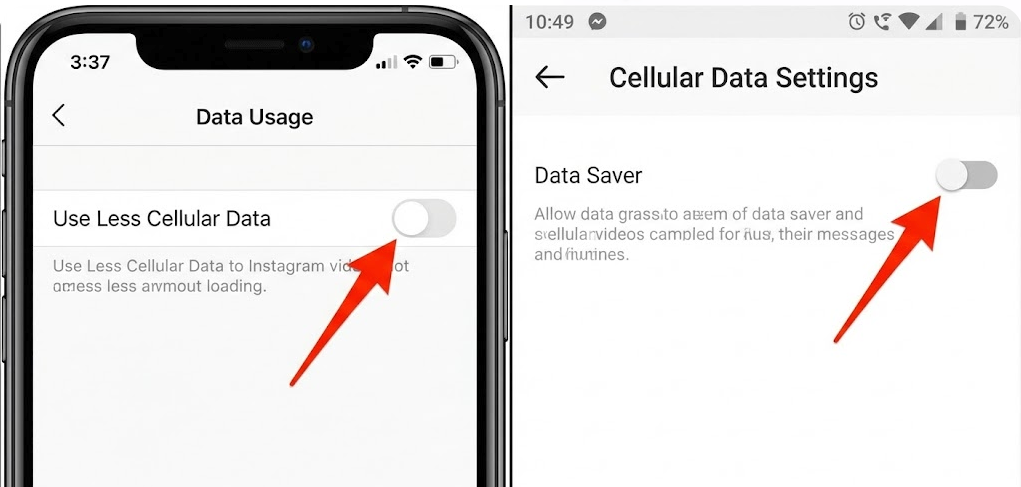
Data Saver
2. Clear the App Cache (Corrupt Data)
Over time, temporary data accumulates and can become corrupt, leading to conflicts. This “digital clutter” often causes the app to freeze when trying to load video content.
- Android (The Fast Way): You don’t need to dig through menus. Long-press the Instagram app icon on your home screen or app drawer. Tap the small (i) info button. From there, select Storage & Cache > Clear Cache. This removes temporary files without deleting your account data.
- iOS: Apple does not offer a direct “Clear Cache” button. You must offload the app by navigating to Settings > General > iPhone Storage > Instagram > Offload App. After this, tap “Reinstall App.” This preserves your documents and login info but resets the app’s core scripts.
3. Verify App and OS Updates
Ensure your Instagram app is running the latest version. An outdated app may lack the codecs required to play newer Reels formats, resulting in a black screen or audio-only errors. Visit the App Store or Google Play Store to check for pending updates.
Why Are Instagram Videos Not Loading? The Technical Reality
To prevent future occurrences, it helps to understand how the technology works in the background. When you tap a video, your phone doesn’t just “play” a file; it initiates a complex data handshake between your device and Meta’s servers. A breakdown at any point in this chain results in playback failure.
The Adaptive Streaming Bottleneck
Instagram uses adaptive bitrate streaming. This technology detects your internet speed and attempts to deliver the highest quality video your connection can handle. If you move from a Wi-Fi zone to mobile data, or if your network speed drops suddenly, the app attempts to switch to a lower-quality stream. If this switch fails, the video freezes. This is often why images appear fine—images require a single download, while video requires a continuous, stable stream.
Corrupt Local Cache
Your phone stores bits of data (cache) to load the app faster next time. If this data becomes corrupted due to a bad update or a crash, it conflicts with new incoming data, causing the app to stall.
Alternative Strategy: Archiving Content for Offline Viewing
If you have tried the steps above and still face issues—or if you simply want to watch content without relying on a fluctuating internet connection—there is a different approach. While this does not fix the Instagram app on your phone, it solves the problem of losing access to content you want to watch.
For users who want to archive videos to watch later without buffering, using a desktop tool like Keeprix Video Downloader allows you to save content locally.
When to Use a Downloader Tool
This solution is not for the user trying to scroll casually on the bus. This is for the user who wants to ensure they never lose access to a specific video, or who wants to watch a series of Reels in high quality without data limits.
- High-Definition Guarantee: Unlike Instagram’s adaptive streaming, which lowers quality on slow networks, downloading the file ensures you have the 1080P resolution version saved permanently.
- Batch Downloading: If you follow accounts with high volumes of content, you can queue and download multiple videos simultaneously.
- Permanent Access: Once the file is on your device in MP4 or MKV format, you keep the video forever. This is crucial for Stories that disappear after 24 hours.
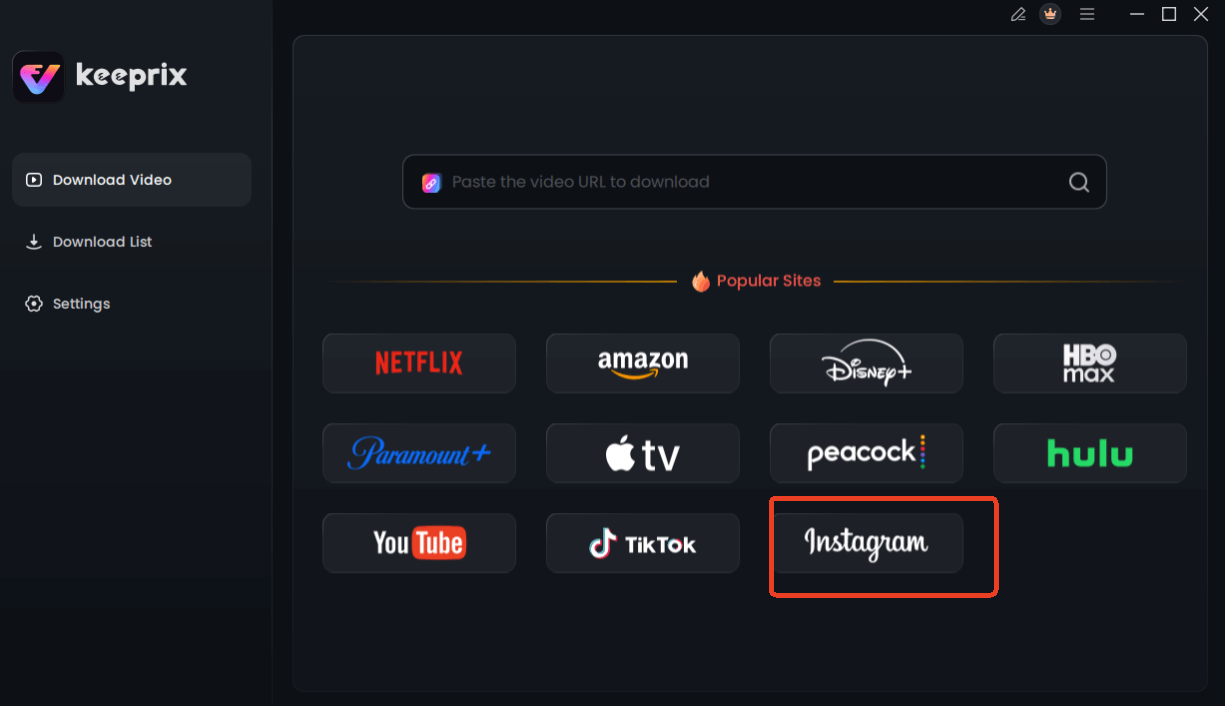
Choose Instagram in Keeprix Downloader
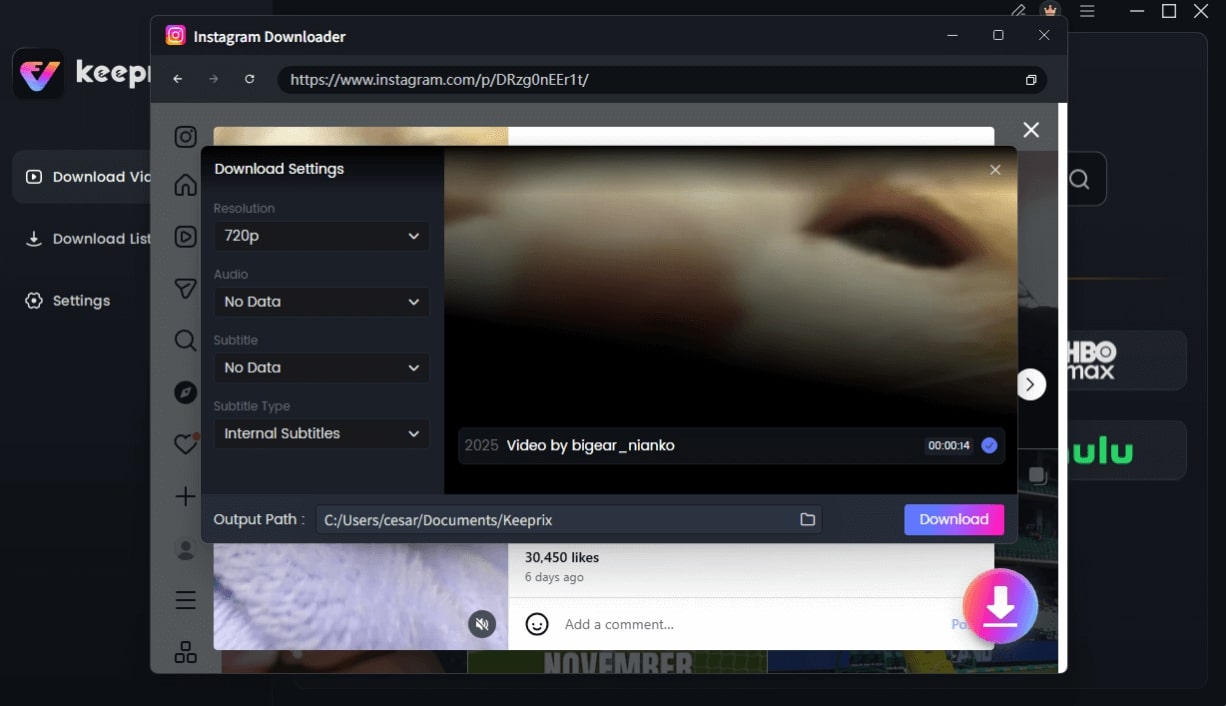
Configure Instagram Download Settings
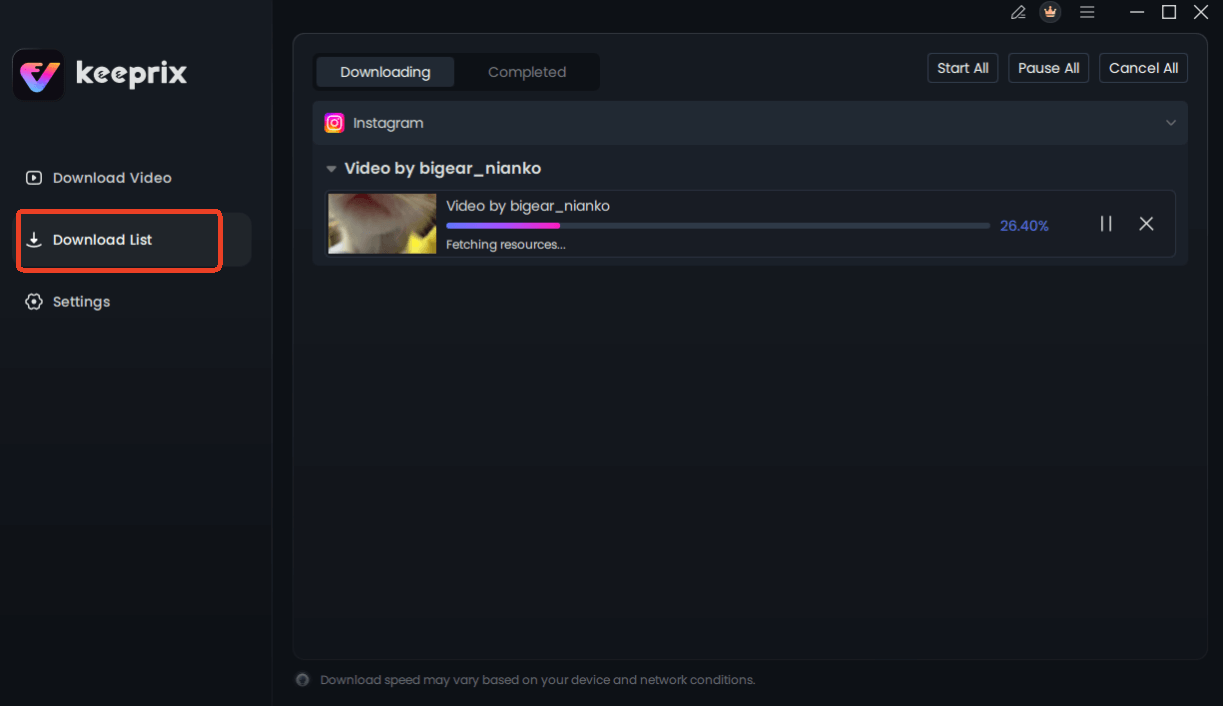
Downloading Instagram Videos
Frequently Asked Questions About Playback Issues
How do I fix Instagram videos not loading on mobile data?
The most common fix is verifying your Data Saver settings. Go to Settings > Media Quality and ensure “Use less cellular data” is turned off. Afterward, toggle Airplane mode on and off to reset your connection to the nearest cell tower.
Why do Instagram Reels stop playing halfway through?
This is typically a symptom of cache issues or a storage shortage on your device. When the cache is full or corrupt, the app cannot buffer the rest of the video. Clearing your cache (Android) or offloading the app (iOS) usually resolves this specific error.
Why is audio playing but the video screen is black?
This discrepancy usually indicates a software conflict or an outdated app version that cannot process the video codec. Force-close the app immediately. If the issue persists, update the app via your respective app store.
Does clearing cache fix Instagram video issues?
Yes, frequently. Clearing the cache removes corrupted temporary files that may be blocking new video data from loading. It is a safe first step that does not delete your account or photos.
Why do videos play on WiFi but not on data?
This usually points to a carrier restriction or the “Data Saver” setting within Instagram. Check if your mobile carrier throttles streaming video, and verify that Instagram has permission to use mobile data in your phone’s main settings.
Conclusion
Don’t let a playback error dictate your downtime. By focusing on the “Data Saver” settings and clearing your app cache, you can resolve the majority of issues where Instagram videos won’t play. These steps clear the digital cobwebs that clog up your streaming experience.
However, for content that you simply cannot afford to miss, or for times when you want to watch without any internet dependency, archiving your media is the professional choice. Tools like Keeprix Video Downloader offer a bridge to offline viewing, ensuring that your favorite content is saved in 1080P Full HD, ready to watch whenever you are.