Netflix Not Working on Firestick? Quick Fixes and Offline Alternatives

Most Netflix issues on an Amazon Firestick are caused by temporary cache bloat or an unstable Wi-Fi connection. To fix a frozen screen, black screen, or spinning wheel immediately, try the top three instant diagnostics:
- Force Stop: Shut down the app completely to clear frozen processes.
- Clear Cache: Remove temporary clutter without losing your login details.
- Restart Firestick: Reboot the device via the settings to refresh your connection.
If you are seeing a vague tvq-st-103 error or an app that crashes straight back to the home screen, do not worry—your hardware is likely not broken. These are standard smart TV software quirks that are highly fixable. Before searching for hardware replacements, start with the most basic Fire OS fixes.
1: Force Stop and Clear the Netflix App Cache
Clearing the cache is the safest and most effective way to fix a frozen Netflix app. It removes bloated temporary files that cause the app to hang. Here is how to navigate the Fire OS interface to execute this fix:
- Go to your Fire TV Home screen and select the Settings (gear) icon.
- Navigate to Applications and select Manage Installed Applications.
- Scroll down the list of apps and select Netflix.
- Click Force Stop to halt any frozen background software.
- Click Clear Cache to safely remove temporary file clutter. (Note: Do not click ‘Clear Data’ unless you are prepared to re-enter your Netflix email and password.)
As a reliable follow-up, restart your Firestick to give the device a fresh slate. Press the Back button on your remote to return to the main Settings menu, select My Fire TV, and click Restart.
2: Check Your Wi-Fi and Reinstall the App
If clearing the cache did not resolve the crashing or buffering, your Firestick might be struggling with a corrupted app installation or a dropped connection. It is common for smart TVs to have quirks where only Netflix fails while other streaming apps work perfectly fine.
Check Your Wi-Fi Status
Navigate to Settings > Network. Highlight your connected Wi-Fi network and press the Play/Pause button on your remote. This runs a diagnostic to ensure the connection says ‘Connected with Problems: None’. If the signal is weak, your Netflix app will endlessly buffer.
Update the Netflix App
Sometimes the app simply needs an update to run correctly. Go to the Netflix app tile on your home screen, press the Menu button (three horizontal lines) on your remote, and select More Info. If an update is available, click Update.
Check Storage and Reinstall the App
If the app keeps crashing immediately after opening, the installation files are likely corrupted or your device is critically low on storage space. Before reinstalling, check your available capacity by going to Settings > My Fire TV > About > Storage. If it is nearly full, delete a few unused apps.
Once you have enough space, go to Settings > Applications > Manage Installed Applications > Netflix, and select Uninstall. Restart your Firestick, then search for Netflix in the main Appstore and reinstall it. This forces a clean version of the app onto your device.
3. The Problem: When Unstable Wi-Fi Keeps Interrupting Your Stream
Sitting down to a spinning wheel is incredibly frustrating. While standard Firestick troubleshooting works as a quick fix, it highlights a chronic problem: relying on streaming apps leaves you at the mercy of Wi-Fi drops, server outages, and buggy updates.
If you’re constantly clearing caches and waiting out endless buffering, the app or your network is the bottleneck. But you don’t have to put up with it. The most reliable backup plan is local-file playback. By taking the internet and the app completely out of the equation, you can finally just sit down and watch.
4. Watch Netflix Offline on Your TV Without the App
Can you watch Netflix on your TV without using the buggy Firestick app or relying on Wi-Fi? Yes, by building a local-file workflow on your computer first.
Keeprix Video Downloader for Windows and Mac isn’t a Firestick app or a TV patch—it’s your ultimate offline alternative. By letting you save Netflix shows as high-quality MP4 or MKV files (up to 1080p), you bypass buggy TV software entirely. Simply use your valid Netflix subscription to download your content and build a reliable personal library. When your smart TV lets you down, Keeprix guarantees zero buffering, no app crashes, and no error codes.
5. How to Build an Offline Watchlist with Keeprix
Moving your viewing experience from an unstable TV app to a reliable local file is a straightforward process when you want to download Netflix videos offline. Here is how to get a video playing flawlessly on your TV:
Keeprix Video Downloader
Download streaming videos from Netflix without limits. Enjoy seamless offline watching on Windows and Mac computers.
Step 1: Open the Keeprix app on your Windows PC or Mac. Choose Netflix.
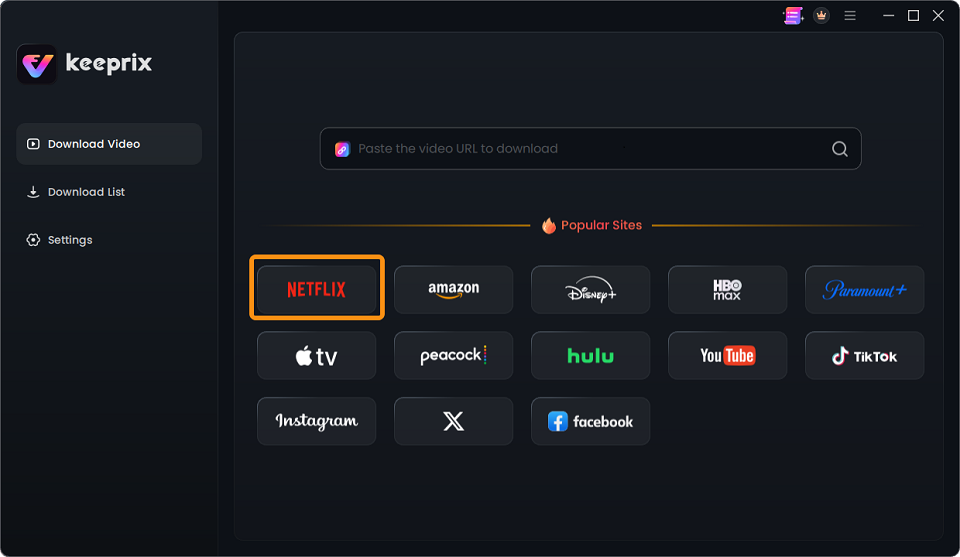
Choose Netflix
Step 2: Use the built-in browser to log in and find the accessible Netflix video you want to watch.
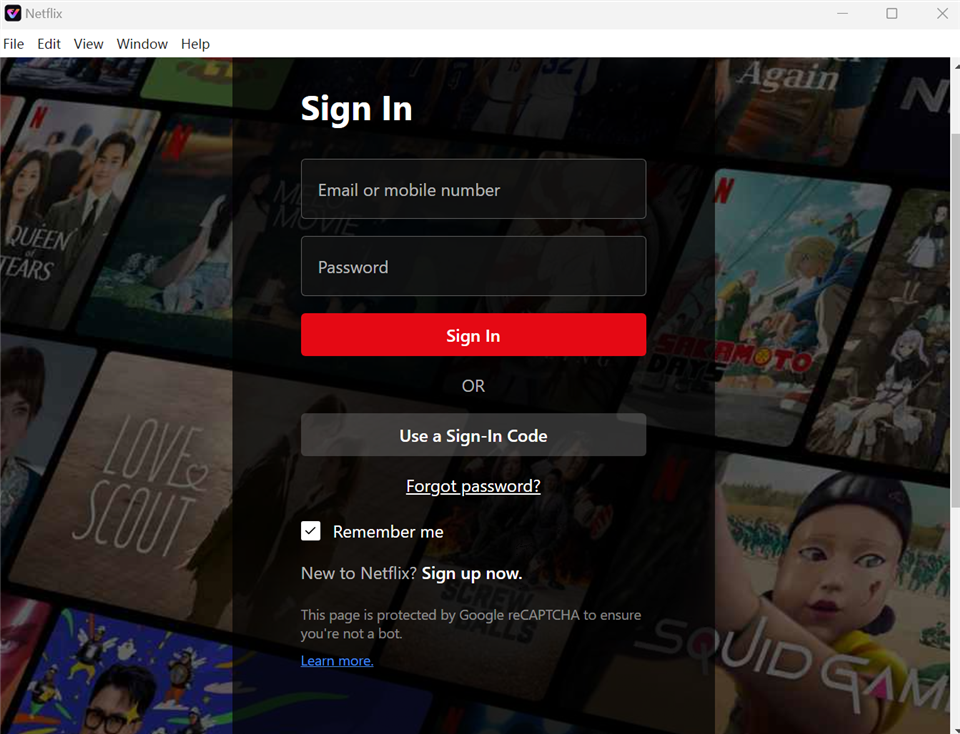
Sign In to Your Netflix Account
Step 3: Select MP4 or MKV format. Keeprix lets you preserve available subtitles and audio tracks, ensuring you keep the language options you prefer. Click to download and save the file to your computer.
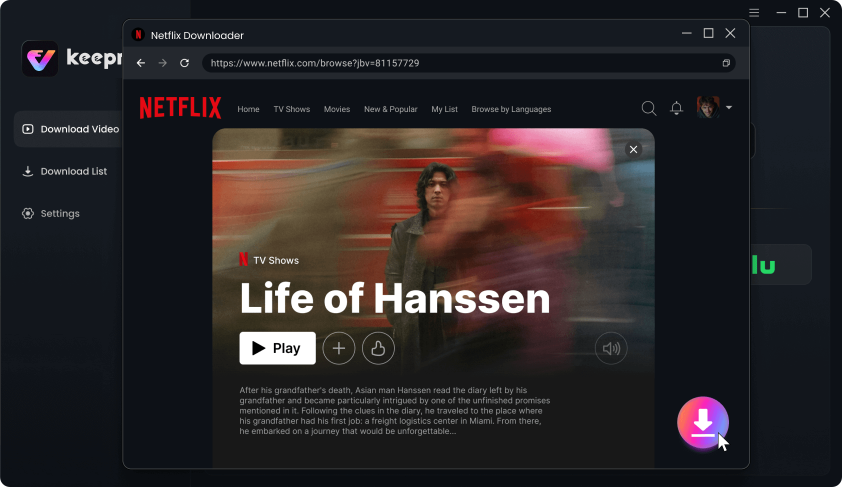
Download Movies You Want on Netflix
Step 4: Choose your preferred available audio and subtitle tracks, and select MP4 or MKV as the output format.
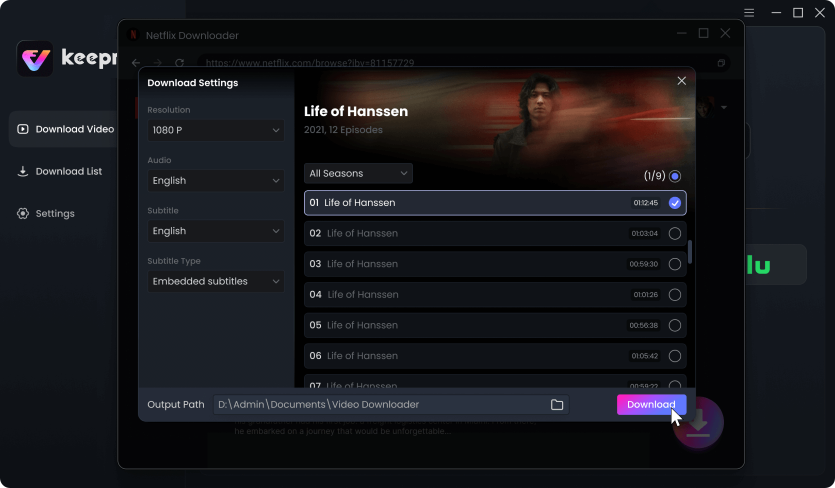
Customize Download Setting
Once the download is complete, transfer the saved MP4 file to the screen you actually use. You can copy the file to a USB flash drive and plug it directly into your smart TV, cast it locally from your PC, or connect your laptop to the TV via an HDMI cable.
Frequently Asked Questions
Why is my Netflix stuck on the loading screen on Firestick?
Netflix usually gets stuck on the loading screen because of bloated temporary cache files or a weak Wi-Fi signal. Force stopping the app and clearing the cache in the Fire OS Settings menu is the fastest way to resolve this.
Why does Netflix keep crashing back to the home screen?
An app crashing back to the home screen indicates corrupted software or critically low storage space on the Firestick device itself. Uninstalling and reinstalling the Netflix app will usually replace corrupted files and fix the issue.
How do I fix a black screen when opening Netflix on Firestick?
First, restart the Firestick to refresh the HDMI handshake with your television. If the screen remains black only when the Netflix app opens, clear the app data to force a fresh login.
Can I watch Netflix without internet on my TV?
You cannot watch Netflix without internet using the native Firestick app. However, if you use a desktop tool to save your accessible shows as local MP4 files, you can play them directly on your TV via a USB drive without an internet connection.
How do I update the Netflix app on Fire TV?
Highlight the Netflix app on your home screen, press the Menu button (three horizontal lines) on your remote, and select “More Info.” If an update is available, you will see a button to download it.
Why do I get Netflix error tvq-st-103 on my Firestick?
Error code tvq-st-103 is a network connectivity issue indicating the app cannot reach the Netflix servers. Restart your home router and check the Firestick network status to restore your connection.
Summary
While clearing the cache or rebooting your Firestick usually fixes a frozen screen, relying solely on apps leaves you vulnerable to constant interruptions. Take control of your entertainment with Keeprix. Download your favorite shows to your computer as MP4 or MKV files and enjoy flawless local playback. Try Keeprix today to build your offline backup and say goodbye to endless buffering.

Keeprix Video Downloader
- Download Netflix videos on Windows & Mac.
- Save streaming videos as local MP4/MKV files.
- Batch download streaming videos and TV series.
- Watch videos offline, no ads, no interruption.