Netflix on Roku TV Not Working? Fixes & Backups

If Netflix suddenly stops working on your Roku, the culprit is usually a server outage, bad Wi-Fi, or a corrupted app cache. Before tweaking any Roku settings, check the Netflix status page or Downdetector. If the servers are down, troubleshooting won’t help—you just have to wait it out.
However, if the servers are up but the app is still crashing, freezing, or throwing errors, the issue is local. Try the troubleshooting steps below to get your stream running again.
1. Basic Fixes: Network Checks and Roku Restarts
When your connection drops or the app freezes, a basic system and network refresh is the best place to start. Turning the TV screen off and on usually just puts the Roku into standby mode, which won’t fix software glitches.
- Restart your Roku device properly: Grab your remote and navigate to Settings > System > System Restart (on some models, you may need to go to Settings > System > Power > System Restart). This fully reboots the Roku OS and clears temporary glitches.
- Check your Wi-Fi signal strength: Go to Settings > Network > About to confirm your signal strength is listed as ‘Excellent’ or ‘Good’. If it says ‘Poor’, move your router closer or switch to a 5GHz network if available.
- Restart your home router: Unplug your router from the power outlet for 30 seconds, then plug it back in. This simple step clears potential IP conflicts that often cause Netflix’s infinite loading spinners or generic connection errors.
2. Advanced Fixes: Clearing Cache and Reinstalling
If you are dealing with a persistent black screen or the Netflix app repeatedly crashes back to the home screen, you likely have a corrupted cache or a bad installation. Roku TVs do not have a simple “clear cache” button in the settings menu, but you can force a cache clear using a specific remote button combination.
How to clear the Roku cache:
Ensure you are on the Roku Home screen, then press the following buttons in sequence quickly:
* Home 5 times
* Up 1 time
* Rewind 2 times
* Fast Forward 2 times
Your Roku will freeze for a few seconds, restart automatically, and clear its internal memory.
How to cleanly reinstall the Netflix app:
If the cache clear doesn’t work, reinstall the app using this exact sequence:
- Highlight the Netflix app on your home screen and press the Star (*) button.
- Select Remove app.
- Restart your Roku (Settings > System > System Restart) to clear the device memory. Do not skip this step, or the bad cache will remain.
- Go to the Streaming Store (or Channel Store), search for Netflix, and select Add app to reinstall it.
3. The Problem With App-Only Streaming on Roku
Even if you fix obscure error codes like NW-2-5, relying solely on a streaming app leaves you vulnerable. Your movie night is always at the mercy of three unpredictable factors: server stability, Wi-Fi health, and Roku OS updates. When one fails, the screen goes black.
The worst part? Roku users have no official offline fallback. Unlike mobile apps that allow temporary downloads, Roku has zero built-in options to save Netflix shows locally when the app refuses to cooperate.
4. Backup Plan: Watching via Roku Media Player
Tired of buffering, Wi-Fi drops, and app crashes? The stress-free alternative is local playback. With the official Roku Media Player, you can play standard video files (like MP4 or MKV) directly from a USB drive or a local Plex network.
Playing a local file bypasses the internet and buggy apps entirely. Because the video is physically on your drive, it won’t buffer, throw error codes, or crash during server outages. But there’s a catch: to use this stable backup, you first need a reliable tool to download your accessible Netflix shows as standard MP4 or MKV files.
5. Save Netflix Shows as MP4s with Keeprix
This is where Keeprix Video Downloader bridges the gap. Keeprix is a Windows and Mac desktop video downloader that helps you turn the Netflix shows you can already access into flexible, offline MP4 or MKV files. By saving your watchlist locally, you bypass the glitchy Roku app and build a reliable backup plan for personal offline viewing.
How the Keeprix Workflow Works:
Keeprix Video Downloader
Download streaming videos from Netflix as MP4/MKV. Enjoy seamless offline watching on Windows and Mac computers.
Step 1: Download on your computer: Open Keeprix on your PC or Mac. Choose Netflix.
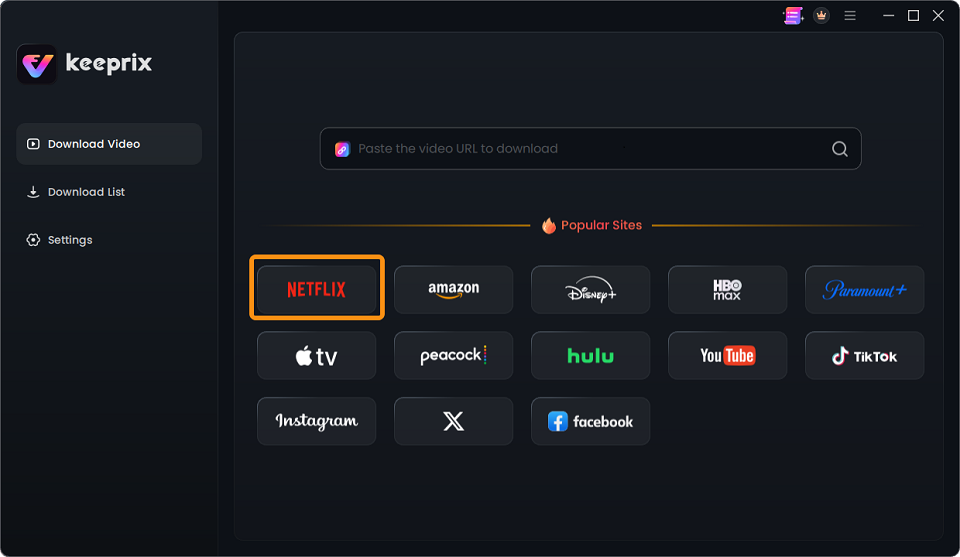
Choose Netflix
Step 2: Log into your supported account via the built-in browser, and download your accessible Netflix shows (up to 1080p, depending on source quality).
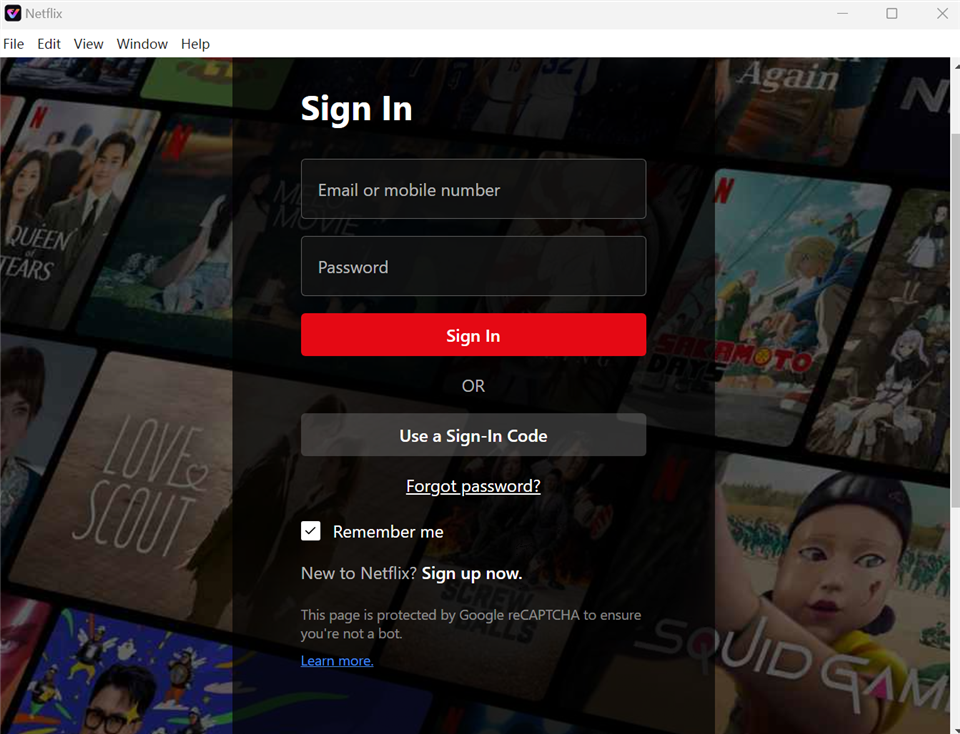
Sign In to Your Netflix Account
Step 3: Locate your accessible video.
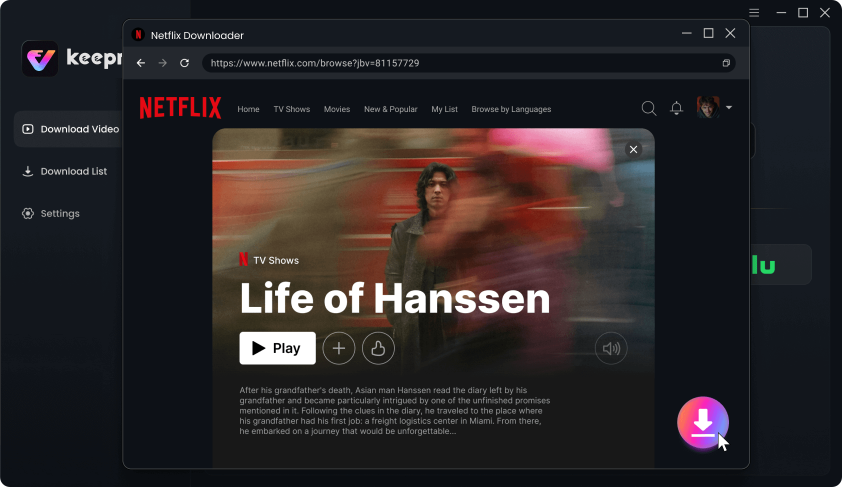
Download Movies You Want on Netflix
Step 4: Choose your preferred available audio and subtitle tracks, and select MP4 or MKV as the output format.
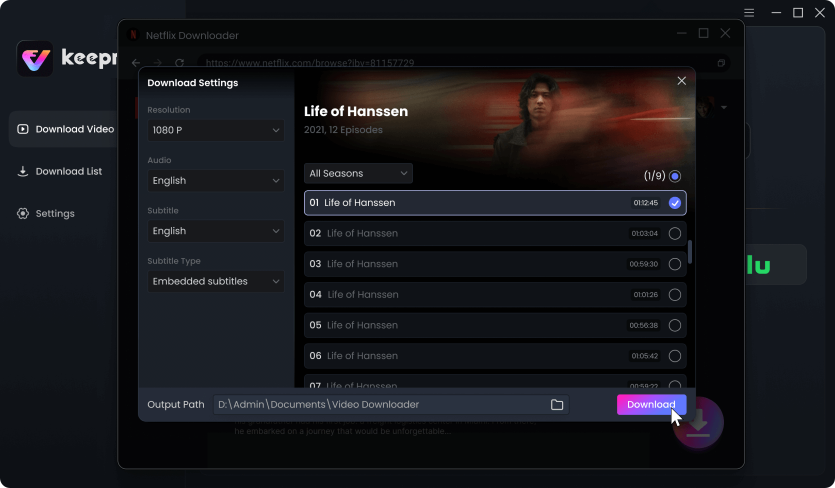
Customize Download Setting
Insert the USB drive into the port on the back or side of your Roku TV. Open the official Roku Media Player channel, select your USB drive, and watch your shows offline without buffering, Wi-Fi drops, or app crashes.
6. Frequently Asked Questions
Why is Netflix suddenly not working on my Roku?
Sudden outages are typically caused by Netflix server downtime, a dropped Wi-Fi signal, or a corrupted app cache. Always check Downdetector first to rule out widespread server issues before changing settings on your device.
What does Netflix error code NW-2-5 mean on Roku?
Error code NW-2-5 indicates a network connectivity issue. It means your Roku device cannot reach the Netflix servers. Restarting your home router and checking your Roku’s Wi-Fi signal strength usually resolves this.
What does Netflix error code tvq-st-103 mean on Roku?
Error code tvq-st-103 also points to a network connection failure, indicating that your device is unable to communicate with Netflix services. Restarting your router, ensuring your Roku has a strong Wi-Fi signal, and fully rebooting the TV are the best ways to fix it.
Why does Netflix go to a black screen on Roku?
This is often caused by a cache glitch or an HDMI handshake issue. You can usually fix it by performing a system restart (Settings > System > System Restart) or using the specific remote button combination (Home 5x, Up, Rewind 2x, Fast Forward 2x) to clear the Roku cache.
How do I update the Netflix app on a Roku TV?
Highlight the Netflix app on your Roku home screen, press the Star (*) button on your remote, and select ‘Check for updates’. This forces the Roku to download the latest available version of the app.
Can I watch Netflix on my Roku without using the official app?
While you cannot stream live from Netflix without the app, you can use a desktop tool to save your accessible shows as MP4 files, transfer them to a USB drive, and play them offline using the official Roku Media Player channel.
How do I play local MP4 files on a Roku TV?
Plug a USB drive containing your MP4 files into the Roku’s USB port. Then, open the Roku Media Player channel from your home screen, select your USB drive, and choose the video you want to play.
Summary
Having local MP4 files on a USB drive is the most reliable fallback for a stress-free movie night. If you want to stop endlessly troubleshooting error codes and start watching uninterrupted, try Keeprix Video Downloader for Windows or Mac to build a personal offline library and reclaim your viewing freedom.

Keeprix Video Downloader
- Download Netflix videos on Windows & Mac.
- Save streaming videos as local MP4/MKV files.
- Batch download streaming videos and TV series.
- Watch videos offline, no ads, no interruption.