5 Best Peacock Video Downloaders for PC and Mac

Peacock’s official offline feature works for select content on supported mobile devices with a Premium Plus subscription. It does not provide native offline downloads through Windows or Mac browsers, and official downloads remain subject to account limits and expiration rules.
A desktop Peacock video downloader offers a different workflow by saving supported content as local MP4 or MKV files. However, these tools vary considerably in price, trial limits, platform support, output quality, update frequency, and whether they use a dedicated Peacock module or a more general recording method.

5 Best Peacock Video Downloaders: At-a-Glance
We compared five options:
- Keeprix
- StreamFab
- KeepStreams
- Y2Mate
- CleverGet
This comparison focuses on information that can help you make a purchasing decision, including current prices, publicly listed software versions, trial policies, operating-system support, batch downloading, subtitles, and realistic limitations.
Quick Picks
- Best overall value for multiple streaming platforms: Keeprix
- Best for users who want a dedicated standalone Peacock license: StreamFab
- Best for scheduled episode downloads: KeepStreams
- Lowest listed monthly price: Y2Mate
- Best as a general recorder or fallback tool: CleverGet
How We Compared These Peacock Downloaders
Product information, prices, trial policies, and publicly listed software versions were checked on September 1, 2026.
The comparison is based on:
- Official product and pricing pages.
- Public version and update histories.
- Peacock-specific feature descriptions.
- Trial restrictions.
- Supported operating systems.
- Output formats and resolution claims.
- Batch, subtitle, audio, and scheduling options.
- Disclosed limitations and update requirements.
Maximum resolution and speed figures are labeled as vendor claims unless independently verified. We did not run a controlled test in which all five products downloaded the same Peacock title using the same account, computer, and internet connection. Therefore, this article does not present unverified success rates or fabricated download times as independent test results.
Prices and promotions can change. Confirm the final price, renewal terms, operating-system license, and refund policy before purchasing.
Best Peacock Video Downloaders: Comparison Table
| Downloader | Best For | Resolution | Free Trial | Price Checked |
| Keeprix | Multiple streaming platforms and a clear full-video trial | Up to 1080p | 3 full Peacock downloads | $49.99/month, $99.99/year, $159.99 lifetime |
| StreamFab | A standalone Peacock module with frequent updates | Vendor claims up to 4K; title-dependent | 3 full downloads; 4K unavailable in trial | Peacock lifetime module listed at $99.99 |
| KeepStreams | Batch and scheduled episode downloads | Vendor claims up to 4K; title-dependent | 3 full videos within 30 days | $34.99/month, $69.99/year, $99.99 lifetime |
| Y2Mate | Lower monthly entry price and automatic downloads | Vendor claims 1080p/4K; varies by title | 3 downloads within 30 days | $23.90/month, $129.90 lifetime |
| CleverGet | General site coverage and recording fallback | No clear Peacock-specific maximum; general recording supports 1080p/4K | Free download available; Peacock quota not clearly disclosed | All-in-one lifetime listed at $259.95 |
“Up to” does not guarantee that every Peacock title will be available at the maximum advertised resolution. Output depends on the original stream, account, region, title, software version, and current technical compatibility.
Public Version Information Checked
Frequent updates matter because streaming-site interfaces and playback systems change regularly.
| Product | Public Version Information Found | Date Shown |
| Keeprix | Version 1.5.2 | Checked September 1, 2026 |
| StreamFab | Windows 7.0.4.7; Mac 7.0.4.6 | August 28 and August 26, 2026 |
| KeepStreams | Version 2037 | August 31, 2026 |
| Y2Mate | Version 2.0.3.6 listed for the current Mac build; Windows version may differ | August 26, 2026 |
| CleverGet | Version 26.0.0.1 | June 10, 2026 |
A visible version number is useful, but it does not prove that a particular Peacock title will download successfully. Use the free trial with your own target title before buying.
1. Keeprix: Best Overall for Multiple Streaming Platforms
Keeprix Peacock Downloader is our overall pick for users who want Peacock support as part of an all-in-one desktop downloader rather than purchasing a separate module for every streaming service.
Keeprix supports Windows and Mac and lists Peacock output at up to 1080p, depending on the quality supplied by the source. This is a more conservative claim than the 4K marketing used by several competitors.
It can save supported videos as MP4 or MKV files and preserve available audio tracks and subtitles. Batch mode is available in the paid version for users preparing multiple episodes or a complete season.

Keeprix Peacock Downloader
- Download Peacock videos on Windows & Mac.
- Save streaming videos as local MP4/MKV files.
- Batch download streaming videos and TV series.
- Watch videos offline, no ads, no interruption.
Step 1: Download and install Keeprix Peacock Downloader. Open the Keeprix desktop app on your Windows or Mac computer.
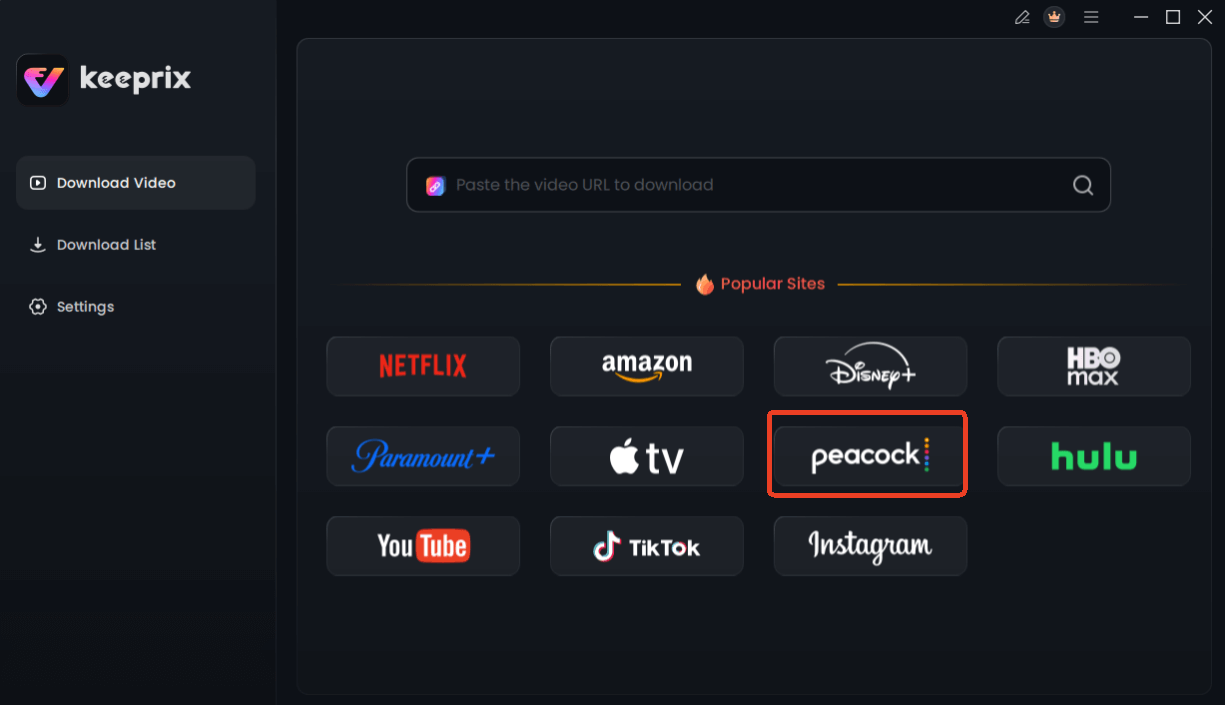
Choose Peacock in Keeprix Downloader
Step 2: Use the built-in desktop browser on Windows or Mac to navigate to your Peacock show and find the show or movie you want to save.
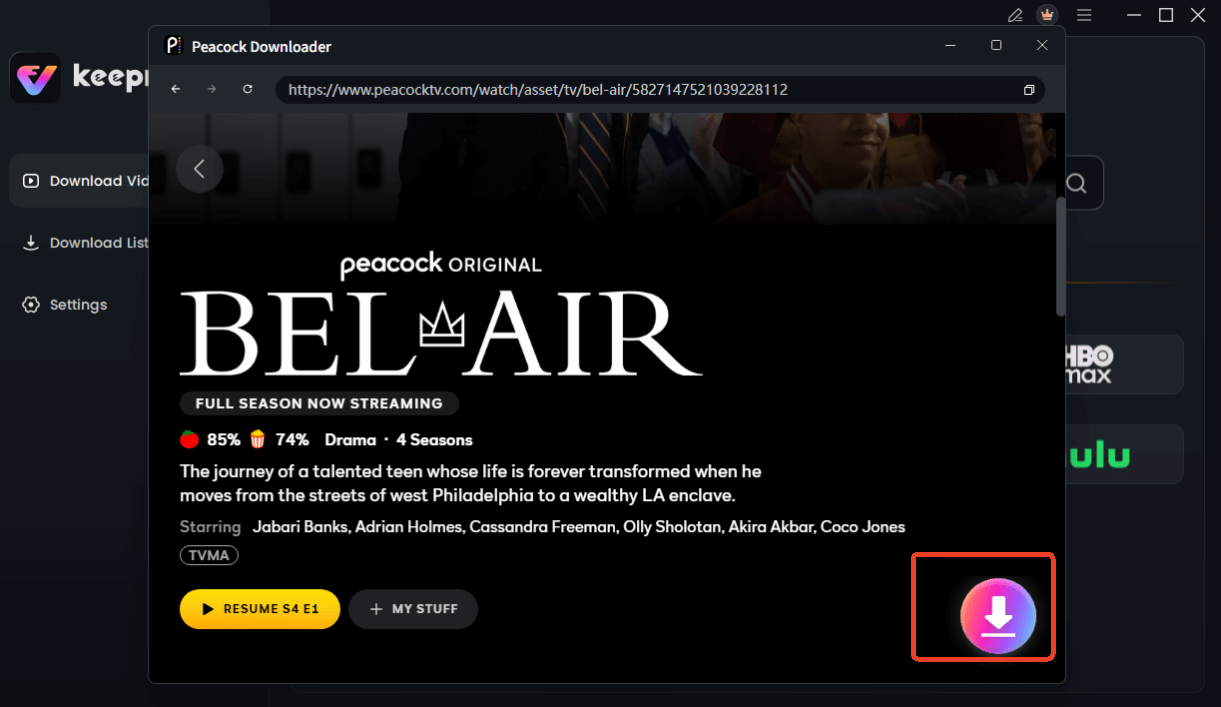
Choose Peacock Video to Download
Step 3: Choose your preferred video settings (Keeprix supports saving Peacock videos up to 1080p, depending on source quality and your account access).
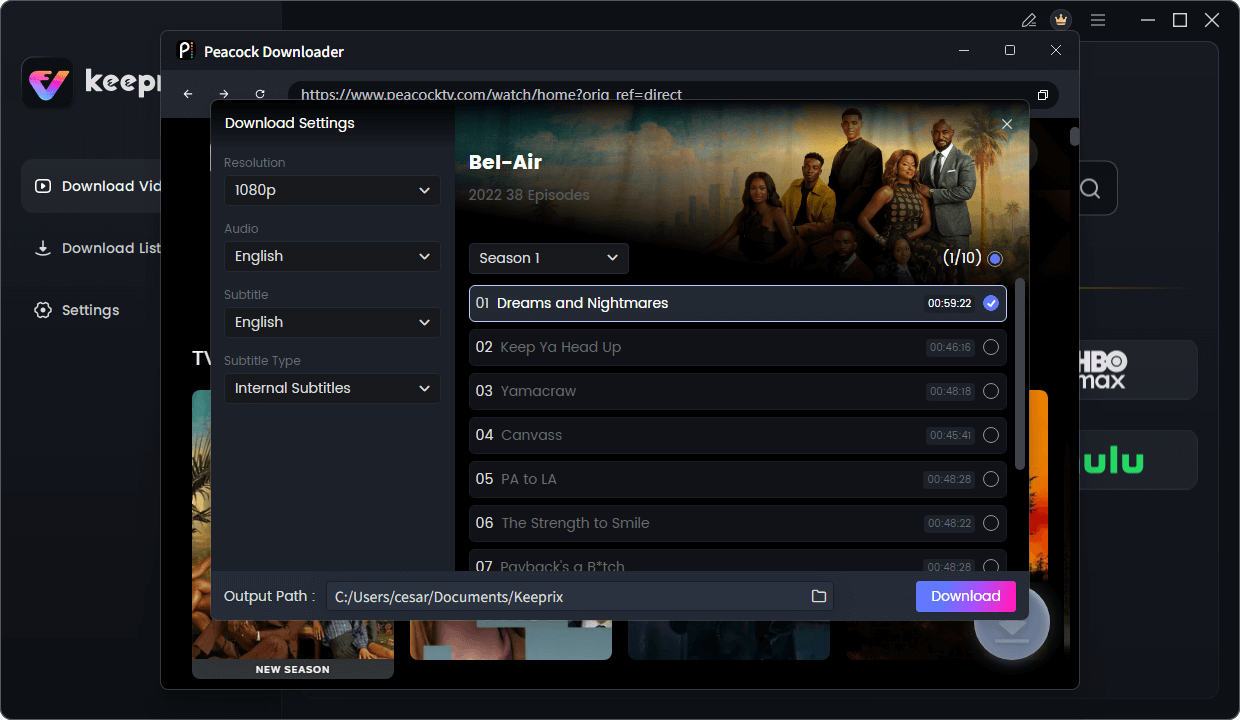
Configure Peacock Download Settings
Step 4: Choose MP4 or MKV, and queue up entire seasons using the batch download feature. Manage your saved files locally and watch them on your preferred media player without worrying about app-based expirations.
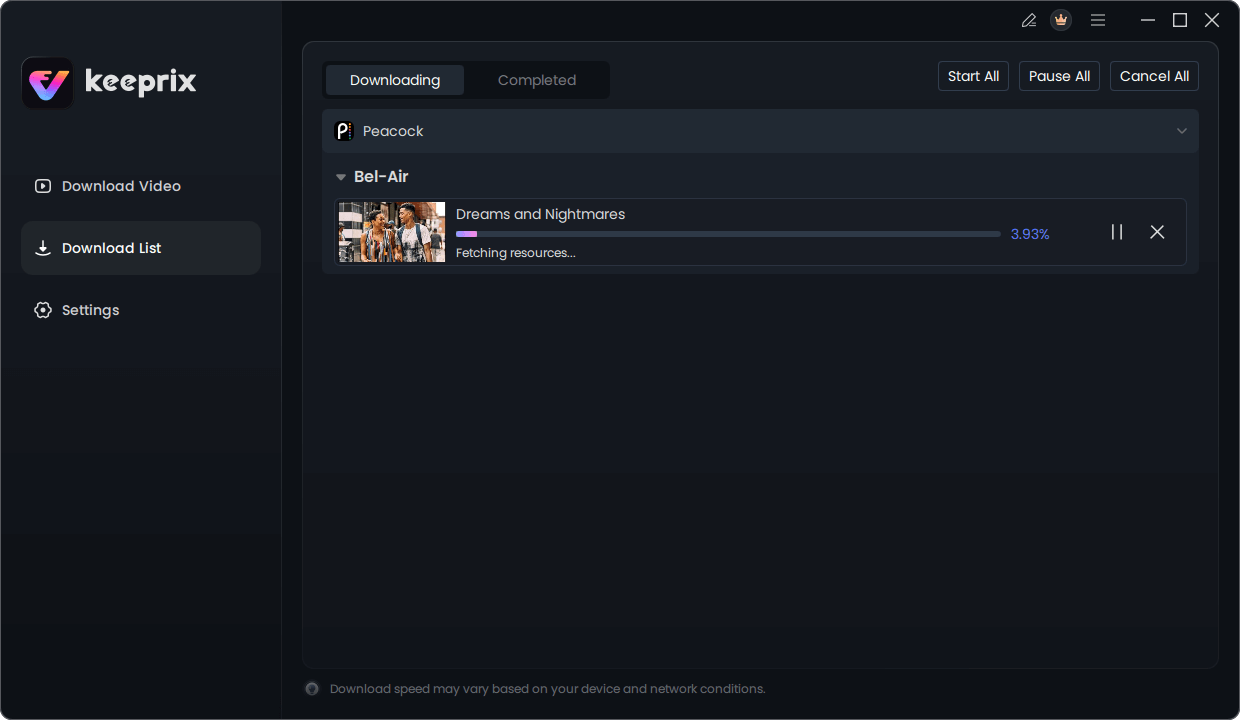
Downloading Peacock Video
Keeprix pricing and trial
Keeprix currently offers:
- 1-month plan: $49.99 for one computer.
- 1-year plan: $99.99 for one computer.
- Lifetime plan: $159.99 for two computers.
- Free trial: 3 full downloads on each supported streaming platform.
The monthly price is higher than the standalone monthly prices offered by KeepStreams and Y2Mate. However, Keeprix is an all-in-one product covering Peacock and other supported streaming and video platforms under the same license.
The one-year and lifetime plans include a 60-day money-back period, while the one-month plan has a 7-day period. Review the current refund conditions before purchasing.
What Keeprix does well
- Clearly lists Peacock support at up to 1080p.
- Offers three complete Peacock downloads for testing.
- Supports Windows and macOS.
- Saves MP4 and MKV files.
- Includes available audio and subtitle selections.
- Supports batch downloads in the activated version.
- Covers multiple streaming platforms under one license.
- Offers a longer refund period on annual and lifetime plans.
Best fit
Choose Keeprix if you use Peacock together with Netflix, Prime Video, Disney+, Max, Hulu, Paramount+, Apple TV+, or other supported platforms and prefer one application instead of multiple standalone licenses.
Use the three full Peacock trial downloads to test your target movie or episode, desired resolution, subtitles, audio, and computer compatibility before upgrading.
2. StreamFab: Best Dedicated Peacock Module
StreamFab Peacock Downloader is a dedicated module available for Windows and macOS. It is a suitable choice for users who want to purchase Peacock support separately instead of buying an all-in-one package.
StreamFab publicly advertises Peacock downloads in up to 4K with MP4 or MKV output, H.264 and H.265 options, HDR formats, and multichannel audio. These are vendor-listed capabilities rather than results independently verified by this article.
Its product page also states that the free trial includes three full downloads but that the 4K option is temporarily unavailable to trial users. This means the trial cannot fully verify StreamFab’s most prominent Peacock quality claim.
StreamFab pricing, trial, and version
- Peacock lifetime module: listed at $99.99.
- Free trial: 3 full Peacock downloads.
- Trial limitation: 4K is not currently available in the trial.
- Windows version checked: 7.0.4.7.
- Mac version checked: 7.0.4.6.
StreamFab’s official update history is useful because it records changes affecting specific services. A July 2026 update included a fix for cases in which some Peacock videos failed to download.
That update record is also a reminder that compatibility can be patch-dependent. Users should install the latest version before concluding that a title is unsupported.
Published speed information
StreamFab claims that a 45-minute 1080p episode may complete in approximately three to five minutes, depending on the connection and computer. This is a vendor-provided estimate, not a controlled result reproduced for this article.
What StreamFab does well
- Offers a Peacock-specific license.
- Provides Windows and Mac versions.
- Includes three full trial downloads.
- Supports MP4 and MKV.
- Offers batch downloading.
- Publishes detailed release notes.
- Lists multiple codec, audio, subtitle, and metadata options.
- Lets users buy Peacock support without purchasing every module.
Where StreamFab could be better
- Its advertised 4K mode cannot currently be tested in the free trial.
- Compatibility may depend on installing the newest patch.
- The full feature set and licensing options can be complex for first-time buyers.
- Advertised speed and success-rate claims are not independent benchmarks.
- Maximum output still depends on the title and current Peacock source.
Best fit
Choose StreamFab if you want a dedicated Peacock license, are comfortable checking update notes, and do not mind testing title compatibility after major software or streaming-site changes.
For StreamFab-specific configuration and error handling, see our StreamFab Peacock Downloader review and troubleshooting guide.
3. KeepStreams: Best for Scheduled Episode Downloads
KeepStreams for Peacock combines batch downloading with an automatic-download function designed to detect and save newly available episodes.
This can be useful for viewers following an active series who do not want to search for each new episode manually. KeepStreams also lists MP4 and MKV output, selectable audio, metadata management, ad detection, and Windows and Mac support.
The company advertises 1080p and 4K Peacock output, including HDR and multichannel audio where available. Treat these figures as vendor claims and test the actual title and account combination you plan to use.
KeepStreams pricing, trial, and version
- Monthly Peacock plan: $34.99.
- Annual Peacock plan: $69.99.
- Lifetime Peacock plan: $99.99.
- Free trial: 3 full videos from the Peacock module.
- Trial period: the three videos must be used within 30 days.
- Public version checked: 2037, released August 31, 2026.
KeepStreams also applies a paid-version limit of up to 100 downloads per day for video-streaming services.
Published speed information
KeepStreams promotes “10x faster” downloads and says a 45-minute episode may take several minutes. These statements are supplied by the vendor and were not reproduced through a controlled comparison for this article.
Actual speed depends on the source, computer hardware, connection, output settings, and current software compatibility.
What KeepStreams does well
- Offers monthly, annual, and lifetime Peacock plans.
- Provides three complete trial downloads.
- Supports Windows and macOS.
- Includes batch downloading.
- Can schedule or automatically detect new episodes.
- Supports MP4 and MKV.
- Provides metadata, audio, and subtitle options.
- Publishes a detailed update history.
Where KeepStreams could be better
- The monthly single-service price is relatively high.
- 4K and speed claims require verification with the user’s own target titles.
- Paid accounts remain subject to a daily download allowance.
- Refund periods are shorter than Keeprix’s annual and lifetime policy.
- The number of modules, bundles, and license options may be confusing.
Best fit
Choose KeepStreams if automatic episode scheduling is more important to you than getting the lowest lifetime price or using one simple all-in-one plan.
4. Y2Mate: Lowest Listed Monthly Price
Y2Mate Peacock Downloader has the lowest publicly listed monthly price among the dedicated Peacock products in this comparison.
It supports Windows and Mac, MP4 and MKV output, batch downloading, subtitle extraction, audio selection, metadata, ad handling, and automatic episode downloads.
Y2Mate’s Peacock page promotes 1080p and 4K output for supported content. However, its broader product information states that most videos are supported in Full HD 1080p and that higher resolutions depend on the platform and source. Users should therefore verify 4K availability with the exact Peacock title they intend to save.
Y2Mate pricing, trial, and version
- Monthly Peacock plan: $23.90.
- Lifetime Peacock plan: $129.90.
- All-in-one lifetime plan: $299.90.
- Free trial: approximately 3 downloads per product.
- Trial duration: 30 days.
- Paid allowance: approximately 100 downloads per product per day.
- Current Mac build shown publicly: 2.0.3.6, updated August 26, 2026.
Windows and Mac license availability or pricing may differ, so confirm the correct operating system before purchasing.
Published speed information
Y2Mate describes its downloader as fast and GPU-accelerated but does not provide a clearly reproducible Peacock benchmark on the product page.
Its own support guidance acknowledges that failures can occur when a video is not playable, storage is unavailable, or a platform requires a later software update.
What Y2Mate does well
- Lowest monthly price in this comparison.
- Provides three trial downloads.
- Supports Windows and macOS.
- Offers batch and automatic episode downloads.
- Supports MP4 and MKV.
- Includes subtitle, audio, and metadata controls.
- Offers a standalone Peacock plan and an all-in-one option.
Where Y2Mate could be better
- Its resolution messaging varies between “most videos in 1080p” and Peacock-specific 4K promotion.
- The lifetime Peacock price is higher than StreamFab and KeepStreams.
- Paid use is limited to approximately 100 downloads per day.
- Public version information may differ between Windows and Mac.
- Its speed descriptions are not reproducible benchmark results.
Best fit
Choose Y2Mate if your priority is the lowest monthly entry price and you want to test batch or automatic episode downloading before committing to a longer license.
5. CleverGet: Best as a General Recording Fallback
CleverGet is different from the other four options. Its current public product list does not clearly present a dedicated Peacock downloader module. Instead, CleverGet promotes an all-in-one downloader and recorder that works with a broad range of video and streaming websites.
This makes CleverGet more appropriate as a general fallback tool than as the first choice for someone who specifically wants a dedicated Peacock workflow.
Its built-in browser can analyze supported video pages, while its recording component can capture content when a direct-download module is unavailable. The method used can affect download time, output quality, and CPU usage.
CleverGet pricing, trial, and version
- All-in-one lifetime license: listed at $259.95 on the official store.
- Free download: available.
- Peacock-specific trial allowance: not clearly disclosed on the current product page.
- Public version checked: 26.0.0.1.
- Last update shown: June 10, 2026.
CleverGet’s general materials advertise downloads or recordings in 1080p and 4K depending on the site and module. A clear Peacock-specific maximum resolution is not currently displayed, so users should not assume that every Peacock title will be available in 4K.
What CleverGet does well
- Covers a broad range of websites.
- Includes downloader and recorder workflows.
- Supports MP4 and MKV.
- Provides a built-in browser.
- Offers Windows and Mac versions.
- Can act as a fallback when a dedicated module is unavailable.
Where CleverGet could be better
- No clearly advertised dedicated Peacock module was found on the current public product list.
- Peacock-specific resolution and trial limits are unclear.
- Recording may take longer and use more computer resources than direct downloading.
- The all-in-one lifetime price is the highest in this comparison.
- Users must test whether the current build recognizes the exact Peacock title they need.
Best fit
Choose CleverGet if you need a general-purpose downloader and recorder for many websites and accept that Peacock support may rely on a less specialized workflow.
If Peacock is your primary platform, test compatibility carefully before purchasing.
Which Peacock Downloader Should You Choose?
| Your Priority | Recommended Option | Why |
| One tool for Peacock and multiple streaming platforms | Keeprix | All-in-one license, 1080p Peacock support, three full trial downloads |
| Dedicated standalone Peacock module | StreamFab | Peacock-specific lifetime module and frequent updates |
| Automatic downloading of new episodes | KeepStreams | Scheduling and auto-download features |
| Lowest monthly starting price | Y2Mate | $23.90 monthly Peacock plan |
| Broad recording fallback | CleverGet | General downloader and recorder coverage |
| Longest refund period | Keeprix | 60 days on annual and lifetime plans |
| Lowest listed standalone lifetime price | StreamFab or KeepStreams | Both listed at $99.99 |
| Most conservative Peacock resolution claim | Keeprix | Publicly lists Peacock at up to 1080p |
| Testing advertised 4K before purchase | None is ideal | StreamFab blocks 4K in trial; all 4K claims remain title-dependent |
Peacock Official Downloads vs. Desktop Downloaders
Peacock’s official download feature remains the simplest choice for Premium Plus subscribers who only need temporary offline viewing on a supported phone or tablet.
The official method is better when:
- You prefer staying entirely within the Peacock app.
- Mobile viewing is sufficient.
- The title supports downloads.
- The 25-item limit is enough.
- The expiration window is not a problem.
A desktop downloader may be more suitable when:
- You need Windows or Mac playback.
- You want MP4 or MKV output.
- You need batch processing.
- You want selectable audio or subtitle files.
- You need to manage supported videos outside the mobile app.
For official plan, device, expiration, and account-limit instructions, read our guide on how to download Peacock shows and watch offline.
Frequently Asked Questions
Q1: Do Peacock downloads expire?
Yes, official Peacock downloads expire 48 hours after you start playing them, and unopened downloads generally expire after 30 days. However, exporting a stream to a local MP4 file using a desktop tool removes this built-in expiration time limit.
Q2: Why is the download option not showing on Peacock?
Peacock restricts offline downloads to the Premium Plus plan, and the feature only works on supported iOS and Android mobile devices. The download button will not appear if you are using a PC, Mac, or a standard Premium account.
Q3: Are there limits on how many Peacock videos I can download?
The official app restricts you to a strict maximum of 25 total downloads across all your linked devices. By contrast, local storage via a desktop MP4 downloader has no cap other than the space available on your hard drive.
Q4: Can you download Peacock shows to watch offline on a laptop?
Officially, no. But you can use a third-party desktop downloader like Keeprix. This allows you to save accessible videos as flexible MP4 or MKV files, enabling offline playback on a Windows or Mac laptop.
Final Verdict
The Keeprix Peacock Downloader stands out as the best overall choice to turn restricted mobile streams into flexible local MP4 or MKV files. It offers a transparent, reliable workflow that bridges the gap between app-only limits and personal media freedom.
Ready to prepare your offline watchlist? Download the Keeprix free trial for Windows or Mac today, and you can export up to 3 full videos to see the difference for yourself.
Keeprix Video Downloader
Download streaming videos from Netflix without limits. Enjoy seamless offline watching on Windows and Mac computers.