Can You Download Shows on Peacock to Watch Offline

Yes, you can download select Peacock shows and movies for offline viewing. However, the official download feature is available only to Peacock Premium Plus subscribers using supported mobile phones and tablets.
Peacock also applies several restrictions. An account can have up to 25 downloaded items across all devices at one time. A video you start watching is automatically removed after 48 hours, while an unwatched download is removed after 30 days or when the title leaves Peacock, whichever happens first.
This guide explains the official Peacock download process, how to manage offline videos, why the download button may be missing, and what options are available if you need to watch Peacock offline on a Windows PC or Mac.

1. Peacock Offline Download Rules at a Glance
Before downloading a movie or series, check whether your account, device, and selected title meet Peacock’s requirements.
| Requirement | Peacock Rule |
| Required plan | Peacock Premium Plus |
| Supported devices | Supported mobile phones and tablets |
| Eligible content | Select movies, shows, and episodes only |
| Account limit | Up to 25 downloaded items across all devices |
| Repeat-download limit | Some eligible titles may be downloaded up to 10 times per account |
| After playback starts | The download is removed after 48 hours |
| If left unwatched | The download is removed after 30 days |
| If a title leaves Peacock | The download may be removed earlier |
| After logging out | Downloads are removed from that device |
| After uninstalling the app | Downloads are removed from that device |
| Windows and Mac | No official desktop download feature |
These rules apply to Peacock’s official in-app downloads. Features and device requirements may change, so check Peacock’s official offline-download guidance if the app behaves differently.
2. How to Download Peacock Shows on iPhone,iPad or Android
You can download eligible Peacock movies and episodes through the official app on a supported mobile phone or tablet.
Follow these steps:
- Open the Peacock app on your device.
- Sign in to your Peacock Premium Plus account.
- Search for the movie or series you want to watch offline.
- If you selected a series, open the season and choose a specific episode.
- Look for the Download icon in the bottom-right corner.
- Tap the icon to begin downloading the video.
- Follow the progress through the Downloading icon.
- When the download is complete, the icon will change to a checkmark.
- Return to the Peacock homepage and select the Downloads icon in the bottom-left corner to view your saved content.
The download icon only appears on content currently eligible for offline viewing. If one movie or episode does not display the icon but other titles do, the problem is probably related to that specific content rather than your device.
3. How to Watch Downloaded Peacock Shows Offline
Once a download is complete, you can watch it through the Peacock app without an active internet connection.
To watch a downloaded title:
- Open the Peacock app while the device is offline.
- Peacock should direct you to the Downloads section.
- Select the movie or series you want to watch.
- If it is a TV series, choose the downloaded episode.
- Tap the episode or movie to begin playback.
Before traveling, open the Downloads section while you still have a reliable internet connection. Test each important movie or episode for a few seconds, and then switch the device to airplane mode to confirm that it still plays.
Do not log out of Peacock after preparing your offline watchlist. Logging out removes all Peacock downloads stored on that device.
4. How to Pause or Cancel a Peacock Download
If a video is still downloading, you can pause or cancel it from the Peacock app.
- Tap the Pause icon next to the active download.
- Select Pause Download if you want to continue later.
- Select Cancel Download if you want to stop and remove the incomplete download.
If a download remains stuck after resuming, cancel it and start a fresh download on a stable connection.
5. Why Is a Peacock Download Stuck or Failing?
If the download icon appears but the video remains pending, stops halfway, or fails, work through these checks.
5.1 Check the internet connection
Use a stable private Wi-Fi network when possible. Public Wi-Fi at hotels, airports, schools, or offices may restrict large downloads or streaming traffic.
If the connection is unstable:
- Move closer to the router.
- Restart the router.
- Switch to a different network.
- Pause other large downloads.
- Avoid switching between Wi-Fi and mobile data during the download.
5.2 Check the device’s storage
Open the device settings and review the remaining storage. Delete unnecessary files or older Peacock downloads before trying again.
If several episodes stop at a similar percentage, insufficient storage may be the cause.
5.3 Restart the app and device
Close Peacock and any unnecessary background apps. Reopen Peacock and start the download again.
If the problem continues, fully restart the phone or tablet.
5.4 Update the Peacock app
Install the latest Peacock update from the App Store or Google Play. App updates may resolve account-sync, playback, and download problems.
5.5 Clear the app cache carefully
Android users may be able to clear Peacock’s cache through the device settings. Menu names vary by manufacturer.
Clearing app data, logging out, or reinstalling Peacock can remove existing downloads. Use these options only after trying less disruptive fixes.
Peacock’s official device troubleshooting guide also recommends restarting the app and device, checking the connection, clearing cache or data, and reinstalling the app when necessary.
6. Alternative for Windows and Mac Offline Viewing
Keeprix Peacock Downloader can save supported Peacock videos as MP4 or MKV files on Windows and Mac. It supports quality up to 1080p when available from the source, batch saving for multiple episodes, and available subtitles and audio tracks.
Local files created through this workflow are not controlled by Peacock’s in-app 30-day or 48-hour download timers. You still need valid access to the title when preparing the file.
You can test 3 full Peacock downloads free before upgrading. Actual availability and output quality can vary by title, account access, region, source quality, and technical compatibility.
Keeprix is intended for saving accessible content for personal, non-commercial offline viewing. Do not redistribute, upload, resell, or commercially use downloaded files.

Keeprix Peacock Downloader
- Download Peacock videos on Windows & Mac.
- Save streaming videos as local MP4/MKV files.
- Batch download streaming videos and TV series.
- Watch videos offline, no ads, no interruption.
Step 1: Download and install Keeprix Peacock Downloader. Open the Keeprix desktop app on your Windows or Mac computer.
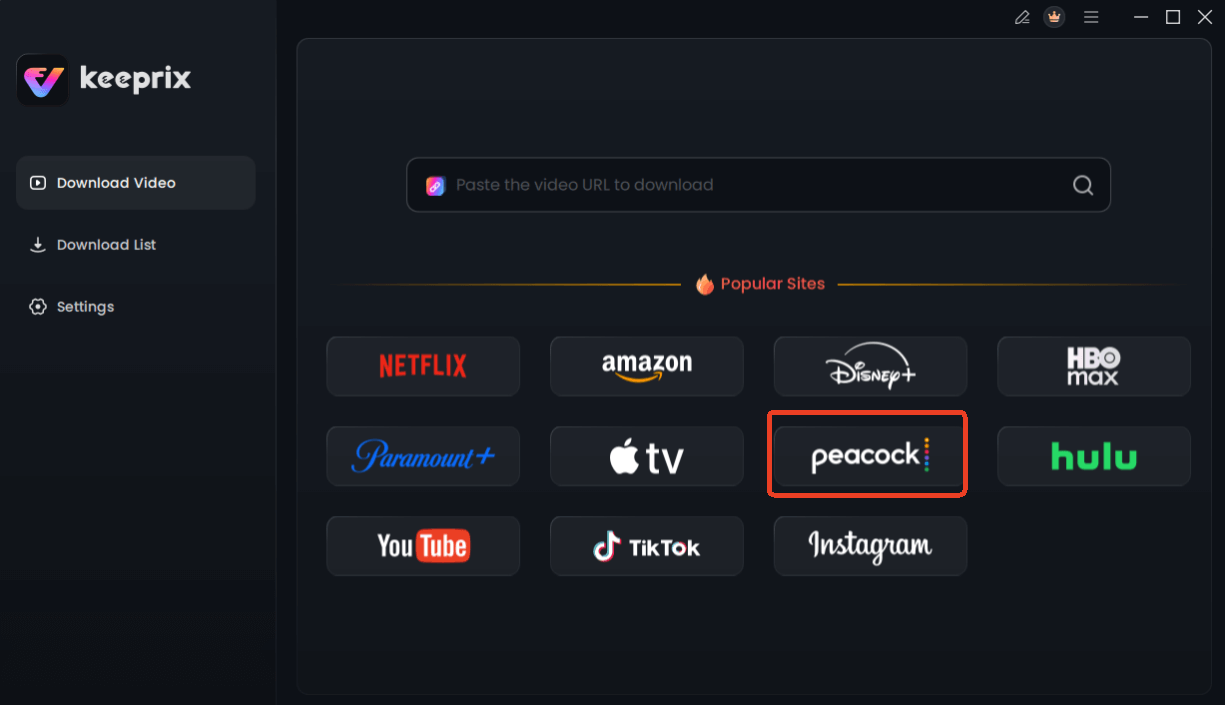
Choose Peacock in Keeprix Downloader
Step 2: Use the built-in browser to log into your Peacock account and find the show or movie you want to save.
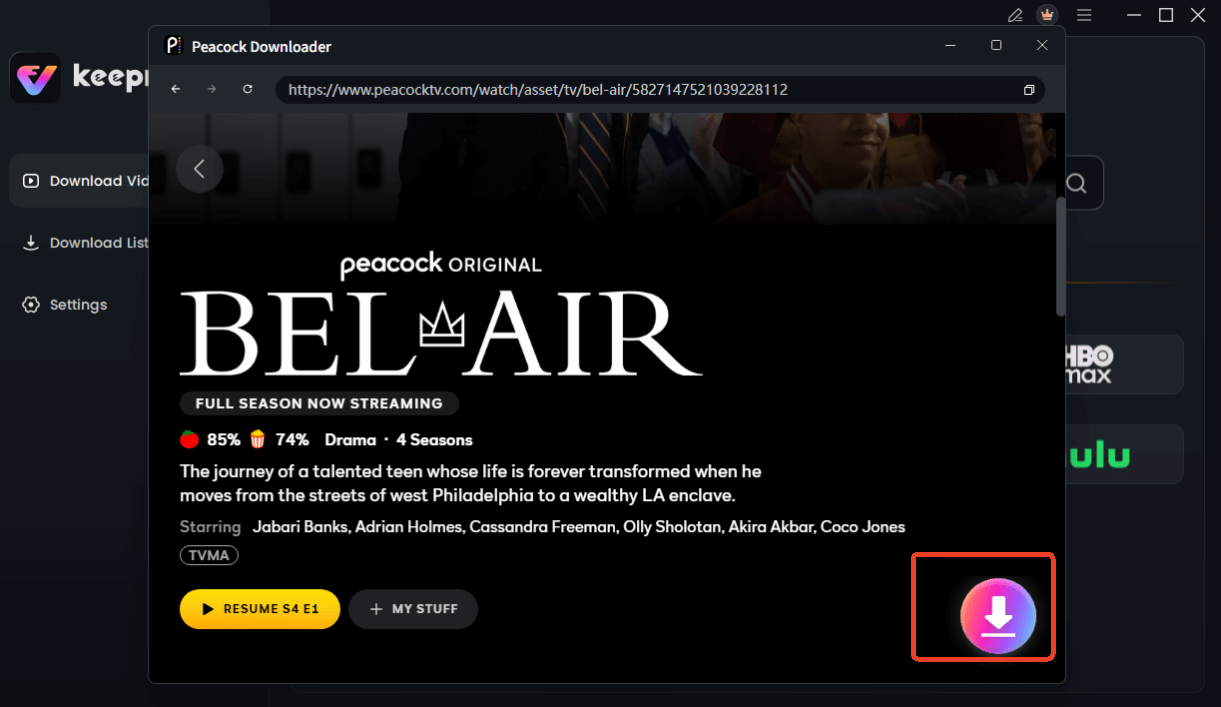
Choose Peacock Video to Download
Step 3: Choose your preferred video settings (Keeprix supports saving Peacock videos up to 1080p, depending on source quality and your account access).
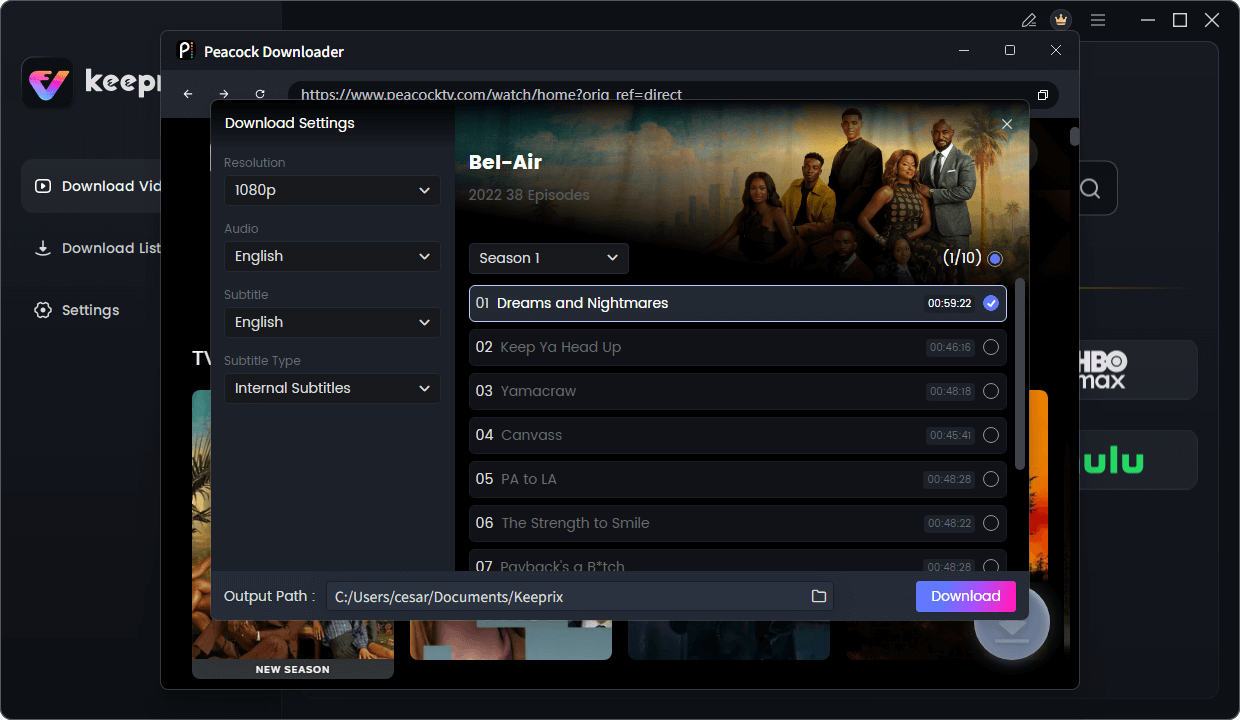
Configure Peacock Download Settings
Step 4: Start the download and export the video as an MP4 or MKV file. Manage your saved files locally and watch them on your preferred media player without worrying about app-based expirations.
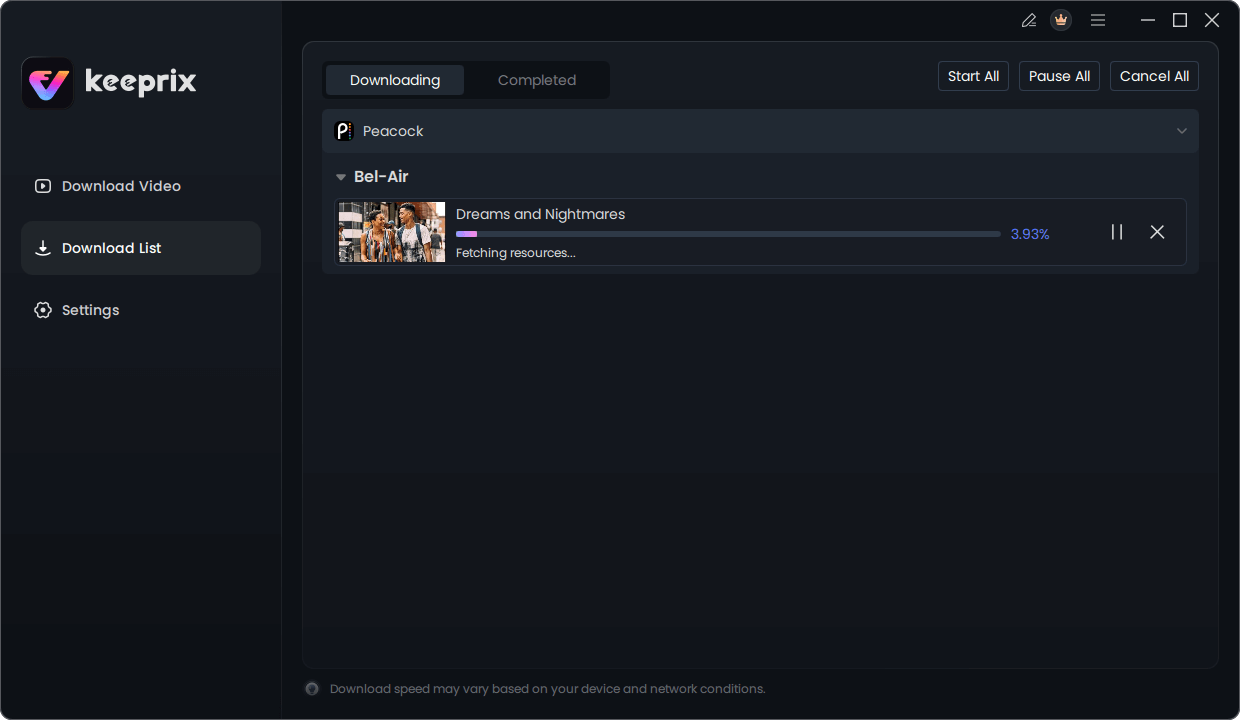
Downloading Peacock Video
4. Comparison: Official Peacock App vs. Keeprix Workflow
Deciding between the official app and a desktop workflow depends entirely on your travel plans and device preferences. Here is a clear side-by-side comparison to help you choose the best method for your situation:
| Feature | Official Peacock App | Keeprix Desktop Workflow |
|---|---|---|
| Supported Devices | iOS/Android and tablets | Windows and Mac computers |
| Output Format | App-locked temporary files | Standard MP4 or MKV local files |
| Expiration Rules | 48 hours or 30 days | Permanent local files (no expiration) |
| Download Limits | Maximum of 25 titles per account | Depends on your local hard drive storage |
| Best-Fit Scenario | A quick gym session or daily commute on a phone. | A long international flight, laptop viewing, or building a personal offline library. |
5. FAQs About Peacock Offline Viewing
Q1: Can I download Peacock shows on my laptop?
No, there is no native Peacock app or feature that allows downloads on a Windows or Mac laptop. To save shows on a computer, you need to use a third-party desktop downloader to save local files.
Q2: Why can’t I download episodes on Peacock?
A missing download button almost always means you lack the Premium Plus subscription plan, are using an unsupported device like a PC, or have hit your account’s 25-title limit.
Q3: How long do Peacock downloads last?
Downloads expire 48 hours after you press play. If you do not open the downloaded file, it will expire automatically after 30 days.
Q4: Is there a limit to how many movies I can download on Peacock?
Yes, Peacock limits your entire account to a maximum of 25 downloaded titles at any given time. There is also a lifetime limit of 10 downloads per specific title per account.
Q5: Can you download Peacock on Mac?
Officially, no. Peacock only supports offline viewing on iOS and Android mobile devices. Mac users can only watch offline by using a desktop file-based downloader to save MP4 or MKV files.
Final Thoughts
For long trips, international travel, PC and Mac viewing, or simply avoiding the 48-hour expiration rule, a file-based workflow is a much better choice. We recommend trying the Keeprix Peacock Downloader to turn the videos you can already access into flexible MP4 or MKV files, allowing you to build a reliable personal offline library before you travel.
Keeprix Video Downloader
Download streaming videos from Netflix without limits. Enjoy seamless offline watching on Windows and Mac computers.