Fix Peacock Not Working on Chrome: Proven Solutions & Workarounds (2026)

Imagine settling in to watch the latest episode of The Office or a live Premier League match, only to be met with a spinning circle or a stark black screen. For many users trying to stream on a desktop, finding that Peacock isn’t working in Chrome is a frustrating reality. The internet connection is fine; other sites load, but the video player simply refuses to cooperate.
Whether you are dealing with unexpected video playback errors, a black screen, or endless buffering, the problem usually lies in how the browser handles security protocols, not your internet speed. This guide cuts through generic advice to provide tested, technical solutions for peacock chrome issues, ensuring you can stop troubleshooting and start watching.

Peacock Not Working on Chrome
In a rush? If you do not have time to troubleshoot Chrome right now, try opening Microsoft Edge (Windows) or Firefox. These browsers use different DRM configurations and often play Peacock immediately, even when Chrome fails.
Check Widevine DRM & Cache: The Instant Fixes
When Peacock won’t play on Chrome, the immediate assumption is often a server outage. However, our testing confirms that the most frequent technical culprit is the Widevine Content Decryption Module. This is a built-in component of Chrome that manages Digital Rights Management (DRM). If this module is outdated or disabled, Peacock cannot verify that the stream is secure, resulting in DRM Widevine-related issues.
Because this process happens in the background, most users are unaware it exists until playback fails. Follow this procedure to manually force an update.
Method 1: Updating the Widevine Content Decryption Module
- Access Component Settings: Open a new tab in Google Chrome. Type chrome://components into the address bar and press Enter.
- Locate Widevine: Scroll down the list until you find the item labeled Widevine Content Decryption Module. You are looking for a version number similar to 4.10.2710.0.
- Force Update: Click the button labeled Check for update.
- – Expert Note: Visually, this button can be finicky. If you see “Status – Component updated,” the module was out of sync.
- – Expert Note: If you see “Status – Component not updated” or no status change, the version is current. Do not worry; simply proceed to the next solution.
- Restart Chrome: This step is crucial. Completely close the browser and reopen it to apply the changes.
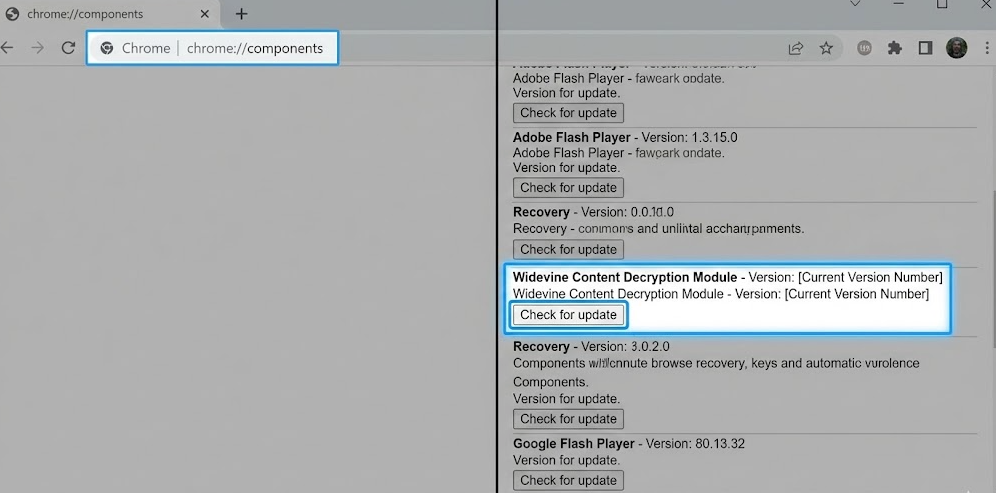
How to Update Components
Method 2: Clearing Corrupt Cache Data
If the DRM update does not resolve the Peacock Chrome browser problem, corrupt cache data might be interfering with the site’s loading scripts. Old “cookies” or cached images can conflict with new updates pushed by the Peacock platform.
How to Clear Cache Without Losing Passwords:
- Press Ctrl + Shift + Delete (Windows) or Cmd + Shift + Delete (Mac).
- In the “Clear browsing data” window, select the Basic tab.
- Set the Time range to All time.
- Check the boxes for Cached images and files, Cookies, and other site data.
- Important: Uncheck “Passwords and other sign-in data.”
- Click Clear data.
- Re-login: Because you cleared your cookies, you will be logged out of Peacock. Sign back in and attempt to play the video.
Method 3: Disable Hardware Acceleration (The Black Screen Fix)
If you can hear audio but see a black screen, or if the video stutters uncontrollably, the issue is likely a conflict between Chrome and your graphics card drivers. Chrome tries to use “Hardware Acceleration” to offload video rendering to your GPU. If your drivers are slightly outdated or incompatible with Peacock’s encryption, the video feed goes black.
This is a highly common oversight that standard troubleshooting often misses.
- Open Settings: Click the three vertical dots in the top-right corner of Chrome and select Settings.
- Navigate to System: On the left-hand sidebar, click on System.
- Toggle Off: Find the switch labeled “Use graphics acceleration when available” and toggle it to OFF (the switch should turn grey).
- Relaunch: A “Relaunch” button will appear next to the toggle. Click it to restart Chrome with the new setting.
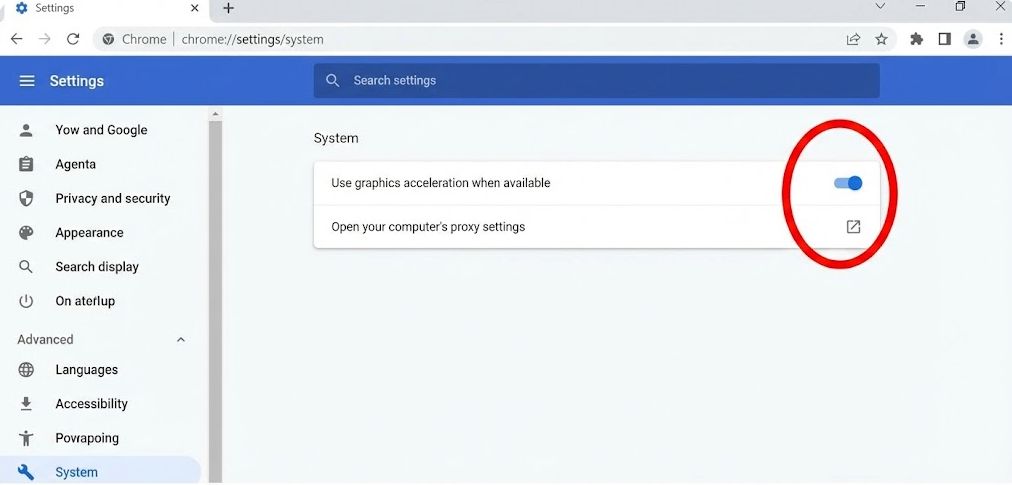
Use Graphics Acceleration When Available
Method 4: Troubleshoot Extension Conflicts & Incognito Mode
Sometimes the issue isn’t the browser itself, but the add-ons we install to improve it. We frequently see reports from users who, after installing robust privacy tools, suddenly find Peacock not loading in Chrome. These extensions block “trackers,” but can inadvertently flag the DRM Widevine Chrome scripts as threats, blocking the video player entirely.
You can identify if this is happening to you in seconds using Incognito mode.
Isolating the Problem
- Open Incognito: Press Ctrl + Shift + N (Windows) or Cmd + Shift + N (Mac) to open a new Incognito window.
- Test Playback: Log in to Peacock and attempt to play a video.
The Result:
- If it works in Incognito: Your core browser is fine. One of your active extensions is causing the browser playback issues.
- If it fails in Incognito: The issue is likely deeper in the browser settings (revisit Method 1 or 3).
How to Identify the Rogue Extension
If Incognito mode worked, you must find the specific extension responsible.
- Access Extensions Menu: Click the three vertical dots in the top right corner > Extensions > Manage Extensions (or type chrome://extensions).
- Toggle Off: Toggle OFF all extensions.
- Test One by One: Turn them back ON one by one, reloading the Peacock video after each enablement.
- Pinpoint the Culprit: When the video breaks again, you have found the specific tool causing the conflict. Common offenders include ad blockers, privacy “badgers,” and VPN extensions.
Decision Guide: Troubleshooting vs. Offline Downloading
For many users—such as those on work laptops with restricted permissions, those with inconsistent Wi-Fi, or those who simply want to watch without technical headaches—manual troubleshooting has diminishing returns. You reach a point where you must make a strategic choice: continue diagnosing the Chrome browser compatibility handshake, or bypass the browser entirely to ensure playback.
While updating DRM components fixes the issue for the majority of users, browser-based streaming is inherently dependent on your internet speed and Chrome’s frequent updates. Using a dedicated downloader shifts the goal from “repairing the stream” to “securing the file” for offline viewing.
Comparison: Streaming vs. Downloading
| Feature | Manual Chrome Fixes | Professional Downloader (Keeprix) |
| Primary Goal | Restore browser streaming | Secure offline file |
| Playback Stability | Dependent on Wi-Fi & Browser | 100% Stable (Local file) |
| Setup Time | High (Trial & error, cache clearing) | Low (Install and download) |
| Video Quality | Adaptive (Fluctuates with speed) | Constant (1080p Full HD) |
| Ads | Present (On ad-supported plans) | Removed (Ad-free viewing) |
Bypass Browser Issues Completely with Keeprix Video Downloader
If manual fixes are not working for you, or if you prefer to watch your content offline without the risk of buffering, Keeprix Video Downloader offers a robust alternative. This is a paid software tool that eliminates the dependency on browser compatibility by processing the video stream directly and saving it to your device.
To address the common frustration of black screens and endless buffering, Keeprix allows you to download videos in 1080P Full HD. This means you are watching a locally stored file, completely immune to internet fluctuations, Chrome browser compatibility glitches, or sudden DRM updates.
Key Features for Peacock Users:
- Bypass DRM Restrictions: Keeprix handles the secure handshake internally, effectively solving the drm widevine related issues that frequently plague Chrome users.
- Ad-Free Experience: For users on ad-supported plans who find ads disrupting the flow, the software automatically removes ads during the download process.
- Universal Compatibility: By saving files as MP4 or MKV, you avoid confusion when Peacock works in other browsers but not Chrome. Your downloaded file will play on any media player (VLC, Windows Media Player, QuickTime).
- Batch Downloading: Download entire seasons of a show in one go, rather than loading them one by one in a browser.
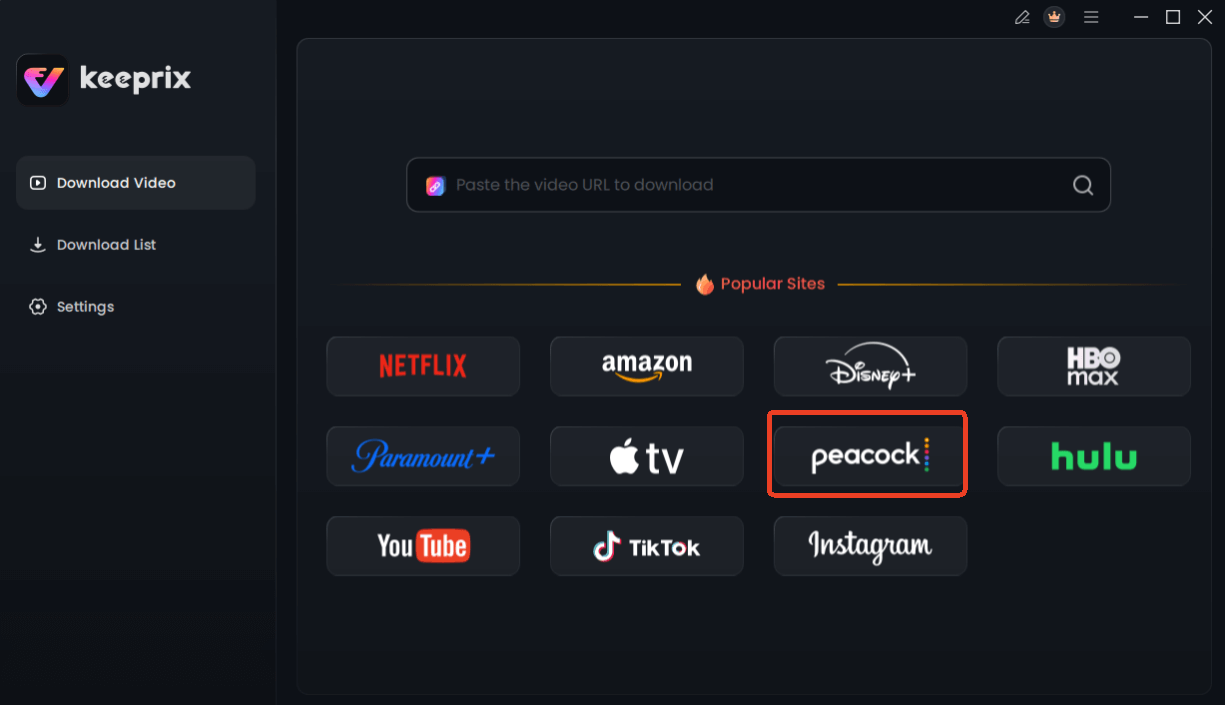
Choose Peacock in Keeprix Downloader
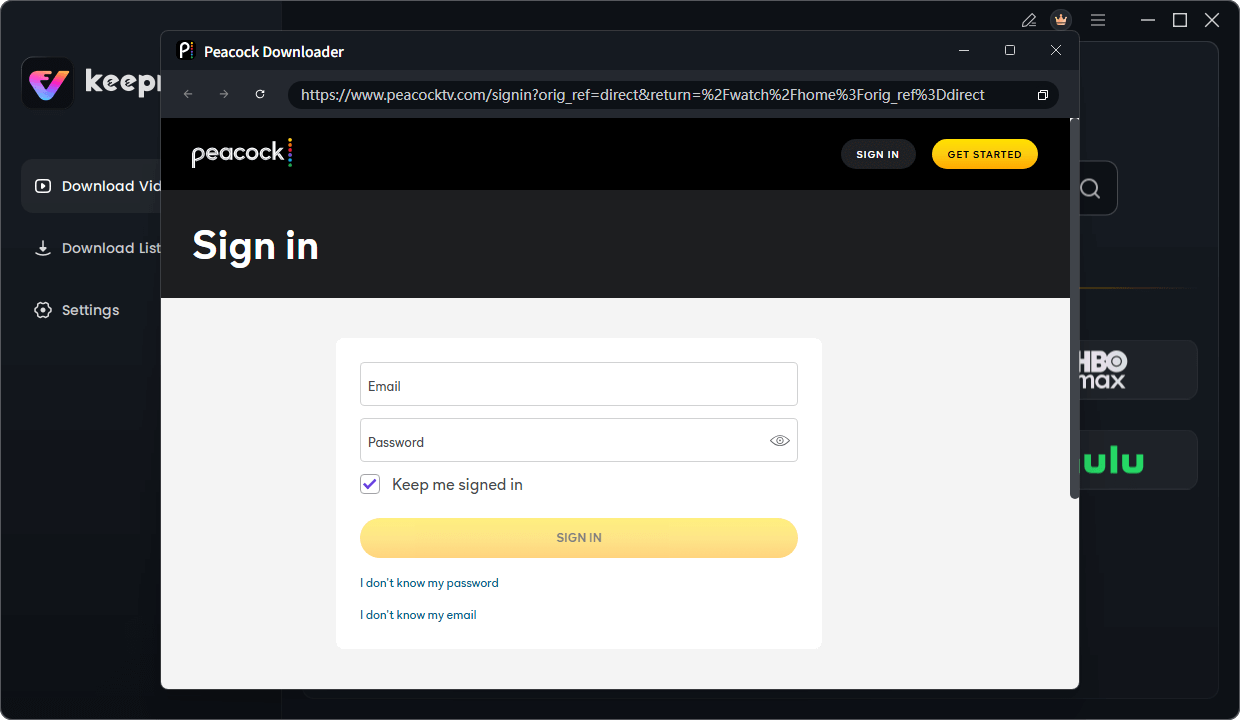
Sign in Your Peacock Account
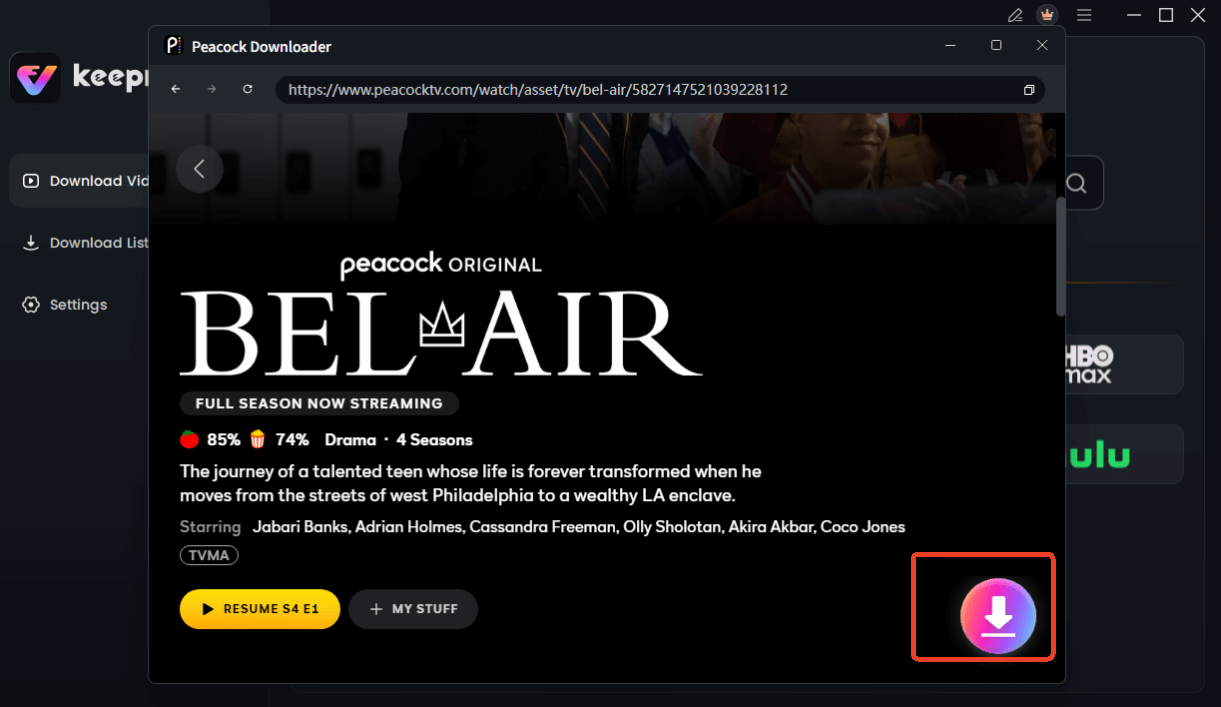
Choose Peacock Video to Download
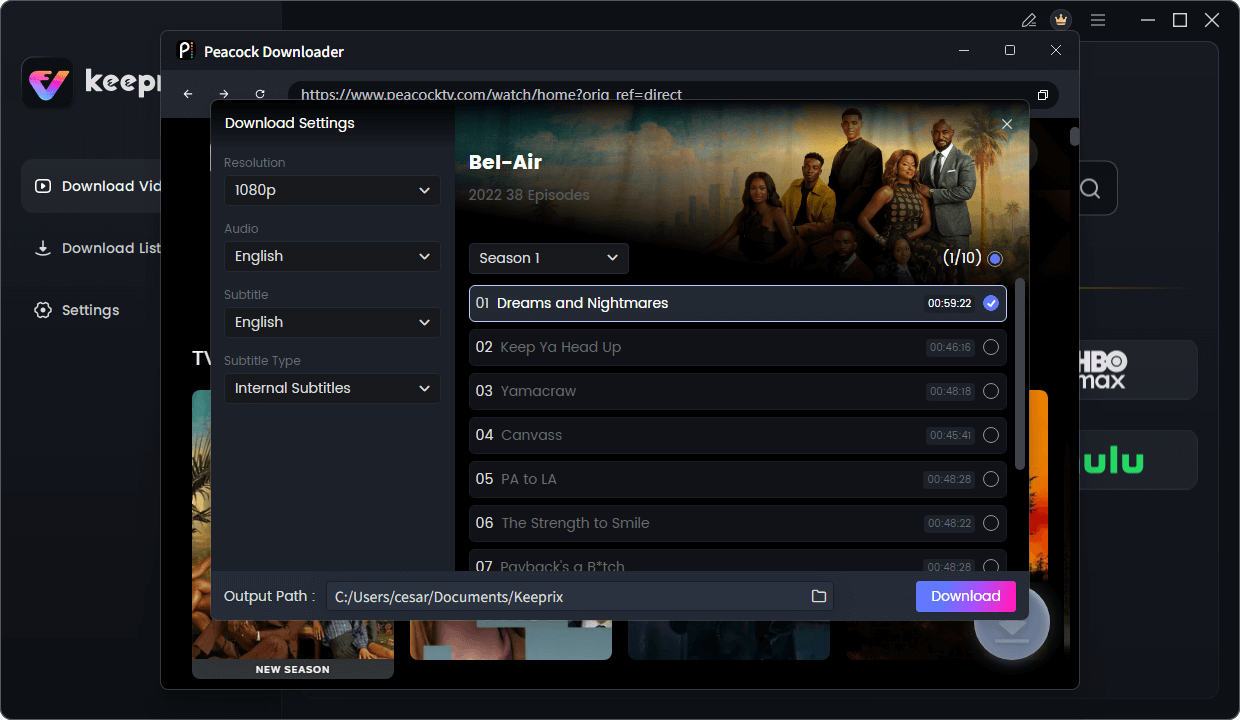
Configure Peacock Download Settings
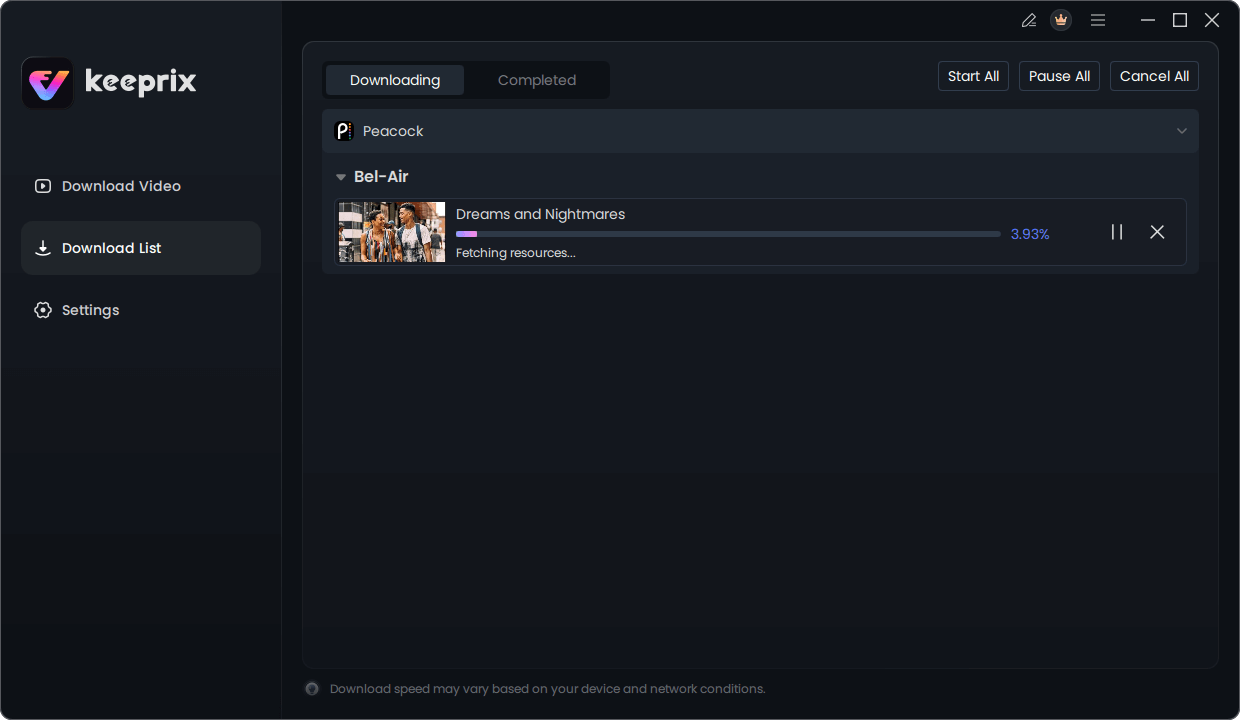
Downloading Peacock Video
This method is particularly useful for archiving content before it leaves the platform or for traveling, as it removes download limits and regional restrictions that standard browser streaming enforces.
Why Chrome Struggles with Peacock: Understanding the Handshake
If you are curious about why these errors happen, it usually comes down to the “handshake” between Chrome, the Widevine Content Decryption Module, and Peacock’s servers.
The Security Checkpoint
Peacock requires a highly secure environment to prevent piracy. When you press play, your browser sends a request to Peacock saying, “I am secure, send the video.” Widevine is the digital signature that validates this request.
However, Google Chrome frequently updates its security protocols. If the version of Widevine installed on your computer lags behind the version required by the Peacock server, or if your graphics driver (Hardware Acceleration) fails the security check, the handshake fails. This results in the generic video playback errors you are seeing.
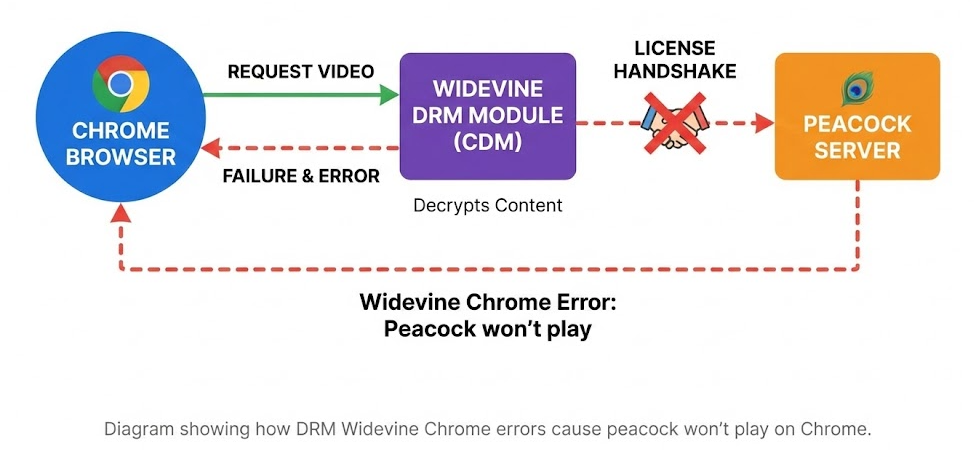
The ‘Handshake’ Failure
Frequently Asked Questions About Peacock Chrome Issues
Why is Peacock not working on Chrome specifically?
Browsers use different engines to render content. Chrome’s strict security updates often break the connection with the Widevine DRM module required by Peacock. If this module is outdated or conflicts with an extension, the video stream will fail, even if it works on other browsers like Firefox or Edge.
Do Chrome extensions block Peacock?
Yes, frequently. Extensions designed to block ads, trackers, or modify website scripts (like pop-up blockers) can mistakenly identify Peacock’s video player as a threat or an ad. This prevents the video from loading. Disabling these extensions usually resolves the Chrome extensions conflict.
I see a black screen but hear audio. What do I do?
This is almost always a Hardware Acceleration issue. Go to chrome://settings/system and turn “Use graphics acceleration when available” to OFF. Relaunch Chrome, and the video should appear.
How do I enable Widevine in Chrome?
Widevine is enabled by default, but it may need updating. Type chrome://components into your address bar, find “Widevine Content Decryption Module,” and click “Check for update.”
Should I clear the cache to fix Peacock?
Yes. Stored data from previous sessions can conflict with new streaming scripts. Clearing your cache (specifically “Cookies and other site data”) forces the browser to load a fresh version of the site, often resolving peacock not loading on Chrome.
Conclusion
Facing a blank screen when you are ready to relax is more than just a technical glitch; it is a disruption of your personal time. By following the steps above—updating Widevine, disabling Hardware Acceleration, and auditing your extensions—you can resolve the vast majority of Peacock not working on Chrome instances.
However, if manual troubleshooting feels like a cycle of temporary fixes, remember that you have options. Tools like Keeprix Video Downloader allow you to regain control over your entertainment, ensuring that black screens or endless buffering never interrupt your favorite shows again. Whether you choose to fix the browser or download the content, the solution is in your hands.