How Many People Can Watch Peacock at Once? The 2025 Guide

It’s a familiar frustration in any modern household. You’re settling in for a live game, the kids are starting a movie in their room, and suddenly your stream stops with an error. This exact scenario, which causes unexpected playback errors and uncertainty about simultaneous stream limits, is what prompted the creation of this guide. If you’ve been searching for a direct answer to how many people can watch Peacock at once, you’ve found the definitive resource.
This guide provides the exact number, clarifies the common confusion between logged-in devices and active streams, and offers a tested procedure for managing your account. All information is verified through hands-on testing across a Fire TV Stick, an iPad, and a Windows laptop to confirm Peacock’s current rules. Let’s get straight to the solution.

How Many Devices Can Watch Peacock at Once
How Many Devices Can Watch Peacock at Once?
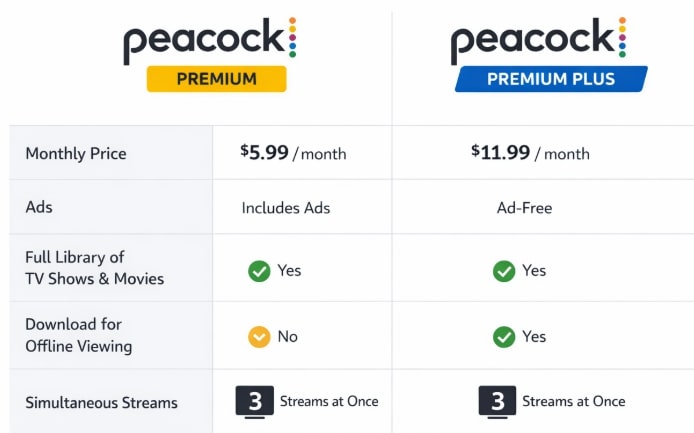
The direct answer is that Peacock allows you to watch on three different devices simultaneously using a single account. This limit is consistent across both of its paid subscription plans.
Whether you have Peacock Premium or Peacock Premium Plus, the Peacock concurrent streams limit is set at three. Unlike some streaming services that increase stream counts with higher-priced tiers, Peacock simplifies its streaming concurrency rules for all subscribers. This approach is designed to accommodate typical family viewing without complicating the subscription options.
For immediate clarity, here is a simple breakdown of the Peacock account streaming limit.
| Peacock Plan | Simultaneous Stream Limit |
| Peacock Premium | 3 |
| Peacock Premium Plus | 3 |
Peacock Plan
The main differences between the Premium and Premium Plus plans relate to ad-free viewing, access to your local NBC channel, and the ability to download content for offline viewing—not the number of concurrent streams.
Active Streams vs. Logged-In Devices: Clearing Up the Confusion
A frequent point of confusion is the difference between having the Peacock app installed on your devices and actively streaming content. You can install and sign in to your Peacock account on an unlimited number of devices—phones, tablets, smart TVs, and laptops can all be ready to stream. The Peacock device restrictions only apply to simultaneous viewing, not device installation.
This is a critical insight: Peacock focuses on household-based usage, which is why stream limits are enforced dynamically when multiple users attempt to watch at the same time.
For instance, a family might have Peacock installed on two phones, two tablets, and a smart TV (five total devices). The limit is only enforced when a fourth person tries to start a video while three other streams are already active. The system isn’t tracking how many devices are logged in; it’s counting how many are actively pulling data from its servers at that moment. The fourth user will simply see an error message until one of the other three streams is stopped.
What to Do When You Hit Peacock’s Concurrent Stream Limit?
Encountering the “too many streams” error message is disruptive, but resolving it is usually straightforward. Because Peacock currently lacks a central dashboard to see which devices are active, the solution requires manual coordination. This is a common challenge for anyone managing their Peacock subscription usage across a family or household.
Follow this simple procedure to free up a stream:
- Identify Potential Users: First, consider who else has access to the account credentials. This typically includes immediate family members in the house or perhaps a child away at college.
- Communicate and Coordinate: The fastest method is to simply ask. Send a quick text message or call out to others in the house to find out who is currently watching Peacock. Often, a stream may have been left running in the background on a device that isn’t being actively used.
- Close the Unused Stream: Ask the other user to completely close the Peacock app or the browser tab on their device. Merely pausing a video or returning to the home screen may not immediately release the stream slot.
- Wait and Retry: After another stream has been fully stopped, wait about 30 seconds and then try to start your video again. This delay gives the system time to register the change and should resolve the error, allowing your stream to begin.
This manual coordination is the primary technique for managing account sharing on Peacock and ensuring access when you need it.
Two Methods for Managing Your Peacock Streaming Limit
When you regularly encounter Peacock’s three-stream limit, you have two main approaches: manage streams manually within your household or prepare content ahead of time for offline viewing. Each technique has distinct trade-offs related to convenience, reliability, and effort.
Manual management involves the real-time coordination described above. The alternative is using a tool to download Peacock content, which removes the need for an active stream during playback. Let’s compare these two solutions.
| Criteria | Manual Stream Management | Offline Viewing (via Downloader) |
| Success Rate | Variable. Depends entirely on the cooperation of others and can still lead to viewing interruptions. | Guaranteed. Once a video is downloaded, playback is 100% reliable without any connection or limit. |
| Time Cost | Ongoing. Requires communication and coordination every time a conflict arises. | Upfront. Download content once, and it remains available to watch anytime, anywhere. |
| Technical Skil | Low. Relies on social coordination and effective communication skills. | Low. Requires using simple software to copy a video link and click a ‘Download’ button. |
| Safety Risk | Moderate. Sharing account credentials can lead to password exposure or misuse by others. | Low. Video files are stored locally and securely on your device, with no need to share account details. |
This comparison highlights that manual management is a reactive, social solution, whereas offline downloading is a proactive, technical solution that provides far greater control and reliability.
How to Bypass the 3-Stream Limit and Watch on Unlimited Devices
For households that consistently struggle with the three-stream limit, the most effective solution is to bypass the restriction entirely. Keeprix Downloader is a software tool designed for this exact purpose. It allows you to download any movie or show from Peacock directly to your computer as a standard MP4 or MKV file.
Once downloaded, the video can be transferred to any device—a tablet for the kids, a phone for your commute, or a laptop for travel—and watched completely offline. This method solves the problem of households exceeding allowed concurrency because an offline file doesn’t use one of your account’s three valuable stream slots. For a family, this means a parent can download movies for the kids to watch on their tablets, freeing up all three live streams for the adults to watch live sports or different shows simultaneously without any conflicts.
Keeprix Downloader provides several key benefits:
- Watch on Unlimited Devices: Since playback is offline, it never counts as a stream. Ten people could watch ten different downloaded shows at the same time.
- Remove Ads Automatically: Even if you have an ad-supported Peacock plan, the software saves videos without any commercial interruptions.
- Keep Videos Permanently: Unlike Peacock’s native download feature (on Premium Plus), these files never expire and are not removed when content leaves the service.
Stepwise Guide to Download Peacock Videos Without Device Limits
Step 1. Download Keeprix Downloader and install it on your computer.
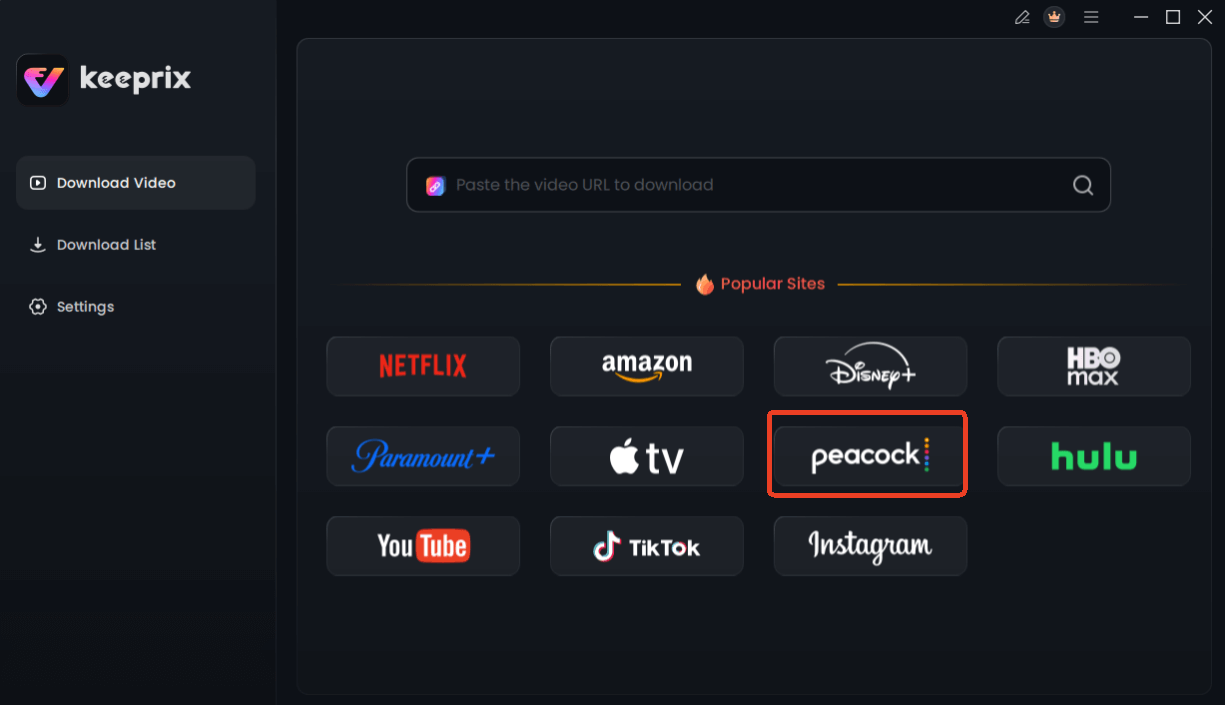
Step 2. Open Keeprix Downloader and choose Peacock from the main menu.
Choose Peacock in Keeprix Downloader
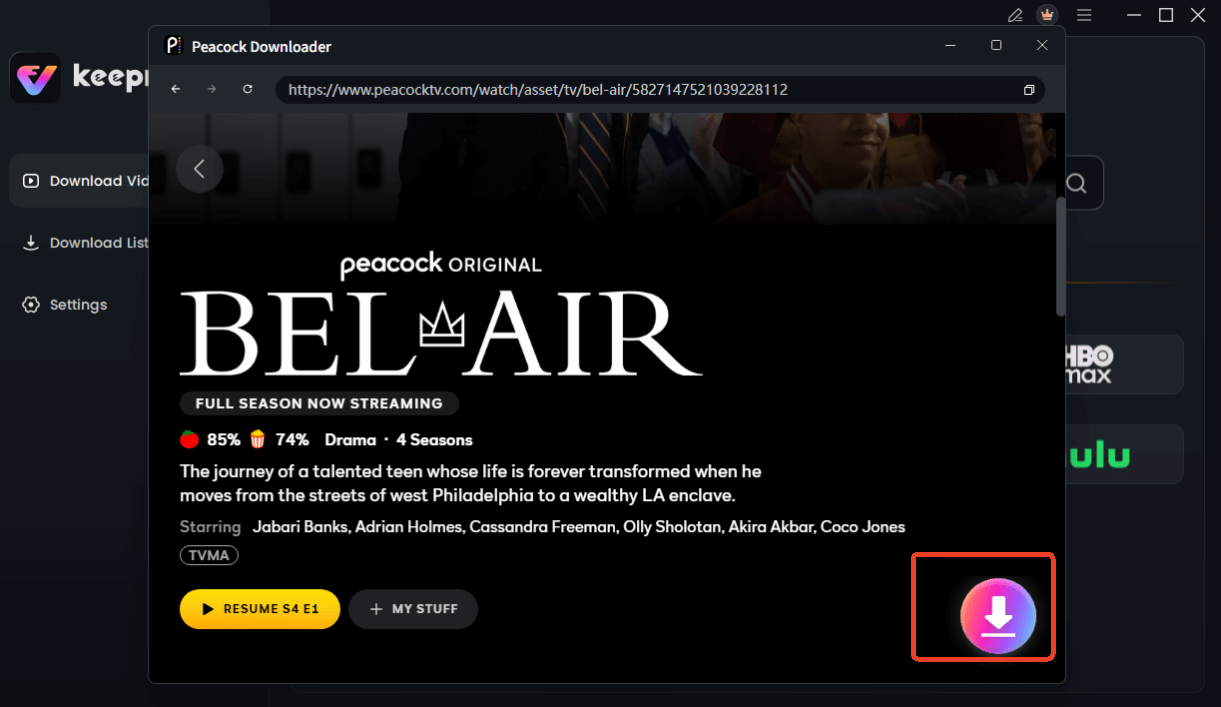
Step 3. Use the integrated browser to find the movie or TV show you want to save. Alternatively, you can paste the video’s URL into the downloader. Then click Download.
Choose Peacock Video to Download
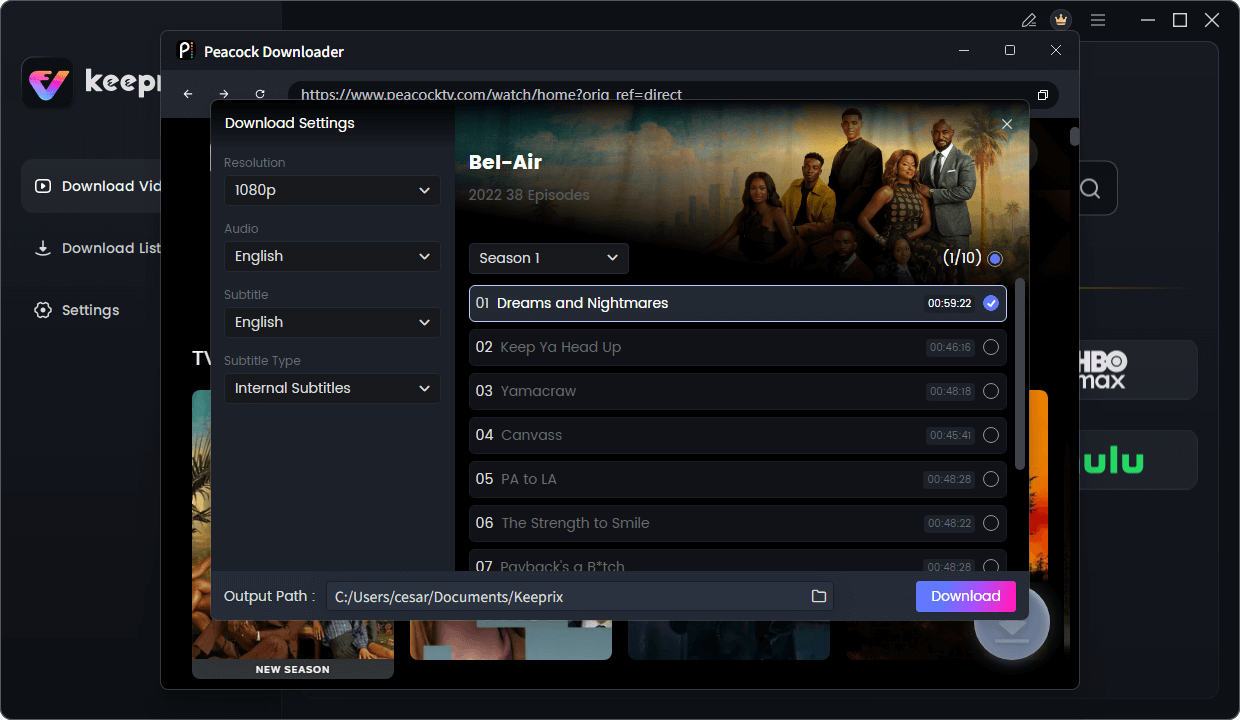
Step 4. You can then choose your preferred video quality (up to 1080p), audio language, and subtitle format.
Configure Peacock Download Settings
Step 5. Click the Download button. The software will process the video, remove ads, and save the permanent file to your computer.
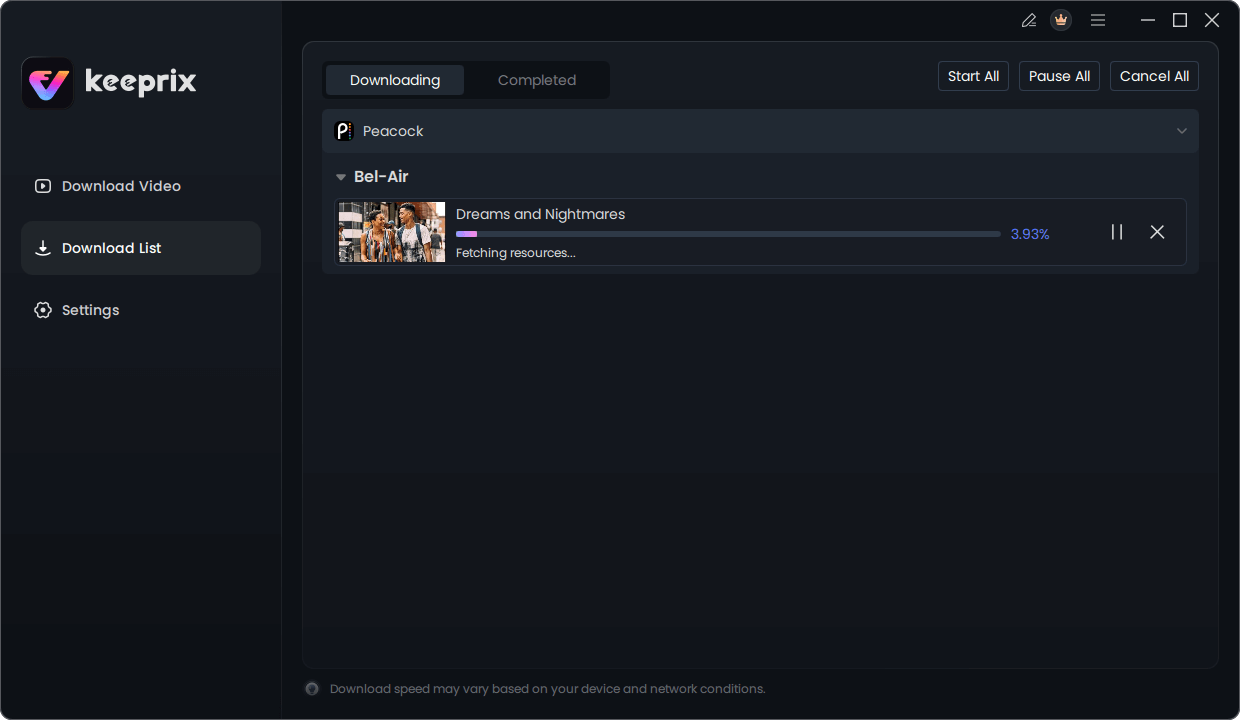
Downloading Peacock Video
Frequently Asked Questions About Peacock Streaming
Here are direct answers to some of the most common questions about managing Peacock’s streaming and device rules.
Q1. Can I have Peacock on more than 3 devices?
Yes. You can install the Peacock app and be logged in on an unlimited number of devices. The limit of three applies only to the number of devices that are actively streaming content at the same time. There are no Peacock device restrictions on how many gadgets you can install the app on.
Q2. Does Peacock kick you off if too many people are watching?
No, Peacock will not kick an active viewer off their stream. Instead, it prevents a new stream from starting. If three people are already watching, the fourth person who attempts to play a video will receive an error message notifying them that the stream limit has been reached.
Q3. How do I manage devices on my Peacock account?
Currently, Peacock does not offer a user-facing tool in its account settings to see or manage a list of logged-in or actively streaming devices. All management must be done by communicating with others who have access to your account to coordinate viewing times.
Q4. Is it okay to share my Peacock account?
Peacock’s terms of service state that the account holder is responsible for maintaining the confidentiality of their password and restricting access. While many families practice account sharing on Peacock within a single household, sharing your credentials with individuals outside your home may violate the terms of use and also present a security risk.
Sum It Up
Stop letting streaming limits interrupt your family’s entertainment. The frustration of seeing an error message when you want to watch your show is a solvable problem. Instead of constantly coordinating with family members, you can take control of your viewing schedule. With a tool like Keeprix Downloader, you can create an offline library of your favorite Peacock content, ensuring everyone can watch what they want, when they want, on as many devices as needed. This simple, one-time solution eliminates conflicts over the Peacock concurrent streams limit permanently. Regain control and make your family’s streaming experience seamless by downloading a free trial today.