Why Is Peacock Not Working on Roku? 7 Expert Fixes for 2026

If you are struggling with Peacock not working on Roku, you are likely facing a very specific and frustrating scenario. You settle in for the evening, ready to stream your favorite show, only to find the Peacock app failing to load on your TV. To make matters worse, you check your phone and the app works perfectly there—confirming the problem is isolated to your living room setup. Facing a locked device when you need it most is a significant obstacle to your relaxation.
This specific type of issue is common, but it is also solvable. Usually, these problems stem from a disconnect between the channel’s software and the Roku operating system, often involving corrupted cache data or “fast start” power settings that prevent a full system refresh. Below, we will walk you through the most effective methods to restore your streaming access, prioritizing the “Gold Standard” fix that resolves the vast majority of app-specific errors.

Peacock Not Working on Roku
Fix #1: The “Clean Reinstall” (The Gold Standard)
Before trying complex network changes or secret menus, you should perform the standard “Clean Reinstall.” Most users attempt to fix the app by removing it and immediately reinstalling it. This usually fails.
Why? Because Roku caches (saves) data to launch apps faster. If you delete the app and reinstall it immediately, the Roku often reloads the same old, corrupted data from its memory. To truly fix Peacock app errors, you must interrupt this cycle with a system restart in the middle of the process.
The Critical 3-Step Sequence
Follow this order exactly. If you skip step 2, the fix will likely fail.
- Remove the Channel:
- – Navigate to the Peacock channel tile on your home screen.
- – Press the Star (*) button on your remote.
- – Select Remove channel and confirm.
- Restart the System (Do Not Skip):
- – Go to Settings > System > Power. (If you do not see “Power,” go to System > System restart).
- – Select System restart.
-
Turning your TV off with the power button is NOT a system restart; it only puts the TV to sleep.
- Reinstall the Channel:
- – Once the device reboots, go to Streaming Channels (the Roku Store).
- – Search for Peacock TV and select Add channel.
By restarting the device after removal, you force the Roku to dump its temporary memory. When you reinstall Peacock in step 3, it is forced to download a fresh, uncorrupted version of the app from the server.
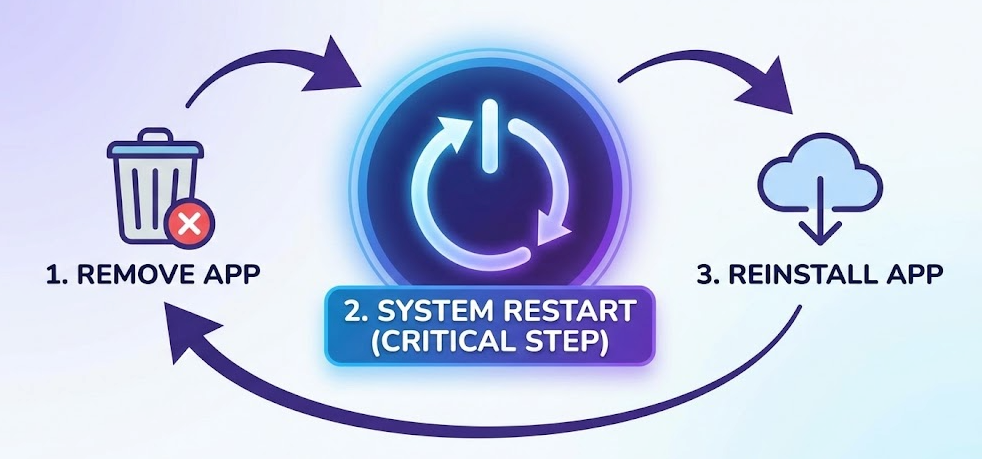
Fix Peacock Roku Issues
Fix #2: The “Power Cycle” (Essential for Roku TVs)
If you are using a Roku-integrated TV (such as a TCL, Hisense, or Sharp model) rather than a plug-in stick, this step is vital. These TVs utilize a “Fast Start” mode that keeps the operating system running in the background even when the screen is dark. This means your TV may not have technically “shut down” in months, leading to system glitches that block newer apps like Peacock.
To force a hardware reset on a Roku TV:
- Turn the TV off.
- Unplug the TV from the wall outlet.
- Wait for at least 60 seconds.
- While unplugged, press and hold the physical power button on the TV set (not the remote) for 30 seconds to drain any residual power.
- Plug it back in and turn it on.
This “cold boot” clears deep-level system errors that a standard menu restart might miss.
Fix #3: Clear Cache via the “Secret” Developer Menu
If the standard clean reinstall did not work, you may need to force a cache clear using a developer sequence on your remote. This is a safe procedure, but it can be intimidating if you don’t know what to expect.
What to Expect: When you enter this code successfully, your Roku will likely freeze for a few seconds. The screen may go black, or the menu navigation might stop responding. Do not panic. This indicates the device is dumping its temporary files and preparing to reboot. It will restart automatically after a moment.
The Button Sequence
Navigate to the “Home” screen and perform these presses quickly and evenly:
- Press Home 5 times.
- Press Up 1 time.
- Press Rewind 2 times.
- Press Fast Forward 2 times.
Wait for the device to freeze and reboot. Once the Roku logo appears again, try launching Peacock. This often clears stubborn channel cache problems that survive a standard restart.
Fix #4: Troubleshoot Connectivity and Updates
If the app still fails to load, the issue may be network-related. Peacock requires a stronger, more consistent bandwidth connection than standard web browsing or some older apps.
Check Signal Strength
- Go to Settings > Network > About.
- Look at “Signal Strength.” It should say “Good” or “Excellent.”
- If it says “Fair” or “Poor,” the Peacock app may time out during the authentication process.
Force a Manual Update
Even if your device updates automatically, a manual check can trigger a necessary firmware patch.
- Go to Settings > System > System update > Check now.
Older Roku firmware may not support the security protocols required by the latest version of the Peacock channel, causing the app to crash immediately upon opening.
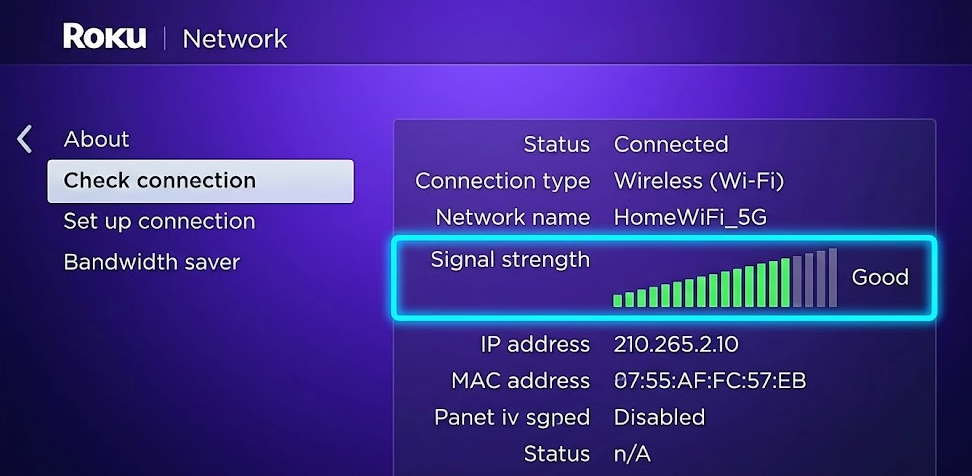
Roku Network Settings
Fix #5: The Factory Reset (Last Resort)
If you have tried fixes 1 through 4 and the Peacock app is the only one failing, there may be a deep corruption in your user profile on the device. The final troubleshooting step is a Factory Reset.
This will wipe your device completely. You will need to reconnect to Wi-Fi, sign in to your Roku account, and re-download all your apps (Netflix, Hulu, etc.).
- Go to Settings > System > Advanced system settings > Factory reset.
This returns the Roku to the state it was in when you bought it, eliminating any software conflicts that have accumulated over time.
Alternative Strategy: The Offline Backup Plan
If you have exhausted the troubleshooting steps above and Peacock still refuses to play, the issue may be hardware-related—such as an aging Wi-Fi antenna in an older Roku stick or a temporary incompatibility between Roku OS and the Peacock app.
In these instances, rather than fighting a losing battle with your TV, you might consider an alternative approach: securing the content offline. Tools like Keeprix Video Downloader allow you to download Peacock shows directly to a laptop or computer.
When to Use This Approach
This is not a direct fix for the Roku device itself, but rather a workaround for when the hardware fails you. It involves downloading the video file on a computer and then viewing it (either via HDMI connection to the TV or on the laptop). This method is useful for:
- Persistent Hardware Issues: When an older Roku simply cannot handle the latest app updates.
- Travel: Watching shows without relying on hotel Wi-Fi.
- Removing Buffering: Eliminating playback stutters caused by fluctuating internet speeds.
| Feature | Manual Roku Troubleshooting | Offline Downloading (PC/Mac) |
| Primary Goal | Fix the TV App | Bypass the TV App |
| Effort Level | High (Trial & Error) | Low (Software Automation) |
| Success Rate | Variable | 100% (Once downloaded) |
| Best For | Daily Living Room Viewing | Travel or Broken Hardware |
Keeprix is a paid software solution designed for users who need permanent offline access. While it requires moving to a computer, it ensures that your entertainment is not held hostage by a server outage or a bad Roku update.
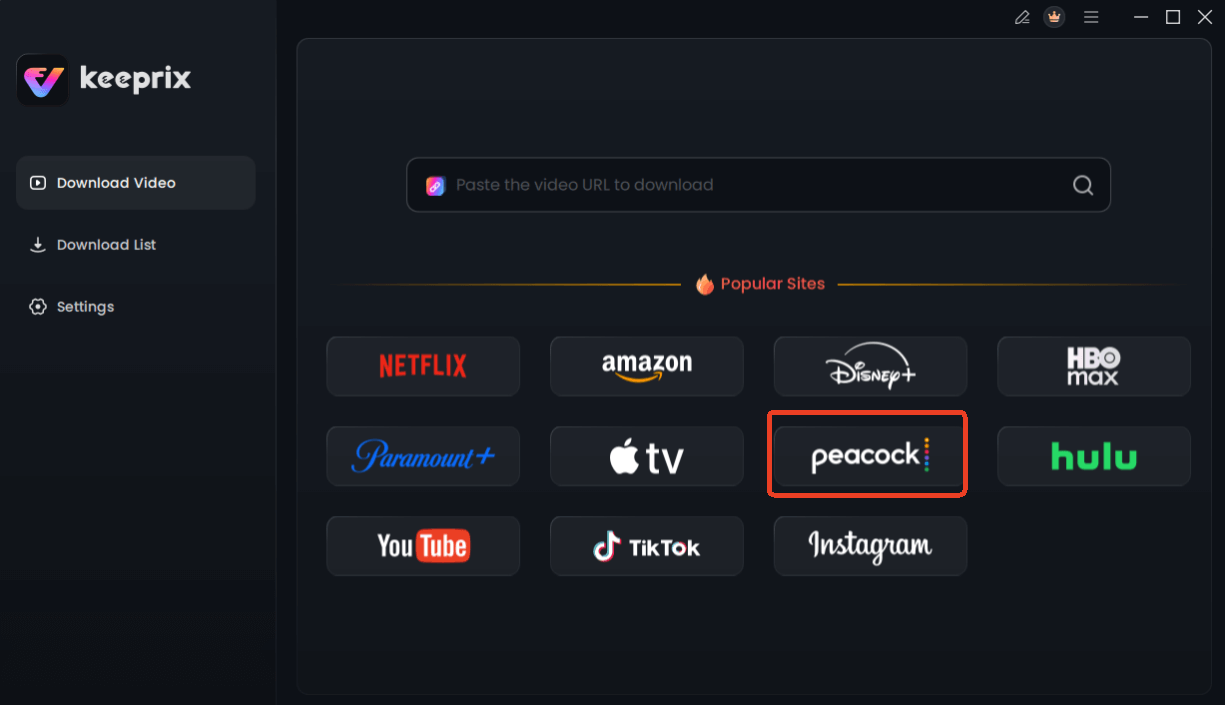
Choose Peacock in Keeprix Downloader
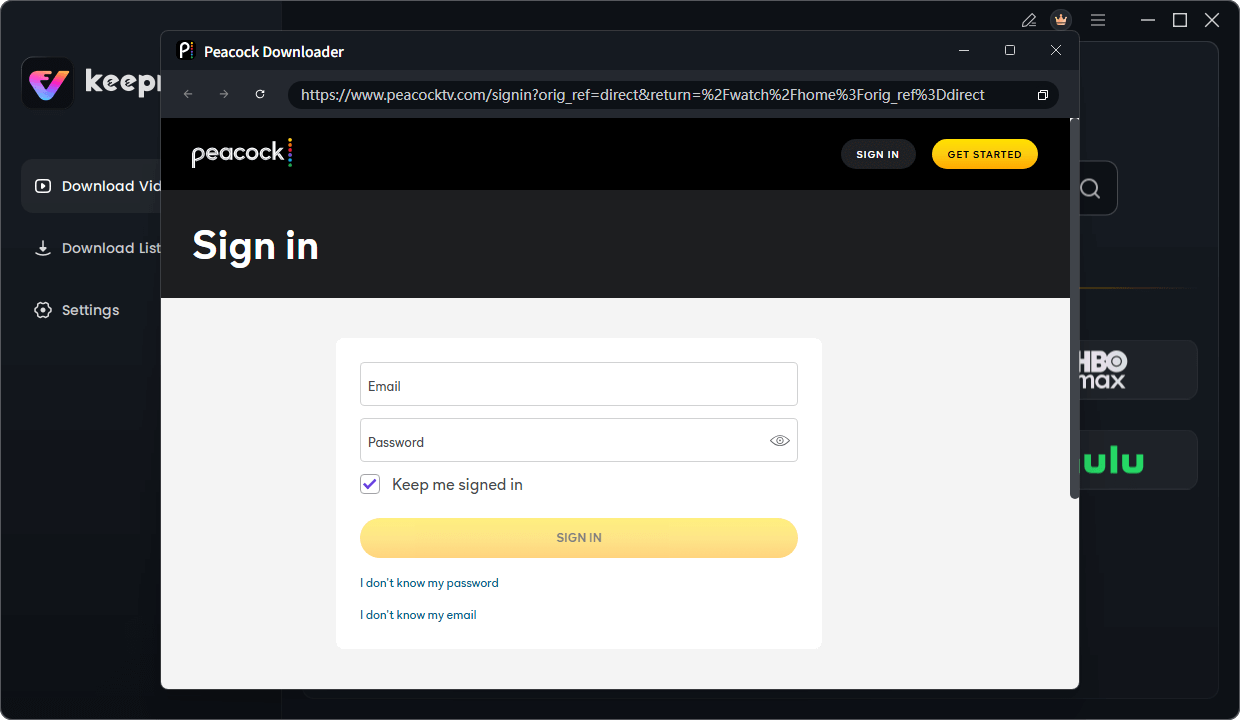
Sign in Your Peacock Account
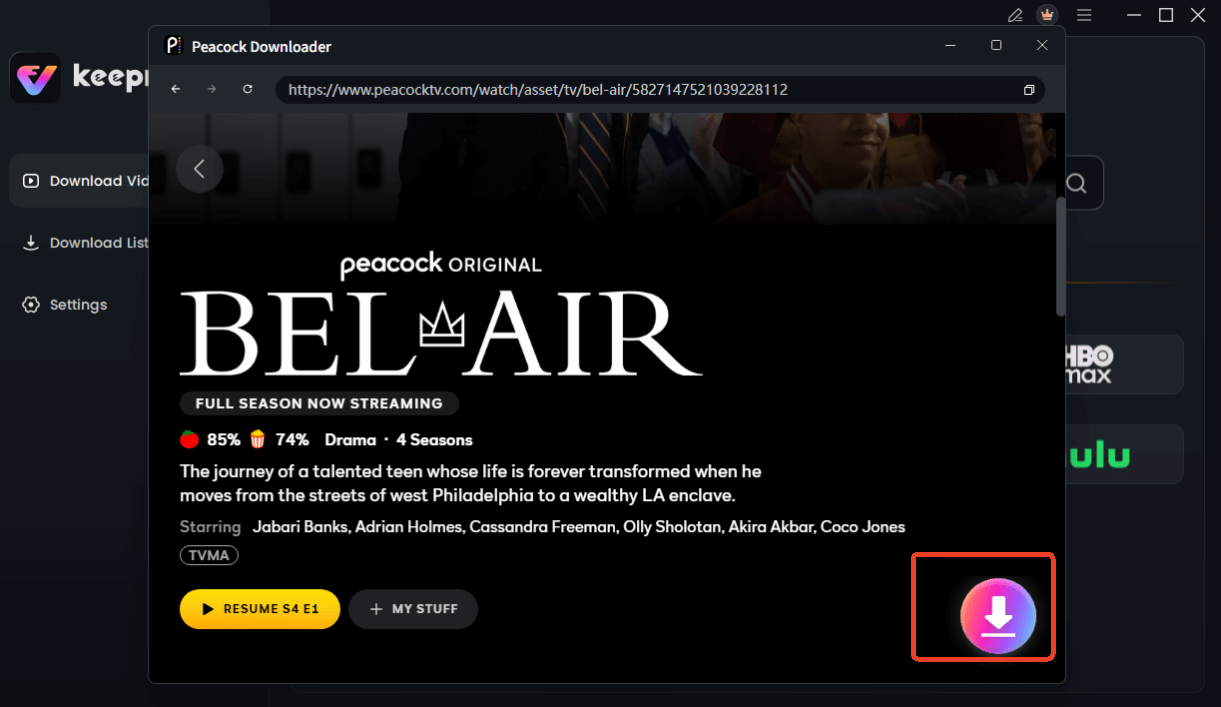
Choose Peacock Video to Download
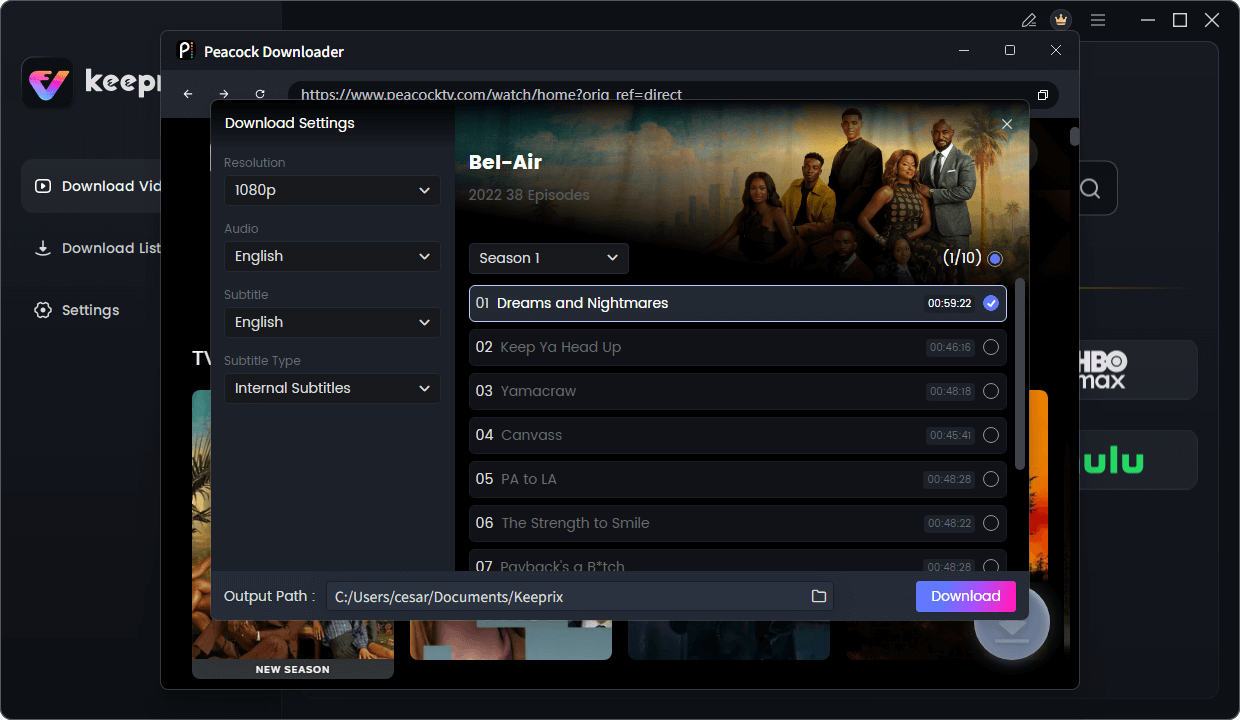
Configure Peacock Download Settings
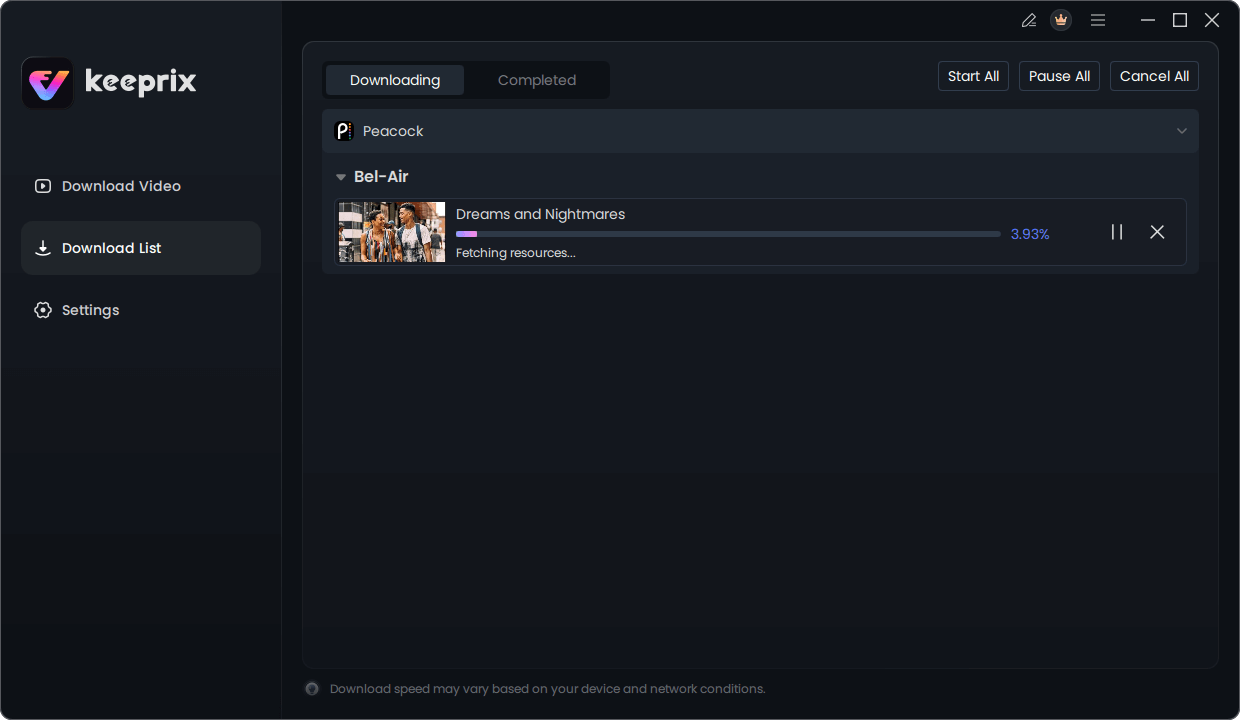
Downloading Peacock Video
Frequently Asked Questions
Why is Peacock working on my phone but not my Roku?
This confirms your account and internet are active. The issue is likely local to the Roku, specifically how the Roku OS handles the app’s data. Mobile apps and TV apps use different code, so a bug on one platform rarely affects the other.
Does clearing the cache delete my login?
Yes, clearing the cache (or reinstalling the app) will require you to log in to Peacock again. However, it will not delete your actual Peacock account or billing history.
Which Roku devices support Peacock?
Peacock supports most newer Roku devices. However, very old models (like the Roku 1 or Roku SE) may no longer receive the necessary updates to run the app efficiently. If your device is more than 5-6 years old, the hardware may be the bottleneck.
Is Peacock down right now?
If the app fails on your Roku, phone, and computer, the service is experiencing a widespread outage. If it only fails on Roku, the service is up, and you should follow the “Clean Reinstall” steps above.
Conclusion: Getting Back to Your Show
Technology can be unpredictable, but Peacock not working on Roku is rarely a permanent problem. For most users, the “Clean Reinstall” (Remove > Restart > Reinstall) is the magic bullet that clears out corrupted data and restores playback. If you are on a Roku TV, don’t underestimate the power of pulling the plug from the wall to force a true reset.
By following these expert-verified steps in order, you avoid wasting time on unlikely fixes and address the root cause of the software conflict. Whether you resolve the issue by clearing the cache or utilizing a backup downloading tool for offline viewing, the goal remains the same: reclaiming your relaxation time without the frustration of a spinning buffer wheel.