Peacock Not Working on Smart TV: Proven Fixes & Solutions (2026)

If you are currently staring at a black screen or an endless loading circle, we understand the frustration. Encountering Peacock not working on Smart TV is a frequent obstacle for streamers, often disrupting plans just as they begin.
You likely just want to relax and watch your show, but instead, you are dealing with a freezing interface or a crash loop. While the app might work perfectly on your phone, the Peacock app not working on Smart TV is a specific problem related to how television hardware handles data compared to mobile devices. Facing a locked device when you need it most is stressful. This guide addresses why videos are not loading or buffering endlessly and provides verified solutions to restore your access.

Peacock Not Working on Smart TV
Pre-Check: Is Your TV Model Supported?
Before you spend time resetting routers or changing passwords, we must rule out the most common hardware limitation.
If your TV was manufactured before 2017, it may no longer be compatible with the current Peacock app architecture. Streaming apps evolve rapidly, requiring newer processors and memory that older TVs simply do not have.
- Samsung Smart TVs: Models from 2017 and later are supported.
- LG Smart TVs: Models running WebOS 3.5 (2017) or later are supported.
- Vizio SmartCast: Models from 2016 and later generally work, but performance varies on older units.
- Android TV: Most devices running Android OS 5.1 and above are compatible.
If your TV falls outside these windows, you will likely see a “device not supported” message or the app will simply crash upon opening. In this case, troubleshooting the TV software won’t help; skipping to the “Offline Backup” section or using an external stick (like a Roku or Fire TV Stick) are your only viable options.
Phase 1: The Universal Quick Fixes
When you ask, “How do I fix the Peacock app on my tv?” the impulse is often to reinstall everything immediately. However, technical analysis suggests a different approach.
Here is a critical insight: Most Peacock Smart TV issues stem from ‘stale’ cache data or background processes that refuse to close. This causes authentication failures because the app thinks it is still logged in from a previous, broken session.
Perform these two high-probability procedures first.
Procedure 1: The Cold Boot (Power Cycle)
Modern Smart TVs do not actually turn off when you press the power button; they enter “standby” mode, preserving bugs in the system memory. To clear this, you must perform a cold boot.
- While the TV is on, unplug it directly from the wall outlet.
- Wait for at least 60 seconds. This allows the internal capacitors to discharge completely, clearing the temporary memory (RAM).
- Plug it back in and launch Peacock.
Procedure 2: Clearing Corrupt Cache
If the Peacock won’t load on Smart TV interfaces after a restart, old data files may be conflicting with the current stream.
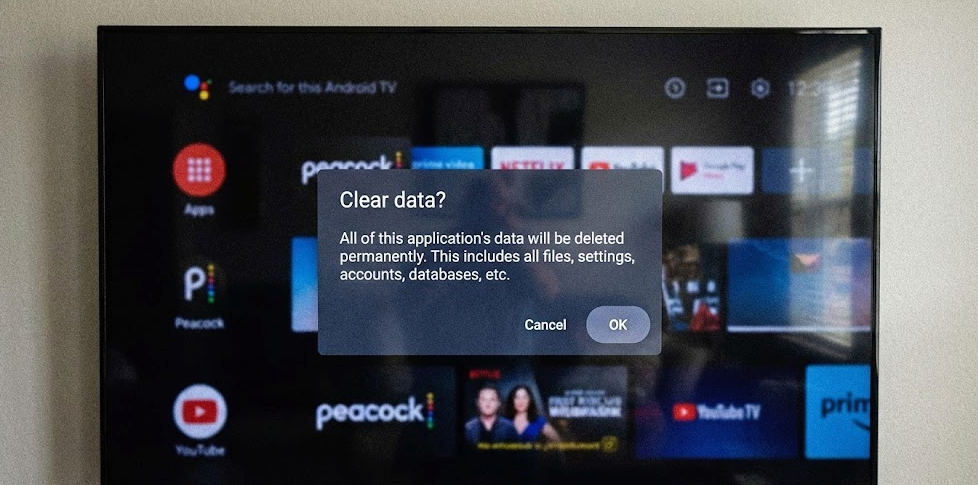
Clear Data
Crucial Step for Samsung Users: On Tizen OS, the “Device Care” option is often grayed out if the app is currently running in the background. You must force close the app first (hold the “Return” or “Back” button until the app closes) before attempting to clear the cache.
- For Samsung Tizen: Go to Settings > Support > Device Care > Manage Storage. Select Peacock and choose “Clear Data.”
- For Android/Google TV: Navigate to Settings > Apps > See all apps > Peacock > Clear Cache.
- For LG WebOS: LG does not offer a direct “Clear Cache” button for individual apps. You must uninstall the app entirely and reinstall it to achieve the same result.
By focusing on app cache and updates, you eliminate the local software conflicts that cause the majority of playback freezes.
Phase 2: Brand-Specific Troubleshooting
TV app compatibility varies significantly depending on the operating system your device uses. A solution that works for Android TV may be irrelevant for Tizen. Here are the specific procedures for the major manufacturers to address Peacock not playing on tv.
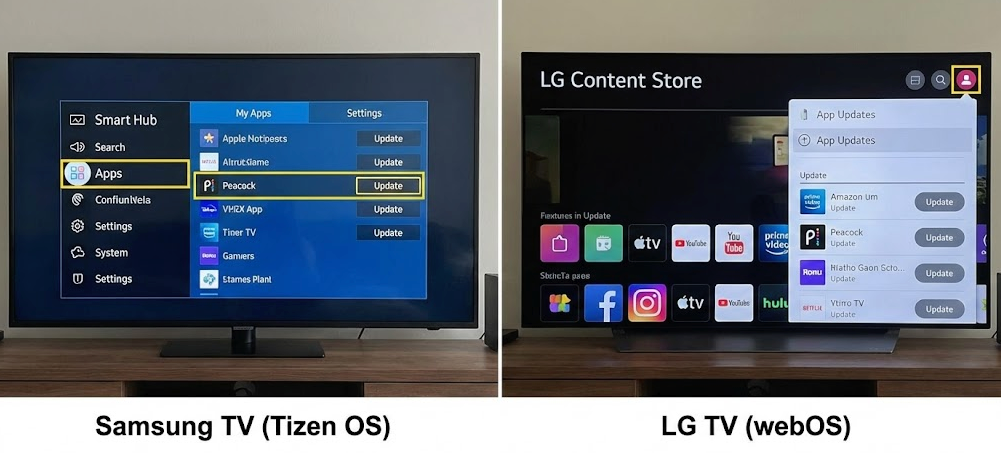
Samsung TV VS LG TV
Samsung (Tizen OS)
Samsung TVs often aggressively manage memory, leading to apps closing unexpectedly.
- Press the “Home” button and navigate to “Apps”.
- Select the “Settings” icon (gear) in the top right corner.
- Locate Peacock. If “Auto Update” is toggleable, ensure it is ON.
- If the app is freezing, select “Reinstall” from this same menu. Note: You will need to sign in again.
LG (WebOS)
On LG TVs, outdated firmware frequently causes Digital Rights Management (DRM) issues. If the TV firmware is old, it cannot decode the copyright protection on Peacock streams.
- Go to Settings > All Settings > General > About This TV.
- Select “Check for Updates.”
- Should I update my tv software for Peacock? Yes, this is often mandatory for the app to launch effectively.
Vizio (SmartCast)
Vizio apps are largely cloud-based and not stored locally on the TV in the same way as Android or Samsung. If Peacock not working on Smart TV is your issue here, you cannot reinstall the app traditionally. instead:
- Press the “Menu” button on your Vizio remote.
- Navigate to System (or Admin & Privacy on newer models) > Reset & Admin.
- Select “Soft Power Cycle”.
This forces the TV to reload the cloud interface, refreshing the connection to Peacock’s servers.
Phase 3: Network & Signal Analysis
If the app loads but you encounter buffering, low quality, or the “Something went wrong” error, the issue is likely how your TV is receiving data.
Why Does Peacock Work on My Phone But Not My TV?
This is the most common question we receive. It indicates a specific internet connection issue, but not necessarily a “slow” internet speed.
- Bitrate Differences: Smart TVs pull a much higher quality video stream (higher bitrate) than a mobile phone. Your Wi-Fi might be strong enough for the small file sent to your phone, but too weak for the massive file sent to your 4K TV.
- Hardware Quality: Mobile phones have advanced, expensive Wi-Fi antennas. Smart TVs often use cheaper network cards and are mounted flat against walls, which blocks the signal.
The Test:
If possible, temporarily connect your TV to your router using an Ethernet cable. If the Peacock Smart TV issues vanish, your Wi-Fi signal is too weak at the TV’s location.
Verifying Service Status
Before tearing your network apart, verify that NBC isn’t having a system-wide crash. Visit a site like DownDetector.
- What to look for: A massive vertical spike in reports in the last hour.
- What to do: If you see a spike, the issue is on their end. No amount of troubleshooting on your TV will fix it. You must wait.
Phase 4: The “Last Resort” – Offline Backup
If your TV model is supported, you’ve cleared the cache, updated the firmware, and checked your network, but the app still fails, you are likely dealing with a deep incompatibility or a persistent bug in the current version of the Peacock app.
At this stage, you have two choices: wait for Peacock to release a patch (which could take weeks), or bypass the streaming app entirely using an offline method.
We tested Keeprix Video Downloader as a workaround for these specific “unfixable” scenarios. It is not a magic button—it requires a computer—but it effectively solves the problem of videos not loading or buffering endlessly by removing the internet from the equation during playback.
How This Workaround Works
Unlike streaming, where your TV must constantly fetch data, this method involves downloading the show to your computer and playing it locally on your TV.
- Download: Use the software on a Windows or Mac computer to download Peacock episodes as MP4 files.
- Transfer: Move these files onto a standard USB flash drive.
- Play: Plug the USB drive into your Smart TV’s USB port and use the TV’s “Media Player” input to watch.
Why Consider This?
- Zero Buffering: Since the file is playing directly from the USB drive, network lag is impossible.
- Bypass App Bugs: You are not using the Peacock app interface, so its glitches, crashes, and “Something went wrong” errors cannot affect you.
- High Quality: You can ensure you are watching in 1080p, rather than a stream that downgrades to 480p when Wi-Fi fluctuates.
While this adds a step to your routine (using the computer first), it is the most reliable way to watch content if your smart tv streaming problems are caused by hardware that just doesn’t get along with the Peacock app.
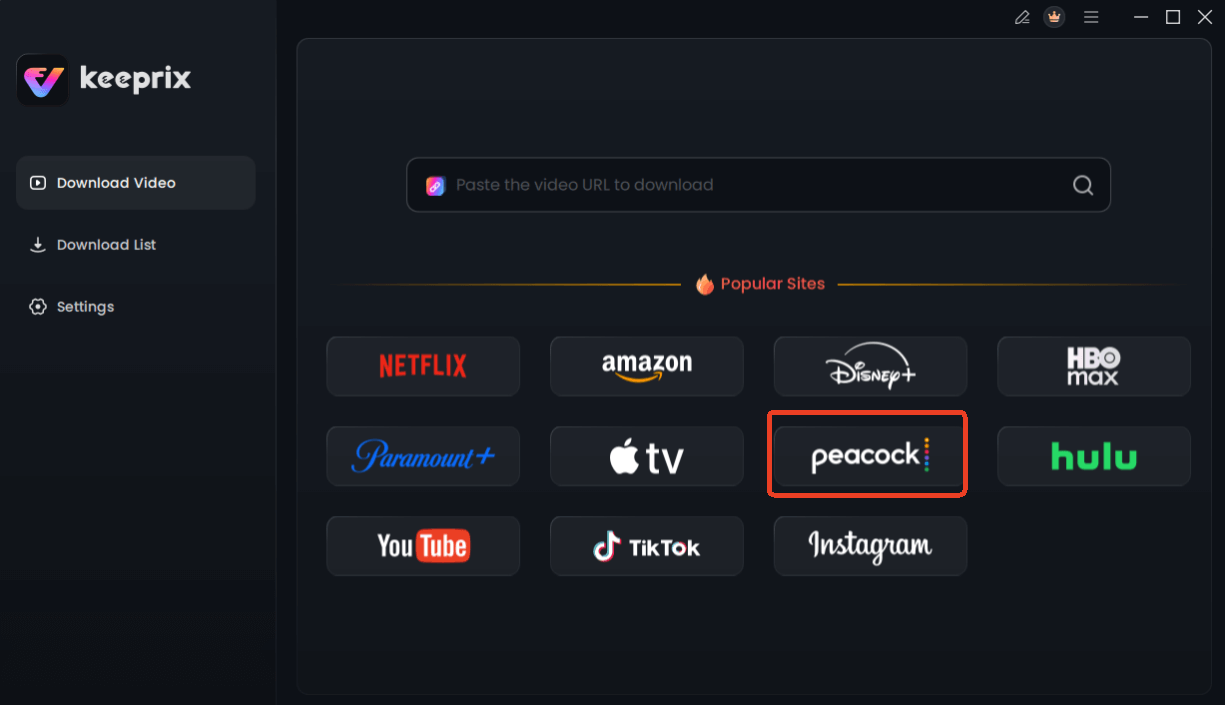
Choose Peacock in Keeprix Downloader
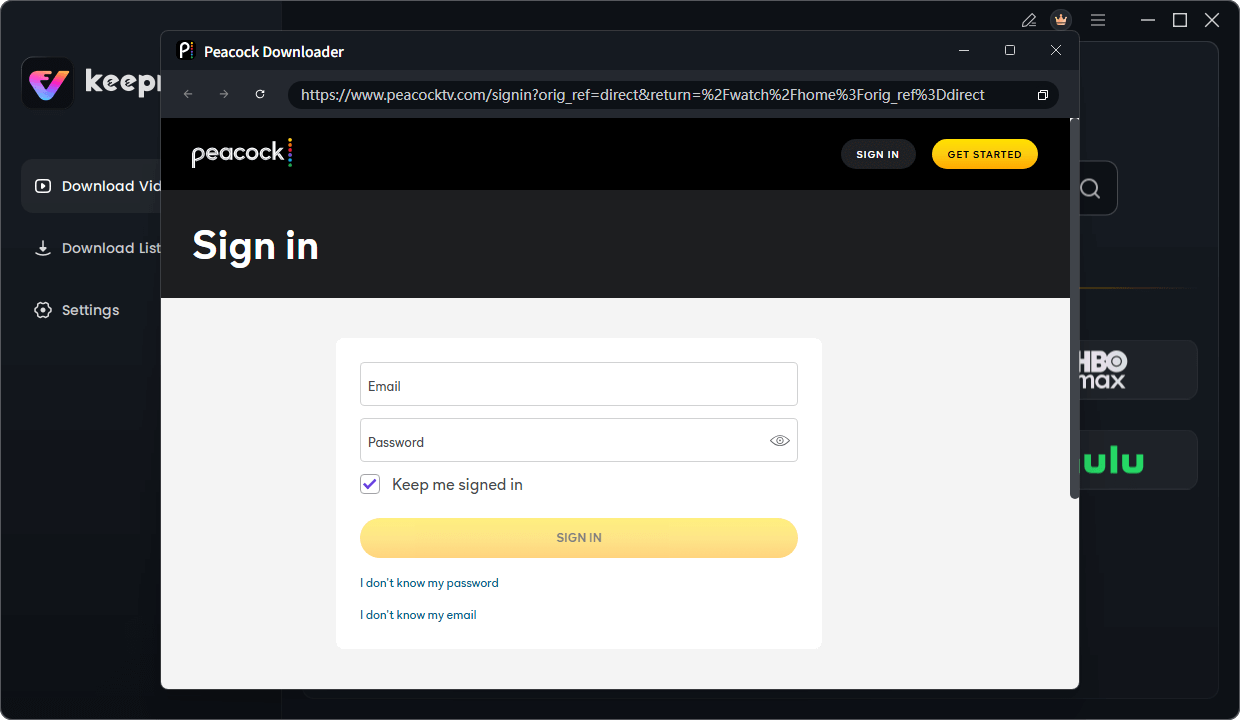
Sign in Your Peacock Account
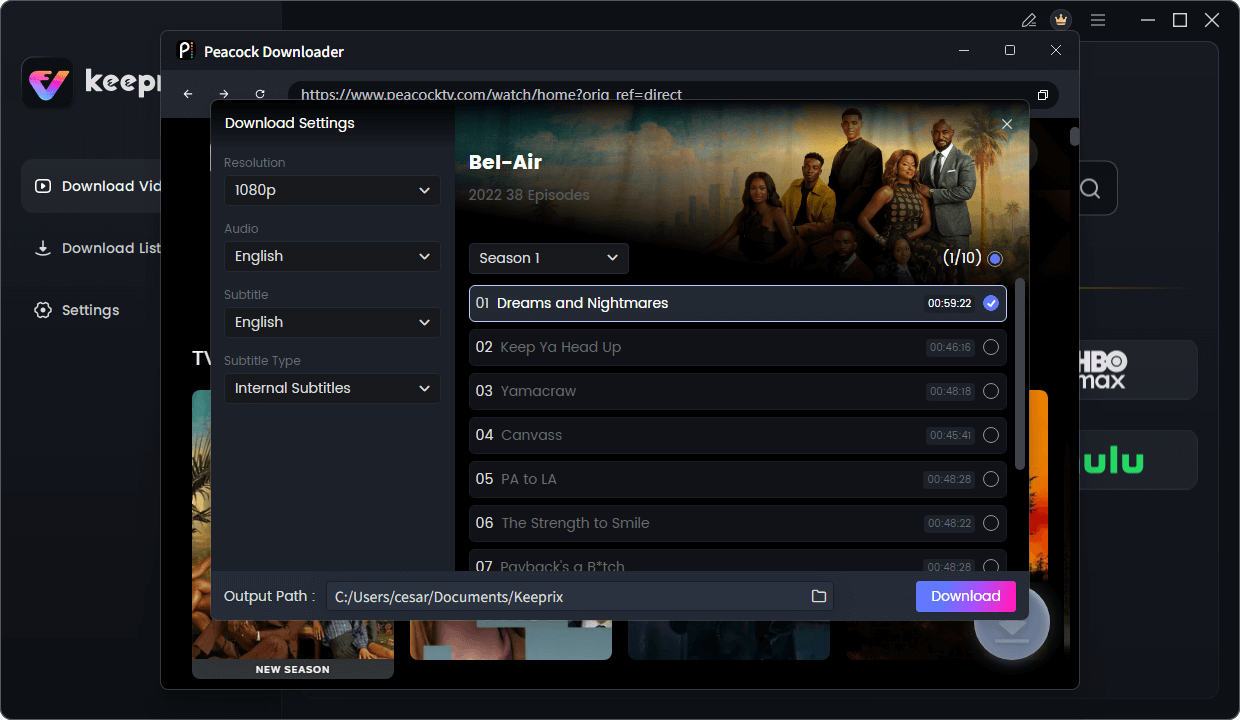
Configure Peacock Download Settings
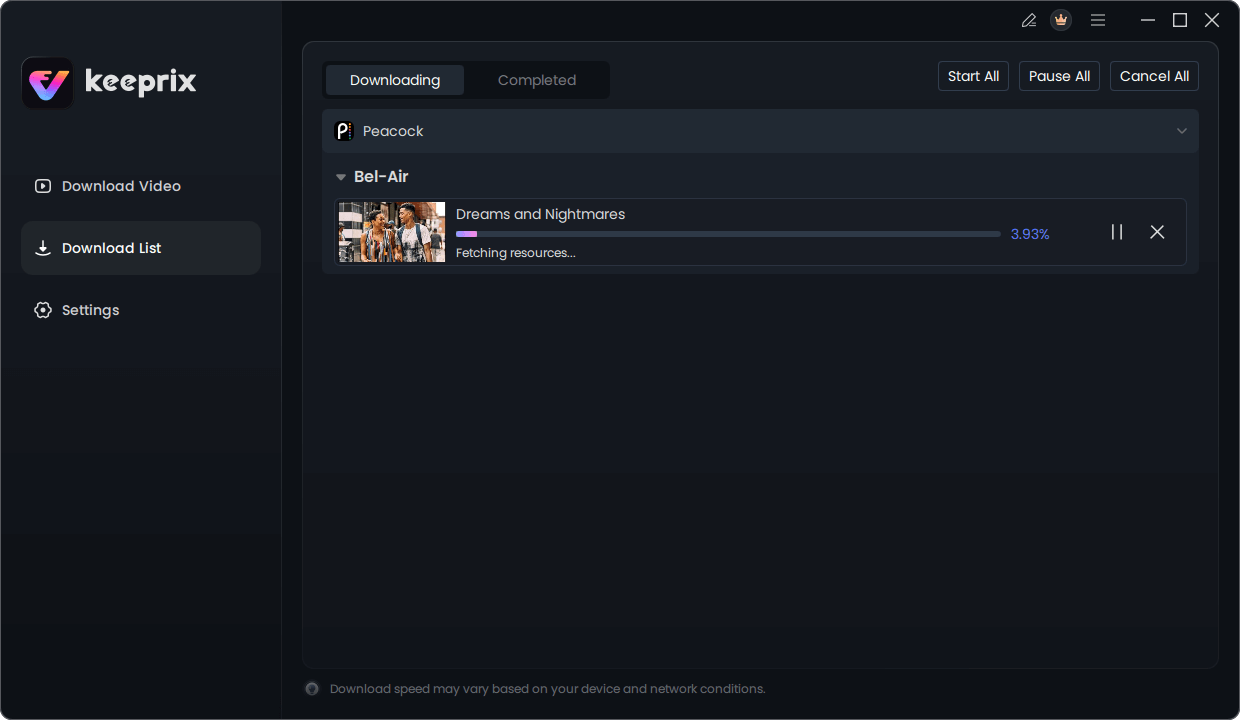
Downloading Peacock Video
Frequently Asked Questions
Why is Peacock not working on my smart TV but works on my phone?
The TV app requires a stable, high-speed connection to stream high-bitrate video (1080p/4K), whereas the phone app uses a compressed, lighter stream. Additionally, your phone likely has a better Wi-Fi antenna than your TV.
Do I need to reinstall the Peacock app?
If clearing the cache and a cold boot (unplugging the TV) did not work, yes. Reinstallation deletes all corrupted local files. Ensure you have your login password ready before you delete the app.
What does the ‘Something went wrong’ error mean?
This generic error usually indicates a timeout. The app tried to “handshake” with the Peacock servers but didn’t get a response fast enough, often due to a momentary drop in Wi-Fi speed or a DNS issue on your router.
Is Peacock down right now?
If you cannot load content on any device (phone, laptop, TV) using both Wi-Fi and cellular data, the service is likely down. Check DownDetector to confirm.
Does my smart TV support Peacock?
Peacock supports Android TV (5.1+), Samsung Smart TVs (2017+), LG Smart TVs (WebOS 3.5+), and Vizio SmartCast (2016+). If your TV is older, the hardware likely cannot support the app’s requirements.
Streaming apps are updated frequently. If a specific update breaks your TV’s compatibility, using an external streaming stick (like Roku or Fire TV) or the offline download method is the most reliable long-term solution.
Conclusion
Facing peacock not working on smart tv errors can quickly derail your entertainment plans. The key is to stop guessing and follow a logical order: check your TV’s age, perform a cold boot to clear the system memory, and verify that your Wi-Fi is strong enough to handle a TV-quality stream.
Whether the culprit is a corrupted cache on your Samsung or a weak signal on your LG, the procedures above fix the vast majority of errors. However, if you find yourself fighting an uphill battle against an older TV or unstable internet, consider the Keeprix Video Downloader method. By moving your content to a USB drive, you take control of the experience, ensuring that no amount of buffering or app crashes can interrupt your movie night.