Why Is Peacock Not Working? Rapid Fixes for TV, Mobile, and Desktop (2026)

There are few things more annoying than settling in for a relaxed evening, only to find Peacock not working when you hit play. You just want to watch your favorite show, but instead of entertainment, you are greeted by a loading spinner, a black screen, or a vague error message.
Whether you are dealing with videos buffering endlessly on your Fire TV Stick, the app crashing on your Roku, or playback errors on your laptop, these technical interruptions can ruin movie night.
This guide addresses those specific streaming issues across all platforms. We move beyond generic advice to provide tested solutions for Peacock app errors, server outages, and device-specific glitches.

Peacock Not Working
The methods below have been validated across Smart TV interfaces (Roku, Fire TV), mobile devices, and standard web browsers (Chrome, Edge).
Method 1: The “First Aid” Fixes (Check These First)
Before you dive into complex settings, you need to rule out the two most common reasons for Peacock streaming not working: a service outage or a device glitch.
Step 1: Is Peacock Down?
It is entirely possible the problem isn’t on your end. Before troubleshooting your Wi-Fi, verify if there is a problem with Peacock today.
- Check DownDetector: Visit third-party tracking sites like DownDetector.
- How to read the data: If you see a massive spike in user reports within the last hour, this indicates a service outage. In this scenario, no amount of troubleshooting on your TV or phone will fix the Peacock error; you must wait for their engineers to resolve it.
Step 2: The “Hard Power Cycle” (Don’t Skip This!)
If the servers are up, the issue is likely a temporary cache conflict on your device. Simply turning your TV off and on with the remote is usually not enough, as modern TVs go into “standby” rather than fully shutting down.
To fix Peacock app crashes on Smart TVs and Streaming Sticks:
- Unplug your TV or streaming device directly from the wall outlet.
- Wait for at least 60 seconds.
- Plug it back in and relaunch the Peacock app.
This process forces the device to clear its temporary RAM, which often resolves the “black screen” or freezing issues that occur after an app update.
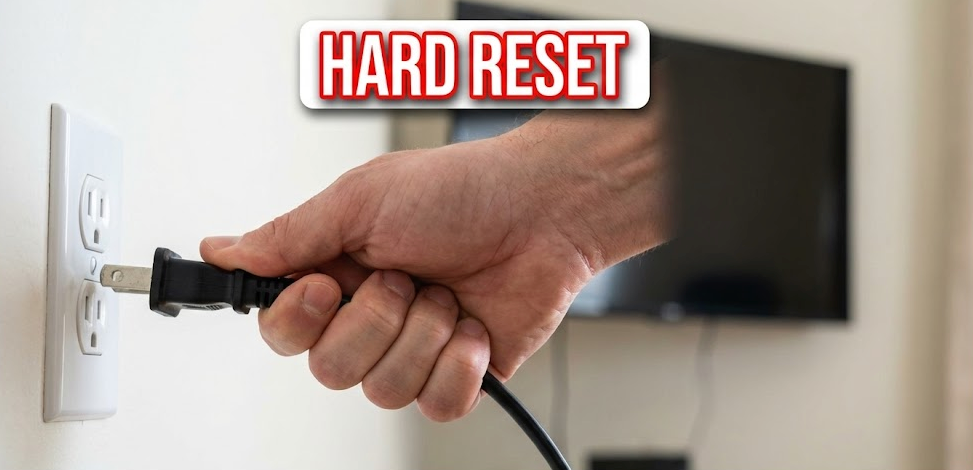
Hard Reset
Method 2: Fixing Peacock on Smart TVs and Streaming Sticks
Most users encounter Peacock not loading while using devices like Roku, Fire TV, or Apple TV. These devices store cache data that can become corrupted over time, leading to playback failures.
Troubleshooting on Amazon Fire TV / Fire Stick
If you are seeing a spinning circle or the app crashes immediately:
- Navigate to Settings on your Fire TV home screen.
- Select Applications > Manage Installed Applications.
- Scroll down and find Peacock TV.
- Select Force Stop, then scroll down and select Clear Cache.
Try to avoid “Clear Data” unless necessary, as this will log you out and require you to sign in again.
Troubleshooting on Roku Devices
Roku does not have a traditional “Clear Cache” button, so you must perform a system restart to clear out old data causing Peacock playback failure.
- Go to the Roku Home screen.
- Select Settings > System.
- Select Power (if available) > System Restart
If your device freezes completely, you can force a restart by pressing the Home button 5 times, Up arrow once, Rewind twice, and Fast Forward twice on your remote.
Troubleshooting on Apple TV
- Double-press the TV/Home button on your remote to bring up the background app switcher.
- Swipe left or right to find the Peacock app preview.
- Swipe Up on the touchpad to force close the app.
- Relaunch Peacock.
Troubleshooting on Mobile (iOS/Android)
If the Peacock app is not working on your phone or tablet, the issue is often an outdated app version.
- Go to the App Store (iOS) or Google Play Store (Android).
- Search for “Peacock.”
- If a button says Update, tap it.
- If the app is up to date, uninstalling and reinstalling the app is the most reliable fix for persistent mobile errors.
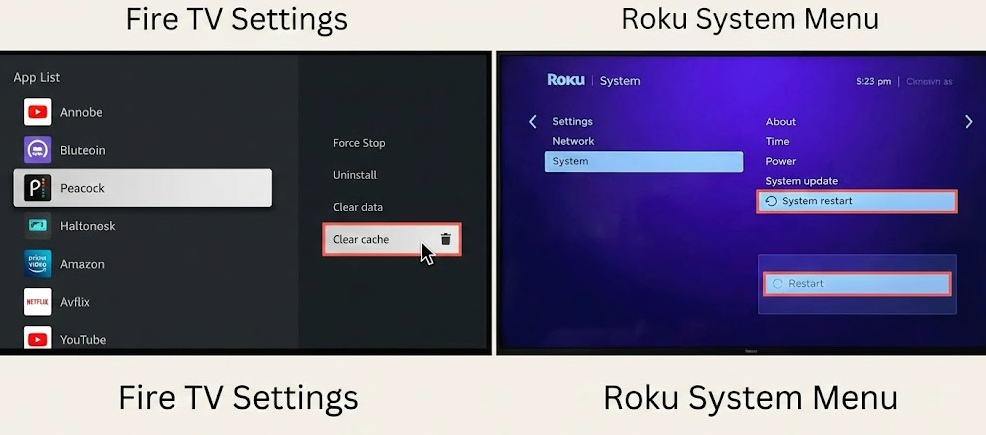
Clear Cache button on Fire TV settings and the System Restart menu on Roku
Method 3: Fixing Peacock on Desktop Browsers (Chrome, Edge, Safari)
If you are watching on a computer and facing Peacock not loading or freezing on a specific frame, the culprit is often browser configurations or hardware conflicts.
Step 1: Clear Browser Cache
Browsers store images to load pages faster. If Peacock updates their player and your browser clings to old data, you will encounter app cache issues.
- Chrome: Click the three dots (top right) > Delete browsing data > Select “Cached images and files” > Delete data.
- Safari: Settings > Privacy > Manage Website Data > Search “Peacock” > Remove.
Step 2: Disable Hardware Acceleration (Crucial for Black Screens)
If you can hear audio but see a black screen, or if the video stutters, your browser might be conflicting with your graphics card.
- Chrome/Edge: Go to Settings > System.
- Toggle “Use graphics acceleration when available” to Off.
- Restart your browser completely.
- – Why this works: This forces the browser to handle the video via software, which is often more stable for streaming DRM-protected content like Peacock.
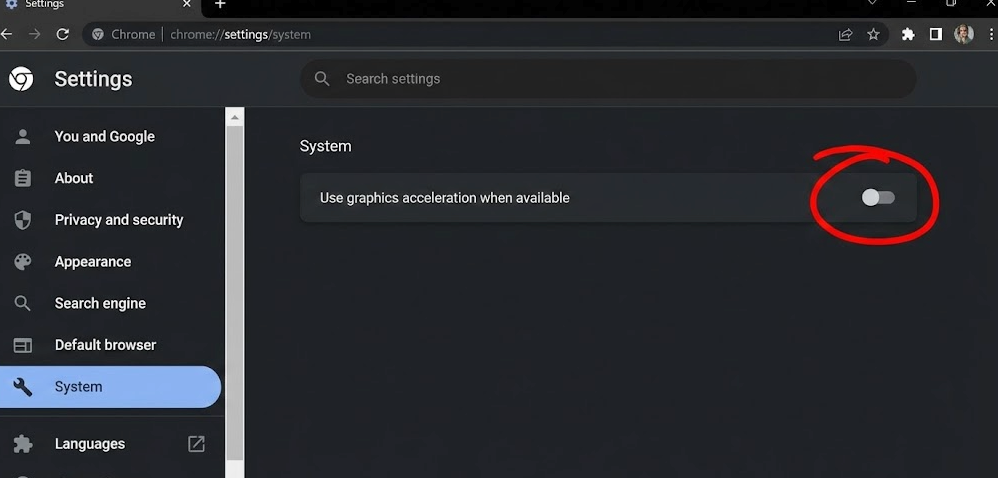
Turn Off the Use Graphics Acceleration
Method 4: Addressing Network Connectivity and Buffering
If the app loads but you are facing videos buffering endlessly or pixelated quality, the issue is likely the connection “pipe” to your device.
1. Test Your Speed
Peacock requires a minimum download speed of 2.5 Mbps for standard definition and at least 5 Mbps for HD content. Run a speed test on the device you are using (not just your phone standing next to the router).
2. Restart Your Router
This is a standard step for a reason. Unplug your router for 30 seconds and plug it back in. This requests a fresh IP address from your ISP and clears congestion.
3. Improve the Signal
- Switch to 5GHz: If your router has dual bands, connect your streaming device to the 5GHz network. It is faster and less prone to interference than 2.4 GHz.
- Disconnect Other Devices: If someone else is downloading a large file or gaming on the same network, your bandwidth may be maxed out.
Alternative Solution: Offline Viewing with Keeprix Video Downloader
Sometimes, troubleshooting the network isn’t enough. If you have a slow internet connection (DSL or satellite), or if you are traveling and dealing with unstable hotel Wi-Fi, streaming 1080p video in real-time might be impossible.
In these specific cases, a reliable workaround is to download the content ahead of time. Keeprix Video Downloader is a tool that allows you to save Peacock content directly to your laptop storage.
When to Consider Downloading vs. Streaming
This solution is distinct from fixing a broken app; it is about bypassing the internet bottleneck entirely.
- Bypassing Throttling: If your ISP slows down streaming data during peak hours (7 PM – 10 PM), downloading the show overnight allows you to watch it the next day without buffering.
- Offline Access: Keeprix saves files as MP4 or MKV, meaning you can transfer the movie to a tablet or laptop for viewing where no internet exists (like on a plane).
- Ad-Free Experience: The software can remove ads during the download process, offering an uninterrupted viewing experience.
While downloading takes time depending on your connection speed, once the file is on your drive, you are guaranteed 100% smooth playback regardless of your current internet status.
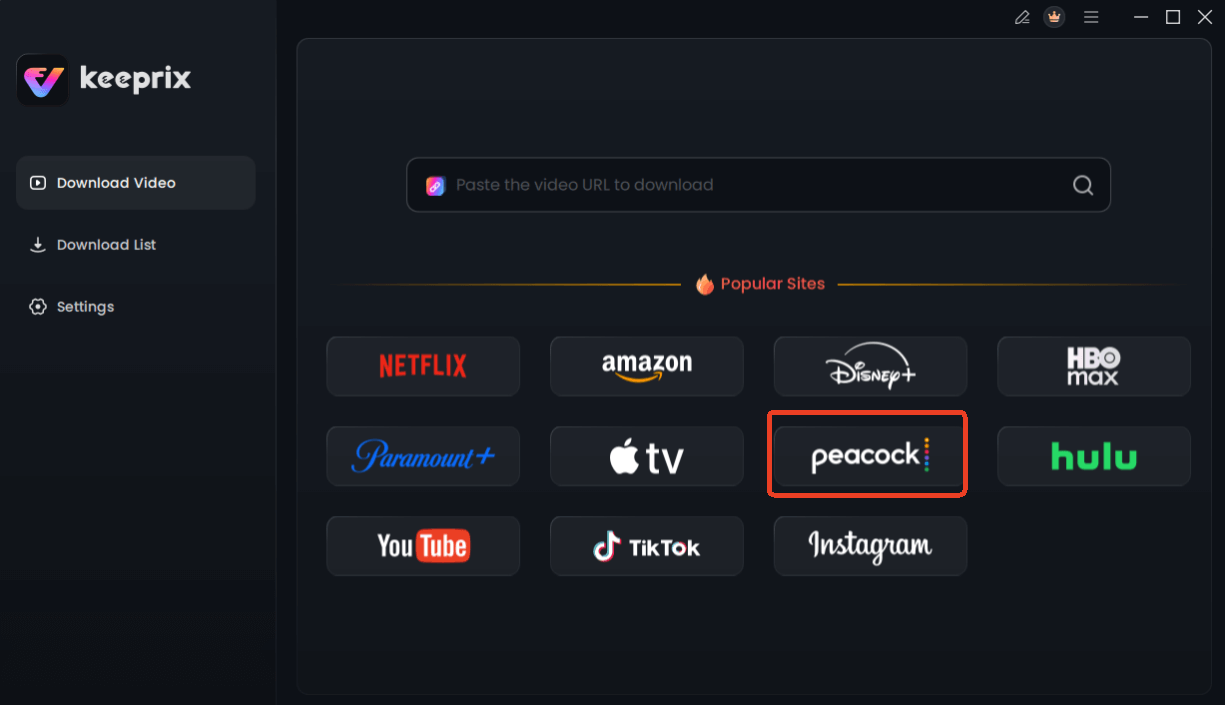
Choose Peacock in Keeprix Downloader
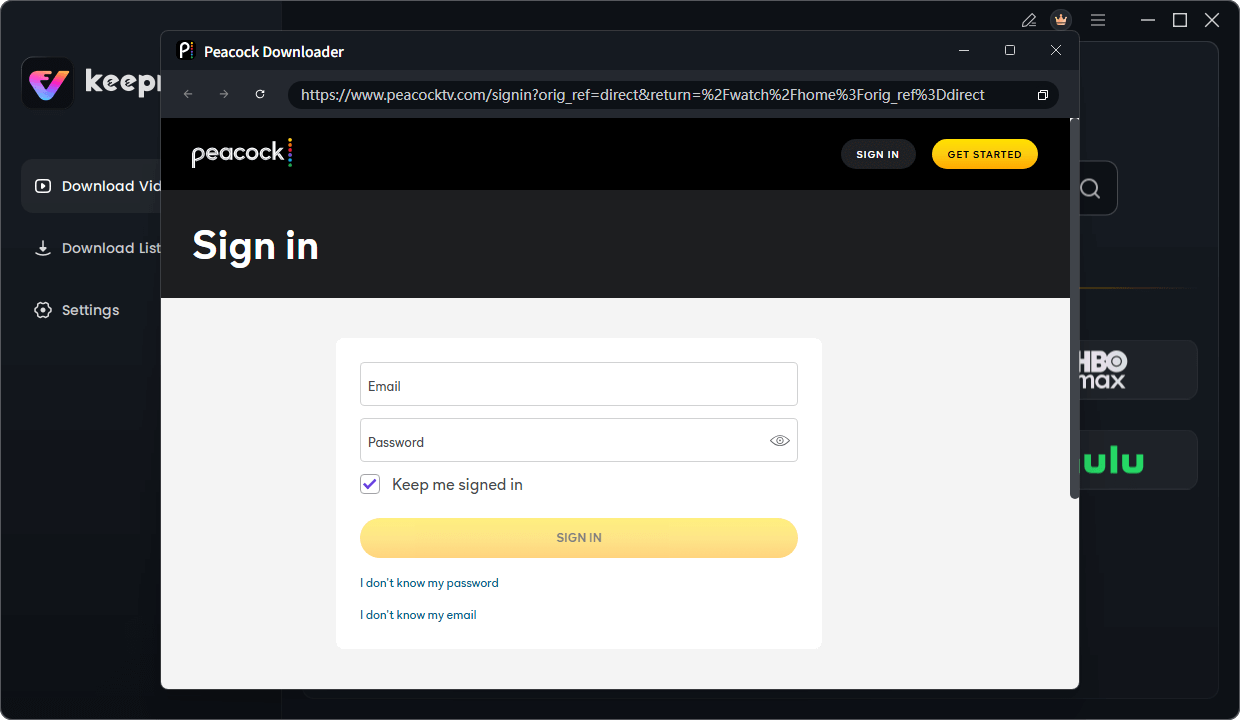
Sign in Your Peacock Account
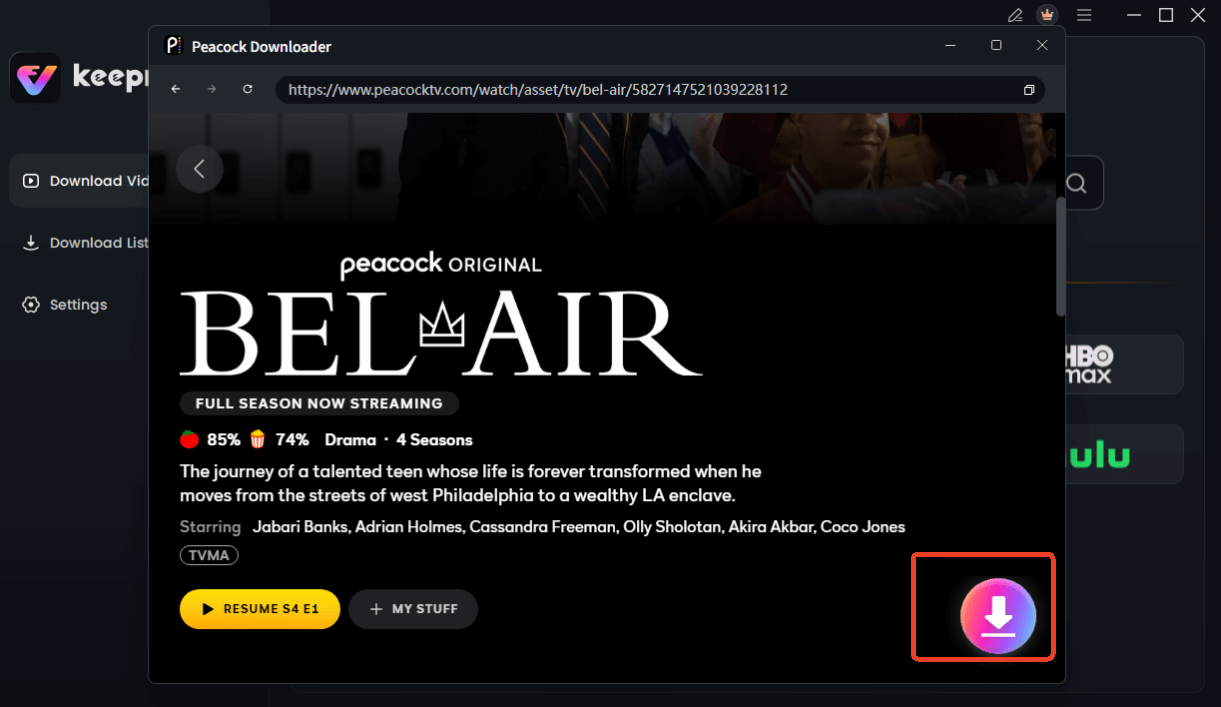
Choose Peacock Video to Download
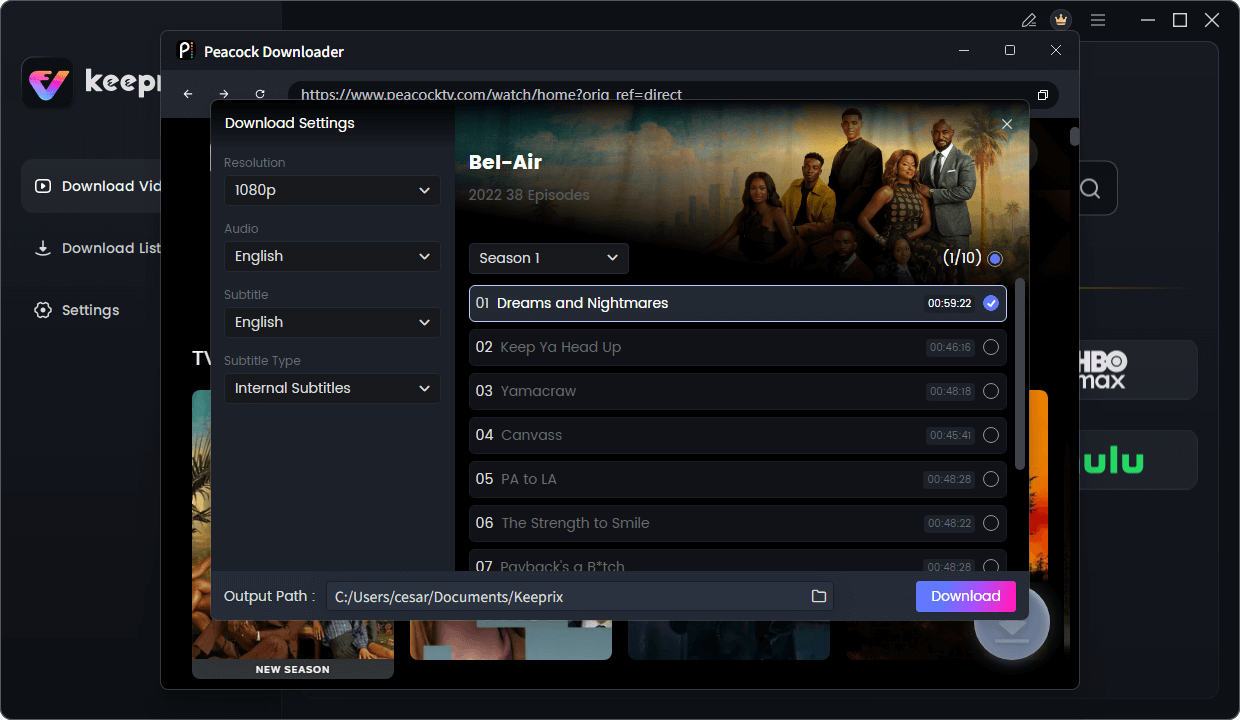
Configure Peacock Download Settings
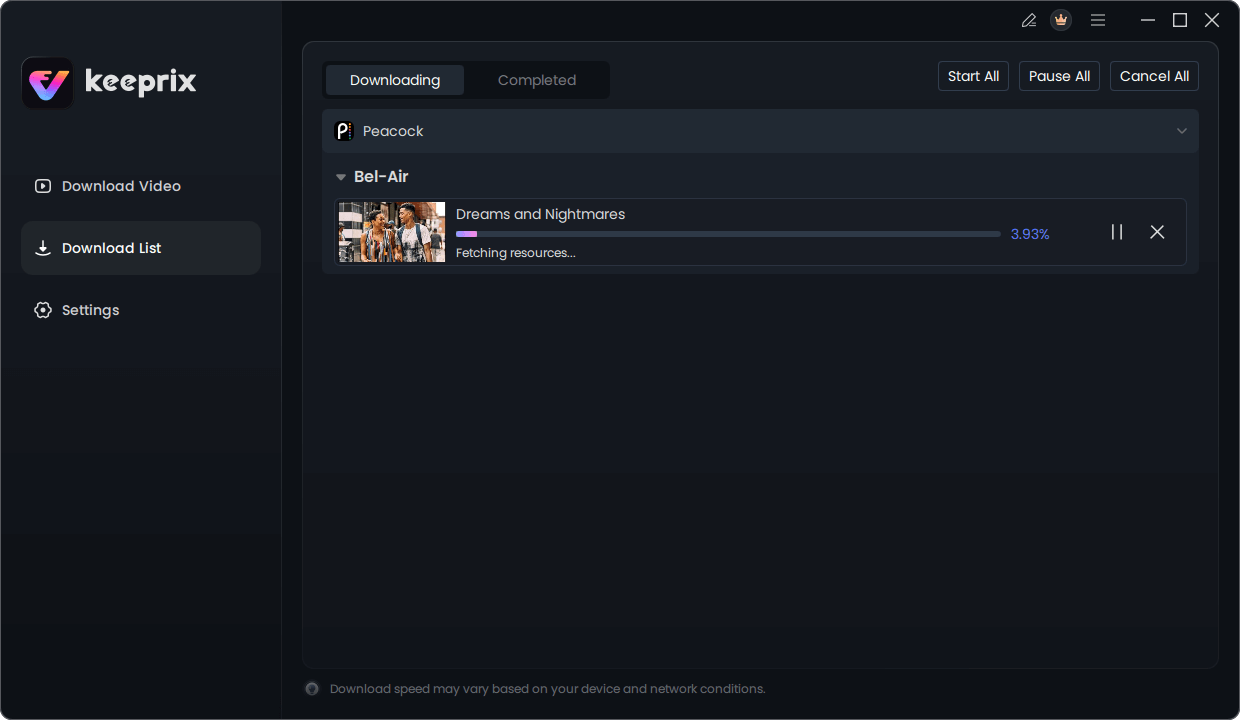
Downloading Peacock Video
Frequently Asked Questions
Why is Peacock working on my phone but not my TV?
This is common. Mobile apps and TV apps run on different software architectures. It usually indicates your TV app has corrupted cache data. Follow the “Hard Power Cycle” steps in Method 1 or reinstall the app on your TV.
What does the “Something went wrong” error mean?
This generic error often points to a momentary drop in internet connection or a DRM (copyright protection) conflict. If you are on a browser, disable any ad-blockers or privacy extensions. If on a TV, restart your router.
How do I clear the cache on Peacock?
On Android and Fire TV, you can do this via the device settings under “Manage Applications.” On Roku and Apple TV, the system does not allow direct cache clearing for single apps; you must restart the device or reinstall the app to achieve the same result.
Does a slow internet connection cause the app to crash?
Usually, slow internet causes buffering, not crashing. If the app is closing itself completely, it is likely a software bug or memory issue on your device, not your internet speed. Check for system updates on your device.
Conclusion
A blank screen on movie night is a major frustration, but it is rarely permanent. Whether the root cause is a Peacock app error on your Roku, a browser conflict on your PC, or simple network connectivity issues, the solution is usually within reach.
Start with the basics: check for a server outage and perform a hard restart of your TV or streaming stick. These two steps resolve the majority of playback failures. If buffering persists due to a poor connection, consider downloading your content offline with tools like Keeprix to regain control over your entertainment. By following these targeted steps, you can get back to your show and leave the technical headaches behind.