How to Download Video from Discovery Plus 2026

For documentary fans like Rachel, preparing for a long-haul flight involves a specific ritual: stocking up on offline content. However, Rachel’s plan to watch her favorite Discovery+ series on her laptop encountered a problem. While she could easily save episodes on her iPad, she realized the download option she relied on was completely missing from her computer interface. Facing a six-hour flight with a locked laptop and no Wi-Fi is a scenario that leaves many subscribers searching for a functional method to save videos before they lose connectivity.
While the streaming service offers native support for offline viewing, it restricts this feature exclusively to mobile devices. If you are trying to save content to a Windows PC or Mac, you will find yourself blocked. This guide is the result of hands-on testing on Windows 11 and macOS Ventura to determine what actually works. We have verified which methods successfully bypass these limitations and which ones result in corrupted files or security risks. Whether you need temporary access on a tablet or a permanent library on your laptop, the following solutions will ensure your content is ready for travel.

Discovery+ Video Download
You may also like: How long do Netflix downloads last
Decision Guide: Mobile App vs. Desktop Video Downloader
Before attempting a download, you must decide between two distinct approaches based on your hardware and viewing needs. The method you choose determines whether you own the file permanently or are merely borrowing it within a restricted environment.
The Official Mobile Route
The standard offline viewing feature is designed for casual viewing on handheld devices. It utilizes encrypted content that is locked inside the Discovery+ app. This means the video files are not accessible to other media players and are bound by strict subscription limits. This method is sufficient if you are content watching on a small screen and do not mind if the downloads expire after 48 hours or when your subscription lapses.
The Professional Desktop Route
If you require files that last forever or wish to watch on a larger laptop screen, you need a third-party desktop solution. Professional software allows you to save videos as standard MP4 files. This approach solves the issue of videos being inaccessible outside the app and removes expiration dates entirely. Unlike the mobile app, which acts as a rental service for offline data, a desktop downloader treats the content as a permanent acquisition for your personal library.
Note on Cost: While the mobile app method is included in your standard subscription (Ad-Free plan), reliable desktop solutions generally operate on a “freemium” or paid license model. The tool recommended below offers a free trial to test functionality (usually limited to the first few minutes of a video or a set number of full downloads) before requiring a purchase.
How to Download Discovery Plus Videos on PC & Mac (Permanent Method)
If you need to store shows on your computer, the most effective workaround is using a specialized tool like Keeprix Downloader. This software addresses the primary technical barrier by authenticating your subscription and capturing the video stream directly as a localized file.
Performance Benchmark: In our tests on a MacBook Air M2, a 45-minute episode of “MythBusters” (1080p) took approximately 4 minutes to process and download.
Step-by-Step Procedure
Step 1. Download and install Keeprix Downloader on your Windows or macOS system.
Step 2. Paste the video link directly. Then log in to your Discovery+ account in the built-in browser.
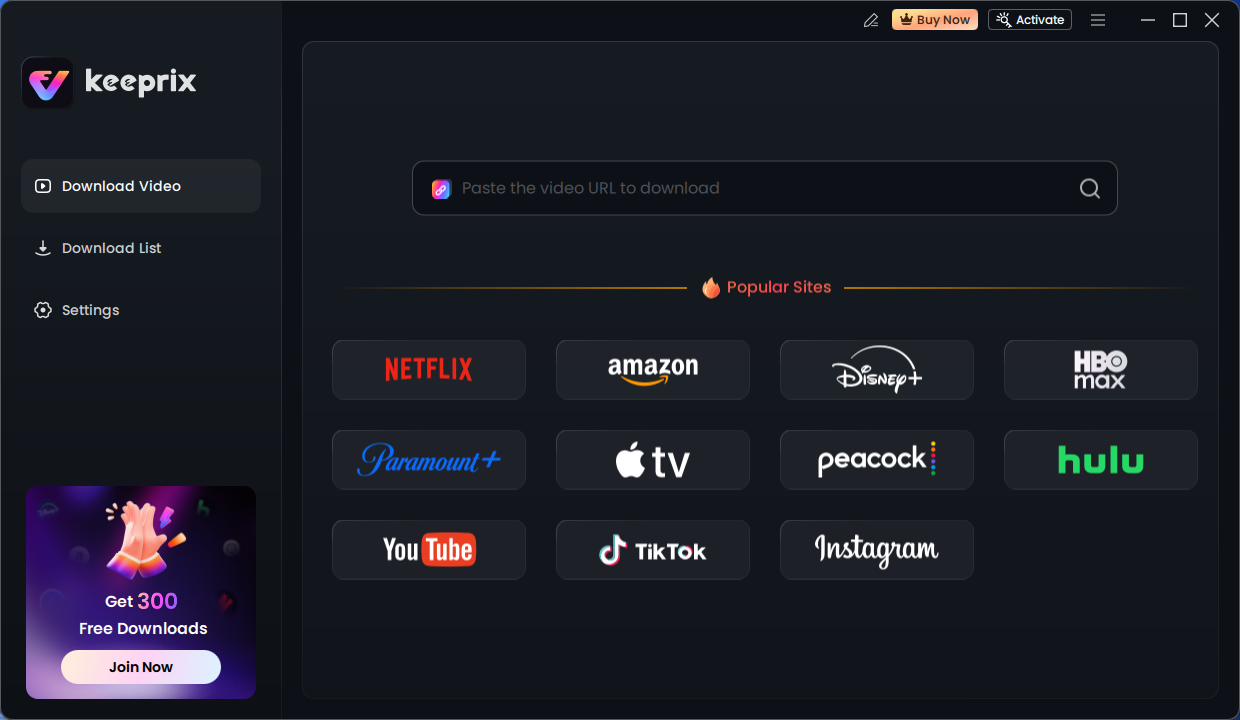
Keeprix Download Main Screen
Step 3. Navigate to the documentary or episode you wish to save. Play the video or copy the URL directly from the address bar. The software will detect the streaming signal automatically.
Step 4. To ensure the file plays anywhere, set your output format to MP4. This guarantees the file remains playable indefinitely on any device. You can also select your preferred resolution, from 720p up to 4K, depending on the source quality.
Step 5. Click the download button to save Discovery+ videos to your computer directly.
By using this method, you effectively convert a temporary stream into a permanent asset, ensuring you have entertainment even if your subscription ends.
The Official Method: Using the Discovery+ App (Mobile Only)
For many users, confusion stems from expecting the mobile app’s functionality to exist on the website. You might see a download icon on your iPad but find it completely absent on your MacBook. This is because offline viewing is technically limited to the iOS and Android applications.
How to Download on Mobile
Step 1. Locate the Content: Open the Discovery+ app on your tablet or smartphone. Ensure you are connected to Wi-Fi to avoid data overages.
Step 2. Find the Icon: Tap on the show you wish to watch. If the title supports offline viewing, you will see a downward arrow icon next to the episode title.
Step 3. Manage Storage: Once the download completes, it is stored in the ‘Downloads’ tab within the app.
Limitations to Consider
While convenient for phone viewing, this method comes with strict limits. You are generally limited to a specific number of active downloads across all devices. Furthermore, users frequently report downloads stuck or failing if the device storage is near full.
Most critically, these files are temporary. If you do not connect to the internet every few days to renew the DRM license, the downloads will expire, rendering your content unwatchable mid-flight.
Why Can’t You Officially Download on PC? (Licensing & DRM)
The frustration of not being able to simply click “Save” on a PC browser is rooted in complex digital rights agreements. Here is a critical insight that explains the restriction: Discovery+ enforces mobile app downloads only because mobile operating systems (iOS and Android) offer a secure “sandbox” environment. In this sandbox, encrypted content can be stored without the user being able to access or copy the raw video file.
On a desktop computer (PC or Mac), the file system is more open. If Discovery+ allowed direct browser downloads, it would be difficult to prevent users from sharing copyright-protected files across the internet. Consequently, to comply with strict content licensing agreements, they disable the feature entirely for web browsers. This is why no legitimate method exists to export videos as MP4 files through the official platform. The “expiry” dates on mobile downloads act as a digital leash, ensuring that your right to view the content ends the moment your subscription does.
Also read: Can you download Hulu shows on laptop
Troubleshooting & Safety: Avoiding Unsafe Downloaders
When you search for ways to bypass these restrictions, you will likely encounter significant confusion caused by third-party tool claims. The internet is filled with “free video downloaders” and browser extensions that promise to grab streams but often fail or carry security risks.
Common Risks to Avoid
❌ Malware and Adware: Many free tools monetize their service by bundling unwanted software or aggressive advertising trackers with their installers.
❌ Screen Recorders Disguised as Downloaders: Some tools claim to download but actually perform a low-quality screen recording. This often results in a black screen due to DRM protections blocking the capture.
❌ Broken Promises: Web-based converters generally cannot handle encrypted content. They often generate empty files or errors because they cannot authenticate with the Discovery+ server.
Unlike these risky options, Keeprix Downloader operates as a dedicated browser client. Because it logs in legitimately to decrypt the stream rather than trying to “rip” it from the outside, it maintains the integrity of the file and the security of your device. This distinction is vital; using verified software ensures you avoid non-functional tools and protect your device from malicious code.
Frequently Asked Questions About Offline Viewing
1. Can I download videos from Discovery Plus?
Yes, but officially only on mobile devices (iOS, Android, and select Fire tablets). For PC or Mac, you must use third-party software like Keeprix to achieve a video download.
2. Why can’t I download Discovery Plus videos on PC?
Discovery+ restricts PC downloads to prevent piracy. Browsers lack the secure storage sandbox found on mobile devices, making it difficult to protect the files from being copied or distributed.
3. Where are Discovery Plus downloads stored?
Official mobile downloads are stored in an encrypted format within the app’s internal storage directory. They cannot be played by other video players. Downloads from Keeprix are stored as standard MP4 files in your computer’s designated output folder, accessible by any media player.
4. How long do Discovery Plus downloads last?
Official mobile downloads typically expire 30 days after downloading or 48 hours after you press play. If you use a desktop downloader, the files are permanent and never expire.
5. Are Discovery Plus downloader tools safe?
Not all tools are safe. Many free online converters carry malware. It is essential to use reputable software that utilizes an embedded browser for the login process, ensuring your credentials remain secure.
6. Can I watch Discovery Plus offline forever?
Only if you use a desktop downloader to save the file as an MP4. Official app downloads will eventually expire or become inaccessible if you cancel your subscription.
Conclusion: Watch Your Favorites Anywhere
The solution comes down to understanding the right tool for the job. While the mobile app is perfect for a morning commute, a long flight, or a trip to a remote cabin often requires the reliability of a laptop. By using a desktop downloader, you can secure a permanent copy of your favorite documentary series, ensuring high-definition playback without worrying about Wi-Fi connectivity or expiration timers.
Whether you are a casual viewer satisfied with the mobile app or a dedicated archivist needing permanent files on your PC, you now have the knowledge to access your content on your terms. If you have faced similar limitations and need a robust solution for desktop viewing, regaining control over your media library is just a few clicks away.