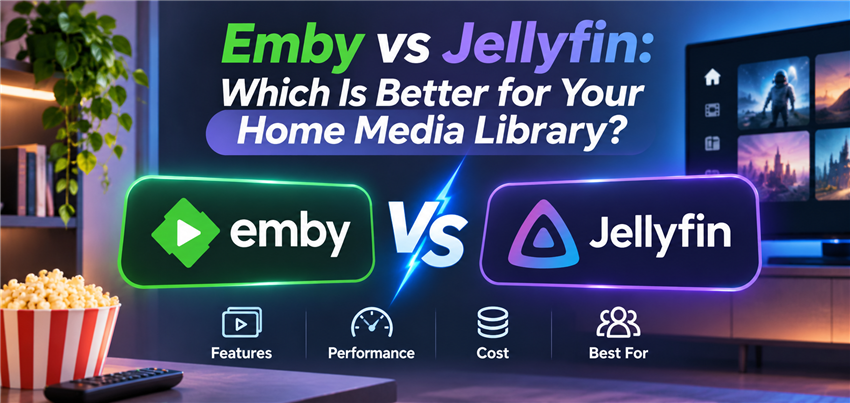
Emby vs Jellyfin: Which Is Better for Your Home Media Library?

Choose Jellyfin if you want a free, open-source media server and its apps work well on the devices you already own. Choose Emby if its app works better on your main TV or you want specific Emby Premiere features, such as downloads and sync on supported apps or live TV DVR. If you mostly watch your own movies and shows at home, you may not need a paid plan with either option.
The deciding factor is often the device you watch on. A movie that plays without conversion on your laptop might need transcoding on your living-room TV, especially when subtitles are enabled. This comparison uses official documentation for features and pricing, then shows you how to check playback with your own files before moving your entire library.
Part 1. Emby vs Jellyfin at a Glance
| Feature | Emby | Jellyfin |
| Server cost | Free core server; optional Emby Premiere subscription or lifetime license | Free, open-source server with no paid server tier |
| Library organization | Scans movie and TV folders, adds metadata, and supports multiple users | Scans movie and TV folders, adds metadata, and supports multiple users |
| Full playback in apps | Free on some clients; others have limits or require an app unlock or Premiere | Official clients do not require a Jellyfin subscription; third-party apps may charge separately |
| Hardware transcoding | Generally requires Premiere, with device-specific exceptions | No paid unlock; still requires supported hardware and configuration |
| Remote access | Optional Emby Connect helps users find and sign in to a reachable server | Connect directly to your own server; no Jellyfin cloud account required |
| Best fit | You prefer its app on your main device or want specific Premiere features | You want to avoid server licensing fees and are comfortable managing your own setup |
Sources: Emby Premiere feature matrix and Jellyfin project overview.
Both are media servers for files you already have access to. They organize and stream those files to your devices; they do not include a subscription catalog of movies and TV shows.
Part 2. Pricing: What Can You Do for Free?
Emby: Check the App Before Paying for the Server
Emby’s free server is enough to build and browse a library, manage users, and watch through clients that offer free full playback. The official feature matrix lists full playback as free in the web app and on supported Roku and Apple TV clients, for example.
The iOS and Android mobile apps have different rules: full playback can be unlocked separately or through Premiere. An app unlock is not the same as a Premiere license.
Emby Premiere adds features such as downloads and sync on supported apps, live TV DVR, and hardware-accelerated transcoding on most setups. The US Premiere pricing page listed $4.99 per month, $54 per year, or $119 for a lifetime license when checked on November 13, 2026. Check the current price and the feature matrix before buying.
If you only watch at home on a client with free full playback, start there. Upgrade only after you identify a feature you actually need.
Jellyfin: No Paid Server Tier
Jellyfin does not charge to unlock its server features, including hardware acceleration on supported setups. That does not make every third-party app free, and it does not eliminate setup work.
If you need transcoding, make sure Jellyfin can access the server’s GPU and that the right drivers and settings are in place. See the Jellyfin hardware acceleration guide.
Part 3. TV and Phone Apps: Start With the Screen You Use Most
The server and the player are separate. Your server might run on a PC or NAS, while you watch on a Roku, smart TV, or phone. Getting the server running does not guarantee that a suitable app is available for your exact TV model or that it plays all your files as expected.
Check the Emby downloads page and the Jellyfin client list, then check the app store on your actual device. Test the things you do regularly: finding the next episode, resuming a movie, switching audio tracks, and turning subtitles on.
If your household mostly watches on one TV, how the app works on that TV matters more than how many devices appear on a compatibility list.
Part 4. Playback: Direct Play, Transcoding, and Subtitles
An .mp4 or .mkv extension tells you the file’s container, not which video, audio, or subtitle formats it contains. An MKV file might play as-is on one device but need an audio conversion or a video transcode on another. A client’s format support, your playback quality settings, and the selected subtitle track can all change what the server does. See Jellyfin codec support and the Emby transcoding guide.
| Playback Method | What It Means |
| Direct Play | The client plays the original file without the server converting it. |
| Remux or Direct Stream | The server keeps the original video but may repackage it or convert an incompatible audio track. The exact label varies by app. |
| Video transcoding | The server re-encodes the video, for example when the client cannot decode it, the selected bitrate is too low, or subtitles must be burned into the picture. |
If playback starts buffering only after you turn subtitles on, check the playback details before replacing your server or converting the whole library. A client that can display the subtitle track itself may avoid the video transcode.
Likewise, if the video plays but there’s no sound, try a different audio track before assuming the MKV container is the problem.
Run a Fair Comparison With Three Files
Use the same server hardware, client device, network, and comparable playback quality settings. Run one server at a time if their default ports conflict, and keep their configuration folders separate. Test on your home network first so remote bandwidth does not skew the comparison.
| Test File | What to Check |
| H.264 video with AAC audio in MP4 | Start playback, seek ahead, and resume from where you stopped. Check whether the server reports Direct Play. |
| HEVC video with a 5.1 audio track in MKV | Check whether video and sound both work. If the server converts something, note whether it is the audio, the video, or both. |
A video with a correctly named external .srt subtitle |
Play the same scene with subtitles off and on. Check whether the text appears and whether the playback method changes. |
Record the server and client versions, playback method, and any reason shown for conversion. If you regularly watch 4K HDR or use image-based subtitles, test one representative file separately.
The useful result is not which server wins every test; it is which one handles the files you actually watch on the devices you actually use.
Part 5. Library Setup and Migration
Start With a Small Library
Point each server at the same sample folders and create separate Movies and TV Shows libraries. Use clear names such as Example Movie (2024).mp4 and Example Show S01E01.mkv. After scanning, check whether each server finds the files, matches the right titles, and groups episodes under the correct season.
A missing file is a different problem from a file with the wrong poster: start with folder paths and permissions for the former, and naming or metadata matching for the latter. See Emby library setup, Jellyfin movie naming, and Jellyfin TV show naming.
Back Up Before You Switch
You generally do not need to re-encode or move your movies just to switch servers. The new server can scan the existing folders if it has permission to read them. But users, watch history, custom artwork, and server settings are separate from the video files. Do not assume they will transfer automatically between Emby and Jellyfin.
Back up the media files and the old server’s data separately. Keep the old setup available until the new one has scanned your library and played a few representative files. See the Emby backup documentation and the Jellyfin backup and restore documentation.
Part 6. Remote Access: Do You Need to Watch Away From Home?
If you only watch at home, you can leave remote access disabled. If you want to stream while traveling, Emby Connect can make it easier for invited users to find and sign in to your server. It is optional and does not relay video or make an unreachable server reachable.
Jellyfin does not require a cloud account, but you still need a secure way to reach your server from outside your home. Its networking documentation discusses options such as a VPN or an HTTPS reverse proxy. Whichever server you choose, get local playback working first, then test remote playback separately.
Part 7. Final Verdict: Which Media Server Should You Install First?
Start with Jellyfin if avoiding a license fee is important and an official client is available on your main device. Start with Emby if you already know you prefer its TV app or need a specific Premiere feature. If you are unsure, test both with the same three files and keep the one that plays your library with the least intervention. You can make that decision before paying for a license or rebuilding your library.
Part 8. FAQs About Emby vs Jellyfin
Is Jellyfin Better Than Emby for a NAS?
Not automatically. Either server can be a good fit if your NAS supports the installation and your devices can Direct Play most of your files. If your NAS is a better storage device than a transcoding machine, you can keep the files there and run the server on a separate computer.
Does Emby Need Premiere Just to Play MKV Files?
No. The .mkv extension itself does not determine whether you need Premiere. Check whether your Emby client allows full playback for free and whether it supports the video, audio, and subtitles inside the file. Hardware transcoding is a separate feature with its own licensing rules.
Can Emby and Jellyfin Read the Same Media Folders?
Yes, if both servers have permission to read them. For a side-by-side trial, keep the server configurations separate and consider giving both servers read-only access to the sample folders so neither writes artwork or metadata into the shared folders.