Inside Out 2 Download: How to Watch Offline on PC & Mac

You can download Inside Out 2 for offline viewing when your Disney+ plan, device and regional catalog support it.
Use the official Disney+ app on a supported phone or tablet. Disney+ does not provide official offline downloads on Windows PCs or Macs, so a supported desktop MP4/MKV download is a separate option.
Search for Inside Out 2 on Disney+ with your own account first.
Before a flight or family trip, check that the movie is available to your account, choose the device you will actually watch on, and finish the download while you are still online.
Inside Out 2 Download Options at a Glance
| Your device or goal | Option to check |
| iPhone, iPad, Android or Fire tablet | Official Disney+ app, with a download-eligible plan and title. |
| Windows PC or Mac | No official Disney+ offline download. Keeprix offers local MP4/MKV downloads for supported content you can access. |
| Watch inside Disney+ | App-managed downloads on the device where you saved them. |
| Use a compatible player or your own storage | A supported local MP4/MKV file, saved with the necessary access and permission. |
For mobile viewing, start with Disney+ rather than installing desktop software.
For a laptop, first confirm that a separate local-file option matches what you actually need.
Can You Download Inside Out 2 for Free?
A free downloader trial is not free access to the movie.
You still need an account or viewing entitlement that gives you access to Inside Out 2.
- Disney+: official offline viewing is included only with eligible plans. Check the download benefits available to your account and region.
- Keeprix: the trial includes one full video from Disney+. If Inside Out 2 is accessible and supported, you can use that allowance to test the workflow.
The free allowance applies to the Disney+ platform. It does not provide a separate new free download for every movie.
Downloading the Keeprix installer is free, but it does not provide a Disney+ subscription, guarantee that every title can be downloaded, or unlock a movie unavailable to your account.
How to Download Inside Out 2 in the Disney+ App
Check the Disney+ plan rules for your region first.
In the US, Disney+ lists eligible Premium plans and Premium bundles for downloads. Other markets may use different plan names, including eligible Standard plans.
Do not assume that an ad-supported plan includes downloads.
For the current rules, see the official Disney+ offline guide and the benefits shown in your own account.
Step 1: Open the App and Find Inside Out 2
On a supported phone or tablet, sign in to Disney+ and search for Inside Out 2.
Open the movie page and look for the Download icon.
Step 2: Download While Connected
Tap the down arrow and wait for the movie to finish downloading in the Downloads section.
Use Wi-Fi when possible and make sure your device has enough free storage for the quality setting you select.
Step 3: Check Playback Before Leaving
Open the completed movie from the Downloads section before going offline.
Confirm that it plays correctly and that the audio and subtitles you need are available.
Official Disney+ downloads remain managed inside the Disney+ app.
The supported device must reconnect to the internet at least once every 30 days, and you need to maintain an eligible active subscription.
Individual titles can have shorter availability, so check the information shown in the Disney+ app rather than assuming every download follows a universal 48-hour rule.
For more information, see how to download movies on Disney Plus and Disney Plus download limits.
How to Download Inside Out 2 on Windows or Mac
If you need a local file for offline computer playback, Keeprix Disney Plus Downloader supports MP4/MKV downloads from accessible, supported Disney+ sources.
Keeprix runs on Windows 10 or later and macOS 12 or later.
For supported Disney+ sources, available features include:
- Local MP4 or MKV: choose a folder and open the finished file in a compatible media player.
- Audio and subtitles: select the available tracks detected for the source.
- Source-dependent quality: up to 4K when that quality is available from the source and technically supported.
The 4K capability does not mean that every Inside Out 2 source will provide 4K.
Keeprix currently includes one full Disney+ video free, allowing you to test the complete workflow before deciding whether to upgrade.
Try One Full Disney+ Video Free
Disney+ access is still required.
The free allowance covers one full video per supported streaming platform. Supported social-video downloads remain free and do not use this streaming allowance.
Step 1: Install Keeprix and Open Disney+
Install Keeprix on your Windows or Mac computer and launch the program.
Choose Disney+ from the supported platforms and sign in through the built-in browser using your own Disney+ account.
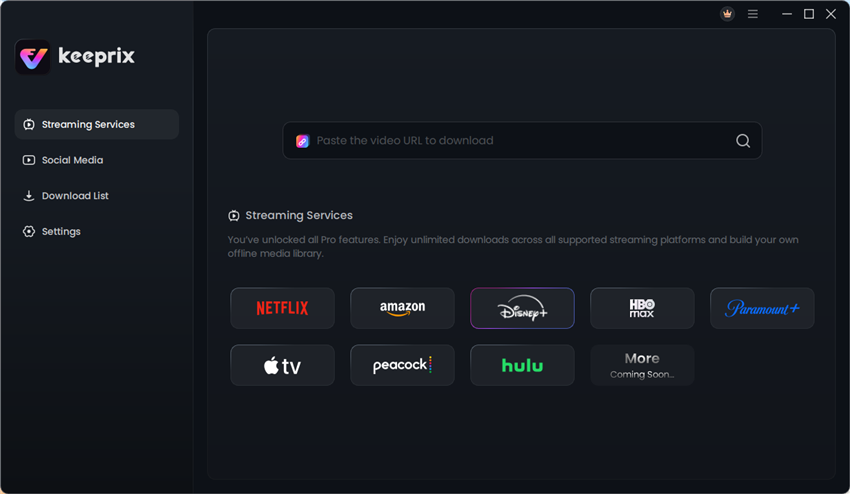
The interface shown is an example. Available controls can change between versions.
Step 2: Find Inside Out 2 and Check the Available Settings
Open Inside Out 2 and wait for Keeprix to detect the supported video information.
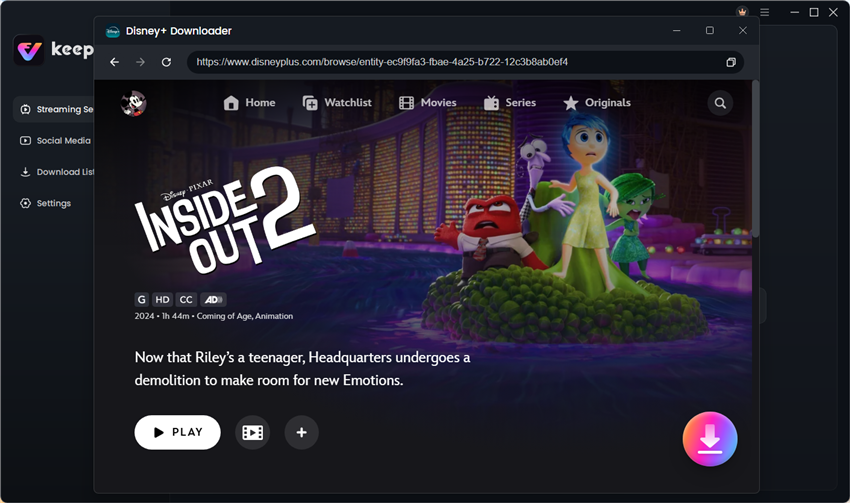
Step 3: Download and Verify the File
Review the settings offered for the detected source, including:
- Video resolution
- MP4 or MKV format
- Available audio tracks
- Available subtitles
- Output folder
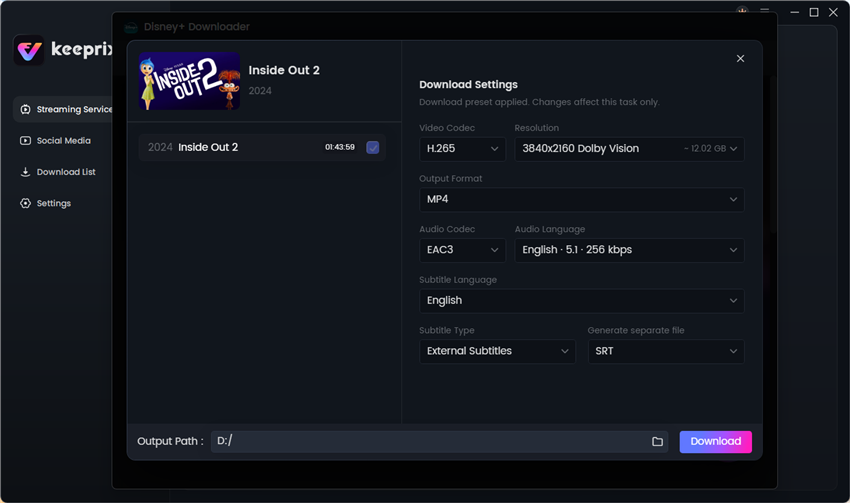
Start the task and wait until the download is complete.
Open the output folder and play the finished file.
Check the picture, sound and subtitles before relying on the file for a trip or extended offline use.
A local file works differently from a Disney+ app-managed download and does not use the Disney+ app’s periodic download check-in.
Only save content that you are authorized to access and store.
Keeprix does not provide a Disney+ membership and does not restore a movie that is unavailable to your account.
Why Is the Inside Out 2 Download Button Missing?
If you cannot find the Disney+ Download icon for Inside Out 2, check these points first:
- Computer or browser: Disney+ does not offer official downloads on Windows or Mac. Switching browsers does not add the feature.
- Plan: confirm that your Disney+ subscription includes downloads in your region.
- Title: check whether Inside Out 2 is available to your account and currently supports offline viewing.
- Interrupted download: update the Disney+ app and check free storage and your internet connection.
If you have another supported mobile device, use the Disney+ app on that device.
Official Disney+ downloads are not standard movie files that can simply be copied between devices.
Frequently Asked Questions
Q1: Can I download Inside Out 2 on a laptop?
Disney+ does not provide an official Windows or Mac download option.
Keeprix provides a separate local-file workflow for supported Disney+ content that you can access. Test compatibility using the free Disney+ allowance before upgrading.
Q2: Can I download Inside Out 2 without Disney+ access?
No.
The methods in this guide require legitimate access to the movie.
Keeprix’s free trial covers the software’s download allowance, not a Disney+ subscription or unrestricted free access to Inside Out 2.
Q3: Does a Disney+ download always expire after 48 hours?
Do not assume a universal 48-hour rule.
Disney+ requires an eligible active subscription and periodic internet reconnection. Individual titles can have shorter availability.
Check the current status shown inside the Disney+ app.
Q4: Can I put Inside Out 2 on a USB drive?
An official Disney+ download cannot be exported as a normal video file.
An authorized local MP4 or MKV file can be copied to your own storage. Check the USB drive’s free space and the playback device’s supported formats first.
Q5: Will Keeprix save Inside Out 2 in 4K?
Keeprix Disney Plus Downloader supports up to 4K when the source and technical availability allow it.
Check the settings detected for your account and title instead of assuming a fixed resolution.
Final Thoughts
Choose the device first.
The official Disney+ app is the simplest option for supported mobile downloads.
If your goal is offline playback on a Windows PC or Mac, or you specifically need a local MP4/MKV file, a supported desktop workflow is a different use case.
Before upgrading any software, test one accessible Disney+ video and verify the completed file on the computer and player you actually plan to use.
Download Keeprix and Test One Disney+ Video