What is the Amazon Prime Video Download Limit in 2026

The Amazon Prime Video download limit in 2026 is a maximum of 15 to 25 titles per Amazon account across all associated devices, depending on your region. Additionally, downloaded videos expire 30 days after saving them, or just 48 hours after you hit play. If you are preparing for a long trip or commute, running into a “download limit reached” error can derail your offline viewing plans.
This guide will help you understand the exact Prime Video download limit rules, troubleshoot hidden downloads across your family’s devices, and introduce a file-based alternative for true offline viewing freedom.

Amazon Prime Video Download Limit
1. Prime Video Download Rules: Account, Device, and Time Limits
Many users confuse account-wide title caps with per-device caps. The official 15 to 25 video limit applies to your entire Amazon account, not just the phone or tablet in your hand. Here is a clear breakdown of the exact Prime Video download rules for 2026:
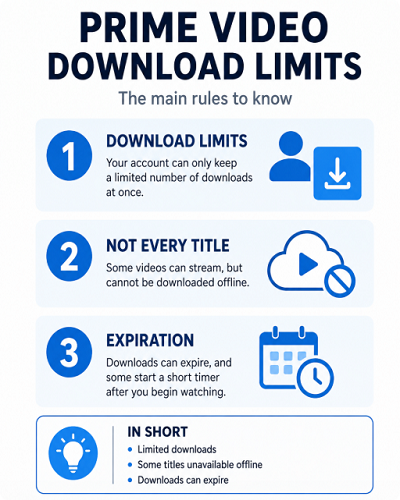
Prime Video limits
| Rule Type | Limit Details |
| Account-Wide Limit | 15 to 25 titles total across all devices linked to the account (varies by region). |
| Per-Device Limit | No specific per-device cap, but the account-wide cap applies globally. |
| Simultaneous Device Limit | A single title can typically only be downloaded to 2 devices at the same time. |
| Time Limit (Standard) | 30 days to start watching; 48 hours to finish once playback begins. |
| Rentals | Usually 30 days to start watching; 48 hours to finish once started. |
| Purchased Videos | Generally can be downloaded to 4 compatible devices for offline viewing. |
Understanding these exact caps is crucial if you share your account with others, as their viewing habits directly impact what you can save to your own device.
2. How to Fix the ‘Download Limit Reached’ Error
Why are you seeing a “download limit reached” error when your phone has zero saved movies? This frustrating issue usually happens because the 15 to 25 title limit is account-wide. If other family members share your Amazon Prime account, their downloads on tablets, phones, or smart TVs are filling up your available slots. Juggling or deleting downloads across multiple shared devices can be incredibly annoying when you are just trying to prepare for personal travel.
Here is how to find and clear hidden downloads to free up space:
- Open the Prime Video app or website and log into your account.
- Navigate to Account & Settings and select the Your Devices
- Review the list of registered devices to see where family members might be saving content. Tip: Look at the “Registered On” date or the specific device name (such as “John’s 2019 Fire Tablet”) to easily distinguish between currently active family devices and old, forgotten ones that are safe to deregister.
- Ask family members to open their Prime Video app, go to their Downloads tab, and delete videos they no longer need.
- If you cannot access the specific device, you can deregister the device from your account settings, which will automatically wipe its downloaded content.
(If you are running into playback issues beyond download caps, you may also need to check how to fix Amazon Prime Video not working on TV.)
3. A Flexible Alternative: Move from App-Only Viewing to Local Files
If you want to move from app-only viewing to file-based freedom, Keeprix Video Downloader offers a practical desktop alternative. Instead of juggling a 15-25 title cap across 2 devices or worrying about the 48-hour playback timer, Keeprix helps you save accessible Prime Video content directly to your Windows or Mac computer for personal offline use.
Note that the activated version removes its own trial download quota so you can continue saving videos uninterrupted; it does not alter Amazon’s underlying account restrictions. By turning accessible videos into flexible local files using the Keeprix Prime Downloader, you can watch on the screen you actually use without fearing sudden expiration.

Keeprix Prime Downloader
- Download streaming videos on Windows & Mac.
- Free download 1 video from each platform.
- Support downloading from Netflix, Disney, and more.
- Batch download prime video and movies.
Steps to Watch Amazon Prime Videos Offline with Keeprix:
Step 1. Download and install Keeprix Video Downloader.Open the desktop app and use the built-in browser to log into your Prime Video account.
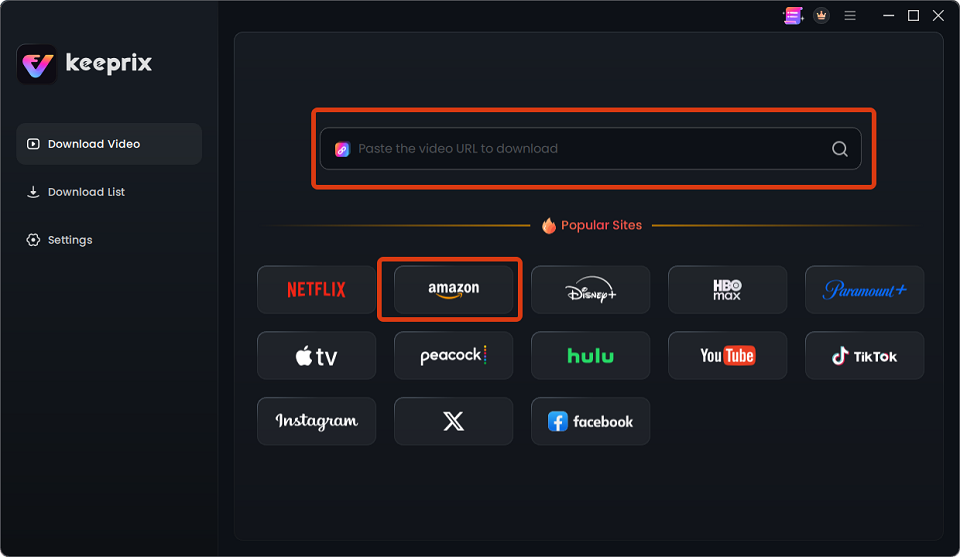
Choose Amazon Prime
Step 2. Select the accessible movies or episodes you want to save.
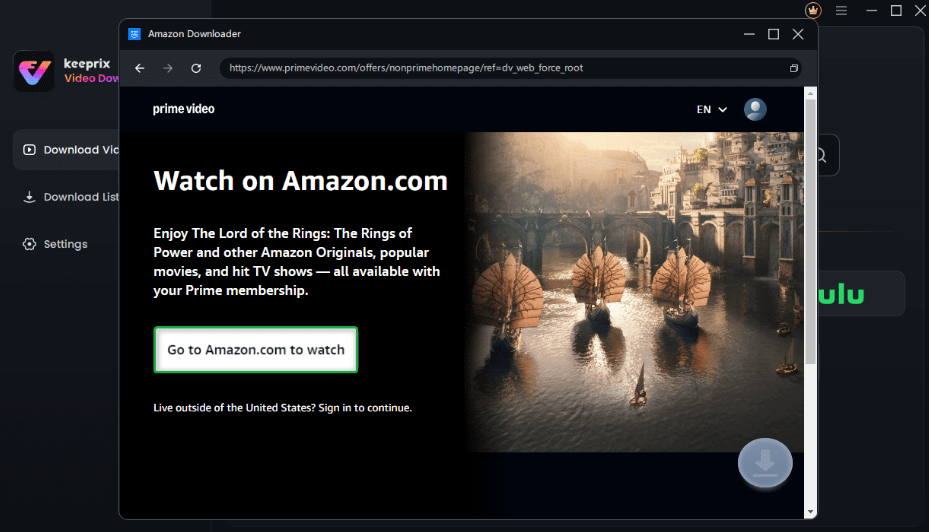
Click on Go to Amazon to Watch Button
Step 3. Choose your preferred output format (MP4 or MKV) and retain your desired audio and subtitle tracks.Then, click “Download.”
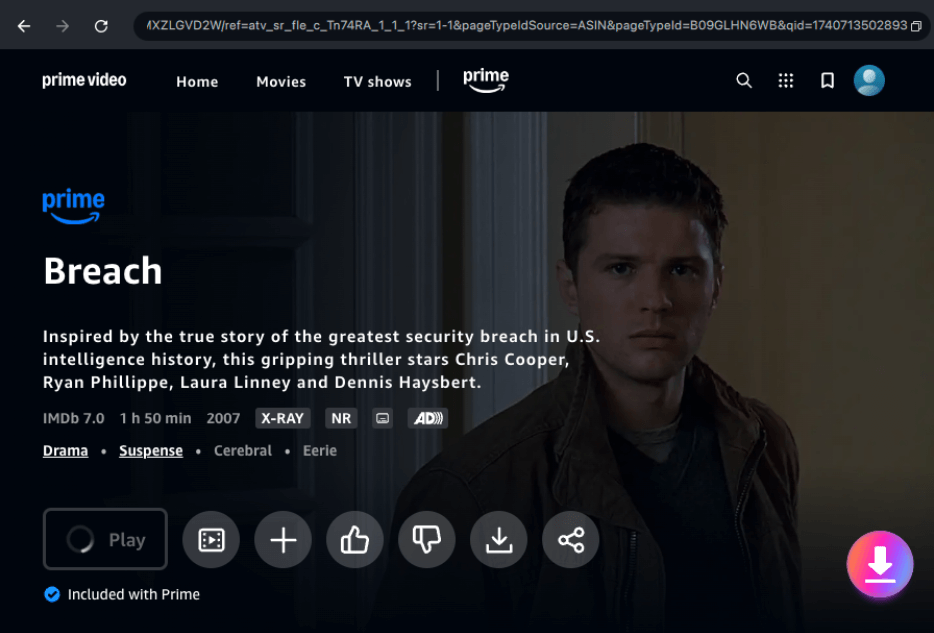
Click the Download Icon
Step 4. A settings window will open. Select the video Resolution, Audio, Subtitle, and Subtitle Type from here. Choose the “Output Path” to save the file and click “Download.”
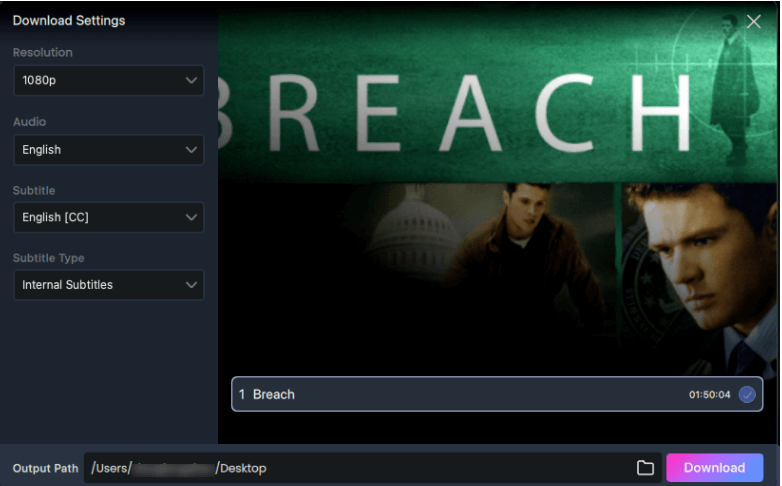
Confirm Download in Settings
Step 5. Wait for the download to complete. Then, click “Download List” from the left to access the saved video.
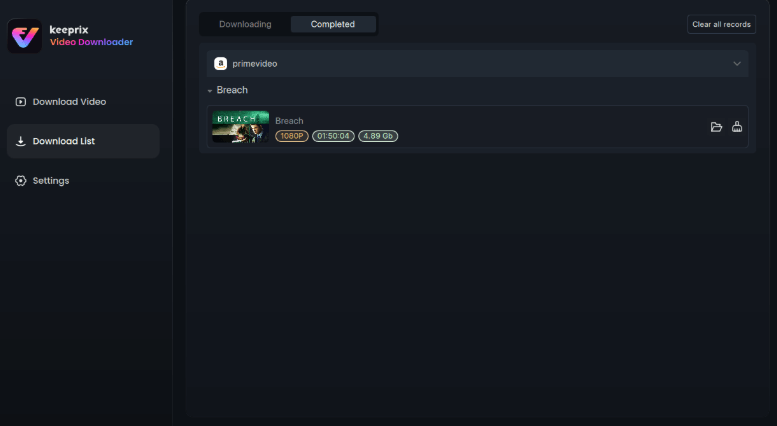
Succeed in Download
FAQs About Prime Video Limits
Q1: Can you download rented movies on Amazon Prime?
Yes, you can download rented movies, but they follow similar strict timers. You typically have 30 days to start watching the rental and 48 hours to finish it once playback begins.
Q2: Is the Prime Video download limit per device or per account?
The total storage limit is strictly per account. If your iPad has 20 videos and your Android phone has 5, your entire account limit is full. You will be blocked from downloading anything on your Windows laptop, regardless of how much empty hard drive space it has.
Q3: Can I save downloads directly to an SD card?
Officially, the Prime Video Android and Fire tablet apps allow you to set an internal SD card as your download location in the app’s settings. However, you cannot pull that SD card out and plug it into a computer or TV to watch the files; they are heavily encrypted. You need a tool like Keeprix to generate standard MP4s for portable USB storage.
Q4: What happens to downloaded videos if my Prime membership ends?
If your Prime membership expires or you cancel your subscription, any downloaded titles included with Prime will instantly lose their license validation. They will refuse to play, even if your device is entirely offline.
Q5: Does the limit change depending on what device I am using?
No. The core rules apply universally. Whether you are using an iPhone, an Android tablet, a Windows 11 laptop, a MacBook, or a Fire tablet, every single device shares the exact same account-wide 15-25 title cap and the same-title rules.
Conclusion
If you want to stop worrying about rigid countdowns and cross-device caps, the best approach is to get your offline watchlist ready before you leave using Keeprix Video Downloader. By using Keeprix to save your accessible videos as flexible MP4 or MKV files, you can build a stress-free local media library and watch your favorite movies entirely on your own terms.
Keeprix Video Downloader
Download streaming videos from hot platforms without restrictions. Enjoy seamless offline watching on Windows and Mac computers.