How to Fix Prime Video Not Working on Firestick

The quickest and most common way to fix Prime Video when it stops working on your Firestick is to clear the app’s cache and restart your device. Smart TV apps store temporary data to load faster, but when these files become corrupted or overloaded, the app can freeze or fail to load completely.
Here is how to apply the immediate fix using standard Fire OS menus:
- Navigate to Settings on your Firestick home screen.
- Select Applications.
- Choose Manage Installed Applications.
- Scroll down and select Prime Video.
- Click Clear Cache (do not click “Clear Data” yet, as this keeps you logged in).
Once the cache is cleared, the immediate second step is to restart Firestick. Unplug the device directly from the power outlet or TV, wait for 30 seconds, and plug it back in. This clears the system memory and gives the Prime Video app a fresh start.
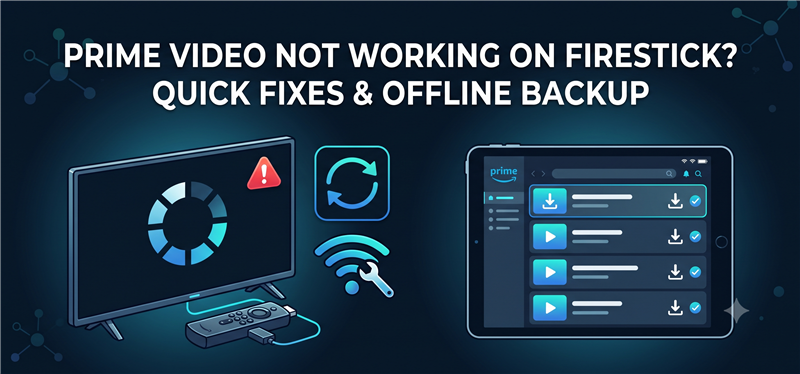
1. Diagnosing Common Prime Video Errors on Fire OS
If a simple cache clear doesn’t work, it helps to understand what is going wrong behind the scenes. Prime Video errors on a Firestick usually present themselves in three specific ways, and they aren’t always your fault or tied to your internet connection.
Black Screen on Launch
When you select a show and the screen goes completely black, this is typically caused by an HDMI handshake issue between your Firestick and the TV, or deeply corrupted app data preventing the video player from loading.
Continuous Buffering
It is easy to blame your home Wi-Fi for buffering, but that is often not the full story. Constant buffering or spinning circles can be triggered by Amazon server outages in your region, or specific Fire OS bugs struggling to process the stream data efficiently.
App Crashing to Home Screen
If the Prime Video app suddenly shuts down and kicks you back to the Firestick home screen, the device has likely run out of available memory. Memory leaks in older app versions, or running an outdated Fire OS version, will force the system to close the app unexpectedly to prevent the entire Firestick from crashing.
2. Deep Cleaning and Updating the App
When diagnostic symptoms point to deeper software issues, you will need to apply a more thorough cleaning process. Follow these numbered steps to reset the Prime Video app and ensure your device firmware is up to date.
- Clear App Data: Go to Settings > Applications > Manage Installed Applications > Prime Video and select Clear Data. Warning: Unlike clearing the cache, clearing data resets the app completely. You will need to have your Amazon login credentials handy to sign back in.
- Check for Fire OS Updates: An outdated operating system can cause compatibility issues with streaming apps. Navigate to Settings > My Fire TV > About and click Check for Updates. If an update is available, install it and let the device restart.
- Uninstall and Reinstall Prime Video: If your specific Fire OS version allows it, returning to the Manage Installed Applications menu to uninstall Prime Video, then downloading a fresh version from the Appstore, can resolve stubborn bugs. Note that on some Firestick models, Prime Video is a core system app and cannot be uninstalled.
3. Why Device Fixes Sometimes Aren’t Enough
You may find yourself in a highly frustrating situation where you have cleared the cache, updated the firmware, and confirmed your Wi-Fi is strong—yet Prime Video still buffers, crashes, or refuses to load.
This happens because smart TV apps are heavily dependent on perfect network conditions and constant, uninterrupted communication with remote servers. If the Firestick firmware has a lingering bug, or Amazon’s servers are experiencing regional throttling, you are effectively locked out of your content. App-only streaming leaves you completely stranded when the software refuses to cooperate.
When standard device troubleshooting consistently fails, it is time to transition your mindset from “I must fix this TV app right now” to “I need a reliable backup plan so I can actually watch my show today.” Knowing how to download Amazon Prime videos to a local file gives you total control over your viewing experience when the smart TV app lets you down.
4. The Frustration-Free Fallback: Watch Offline with Keeprix
When the Firestick app is chronically unreliable, moving to a file-based workflow is the best way to guarantee uninterrupted viewing. Keeprix Video Downloader is a desktop video downloader for Windows and Mac that helps you save accessible Prime Video shows as local MP4 or MKV files.
To be clear: Keeprix is a computer program, not an app you install on your Firestick. It doesn’t magically fix a broken Fire OS. Instead, it offers a “Stream to File” alternative. By downloading videos up to 1080p (depending on source quality) directly to your laptop, you completely remove your dependency on the buggy TV app and unstable server connections.

Download Amazon Prime Videos
- Download Amazon videos on Windows & Mac.
- Save Amazon videos as local MP4/MKV files.
- Batch download streaming videos and TV series.
- Watch videos offline, no ads, no interruption.
Here is how to use Keeprix as your offline viewing fallback:
Step 1: Download and install Keeprix to your computer. Launch the software on your Windows or Mac device and choose Amzon platform.
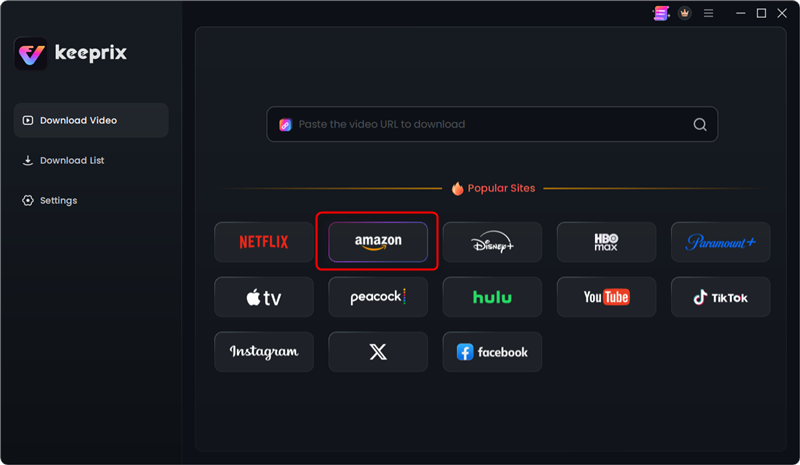
Step 2: Use the built-in browser to sign into Prime Video and navigate to the show or movie you want to watch. Click the Download button.
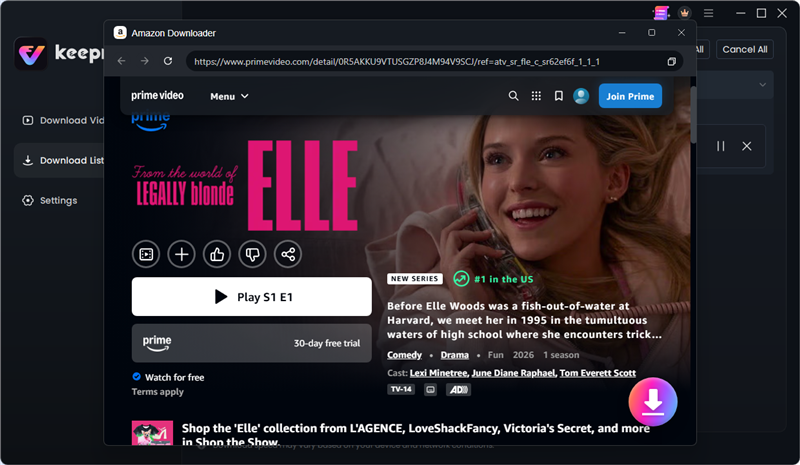
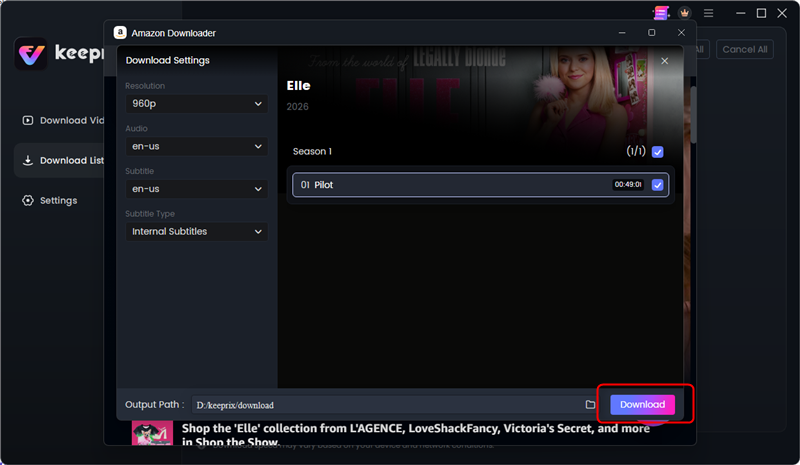
Step 3: Select your preferred format, preserve the audio tracks and subtitles you need, then start the download. Keeprix will save the file locally.
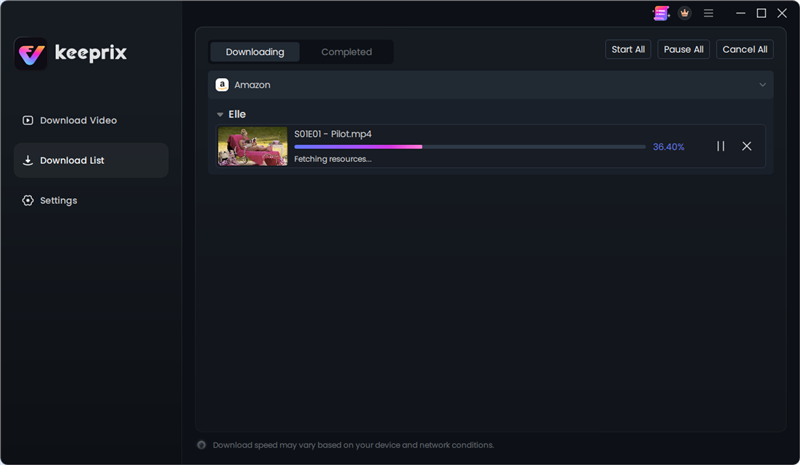
Step 4: Then your streaming videos will be downloaded as local MP4 or MKV files.
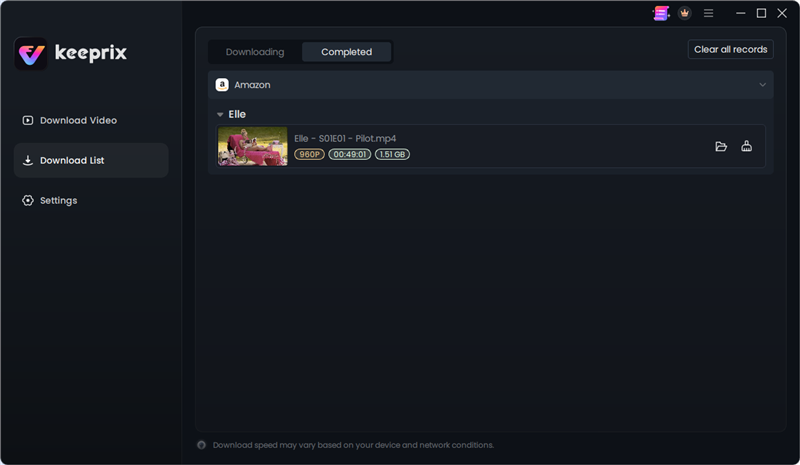
Step 5: After downloading, you can manage your local files and build an offline library.
5. The Last Resort: Factory Resetting
If multiple streaming apps are failing – not just Prime Video and the offline desktop backup method isn’t suitable for your current needs, you may need to perform a factory reset.
Warning: A factory reset should be your absolute last resort. This process wipes your Firestick clean. It deletes all your downloaded apps, erases your personalized preferences, and clears every single login credential. You will have to set up your TV as if you just bought it out of the box.
If you are prepared for the hassle of setting everything up again, here is how to reset the device:
- Navigate to Settings > My Fire TV.
- Scroll down and select Reset to Factory Defaults.
- Confirm the reset and wait for the Firestick to reboot.
Because of the massive inconvenience and data loss involved, always exhaust simple cache clears, updates, and offline viewing alternatives before triggering a full factory reset.
6. Frequently Asked Questions
Why is Prime Video showing a black screen on my Firestick?
This is usually caused by an HDMI handshake issue between the Firestick and your TV, or by corrupted app cache data. Unplugging the Firestick for 30 seconds to force a restart usually resolves it.
How do I clear the cache for Prime Video on Firestick?
Navigate to Settings, select Applications, then Manage Installed Applications. Find Prime Video in the list and click Clear Cache to delete temporary files without losing your login details.
Why does Prime Video keep crashing on Fire OS?
The app likely keeps crashing due to an outdated Fire OS firmware version or a memory leak. Check for system updates under Settings > My Fire TV > About, or uninstall and reinstall the app if permitted.
How do I restart or reset the Prime Video app?
To restart the app, go to Manage Installed Applications, select Prime Video, and click Force Stop, then launch it again. To reset it entirely, click Clear Data—but remember you will have to log back in.
Can I watch Prime Video without the Firestick app?
Yes. You can watch via a web browser, use a different smart TV built-in app, or use a desktop tool like Keeprix on Windows or Mac to save your accessible videos as local files for offline playback via a direct HDMI connection.
Is a factory reset necessary to fix Prime Video on Firestick?
No, it should only be a final resort. A factory reset wipes all your apps and logins. It should only be done if clearing the cache, updating the OS, and restarting the device all fail to fix the issue.
Final Thoughts
If you find that the smart TV app is chronically unreliable, or you simply want to stop worrying about constant buffering and unexpected app crashes, preparing your watchlist ahead of time is the best strategy. Moving to a file-based workflow with Keeprix on your Windows or Mac allows you to save your accessible Prime Video shows as local files, guaranteeing a frustration-free, uninterrupted viewing experience on the screen you actually use.
Keeprix Video Downloader
Download streaming videos from Amazon and more. Enjoy seamless offline watching on Windows and Mac .