How to Download Amazon Prime Videos on PC & Mac (2026 Guide)

The fastest way to download Amazon Prime movies and TV shows for a commute or short trip is by using the official Prime Video app. Amazon allows offline downloading on iOS, Android, Windows 10/11, and Mac.
Before you begin, run through this quick checklist:
- Active Subscription: You must be signed in with an active Amazon Prime or Prime Video subscription.
- App Installation: Downloads are only available inside the official app, not through your web browser.
- Storage Space: Ensure your phone or laptop has enough internal storage to hold the video files.
- Title Availability: Not all movies on Prime are available for download due to licensing restrictions. Look for the download icon next to the title.
How to Download Amazon Prime Videos
Note: If you want to understand why browser downloads are blocked and how platform limitations work, you can read our guide on how to download DRM protected videos.
Method 1: How to Download Amazon Prime Videos on Mobile Devices
Before you start, make sure the title has a Download button on its detail page. If the button does not appear, the movie or episode may not be available for offline download in your region or under your current subscription.
Streaming is convenient, but what if you’re traveling, commuting, or facing a weak internet connection? With Amazon Prime Video, you can download your favorite movies and shows and watch them offline.
Here are the steps to download Amazon Prime videos on mobile (Android & iPhone):
Step 1. Download the Amazon Prime App on your phone. Open the app and sign in with your Amazon Prime account.
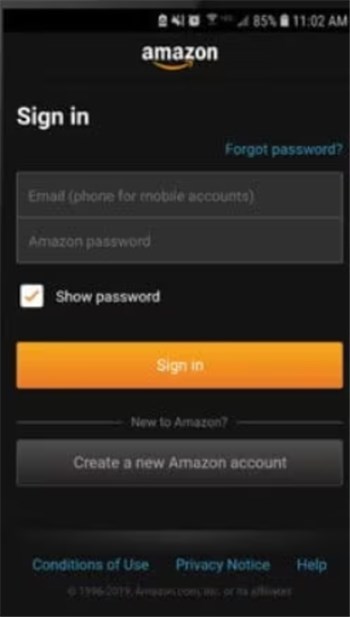
Sign in Amazon Prime Account
Step 2. Use the search bar to locate your desired title. Tap on a movie or series to open its details page.
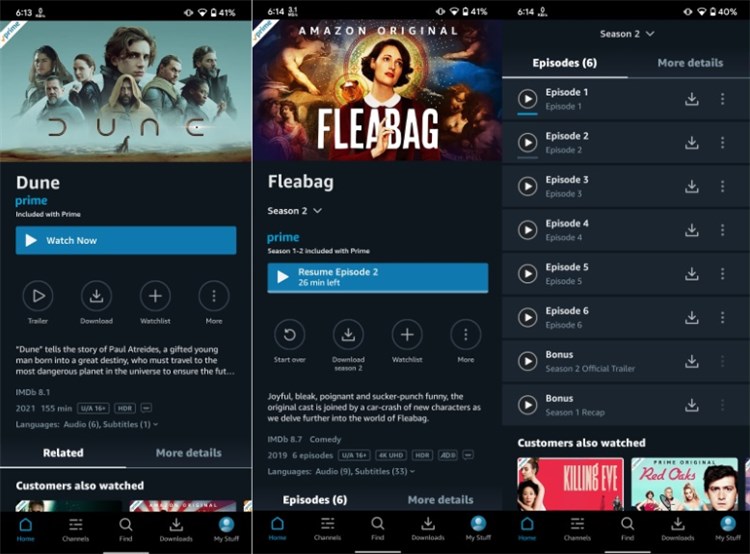
Search Content on Amazon Prime
Step 3. Click on Download button to save it. If a series, choose the episode or the whole season you wish to download.
Step 4. Select where you want to save it and pick your preferred video resolution—higher quality takes up more space.
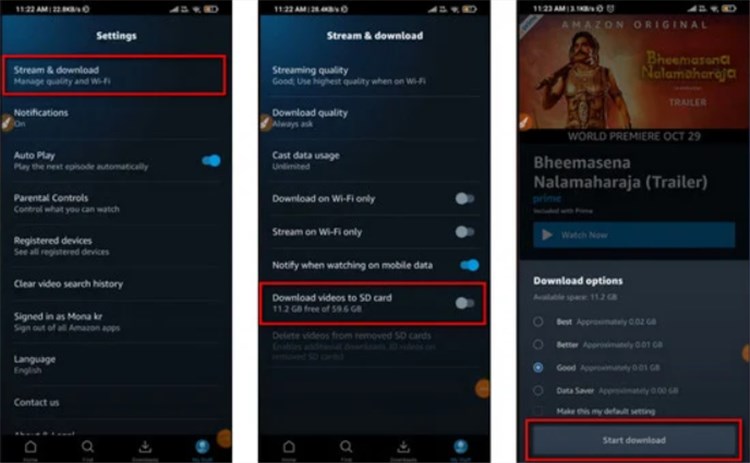
Adjust Download Settings
Step 5. Open the Downloads or My Stuff for the App. Click on the saved content to watch it anytime without the internet.
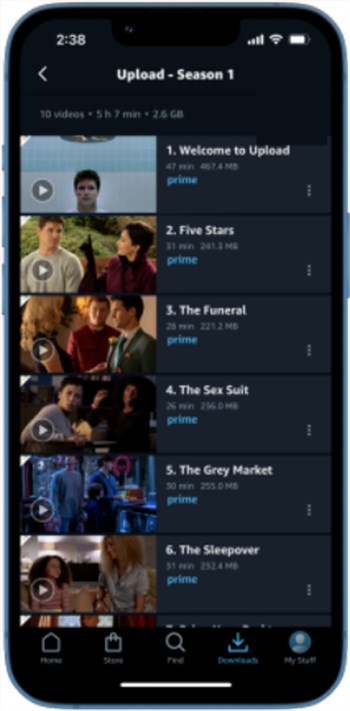
Open Download Content on Amazon Prime
Method 2: How to Download Amazon Prime Videos on Windows & Mac
Enjoying Amazon Prime Video on a bigger screen makes the experience even better. However, many users wonder if they can download Amazon videos on their Windows or Mac computers for offline viewing. While Amazon offers a download feature on mobile devices, the process on a computer isn’t the same. Whether you want to watch without interruptions, save data, or access content while traveling, this guide will help you download Amazon Prime videos on Windows and Mac easily.
Let’s explore how to download Prime videos on Mac and Windows:
Step 1. Download Prime Video and install it.
Step 2. Open the app and log in to your Amazon Prime account.
Step 3. Search for the movie or series you love and go to its detail page.
Step 4. Press the Download button to keep the video safe for offline watching.
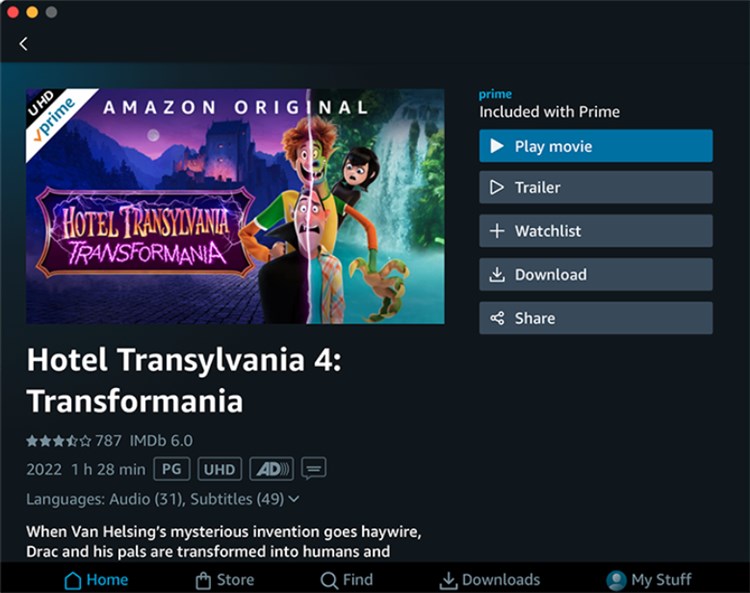
Download Prime Video on Computer
Step 5. To see your downloads, click the Downloads menu on the left panel.
Understanding Prime Video Download Limits: The 48-Hour Rule
While the official app is convenient, many users are caught off guard by Amazon’s strict expiration rules when traveling or spending long periods offline.
If you are preparing a large watchlist for a long vacation, you need to understand two critical official limits:
- The 30-Day Expiration: According to Amazon’s official help page, Prime Video downloads expire 30 days after download. If your trip lasts longer than a month, you will need to reconnect to the internet to renew the downloads.
- The 48-Hour Viewing Window: This is the rule that frustrates travelers the most. Once you press “Play” on a downloaded video, you have exactly 48 hours to finish watching it. If you start a movie in the airport and pause it to sleep on the plane, it may expire before you fly back, requiring a new internet connection to unlock it.
Additionally, videos downloaded via the Windows or Mac apps are stored in a hidden system cache. They are completely locked to the Prime Video app. This means you cannot transfer your downloaded movies to a USB flash drive, play them on a larger unsupported smart TV, or organize them in a home media server like Plex.
Imagine downloading a full season of your favorite show before an international flight, only to realize halfway across the ocean that you started episode one three days ago, locking you out of the rest of the season. To avoid this, users looking for permanent offline libraries often seek out file-based alternatives.
Method 3: Save Prime Videos as MP4 Files for Flexible Offline Viewing
A 2025 survey found that 67% of travelers had experienced an expired Prime Video download mid-trip. If you are traveling internationally, heading to a poor-network environment, or simply want to organize your favorite accessible shows without worrying about the 48-hour viewing window, a local-file workflow is a much better fit.
This is where a tool like Keeprix Video Downloader becomes useful. Keeprix is a desktop application for Windows and Mac that acts as a “Stream to File” solution. It allows you to convert Amazon Prime Video to MP4 or MKV files using the streaming access you already pay for.

Keeprix Video Downloader
- Save accessible straming movies, episodes as MP4 or MKV files.
- Batch download episodes or full seasons when source supported.
- 3 Free downloads for each streaming platform like Prime.
- 100% free for all social platforms like YouTube, Instagram.
Keeprix is designed for personal offline viewing of videos you have permission to access. You must have a valid Amazon Prime or Prime Video subscription to log in and access the content. The software does not provide legal ownership of copyrighted material or bypass platform account requirements.
Here is how to use Keeprix to get flexible MP4 files:
Step 1. Free download and Log In: Launch the Keeprix desktop app on your Windows or Mac computer. Select Amazon Prime from the main menu and log in using your valid Prime account details via the built-in browser.
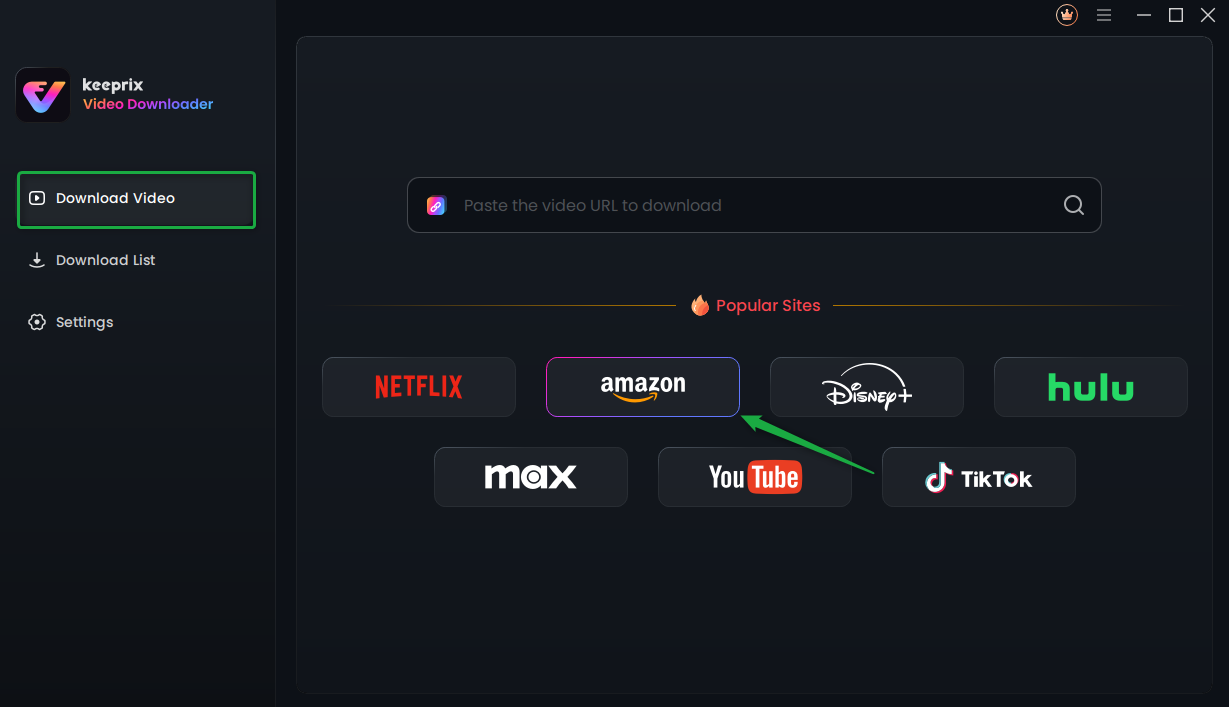
Choose Amazon Prime in Keeprix Video Downloader
Step 2. Find Your Video: Search for the video you want to download, and click on the “Download” icon at the bottom right corner to start downloading it.
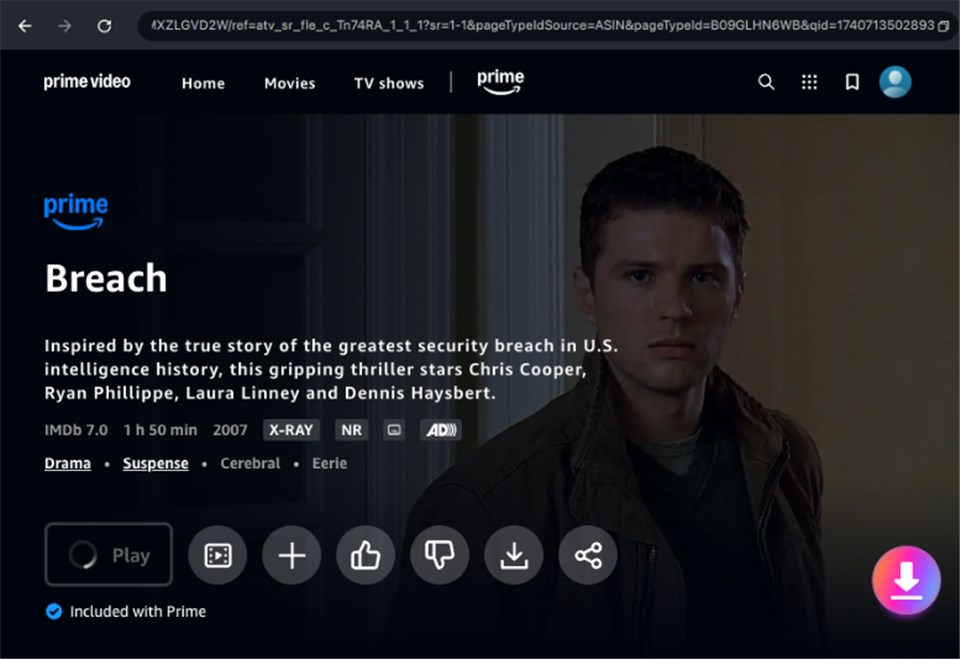
Click on Download Icon
Step 3. Choose Your Settings: Click the download icon. A prompt will appear allowing you to select your preferred format (MP4 or MKV), video quality (up to 1080p), and the specific subtitles and audio tracks you want to keep.
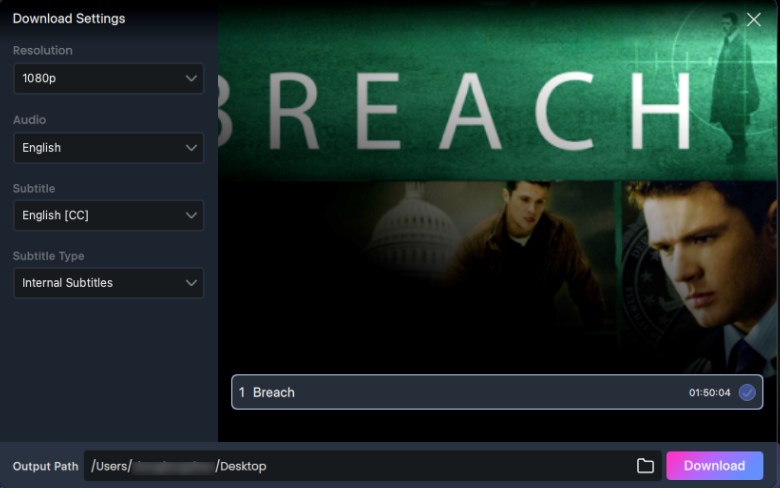
Adjust Download Settings
Step 4: Start the Download: Confirm your choices and start the process. If you are downloading a TV show, you can use the batch download feature to select an entire season at once, saving you from clicking through every episode.
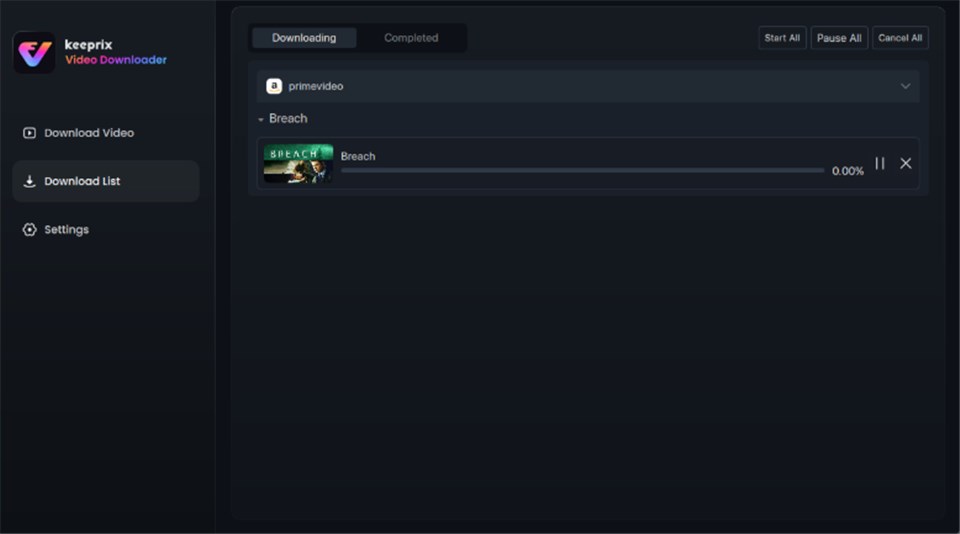
Download in Progress
Step 5: Once finished, your videos are standard local files stored directly on your computer’s hard drive. From there, you are completely free to rename them, back them up, or move them to a laptop or USB drive for your trip.
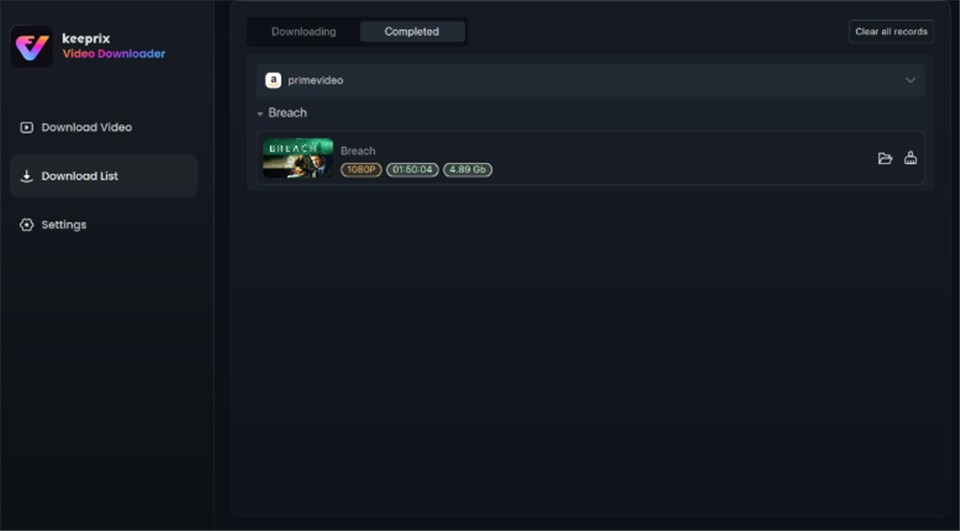
Video Successfully Downloaded
Ready to get your travel watchlist sorted? You can download the trial version of Keeprix to try saving up to 2 full videos for free and see how it fits your workflow.
Official App vs. Local MP4: Which Should You Choose?
Choosing the right method depends entirely on your offline scenario. If you aren’t sure which path fits your upcoming trip, compare the two workflows below.
|
Feature |
Official Prime Video App |
Keeprix Local MP4 Workflow |
|
Viewing Window |
48 hours after pressing play, or 30 days unwatched. |
Permanent local file for as long as you keep it. |
|
Output Format |
Hidden, encrypted cache locked to the app. |
Standard MP4 or MKV files. |
|
Device Flexibility |
Mobile devices, tablets, and specific PC/Mac apps only. |
Watch anywhere: PC, Mac, USB, Smart TVs, media players (VLC, Plex). |
|
Best For… |
Daily commutes, short domestic flights, gym workouts. |
Long international travel, poor-network environments, building personal libraries. |
|
Requirements |
Active Prime app login. |
Active Prime login and Keeprix software on desktop. |
The Verdict:
- Use the official app if you just want to download a single movie for a short train ride. It is free, built-in, and takes seconds to start.
- Use Keeprix if you are preparing for a long vacation, going camping or off-grid, or if you prefer watching your shows on a screen that doesn’t support the Prime app (like via a USB plugged into a hotel TV). File-based freedom removes the anxiety of losing your watchlist mid-trip.
FAQs About Downloading Amazon Prime Videos
Does this method work for rented Amazon movies?
Yes. You can use Keeprix to download rented videos while your rental period is still active. Once downloaded, the local file will not expire.
Can I download Amazon Prime videos to my computer?
Amazon Prime Video does not provide a native download option for Windows or Mac computers. Downloads are mainly available through the Prime Video mobile app on supported devices.
Where are Amazon Prime downloaded videos stored?
Prime Video downloads are stored inside the official app and cannot normally be accessed as standard video files. This means downloaded content cannot be moved freely to other players or devices.
Can I watch Amazon Prime downloads without internet?
Yes. Downloaded titles can be watched offline inside the Prime Video app. However, availability may depend on the title, subscription status, and Amazon’s download expiration rules.
How do I download Amazon Prime videos as MP4?
Amazon Prime Video does not officially provide MP4 exports for downloaded content. Users who need more flexible offline playback options can use tools like Keeprix Video Downloader to save videos for viewing on their preferred devices.
Can Keeprix download Amazon Prime videos on Windows and Mac?
Yes. Keeprix Video Downloader allows users to download Amazon Prime videos on Windows and Mac for more flexible offline viewing. Videos can be saved locally and played on compatible devices according to the selected quality and available source options.
Can I transfer these downloaded movies to a USB drive?
Yes. Because Keeprix saves the videos as standard MP4 or MKV files without DRM, you can easily move them to a USB flash drive, a smart TV, or a tablet.
Are the subtitles saved inside the video?
You have options. You can embed the subtitles directly into the video file, or you can save them as separate SRT files, depending on your preference.
Why can’t I download some movies on Prime?
Not all titles are available for offline viewing. This is usually due to regional licensing restrictions, account limits (such as downloading the same video on too many devices), or the specific rights Amazon holds for that title. If the download icon is missing, the movie can only be streamed.
Conclusion
For a quick commute, the Prime Video app’s 48-hour offline feature is enough. But if you want to save shows for long trips, transfer them to a USB, or build a personal offline library, try Keeprix. It downloads Prime videos directly to MP4, removing expiration limits and giving you total control over your offline viewing.