Prime Video Not Working on Roku: Fixes and Offline Backup

To quickly fix Prime Video on your Roku, try these immediate troubleshooting steps:
- Restart your system.
- Clear the Roku cache using your remote.
- Remove and reinstall the Prime Video channel.
If the app still crashes to a black screen or kicks you back to the Home menu, you’re likely facing a software conflict between Amazon and Roku. When a buggy official patch causes this, local fixes won’t work—leaving you stuck waiting for their developers to roll out an update before you can watch anything.
1. Why Does Prime Video Keep Crashing on Roku?
It’s incredibly frustrating when Prime Video works flawlessly on your phone but completely fails on your TV. The root cause usually comes down to a software conflict.
Because Roku runs on a highly specialized operating system, it is uniquely vulnerable to firmware mismatches. When a recent Amazon app update fails to sync with Roku’s current firmware, the two systems deadlock. This communication failure is exactly why you get stuck on a black screen or kicked back to the Home menu—even though your account works perfectly everywhere else.
2. The Standard Roku Troubleshooting Workflow
Before assuming the app is permanently broken by a software update, you should properly execute the standard troubleshooting workflow. Here are the exact steps to clear out temporary glitches and corrupted app data:
- Perform a System Restart: Navigate to your Roku Home screen. Go to Settings > System > Power > System Restart. Allow the device to fully reboot.
- Clear the Roku Cache: Using your Roku remote, press the Home button 5 times, press the Up arrow 1 time, press Rewind 2 times, and press Fast Forward 2 times. Your screen will freeze for a moment before the device forcefully clears its cache and restarts.
- Remove and Reinstall the Channel: Highlight the Prime Video app on your Home screen. Press the asterisk (*) button on your remote and select “Remove channel.” Restart your Roku system again, then go to the Streaming Store to search for and reinstall the Prime Video app.
3. When Official Fixes Fail: Waiting on an App Patch
Sometimes, even after restarting and clearing caches, Prime Video remains dead. When this happens, the root cause isn’t your device—it’s a broken official software patch.
You are completely at their mercy, often stuck waiting weeks for Amazon and Roku to release a fix. This is a massive pain point, especially when you’re suddenly locked out of the movies you rented for the weekend.
Since native TV apps are entirely out of your control, the smartest workaround is to download Amazon Prime Video videos offline. By moving your content to local files, you can get your movies back on the big screen without waiting around for developers.
4. The Alternative: Watch Prime Video on Roku via Local File
If Prime Video is completely broken on your Roku but works flawlessly on your laptop, Keeprix Video Downloader is your ultimate workaround. Available for Windows and Mac, Keeprix lets you download your accessible Prime Video titles directly as standard MP4 or MKV files.
While it won’t magically fix Roku’s buggy firmware, it empowers you to bypass the broken app entirely. Simply save your movies locally and play them right on your big screen—completely independent of unreliable TV software.

Download Amazon Prime Videos
- Download Amazon videos on Windows & Mac.
- Save Amazon videos as local MP4/MKV files.
- Batch download streaming videos and TV series.
- Watch videos offline, no ads, no interruption.
Here is how to use Keeprix as your offline viewing fallback:
Step 1: Download and install Keeprix to your computer. Launch the software on your Windows or Mac device and choose Amzon platform.
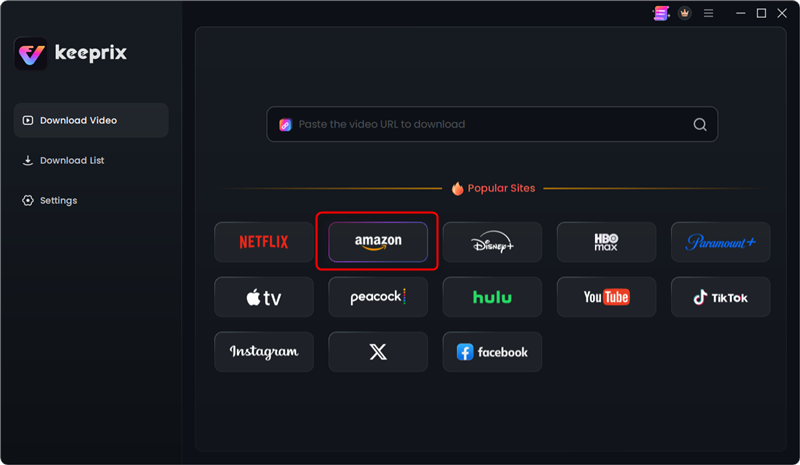
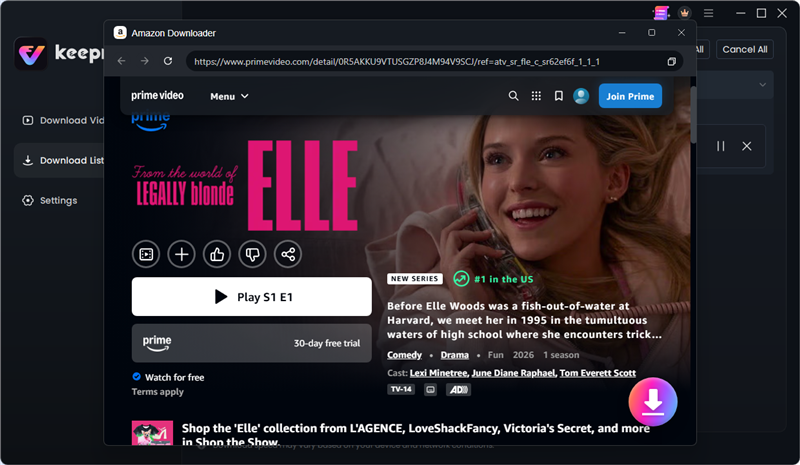
Step 2: Use the built-in browser to sign into Prime Video and navigate to the show or movie you want to watch. Click the Download button.
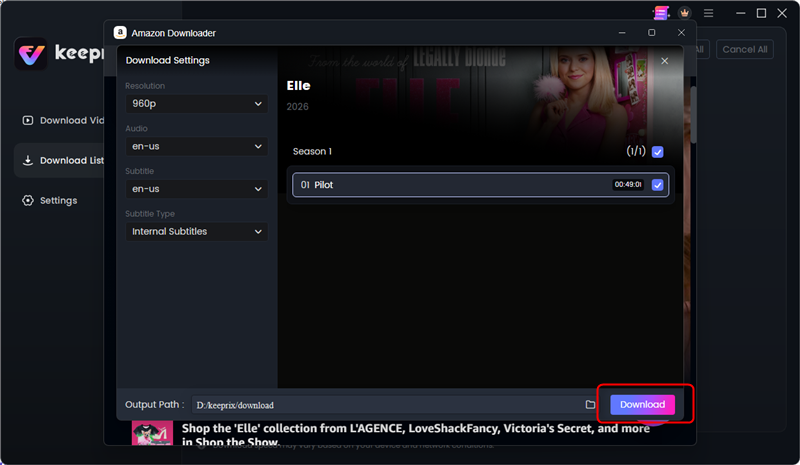
Step 3: Select your preferred format, preserve the audio tracks and subtitles you need, then start the download. Keeprix will save the file locally.
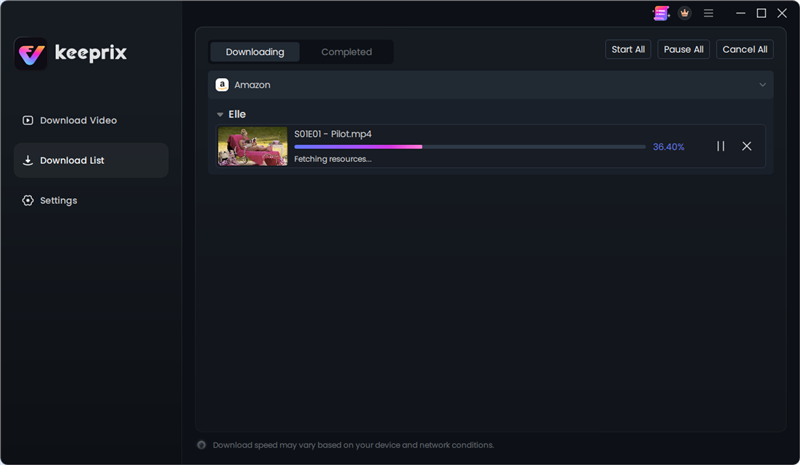
Step 4: Then your streaming videos will be downloaded as local MP4 or MKV files.
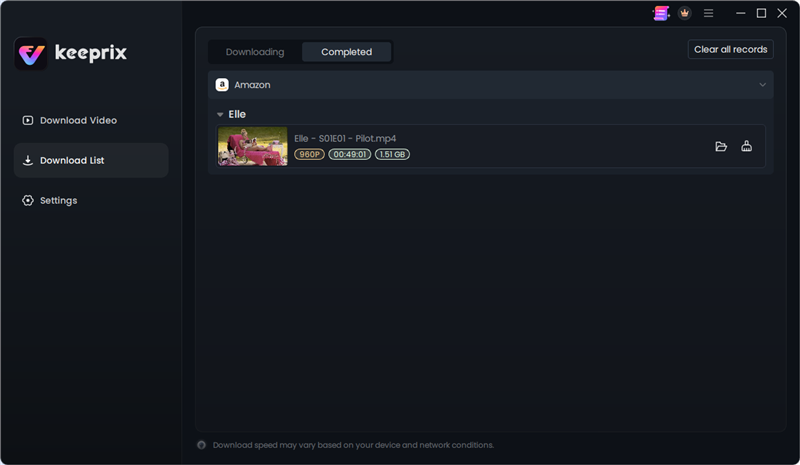
Step 5: After downloading, you can manage your local files and build an offline library.
The Keeprix trial version allows you to save up to 2 full videos, providing an immediate and practical solution for tonight’s movie night.
How to Play Saved MP4/MKV Files on Roku Using USB
Once you have saved your movie and successfully converted your Amazon Prime Video To MP4 using your computer, you can easily play it on your Roku TV using a standard USB flash drive.
USB Format Compatibility Checklist:
Ensure your USB drive is formatted to a Roku-supported file system: FAT16, FAT32, NTFS, EXT2, or EXT3.
Confirm your Roku device has a physical USB port (most Roku TVs and Roku Ultra models do).
Steps to Play Your Saved File:
1. Transfer the file: Plug your formatted USB drive into your computer, copy the saved MP4 or MKV file onto it, and safely eject the drive.
2. Connect to Roku: Plug the USB drive into the USB port on the back or side of your Roku TV.
3. Open Roku Media Player: Navigate to your Roku Home screen. If you do not already have it, search for the free “Roku Media Player” channel and add it.
4. Play the movie: Launch Roku Media Player, select the “Video” icon, choose your USB drive, navigate to your saved file, and press play. You are now watching your content natively on your TV, avoiding the broken Prime Video channel altogether.
Frequently Asked Questions
Why does Prime Video kick me back to the Roku home screen?
This happens when a poorly optimized Amazon app update crashes upon loading. The Roku operating system forcefully closes the unresponsive app and kicks you back to the Home screen to prevent the entire device from freezing.
How do I clear the cache for Prime Video on a Roku TV?
You can clear the entire Roku system cache by quickly pressing the Home button 5 times, the Up arrow 1 time, Rewind 2 times, and Fast Forward 2 times on your remote. This clears temporary data for Prime Video and all other channels.
Why does Prime Video work on my laptop but not on my Roku?
Your laptop uses standard web browsers and desktop operating systems, while Roku uses a highly specialized platform. If Amazon releases a buggy software update specifically for the Roku platform, the app will break on your TV but continue playing perfectly on your PC or Mac.
Do I need to update my Roku to fix Prime Video?
Yes, keeping your Roku updated is recommended. Go to Settings > System > System update > Check now. If the crashing is caused by outdated firmware, this will fix it. However, if the bug is on Amazon’s end, you will simply have to wait for a new patch.
How can I watch Prime Video on Roku using a USB drive?
You can use desktop software to save your accessible Prime Video titles as an MP4 or MKV file on your computer. Transfer that file to a compatible USB drive, plug it into your Roku, and play it using the free Roku Media Player channel.
Is Amazon Prime down or is it just my Roku device?
If Prime Video is loading fine on your smartphone or computer but fails on your Roku, the Amazon streaming service is not down. The issue is strictly isolated to the Roku app itself.
How do I reinstall the Prime Video channel on Roku?
Highlight the Prime Video app on your Home screen, press the asterisk (*) button on your remote, and select “Remove channel.” Restart your Roku device, navigate to the Streaming Store, and search for Prime Video to reinstall it.
Final Thoughts
By using Keeprix to save your accessible videos as local MP4 or MKV files on your PC or Mac, you get a practical, frustration-free workaround that lets you bypass the official app entirely. Try the Keeprix free trial to save your movie and watch it tonight via the Roku Media Player.
Keeprix Video Downloader
Download streaming videos from Amazon and more. Enjoy seamless offline watching on Windows and Mac .