5 Ways to Fix Apple TV Lagging on All Devices

You settle in for movie night only to watch your Apple TV+ buffer endlessly. What you hoped was smooth streaming, but instead, you are stuck staring at a loading circle. If you are wondering why Apple TV+ is so slow, you ain’t alone. Many users face lagging, freezing, or playback delays across devices.
Don’t worry, you don’t have to live with it. There are quick fixes that can make Apple TV+ run like new again. In this guide, we’ll walk you through five effective ways to fix Apple TV lag on all devices, so you can get back to streaming without interruptions.

Why Is Apple TV+ So Slow
You may also like: How to fix Apple TV+ not working
Why Is Apple TV+ So Slow?
When your favorite shows start taking forever to load, several factors can be to blame for this dilemma. Here are the main reasons why Apple TV+ is so slow:
- Weak Internet: Streaming platforms need strong and consistent bandwidth. An unstable Wi-Fi or network congestion can make videos buffer endlessly or drop quality while playing.
Outdated Software: Your Apple TV app or device has likely not been updated for a while. Outdated firmware struggles to handle the latest streaming protocols. - Overloaded Cache: Over time, temporary app files build up. This data slows down performance and makes the Apple TV+ app respond sluggishly.
- Background Noise: Multiple devices using the same network can eat up bandwidth. Similarly, running too many apps in the background leaves less processing power for Apple TV+.
- Apple Server Issues: Sometimes, the problem is not on your end. When Apple’s servers experience high traffic or maintenance, streaming speed and quality may drop.
Fix Apple TV Lagging on Mobile & Computer
With the main reasons why Apple TV+ is so slow known, below are five practical ways to fix its performance on your mobile and computer:
Method 1. Check Your Network Connection
A weak internet is the most common reason for Apple TV+ running slowly. As a matter of fact, at least 5 Mbps for HD streaming and 25 Mbps for 4K content is a must. A way to achieve that speed is to switch networks to a stronger one. Removing all other devices currently connected can also work. Here is how:
Instructions: Turn Airplane mode on and off to see if it helps. You can also try restarting the router. Try switching between SIM data and Wi-Fi to see which works best on the mobile.
Method 2. Clear Cache on Your Device
Over time, cached data can pile up and slow down your apps, including Apple TV+. These temporary files are meant to speed up loading. But when they become too large or outdated, they do the opposite. This is one hidden reason why Apple TV+ is so slow on Android mobile devices. To clear cache:
Instructions: Access the Apple TV app icon on the mobile and long-press it to tap App Info. Then, press Clear Data and choose to Clear Cache to complete the process.
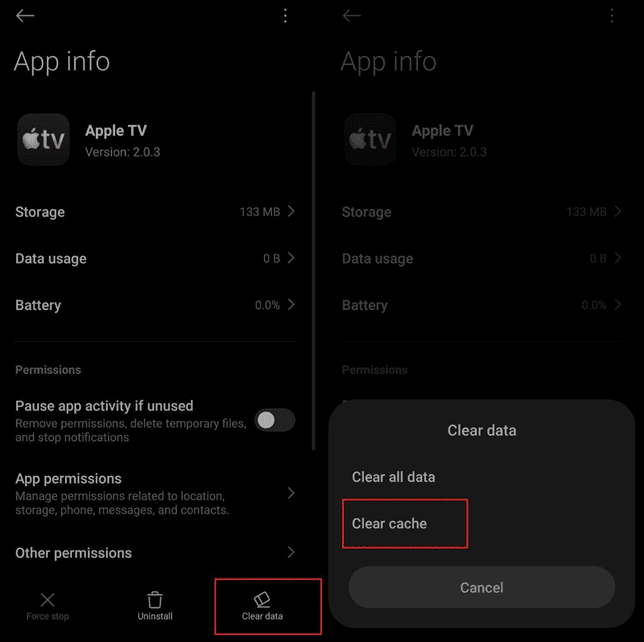
Clear Cache in Apple TV App
Method 3. Restart Your Device
Sometimes the simplest fix works best. A device reboot can clear minor glitches that cause Apple TV+ to lag or freeze. It refreshes the system and resets temporary memory. The following are steps for each device:
Windows: Click the Start menu icon near the bottom left corner and choose Restart from the Power menu.
MacBook: Tap the Apple icon from the top left corner and opt for Restart from the menu to reboot the device.
Android: Long-press the Power button and select Restart from the upcoming menu to complete the process.
iPhone: At the same time, press the Side and any Volume button for the power-off slider. Use the slider to turn off the phone and use the Side key again to reboot it.
Related article: How to watch Apple TV+ videos on PC
Method 4. Update Apple TV App
Outdated apps usually run more slowly and struggle to stream content efficiently. If you have been wondering why Apple TV+ is so slow, an old version of the app could be the reason. An update using these steps will fix bugs and optimize performance across all devices:
Computer: Move to the App Store or Microsoft Store, depending on your system, and look for Apple TV. Here, click the Update button to upgrade your app.
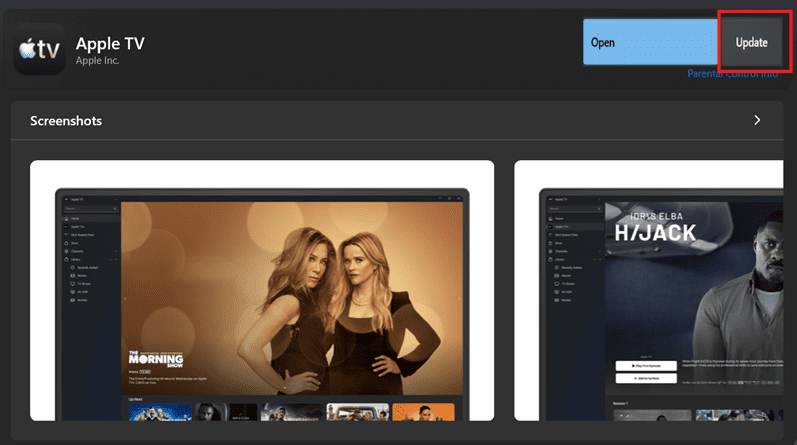
Update Apple TV App on Windows
Mobile: Get to the targeted app store and search for the Apple TV app. Once found, hit the Update button if available to get the new version.
Method 5. Download Apple TV Videos for Offline Watching
If the internet is unreliable, the best way to avoid lag is to download Apple TV+ shows and movies. This eliminates buffering altogether from the equation. Plus, your videos play instantly even without a network connection. A convenient way to do this is by using Keeprix Downloader.
It is a smart tool designed to help you download Apple TV+ content in MP4 or MKV format. With Keeprix, you can save entire seasons directly to your device in 4K quality. Moreover, it offers ten times faster downloading and multilingual subtitles.
Here is how to download Apple TV videos for offline watching with Keeprix Downloader:
Step 1. Install Keeprix Downloader on your Windows or Mac computer. Next, run the program and opt for Apple TV from the platform list.
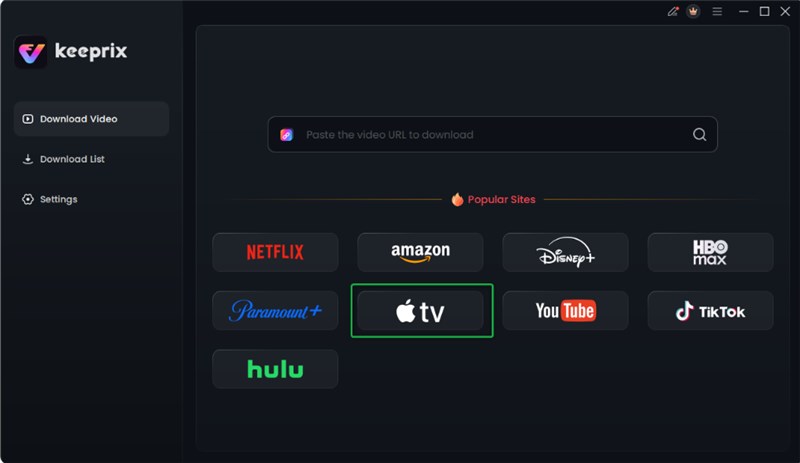
Choose Apple TV Platform
Step 2. Here, tap the Sign In option and provide your account credentials to sign in to the Apple TV.

Log in Apple TV Account
Step 3. Then, make your way to the show you wish to download and click the Download icon.
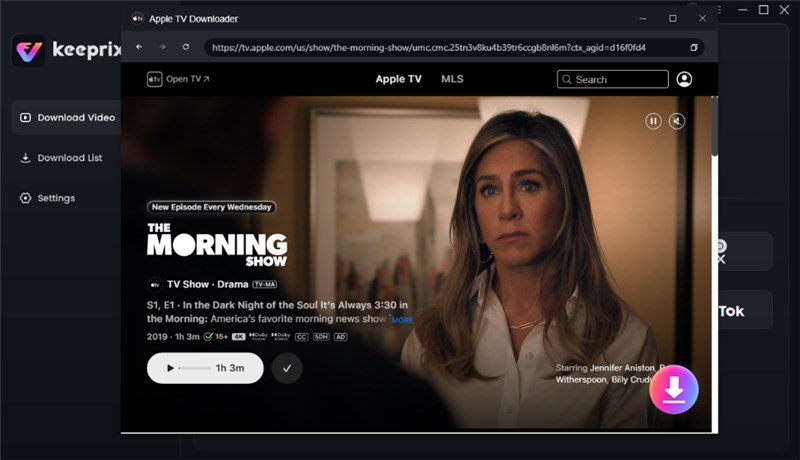
Click Download Button
Step 4. As you get to the Download Settings window, select the options for Resolution, Audio, and Subtitles to proceed.
Step 5. Here, tap the Download button and let the Keeprix Downloader complete the downloading.

Apple TV Video Download Completed
After downloading, you can access the files in your local folder, which are saved in MP4 or MKV format. You can open the video files with any media player and watch them without lag.
FAQs About Apple TV Lagging
1. How to clear cache on Apple TV?
Apple TV doesn’t have a native option to clear the cache directly. Yet, one approach to get rid of stored data is to delete and reinstall the app. Doing it will remove any bugs and refresh performance.
2. How to increase streaming quality on Apple TV?
For desired 4K streaming, aim for an internet speed of at least 25 Mbps. A wired Ethernet cable helps keep your connection stable and fast. So, minimize the devices using the network to get faster speeds.
3. How do I fix my Apple TV streaming problem?
If you encounter a problem when streaming on Apple TV, you can start by checking your internet and rebooting your device. The Apple TV app update often resolves hidden bugs. For consistent playback, consider downloading shows using Keeprix so you can enjoy them offline.
Conclusion
Apple TV+ can work slowly on your Android, iOS, or computer. It’s mainly caused by a weak network connection, app cache, outdated app, or temporary bugs. By switching to a strong WiFi, clearing the cache, and updating the Apple TV+ app, you can fix the laggy issue. For a permanent solution, try Keeprix to download Apple TV+ videos and watch them offline without any breaks or interruptions. Download it now and enjoy seamless video watching on Apple TV+.