Disney Plus Not Working? How to Fix Errors in 2026

If Disney Plus is not working, first check if the service is down globally using status-checking websites like the official Disney+ Help accounts. If the servers are down, no local troubleshooting will work, and you must wait until Disney resolves the issue. If the servers are active, the problem is likely on your end. Check your device’s Wi-Fi connection, and then move to the next section to diagnose the specific error code you are seeing.
Disney Plus Not Working
How to Fix Common Disney Plus Error Codes (83, 39, and 42)
When Disney Plus throws an error code, it usually points to a specific fixable issue. Here is a quick-reference guide to resolving the most common errors blocking your playback:
| Error Code | What It Means | Quick Fix |
|---|---|---|
| 83 | A device compatibility or connection issue. | Update the Disney+ app to the latest version, restart your streaming device, or switch to a different web browser on a computer. |
| 39 | A digital rights management (DRM) conflict or you have exceeded your multi-device streaming limit. | Stop streaming on your other devices immediately. If using a gaming console or smart TV, unplug and securely reconnect your HDMI cable. |
| 42 | A network connection timeout. | Reboot your Wi-Fi router. For a more permanent solution, switch your streaming device from a wireless connection to a hardwired ethernet connection. |
General Fixes for Constant Buffering and App Crashes
If Disney Plus is just spinning on the loading screen or constantly crashing without a specific error code, run through this quick checklist of standard app fixes:
- Clear the Disney+ app cache on your smart TV or mobile device to remove temporary glitches.
- Power cycle your streaming device and Wi-Fi router by unplugging them for a full 60 seconds before restarting.
- Verify your internet speed meets Disney+ requirements. You need at least 5 Mbps for standard HD and 25 Mbps for 4K streaming.
- Uninstall and reinstall the Disney+ app to clear out corrupted data and force a clean login.
For device-specific app issues, you may need targeted steps to fix Disney Plus on Roku or reset your smart TV network settings.
Why Official Disney+ Downloads Can Fail During Outages
When the Disney+ app keeps crashing or buffering, many users assume they can bypass the problem by watching their downloaded movies instead. Unfortunately, official Disney+ downloads are heavily restricted and closely tied to the app’s health.
First, official downloads are restricted to the mobile app; you cannot officially download to a Mac or PC. Second, these downloaded files are locked inside the app and rely on a DRM handshake (a quick internet verification check) to play.
If the official app is crashing, or you find your Disney Plus downloads not working during a server outage, this handshake fails. This means you often cannot access your downloaded content right when you need it most, defeating the entire purpose of offline viewing.
Avoid Outages Completely: Watch Disney+ Offline with Keeprix
If you are tired of relying on an unstable app or fighting through Error Code 83, the smartest workaround is to prepare your watchlist beforehand. Keeprix Disney Plus Downloader is a desktop application for Windows and macOS 12 or later that offers a Stream to File solution.
It allows you to save videos you already have legal access to as local MP4 or MKV files. Because these files are stored locally on your computer, they are completely immune to Disney+ server outages, internet buffering, and app crashes.
Using Keeprix requires a valid Disney+ account and a supported subscription plan. When source quality is available, Keeprix supports downloading up to 4K resolution. To let you test this file-based offline workflow, Keeprix offers 1 full free video download for Disney+, allowing you to see how easy it is to watch uninterrupted.
How to Save Disney Plus Videos as Local MP4s
Building a personal offline library is the best way to ensure your movie night isn’t ruined by network issues. Here is how to use Keeprix Video Downloader to save your watchlist:
Step 1: Download and install Keeprix on your Windows or Mac computer.
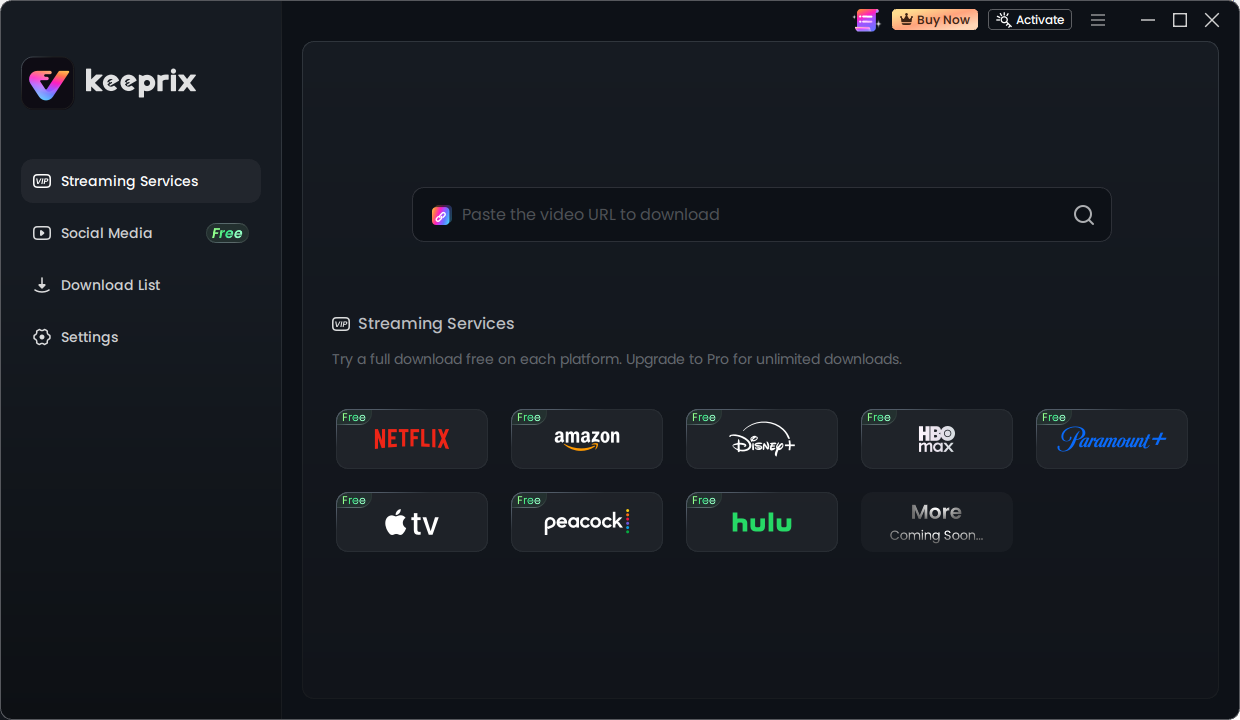
Keeprix streaming services
Step 2: Log into your valid Disney+ account using the software’s built-in browser.
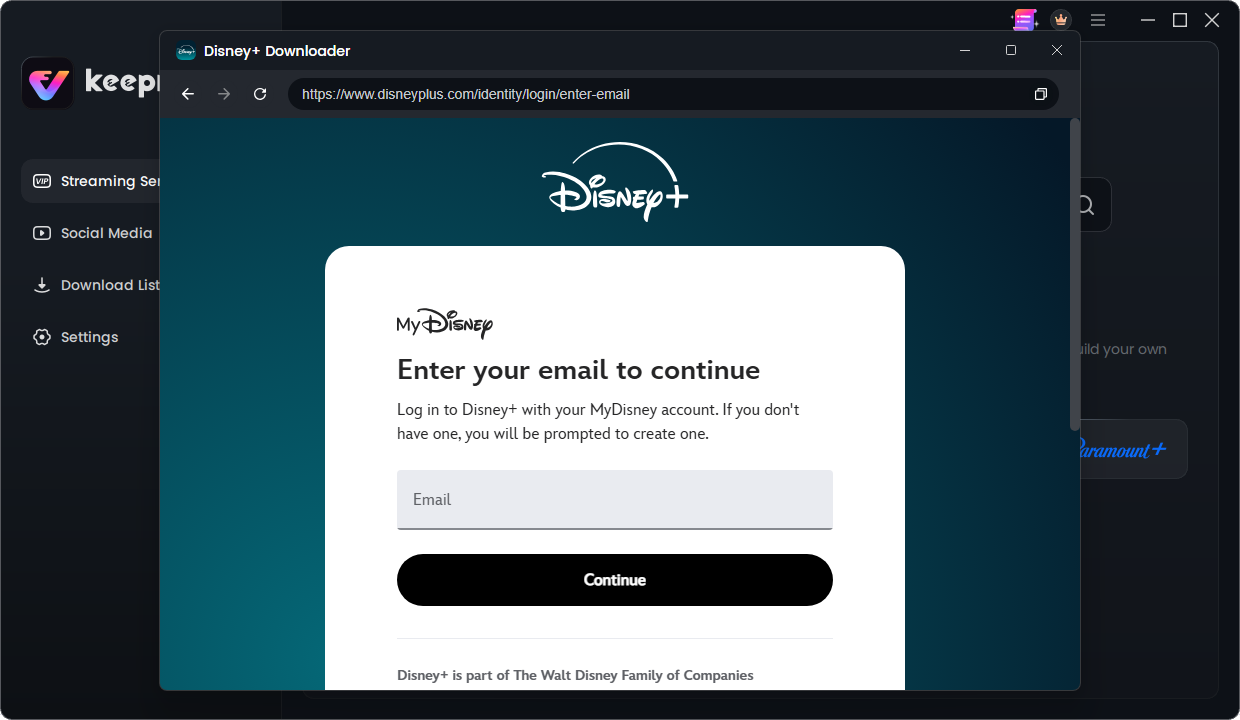
login your Disney Plus account
Step 3: Select the movie or show you want to watch offline, choose MP4 or MKV format, and select your desired audio and subtitle tracks.
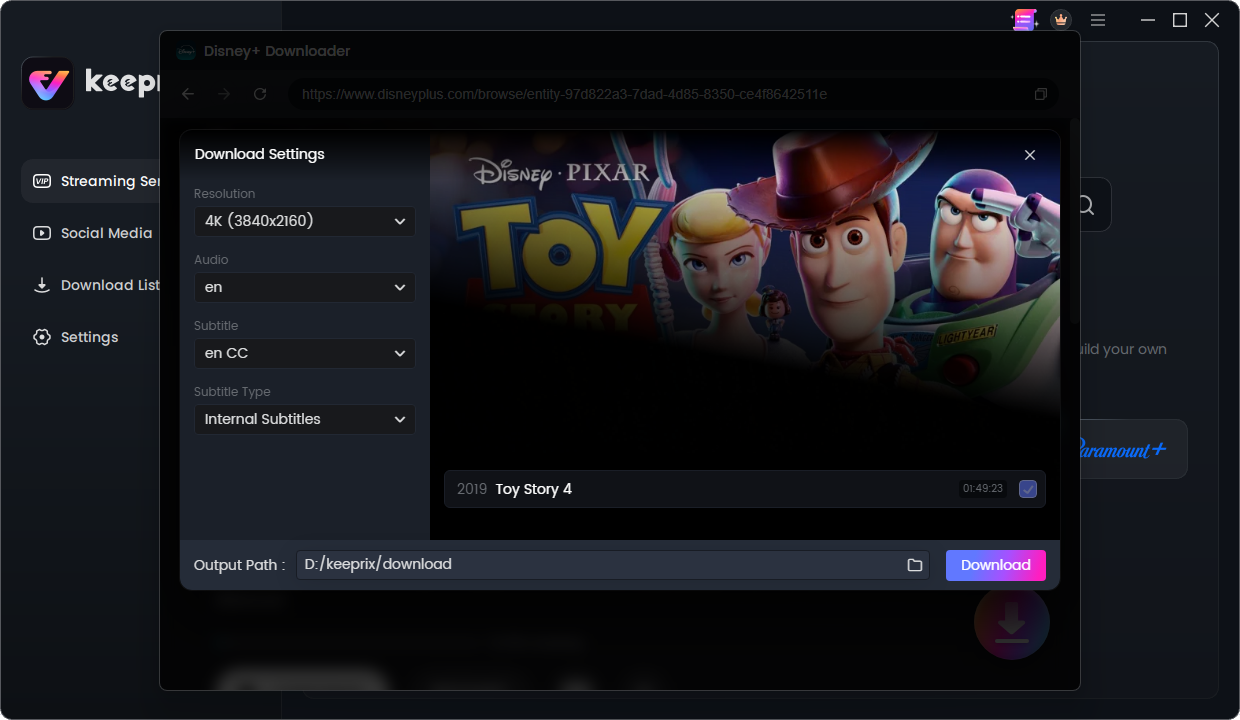
Download movies from Disney Plus
Step 4: Click to start your Disney Plus MP4 download directly to your computer for restriction-free personal offline viewing.
Keeprix also supports batch downloading, so you can easily queue up an entire TV season before a flight or trip where internet access will be poor.
Frequently Asked Questions
Can I watch Disney Plus offline on a Mac or PC?
Not officially, as Disney restricts its offline viewing feature to mobile apps. However, Keeprix provides a desktop alternative, allowing you to save accessible videos as local MP4 files on your Windows or Mac computer.
Why does the Disney Plus app keep crashing on my smart TV?
This is typically caused by corrupted cache data or outdated TV firmware. Clearing your TV’s app cache and ensuring the system is fully updated usually resolves the crash.
How can I watch Disney Plus without buffering?
You can reduce buffering by switching to a hardwired internet connection or lowering your streaming quality settings. The most reliable method is to use Keeprix to download the video first, removing your reliance on the network entirely.
Are Disney Plus downloads permanent?
No. Official app downloads can expire or require online check-ins to verify your subscription status. Local files saved with Keeprix do not have these app-based expirations.
Final Thoughts: Stop Letting Errors Interrupt Your Movie Night
While clearing your cache and checking server statuses can temporarily fix immediate issues, the official Disney+ app will always be prone to network interruptions and cryptic error codes.
Preparing a personal offline MP4 library is the smartest way to ensure uninterrupted viewing, regardless of your internet connection or server stability. Try Keeprix’s 1 full free video download for Disney+ today, and turn the streams you can access into reliable, flexible local files.
Keeprix Video Downloader
Download streaming videos from hot platforms without restrictions. Enjoy seamless offline watching on Windows and Mac computers.