The Real Peacock App for Windows Guide for 2026: How-to Guide

Have you been searching the Microsoft Store for the Peacock app for Windows, only to come up empty? It’s a common frustration, especially when you expect a dedicated app like the one on your phone. This search often leads to confusing articles and potentially unsafe websites, leaving you without a clear, direct answer. The core issue is an expectation mismatch: you want the convenience of a desktop app and the ability to download shows for a flight, but the browser experience doesn’t seem to offer either.
This guide provides the direct, tested answers you need. We’ll start by showing you the official way to watch Peacock and a free method to make it feel more like a real app. Then, we will address the critical lack of an offline viewing feature and present a reliable software solution to solve that specific problem. We will also cover the serious security risks of unofficial installers you might have seen online.

Peacock For Windows
The Official Way to Watch Peacock on PC: Browser Streaming
The only sanctioned method for watching Peacock on a Windows device is through its web browser interface, known as the Peacock web player. This approach requires no installation and gives you immediate access to the entire streaming library. The procedure is simple: open your preferred web browser, go to peacocktv.com, and sign in to your account.
Supported Browsers and Playback Tips
For the best Windows browser streaming experience, Peacock officially recommends using the latest versions of the following browsers:
- Google Chrome
- Mozilla Firefox
- Microsoft Edge
- Safari (for macOS users)
To prevent common browser playback issues like buffering or freezing, make sure your browser is up to date. If you encounter performance problems, clearing your browser’s cache and cookies can often resolve them. Additionally, disabling ad-blocking extensions specifically for the Peacock website can fix certain playback errors.
A Better Way: Get an App-Like Experience for Free
Before you explore any paid solutions, there’s a simple, free step you can take to make the browser experience feel much more like a dedicated desktop app. Modern browsers like Chrome and Edge allow you to “install” a website as a Progressive Web App (PWA). This creates a taskbar icon and opens Peacock in its own window, without the clutter of browser tabs and address bars.
This is a huge quality-of-life improvement that gives you the native feel you were looking for. It doesn’t solve the offline viewing problem, but it’s an essential first step.
How to Install the Peacock PWA
The process takes less than a minute:
Step 1. Open Google Chrome or Microsoft Edge and navigate to peacocktv.com.
Step 2. Look for the install icon in the address bar (it often looks like a computer monitor with a downward arrow).
Step 3. Alternatively, click the three-dot menu in the top-right corner of the browser.
Step 4. In the menu, find the “Apps” or “App” option and select “Install this site as an app” or “Install Peacock.”
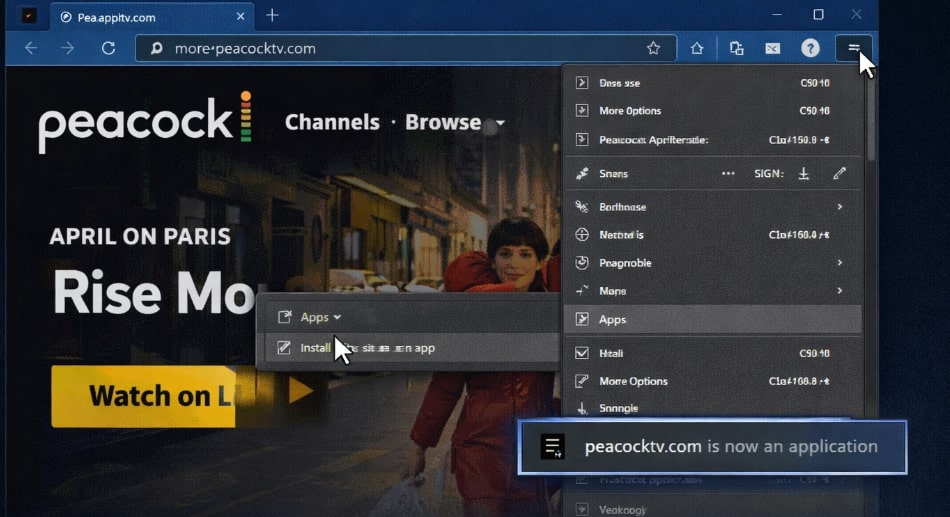
Create a Peacock PWA on Windows
Once installed, you’ll have a Peacock icon on your desktop and taskbar. Clicking it will launch the service directly, providing a cleaner, more focused viewing experience.
The Major Limitation: No Offline Viewing on PC
Here is the most significant drawback that affects both the browser and PWA methods: neither supports downloading content for offline viewing. This feature, a standard on Peacock’s mobile apps, is completely absent when you watch on a Peacock for PC.
This is a dealbreaker for many people. For frequent travelers who rely on a laptop for entertainment, this lack of offline viewing is a considerable obstacle. It means you must have a constant, stable internet connection to watch anything, which isn’t practical on a plane, train, or in an area with poor Wi-Fi.
Solving the Offline Viewing Problem: A Dedicated Downloader
While a PWA improves the desktop experience, it cannot save videos for a flight. To solve the core problem of offline viewing limitations on Windows, a different approach is needed. A specialized software tool is the most effective way to bridge this gap. Keeprix Downloader is an application designed to solve this exact issue by allowing you to save episodes and movies directly to your computer’s hard drive.
This restores the download functionality you’re used to on mobile, eliminating the frustration of the browser-only limitation. It is important to note that Keeprix Downloader is a paid software tool that offers a reliable and secure method for users who require the ability to download Peacock on Windows.
Step-by-Step Guide to Downloading Peacock Content
Step 1. Install and Launch Keeprix Downloader. First, download the software from the official Keeprix website and follow the installation prompts. Open the application.
Step 2. Navigate to Peacock. From the main dashboard, select Peacock from the list of supported streaming services. This will open a secure, built-in browser.
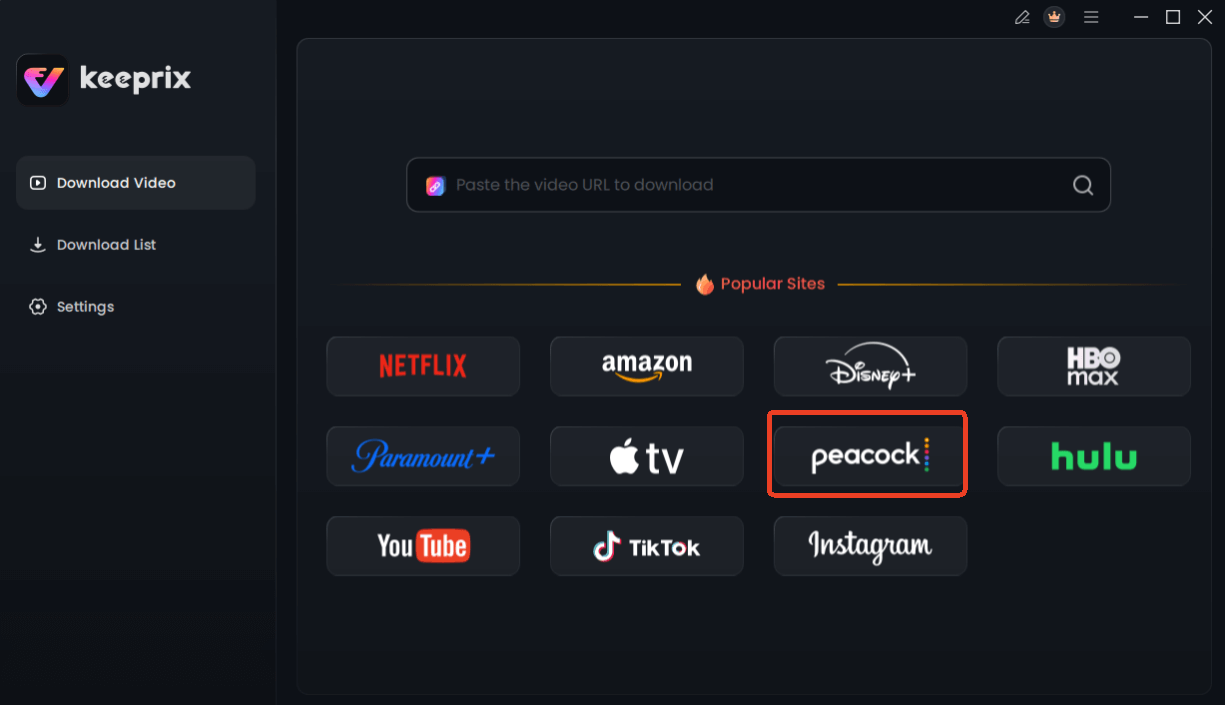
Choose Peacock in Keeprix Downloader
Step 3. Sign In and Select Your Content. Log in to your Peacock account just as you would in a normal browser. Find the show or movie you want to save.
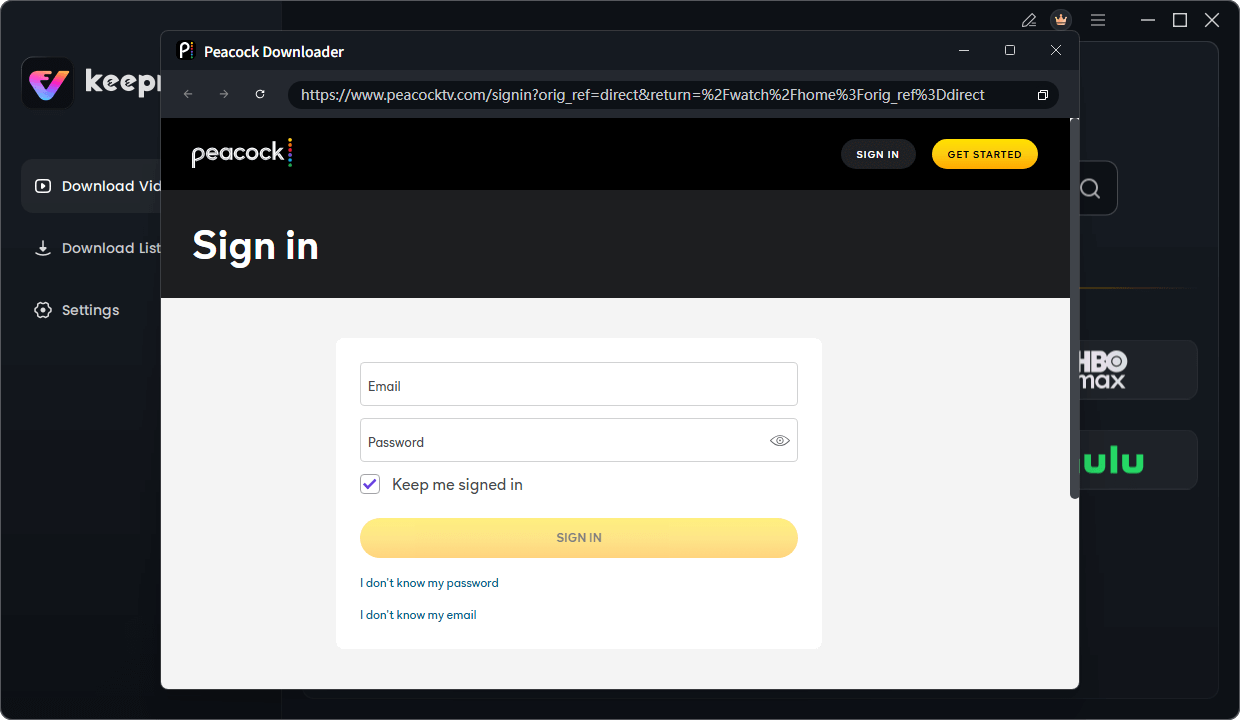
Sign in Your Peacock Account
Step 4. Download the Video. Begin playing the video. The software will automatically analyze the content and present a download dialog box. Here, you can choose your preferred video quality (up to 1080p) and audio settings. Click the “Download” button to begin.
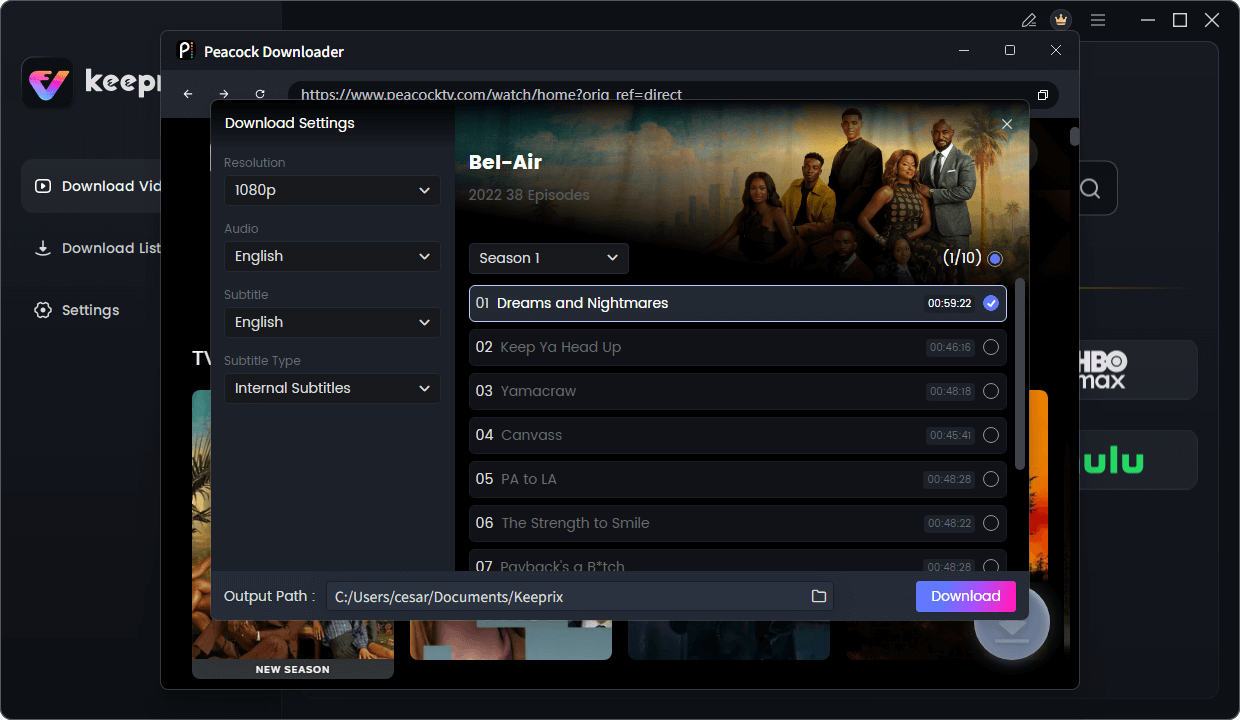
Configure Peacock Download Settings
The video will be saved to your computer as an ad-free MP4 or MKV file, ready to be played anytime with any media player, no internet connection required.
Decision Guide: Browser vs. PWA vs. Downloader
Choosing the right method for watching Peacock on your Windows PC depends on your needs. For casual viewing at home, the PWA is a great free upgrade. If offline access is non-negotiable, a downloader is necessary.
This table provides an at-a-glance framework to help you make an informed decision.
| Feature | Browser Method | PWA (Free App) | Keeprix Downloader |
| App-Like Feel | No | Yes (taskbar icon) | N/A |
| Offline Viewing | Not supported | Not supported | Fully supported |
| Content Ownership | Requires an active subscription | Requires active subscription | Keeps downloads permanently |
| Ad-Free Viewing | Depends on subscription tier | Depends on subscription tier | Yes (ads are removed) |
| Internet Required | Yes, constant connection | Yes, constant connection | Only during the download |
| Cost | Free | Free | Paid |
| Safety Risk | None (official site) | None (browser feature) | None (from official website) |
This comparison clarifies the trade-offs. The browser and PWA methods offer immediacy but no offline flexibility. A downloader tool requires preparation but provides complete freedom from internet connectivity and ad interruptions.
Why Is There No Peacock App in the Microsoft Store?
The absence of an official Peacock desktop app is a strategic business decision, not a technical oversight. Streaming services must allocate their development resources carefully. The most plausible reason is that Peacock prioritizes creating and maintaining native applications for platforms with the highest app usage: mobile devices (iOS, Android) and dedicated television hardware (Roku, Apple TV, Smart TVs).
For Windows users, the company relies on the modern Windows browser streaming infrastructure, which is a powerful and cost-effective alternative. Today’s web browsers can handle high-quality video streams and secure digital rights management (DRM) effectively. By focusing on a single web application, Peacock can serve its entire PC user base without the significant overhead of developing, testing, and maintaining a separate native app. This explains the difference in streaming app availability across platforms and why key features like offline downloads are missing on PC.
A Critical Warning: The Dangers of Unofficial ‘Peacock for PC’ Apps
Your search may lead you to third-party websites offering a downloadable installer for a supposed Peacock Windows app. It is absolutely critical to understand that these are fraudulent and dangerous. Since Peacock does not offer an official Windows app, any executable file (.exe) claiming to be one is unofficial and likely malicious.
These fake installers are common traps used to distribute harmful software, including:
- Malware: Code designed to damage your computer or steal your data.
- Spyware: Programs that secretly record your information, such as login credentials and financial details.
- Adware: Unwanted software that bombards your system with intrusive pop-up ads.

Be Aware of Fake Peacock Website
This is a real risk. A frustrated user, searching for a way to download shows for a trip, might easily be tempted by a site promising an installer. The lesson is clear: never download software claiming to be Peacock from an unofficial website. A legitimate solution like Keeprix Downloader comes from a reputable source and is transparent about its function as a third-party tool for downloading, not as a fake “official” app.
Frequently Asked Questions
Here are quick answers to the most common questions about using Peacock on a Windows computer.
Q1. Is there a Peacock app for Windows?
No, there is currently no official Peacock app available for download from the Microsoft Store. The official way to watch is through a web browser.
Q2. How can I make Peacock feel like a real app on my PC?
You can use the “Install app” feature in Google Chrome or Microsoft Edge to create a Progressive Web App (PWA). This adds a Peacock icon to your taskbar and opens the service in its own dedicated window.
Q3. Can I download Peacock shows on my PC for offline viewing?
Not with any official method. The Peacock web player and PWA do not support downloading content. To save shows for offline viewing on a PC, you must use a third-party software tool like Keeprix Downloader.
Q4. Why is there no Peacock app in the Microsoft Store?
Peacock likely focuses its app development resources on mobile and TV platforms, relying on the capable browser-based streaming experience for PC users to reduce development and maintenance costs.
Q5. Are third-party ‘Peacock for PC’ apps safe to install?
No. Any downloadable installer claiming to be a Peacock desktop application is unofficial and poses a significant security risk, potentially containing malware, spyware, or adware. You should never download them.
Q6. What browser works best for Peacock streaming?
Peacock recommends using the latest versions of Google Chrome, Mozilla Firefox, or Microsoft Edge for the most stable and reliable streaming performance on Windows.
Conclusion: Your Next Step to Unrestricted Viewing
Watching Peacock on Windows doesn’t have to be a limited experience. You can start today by creating a free PWA for a much better at-home viewing experience. If your needs extend to offline viewing for travel or commutes, you now have a clear, safe, and effective technique to enable it. By using a trusted tool like Keeprix Downloader, you can save your favorite shows and movies, removing the dependency on a stable internet connection. This approach puts you back in control.
Instead of facing more frustration, take the next step to solve the problem permanently. Choose the method that fits your needs and enjoy your Peacock subscription anywhere, anytime.