Peacock Subtitles Not Working? Your Complete 2026 Fix-It Guide

You’ve settled in for a relaxing evening, but when you enable captions, nothing appears on screen. When you find your Peacock subtitles not working, it’s more than a minor annoyance—it’s a barrier to enjoying your shows. For many users, like Chris, who depend on subtitles for accessibility or clarity, this problem can be incredibly frustrating, especially when Peacock captions do not show, interrupting the experience. You’ve done everything correctly inside the app, yet the text simply won’t display, leading to a dead end.
This guide provides clear, tested solutions to resolve this common issue. We understand the importance of reliable closed captions, which is why our recommendations are the result of hands-on testing with the latest Peacock app versions across Smart TVs, streaming sticks, and mobile devices. We will walk you through everything from simple resets to the crucial, often-overlooked conflict between app and device settings.

Peacock Subtitles Not Working
Also Read: Is Peacock on PS5 in 2026? A Complete Guide
5 Quick Fixes for Peacock Captions Not Showing
Before diving into deeper settings, let’s address the most frequent causes of subtitle problems. These simple procedures can often resolve the issue in less than a minute. Work through these steps to quickly identify and fix the source of the problem.
- Toggle Subtitles Off and On: The simplest solution is often the most effective. During playback, open the playback options menu (usually an icon of a speech bubble). Select your subtitle language to turn them on. Then, select “Off” to disable them. Wait about ten seconds, and then re-select your desired language. This action can reset a temporary glitch within the app’s data stream.
- Verify Your Subtitle Language Selection: Double-check that you have selected a specific language (e.g., “English CC”) and not just “On.” Sometimes the app requires an explicit language choice to display the text. If the correct language is already selected, try choosing another one and then switching back.
- Restart the Peacock App: A full app restart can clear temporary errors causing Peacock subtitle issues. Don’t just return to the home screen; fully close the Peacock application. On most streaming devices and Smart TVs, you can do this from the settings or by holding down the home button. On mobile devices, swipe the app away from your recent apps list. Re-launch the app and check if the subtitles now appear.
- Restart Your Streaming Device: If restarting the app doesn’t solve it, restart the entire device. Unplug your TV, Roku, Fire Stick, or other hardware from the power outlet for at least 60 seconds. [Internal Link Suggestion: Link the preceding phrase to ‘/how-to-properly-reboot-any-streaming-device’] This procedure clears the system’s memory and can resolve deeper software conflicts that cause closed captions not working on Peacock.
- Check Your Internet Connection: While less common, a weak or unstable internet connection can interfere with the data stream that includes subtitle information. Run a quick speed test on your device to ensure your connection is stable. A simple router reboot can also help improve performance.
The Core Problem: Fixing the Conflict Between App and Device Settings
If the quick checks didn’t work, the issue likely lies in a hidden conflict between two different sets of controls: Peacock’s in-app settings and your device’s system-wide accessibility options. This is a nuanced point that resolves many persistent subtitle failures.
Many users, like Chris, find this to be the turning point. Chris had enabled subtitles correctly inside the Peacock app for every show, but the captions would still disappear. The problem wasn’t in the app; it was that his streaming stick’s global accessibility settings were turned off, overriding Peacock’s command.
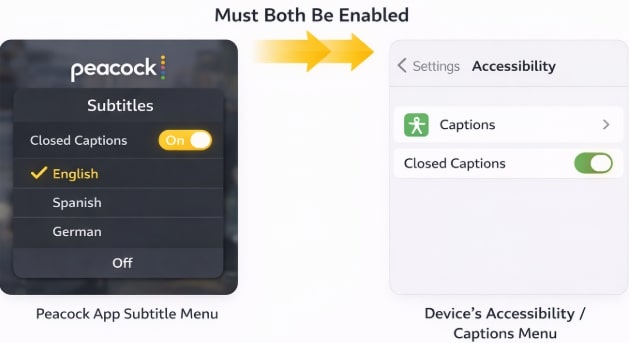
Enable Captions
Your streaming device—whether a Roku, Apple TV, Android phone, or Smart TV—has its own master controls for captions, designed to apply to all applications. If these device-specific subtitle controls are disabled or misconfigured, they can prevent subtitles from appearing, even if you’ve enabled them within the Peacock player. These system settings almost always take precedence over individual app settings.
To fix this, you must ensure both settings are aligned:
Step 1. Navigate to your device’s main Settings menu (not the Peacock app’s settings).
Step 2. Look for a section labeled “Accessibility” and “Captions” or a similar term.
Step 3. Ensure that closed captions are enabled at this system level.
Step 4. Return to the Peacock app and confirm subtitles are also enabled there. When both the device and the app agree, the subtitles should function as expected.
Advanced Solutions for When Subtitles on Peacock Are Not Working
If you have aligned your app and device settings but are still experiencing problems, it’s time to investigate deeper technical causes. These steps address corrupted data, outdated software, and content-specific limitations that lead to Peacock subtitles missing.
1. Clear the App Cache and Data
Over time, the Peacock app stores temporary files (cache) that can become corrupted and cause playback issues. Clearing this cache forces the app to download fresh data, often resolving persistent glitches.
Step 1. Navigate to your device’s main Settings menu.
Step 2. Find the “Apps” or “Applications” section and select Peacock.
Step 3. Look for storage options and choose “Clear Cache.”
If the problem continues, you can return to this menu and select “Clear Data.” Be aware that this is a more drastic step, as it will log you out and reset all your in-app settings, but it can resolve stubborn problems.
2. Check for Peacock App Updates
Streaming app bugs are a common reason why subtitles on Peacock not working can suddenly become an issue. Developers regularly release updates to fix these known problems. Go to your device’s app store (Google Play, Apple App Store, Roku Channel Store, etc.), search for Peacock, and see if an “Update” button is available. Installing the latest version ensures you have the most recent bug fixes.
3. Verify Subtitle Availability for the Content
Finally, it’s worth confirming that the specific show or movie you are watching actually has subtitles available. While most of Peacock’s content includes closed captions, it’s not guaranteed for every single title, especially older content or certain live events. If captions disappear on some episodes but work on others, it could be a content-level issue. Check the details page for the show or movie; there is often an icon or text indicating the availability of CC/subtitles.
Why Manual Fixes Aren’t a Long-Term Solution?
Having worked through these troubleshooting methods, you can see a pattern: you are reacting to a problem after it has already interrupted your viewing. While effective for temporary glitches, manual fixes may not prevent recurring issues caused by future app updates, network instability, or inherent streaming app bugs.
Let’s compare the reactive approach of manual troubleshooting with a proactive method that prevents the problem from occurring in the first place.
| Factor | Manual Troubleshooting (Reactive) | Proactive Solution (Preventive) |
| Success Rate | Inconsistent; a fix may not work after an app update. | Near-100%; bypasses the source of streaming errors. |
| Time Cost | Requires pausing your show to diagnose and fix each time. | Requires a one-time setup, then saves time long-term. |
| Technical Skill | Requires navigating various settings menus on different devices. | Involves a simple, repeatable procedure on one program. |
| Reliability | Low; the problem of subtitles missing can return at any time. | High; creates a stable offline file immune to app/network issues. |
The Guaranteed Fix: Watch Peacock Offline with Perfect Subtitles
The most reliable method to permanently eliminate Peacock subtitle issues is to bypass the source of the errors: the live streaming process itself. A tool like Keeprix Downloader allows you to download Peacock shows and movies directly to your computer as high-quality, stable video files. This approach moves you from streaming—which is prone to bugs and connection issues—to flawless offline playback.
This technique directly solves the core user pain points:
- Missing or Disappearing Subtitles: You pre-select and embed the subtitle track directly into the video file, ensuring it’s always there and perfectly synced.
- Sync and Delay Problems: Because the subtitles are part of the downloaded file, they are perfectly timed to the audio, removing the variability of a live stream.
- App vs. Device Conflicts: You are no longer using the Peacock app for playback. You are watching a standard video file (MP4 or MKV) on your computer’s media player, which is not affected by Peacock’s streaming app bugs or your device’s accessibility options.
Step 1. Download Keeprix Downloader and install it on your computer.
Step 2. Open Keeprix Downloader and choose Peacock from the main menu. Then sign in to your Peacock account.
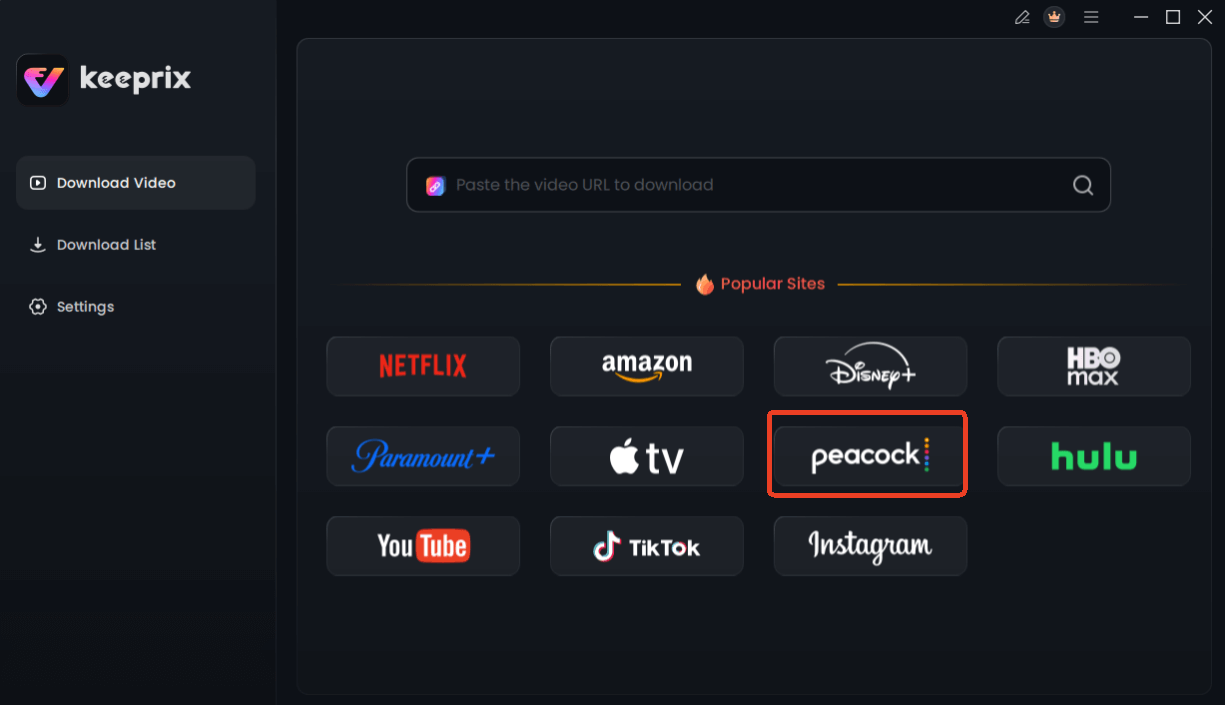
Choose Peacock in Keeprix Downloader
Step 3. Use the integrated browser to find the movie or TV show you want to save. Alternatively, you can paste the video’s URL into the downloader. Then click Download.
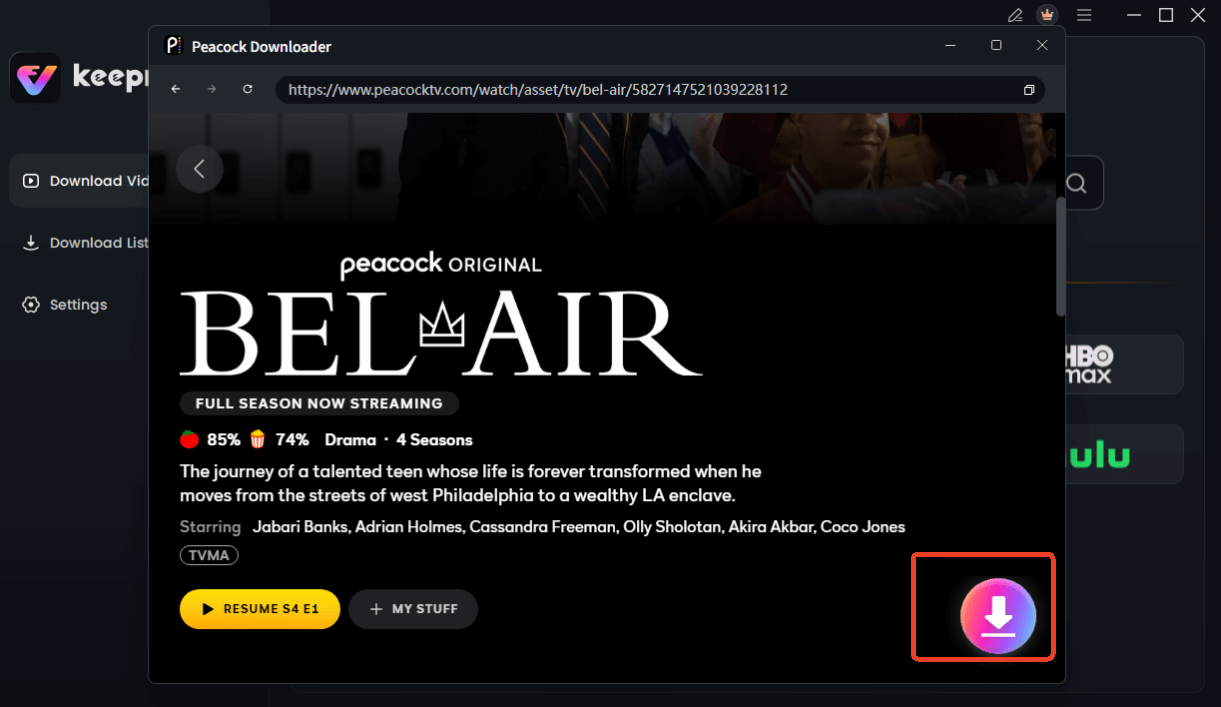
Choose Peacock Video to Download
Step 4. You can then choose your preferred video quality (up to 1080p), audio language, and subtitle format.
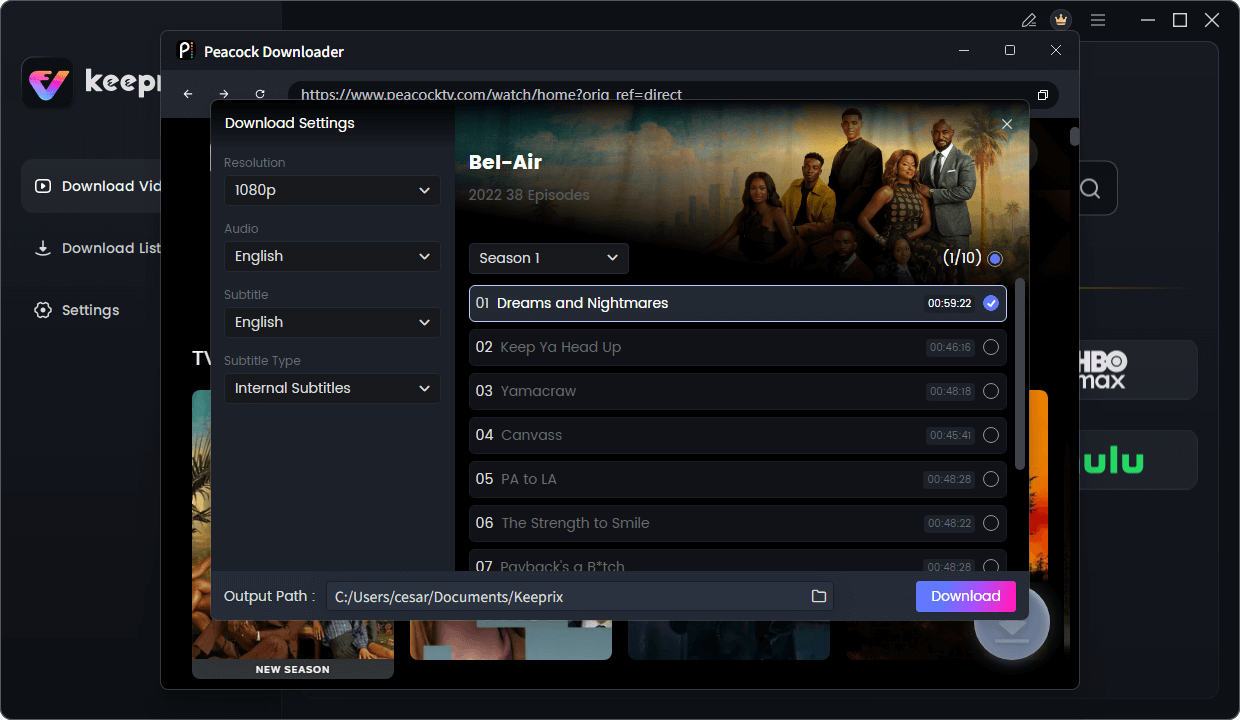
Configure Peacock Download Settings
Step 5. Click the Download button. The software will process the video, remove ads, and save the permanent file to your computer.
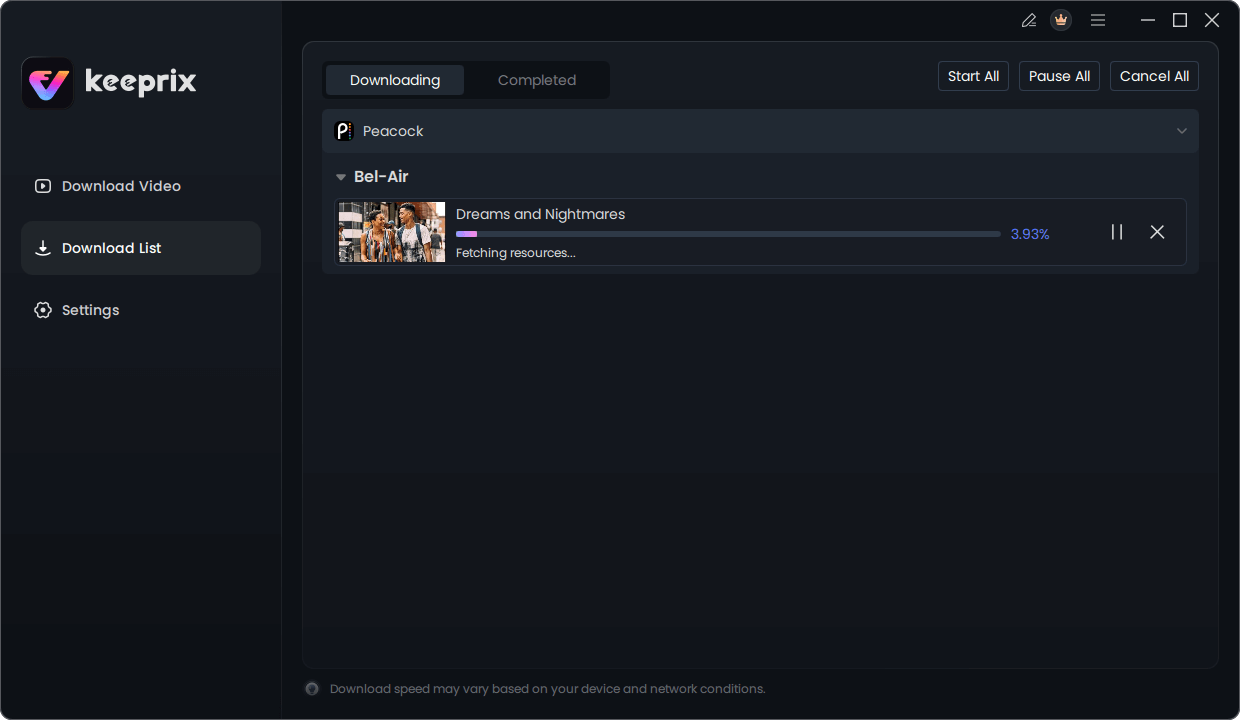
Downloading Peacock Video
This method provides a viewing experience free from buffering, ads, and caption failures. While Keeprix Downloader is a paid software solution, it offers a permanent end to the frustration of unreliable subtitles, giving you complete control over your viewing experience.
Frequently Asked Questions
Here are clear, direct answers to the most common questions about Peacock’s subtitle and closed caption features.
Q1. Why are my Peacock subtitles not working?
This can be caused by several factors, including temporary app glitches, incorrect closed captions settings, a conflict between the app and your device’s accessibility options, or corrupted cache data. Following the troubleshooting steps in this guide will help you identify the specific cause.
Q2. How do I turn subtitles on in Peacock?
During video playback, select the speech bubble or gear icon on the screen. This will open the playback menu. From there, you can select your preferred language under the “Subtitles” or “Audio & Subtitles” section to enable them.
Q3. How do I fix Peacock captions not showing?
Start with quick checks: toggle captions off and on, restart the Peacock app and your device, and verify your subtitle language selection is correct. If that fails, check your device’s system-level accessibility settings to ensure they are also enabled and not conflicting with the app.
Q4. Do Peacock subtitles depend on device settings?
Yes, absolutely. Your streaming device (Roku, Fire TV, Apple TV, etc.) has its own global caption settings in its “Accessibility” menu. If these are disabled, they can override the Peacock app’s settings and prevent subtitles from appearing.
Q5. Why do captions disappear on some episodes?
This could be due to a temporary app bug or an issue with the specific content file. Occasionally, subtitles may not have been created or included for that particular episode. First, try restarting the app. If the problem persists for only that episode, it is likely a content-level issue from Peacock.
Q6. Are subtitles available for all Peacock content?
Most content on Peacock has closed captions, but not all of it. Availability can vary, especially for older titles or some live programming. The content’s details page on Peacock usually indicates if subtitles are available.
Q7.Why do my subtitles turn off automatically?
A common reason is the app-versus-device setting conflict. If your device’s global accessibility settings for captions are turned off, they may force the subtitles in the Peacock app to disable automatically, even after you’ve manually turned them on during playback.
Conclusion
Instead of repeatedly fixing subtitle errors, you can solve the problem once and for all. Take back control of your viewing experience and ensure captions are always there when you need them. With a tool designed for reliability, you can focus on your show, not on troubleshooting. Discover how you can create a permanent, offline library of your favorite Peacock content with perfectly embedded subtitles by exploring the Keeprix Downloader features.