The Peacock Download Limit Explained (2026): Your Guide to Offline Viewing

It’s a familiar frustration for any traveler. You meticulously download a season of your favorite show for a long flight, only to open the app mid-air and find half the episodes have vanished or expired. This exact scenario, where a prepared traveler like Hannah finds her downloaded season of Poker Face suddenly unavailable, highlights a significant pain point: the peacock download limit is confusing and unpredictable. Many users are left wondering how many downloads on Peacock are truly allowed before the system’s hidden rules kick in.
This guide provides direct, tested answers to eliminate that confusion. We will break down the specific numbers, timers, and device restrictions that govern Peacock’s offline viewing. More importantly, we’ll present a permanent solution for those who need reliable, unrestricted access to their content, free from arbitrary expiration dates.

Peacock Download Limit
The Official Peacock Download Rules: A Clear Breakdown
To avoid offline viewing surprises, it’s essential to understand the platform’s specific restrictions. The peacock download rules are not based on a single number but are a combination of limits on content quantity, time, and devices.
Here’s exactly what you need to know, based on Peacock’s current Premium Plus plan policies:
| Limit Type | The Official Rule | What It Means for You |
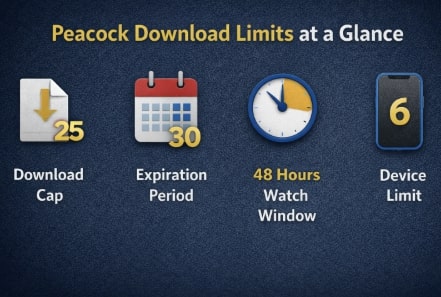
| Content Quantity | 25 total titles per account | This is the hard cap. A “title” can be one movie or one TV episode. To download the 26th item, you must delete an existing one. |
| Time (Unwatched) | 30-day expiration | Any downloaded title will be automatically deleted 30 days after you save it, even if you never play it. |
| Time (Watched) | 48-hour viewing window | The moment you press play on a download, a 48-hour countdown begins. You must finish watching within this window, or it will expire. |
| Device Limit | 6 supported devices | You can download content on up to six different phones or tablets, but the 25-title limit is shared across all of them. |
These rules are in place primarily to comply with the complex licensing agreements Peacock holds with studios. Understanding them is the first step to managing your offline library effectively.
Peacock Download Limit Explain
Managing Peacock’s Limits vs. Achieving Permanent Access
When faced with these restrictions, you have two main options: work within Peacock’s system or bypass it entirely for true offline freedom. Your choice depends on your viewing habits and how much control you need.
This table compares the two approaches to help you decide which method is right for you.
| Feature | Managing Within the Peacock App | Using a Dedicated Tool (Keeprix) |
| Content Permanence | ❌ No. Downloads expire. | ✅ Yes. Files are saved forever. |
| Download Quantity | ❌ Limited to 25 titles. | ✅ Unlimited. Limited only by your storage. |
| Ad-Free Viewing | ❌ No. Some content still has ads. | ✅ Yes. All ads are removed automatically. |
| Batch Downloads | ❌ Manual. Download one episode at a time. | ✅ Yes. Download entire seasons with one click. |
| Device Flexibility | ❌ Limited to 6 authorized devices. | ✅ Yes. Transfer MP4 files to any device. |
| Time & Effort | High. Requires constant management. | Low. Set it and forget it. |
For casual viewers, manual management might be sufficient. But for frequent travelers, binge-watchers, or anyone wanting to build a permanent digital library, the limitations of the native app quickly become a recurring problem.
The Permanent Solution: Remove Every Peacock Offline Download Limit
For users who find Peacock’s native restrictions too limiting, a professional software solution like Keeprix Downloader provides complete control. This tool is designed specifically to bypass every Peacock offline download limit, saving videos directly to your computer as standard, high-quality MP4 or MKV files.
Here’s how this approach solves each core problem:
- No Expiration: Because the files are saved locally on your hard drive, they never expire. The 30-day and 48-hour timers are completely removed.
- No Quantity Caps: The 25-item limit is eliminated. Your only restriction is the amount of storage space on your computer.
- Guaranteed Ad-Free: The software automatically strips all advertisements from the video during the download process, ensuring an uninterrupted viewing experience.
- Total Device Freedom: Once a show is saved as an MP4 file, you can transfer it to any phone, tablet, USB drive, or media player you own, breaking free from Peacock’s device ecosystem.
- Simple Procedure for Permanent Downloads
Using the tool is a straightforward process:
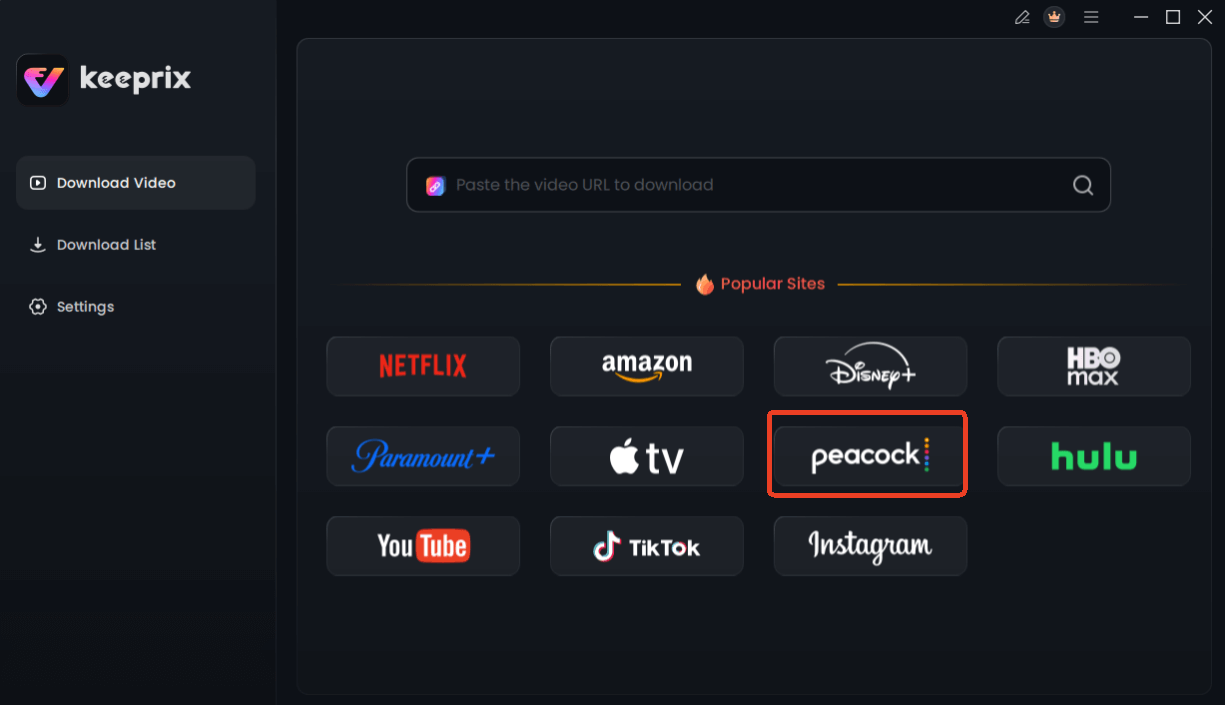
Step 1. Launch the Software: Open Keeprix Downloader on your computer and select the Peacock service from its list of supported platforms.
Choose Peacock in Keeprix Downloader
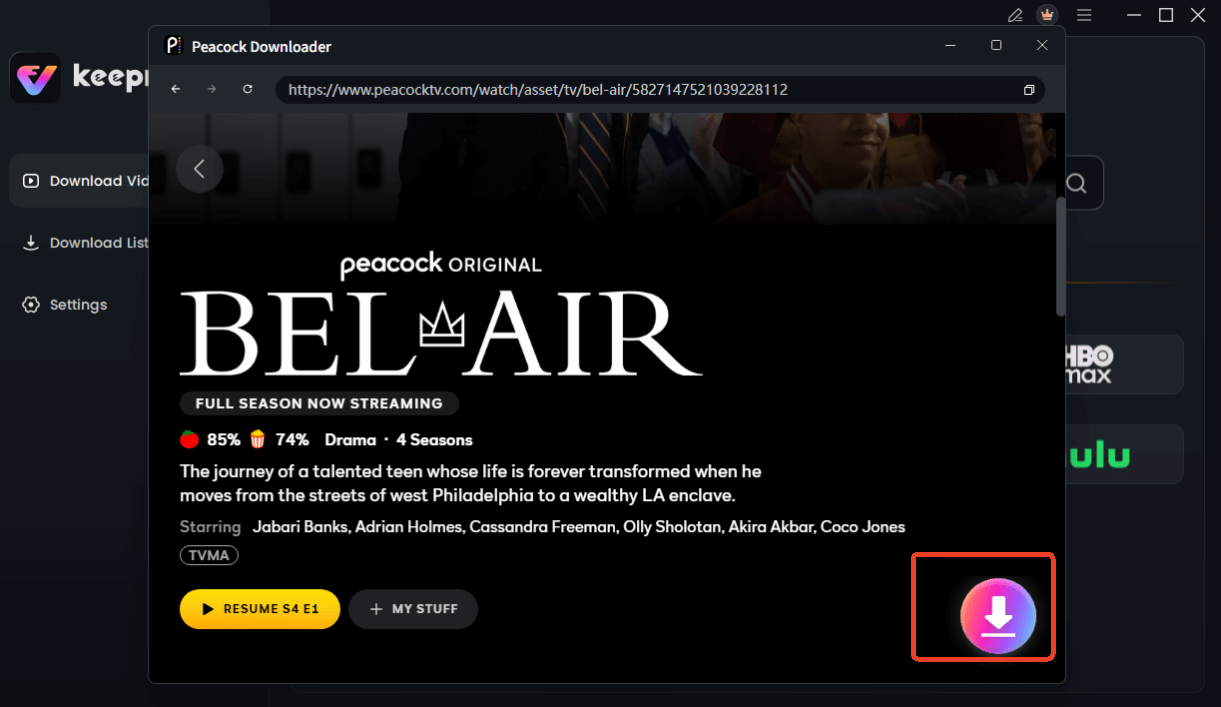
Step 2. Locate Your Content: Use the integrated browser to find the movie or TV show you want to save.
Choose Peacock Video to Download
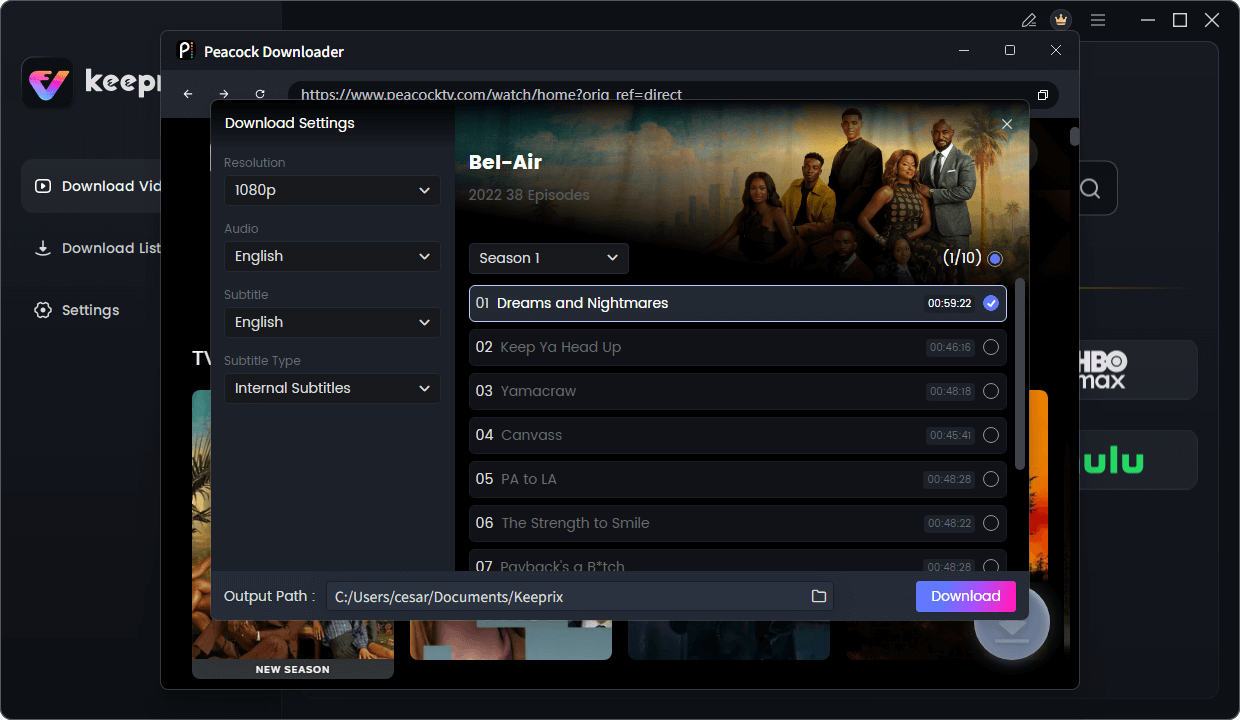
Step 3. Configure Settings: Paste the video’s URL into the downloader. You can then choose your preferred video quality (up to 1080p), audio language, and subtitle format.
Configure Peacock Download Settings
Step 4. Start the Download: Click the “Download” button. The software will process the video, remove ads, and save the permanent file to your computer.
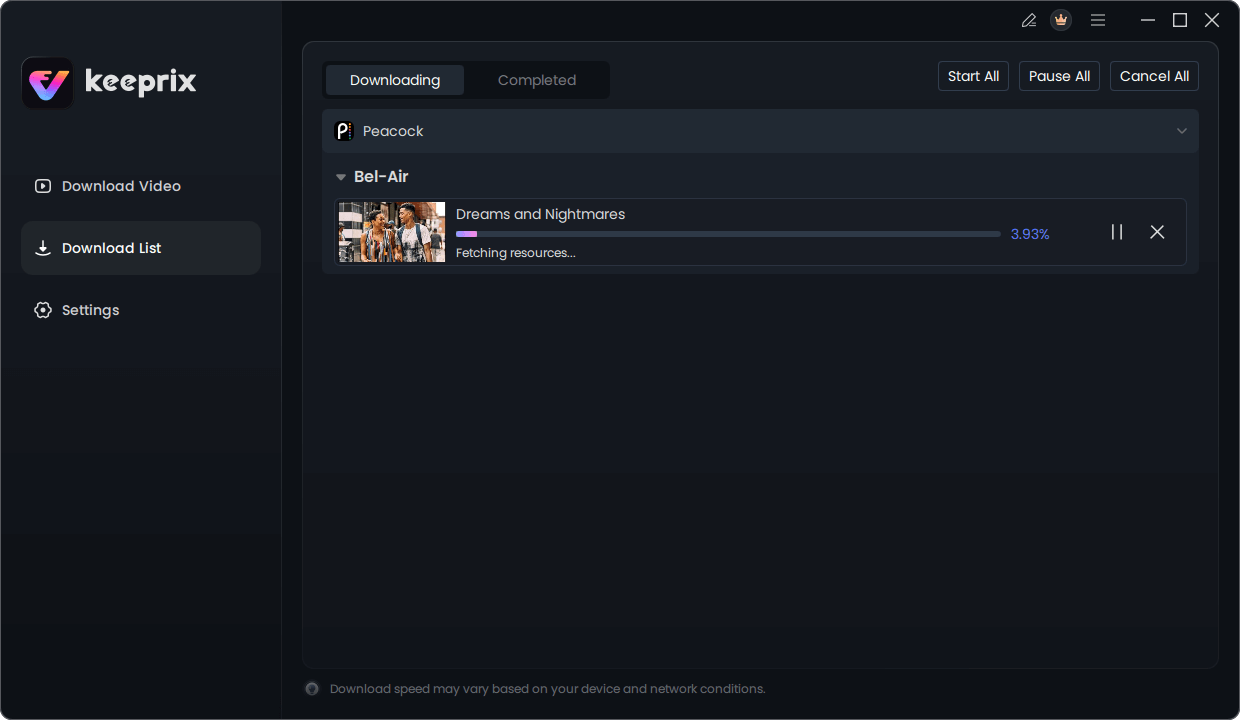
Downloading Peacock Video
How to Manually Manage Peacock Episode Download Restrictions
If you prefer to stick with the native Peacock app, you can still have a successful offline experience with proactive management. Dealing with the peacock episode download restrictions is all about planning.
Pre-Travel Peacock Download Checklist
Follow these steps before you lose internet access to ensure your content is ready when you are:
✅ Check Expiration Dates: Open the “Downloads” tab in the Peacock app. Any title nearing its 30-day expiration should be deleted and re-downloaded to reset its timer.
✅ Delete Watched Content: Immediately remove episodes and movies you have finished watching. This frees up valuable slots from the 25-item limit and saves device storage.
✅ Download in Advance: Don’t wait until the last minute. Download your desired content at least a day before you travel to account for any network issues.
✅ Verify Your Downloads: After downloading, turn on airplane mode and try to play one second of each video. This quick check confirms the file isn’t corrupted and is ready for offline viewing.
Why Peacock’s Download Rules Seem Vague?
Many users wonder, “Why did my Peacock downloads expire even when I thought I was within the limits?” The answer isn’t a bug; it’s a feature of the complex world of digital content licensing.
Streaming services like Peacock often keep their download policies intentionally flexible rather than publishing rigid, unchanging rules. This is because their licensing agreements with studios are dynamic and can change. For example, a studio may grant Peacock the rights to a movie for a limited time. When that license is about to end, the service must be able to expire all downloaded copies from users’ devices to comply with their legal agreement.
This means a download can sometimes disappear before the standard 30-day window if the content’s overall license on the platform expires. Understanding this helps frame the issue not as a user error, but as a standard industry practice.
Frequently Asked Questions
Q1. What is the peacock download limit?
The Peacock download limit consists of several rules: a maximum of 25 downloaded titles (episodes or movies) per account, a 30-day expiration period for unwatched content, and a 48-hour viewing window once you start playing a title.
Q2. How many episodes can I download on Peacock?
You can download up to 25 individual items in total. This is a combined limit for both TV episodes and movies across all devices linked to your account.
Q3. How long do Peacock downloads last?
An unwatched download lasts for 30 days. After you press play, it will only last for 48 hours before it expires and must be downloaded again.
Q4. Can I download Peacock episodes on multiple devices?
Yes, you can download content on up to six supported devices. However, the 25-title limit is shared across all of them; it is not 25 titles per device.
Q5. Why did my Peacock downloads expire?
A download can expire for two main reasons: either you exceeded the 30-day (unwatched) or 48-hour (watched) time limit, or the show’s overall licensing agreement on Peacock ended, which forces the service to remove all downloaded copies from user devices.
Q6. Does Peacock limit downloads by plan?
Yes. The ability to download content for offline viewing is an exclusive feature of the top-tier Peacock Premium Plus plan. The standard Premium and free tiers do not support downloads.
Q7. Can I re-download episodes after they expire?
Yes. As long as the movie or show is still available on Peacock, you can simply delete the expired file from your downloads list and download a fresh copy. This will restart the 30-day timer.”
Conclusion: Take Control of Your Offline Viewing
The frustration of expiring downloads and confusing limits doesn’t have to be part of your streaming experience. While manually managing Peacock’s restrictions is possible with careful planning, it’s a temporary fix for a permanent problem. A dedicated tool like Keeprix Downloader offers a direct and lasting solution. It empowers you to build a personal, permanent, and ad-free media library that works on your schedule and on any device you choose. Instead of constantly checking timers and juggling download slots, you can regain full control over the content you pay for. Explore a better way to watch offline and solve the download limit problem for good.