How to Download Peacock on a Laptop in 2026: A Tested Guide

Planning for a trip, only to discover the shows you want to watch are trapped on a service that won’t let you download them to your laptop, is a common frustration. This exact scenario—needing offline access for a long journey—is a significant obstacle for anyone who prefers a larger screen. The core of the problem is the widespread confusion between browser streaming and actual offline downloads. Peacock officially limits its download feature to mobile devices, leaving laptop users searching for a solution.
If you’ve asked, “Can I download Peacock on my laptop?” and found no clear answer, this guide provides the direct, working technique. After hands-on testing, we’ve confirmed this procedure solves the issue, allowing you to save your favorite shows for true Peacock offline viewing.

How to Download Peacock on Laptop
The One Working Method to Download Peacock Episodes on PC
Using a dedicated software tool is the only reliable technique for saving Peacock content to a laptop. Browser-based methods fail due to DRM restrictions preventing file saving, which is the central issue Peacock enforces on PC and Mac.
A specialized application like Keeprix Downloader is designed to address this specific limitation. It works by capturing the video stream within its own secure browser and converting it into a standard, high-quality MP4 file. This file is saved directly to your computer’s hard drive, making it permanently available for offline viewing. For users blocked by the lack of an official Peacock download option on laptops, this tool provides the missing functionality.
Key Features:
- No Expiration: Because the files are saved locally on your hard drive, they never expire. The 30-day and 48-hour timers are completely removed.
- No Quantity Caps: The 25-item limit is eliminated. Your only restriction is the amount of storage space on your computer.
- Guaranteed Ad-Free: The software automatically strips all advertisements from the video during the download process, ensuring an uninterrupted viewing experience.
- Total Device Freedom: Once a show is saved as an MP4 file, you can transfer it to any phone, tablet, USB drive, or media player you own, breaking free from Peacock’s device ecosystem.
- Simple Procedure for Permanent Downloads
Step-by-Step Procedure to Save Peacock Videos
The process is straightforward and gives you complete control over the final file.
Step 1. Download and Install the Software: Get Keeprix Downloader from the official website and install it on your Windows or macOS computer.
Step 2. Navigate to Peacock: Open the application and select the Peacock service from its main interface. This will open a built-in browser window.
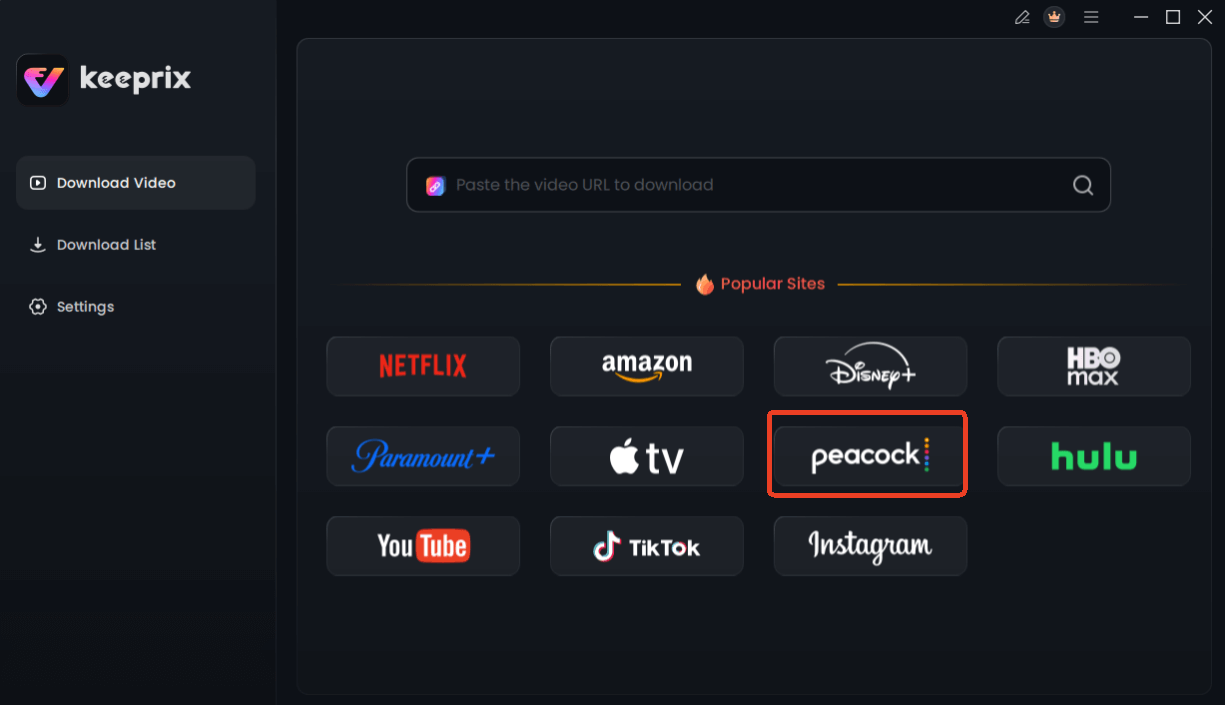
Choose Peacock in Keeprix Downloader
Step 3. Log In and Select Your Content: Sign in to your Peacock account as you normally would. Find the movie or episode you wish to download to your laptop.
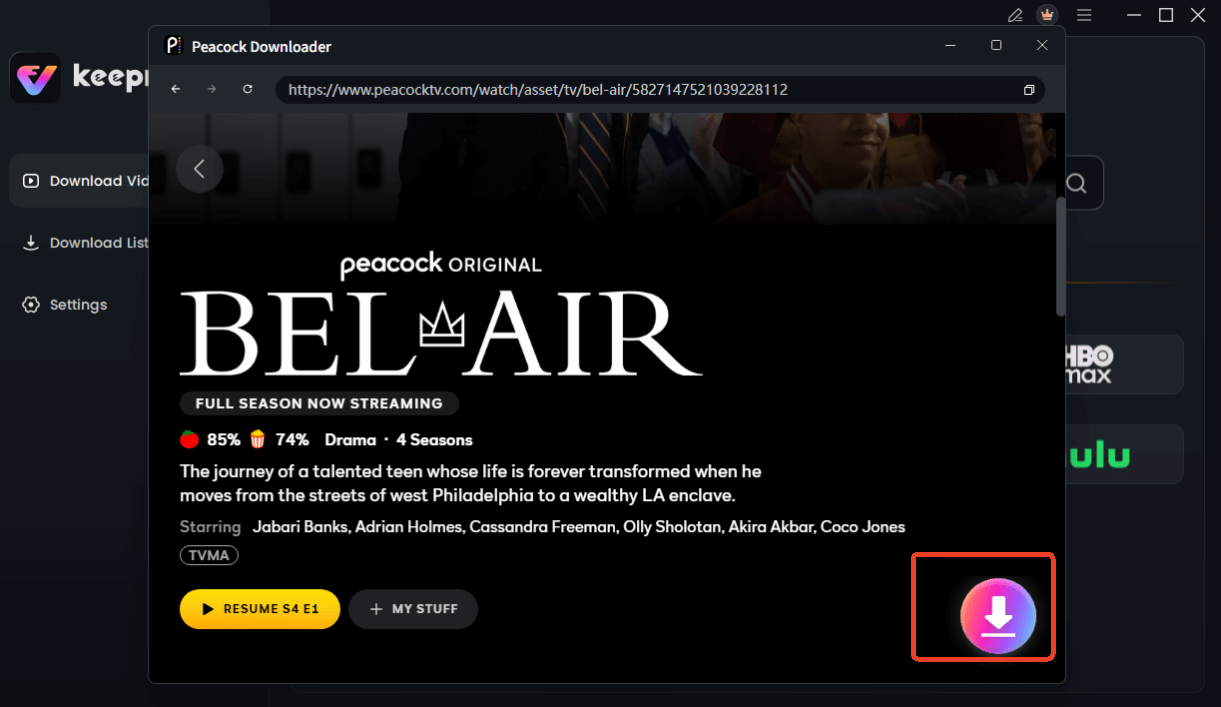
Choose Peacock Video to Download
Step 4. Analyze and configure the Download: Play the video. The software will automatically detect it and open a download settings panel. Here, you can select the video quality (up to 1080p), audio tracks, and subtitles.
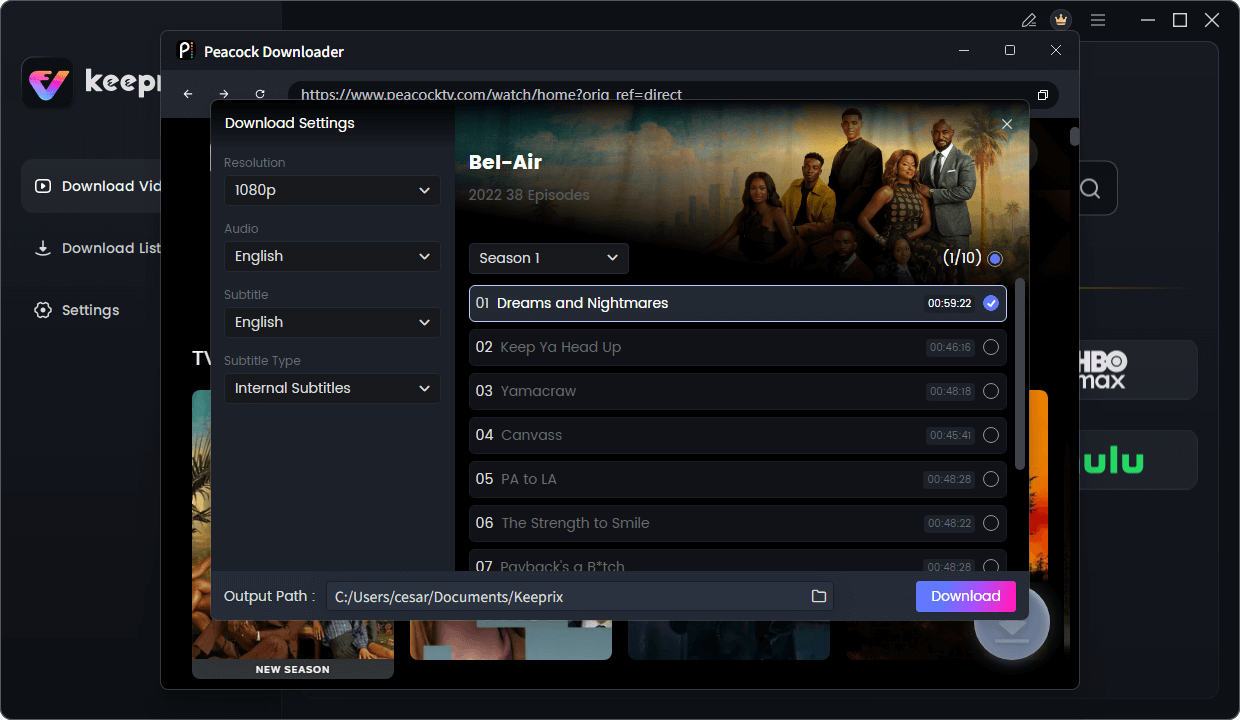
Configure Peacock Download Settings
Step 5. Start the Download: Click the “Download” button to begin saving the video. The file will be saved directly to a local folder on your computer, free of ads and DRM.
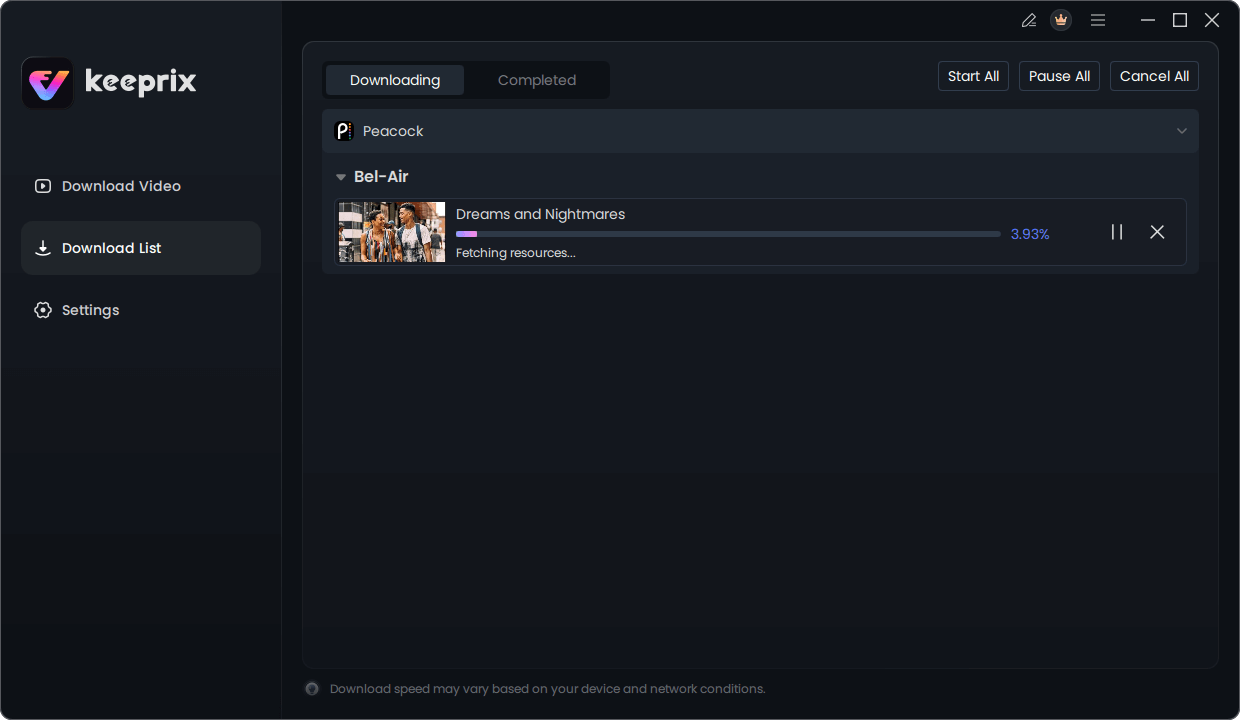
Downloading Peacock Video
Comparing Your Options: Mobile App vs. Laptop Downloader
Understanding the differences between Peacock’s native mobile download feature and a third-party laptop solution is key to choosing the correct tool for your needs. The official app is designed for temporary viewing on a small screen, whereas a dedicated downloader offers permanence and flexibility.
This table breaks down the two approaches based on the features that matter most for Peacock offline laptop viewing.
| Feature | Official Peacock Mobile App | Keeprix Downloader (Laptop) |
| Device Compatibility | iOS & Android Only | ✅ Windows & macOS |
| File Ownership | Temporary, DRM-Locked | ✅ Permanent, DRM-Free MP4 |
| Viewing Expiration | Yes (Often 30 days) | ✅ Never Expires |
| Ad Removal | Depends on Subscription | ✅ Ads Always Removed |
| Batch Downloads | Episode by Episode | ✅ Download Entire Seasons |
| Video Quality | Variable | ✅ Up to 1080p HD |
| Device Flexibility | Mobile Only | ✅ Any Device (Transferable) |
For anyone who needs a permanent library of content for viewing on a larger screen, a laptop downloader is the clear choice. The ability to create a personal collection from DRM-protected streaming content without expiration dates provides a level of control that Peacock mobile app downloads cannot offer.
Why Peacock Restricts Downloads on Laptops?
The reason behind Peacock’s laptop download limitations is rooted in Digital Rights Management (DRM). DRM technologies are essential for streaming services to control how digital content is used, satisfying the licensing agreements they have with content owners.
The critical difference lies in the security of the operating systems.
- Mobile Devices (iOS & Android): These platforms provide a secure, hardware-level environment for DRM. When you download a show, it’s stored in an encrypted, protected “sandbox” within the app. This makes it extremely difficult for the file to be copied or moved, giving content owners confidence that it will remain secure and expire on schedule.
- Laptops (Windows & macOS): On a laptop, you access Peacock through a web browser. The DRM systems used in browsers are effective for streaming but are considered less secure for offline files. Because laptop operating systems are more open, there is a higher risk of the video stream being intercepted and copied.
To prevent piracy and maintain a consistent security standard, Peacock disables the download feature entirely for browser streaming only. This decision simplifies their DRM enforcement by restricting it to the more controllable mobile environment.
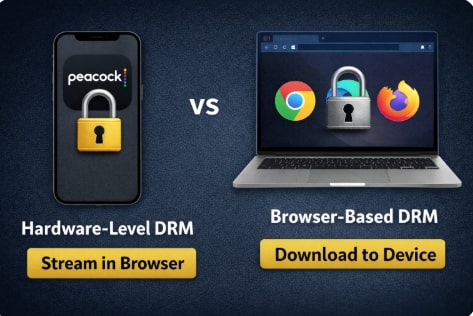
Comparison of DRM Security
A Security Warning About “Free” Peacock Downloaders
When searching for a Peacock laptop download option, you will find websites promoting free tools. It is vital to treat these offers with extreme caution. The majority of free downloaders are not safe and can introduce serious security risks to your computer.
Developing and maintaining software that can correctly process DRM-protected streaming is a complex and expensive task. Consequently, “free” tools are often funded by bundling malware, adware, or spyware into the installer. Using one of these programs could compromise your personal data, including Peacock login credentials and other sensitive information.
Key dangers include:
- Malware and Viruses: Malicious code that can steal your data or damage your computer.
- Data Theft: Some tools are designed to capture your login details for account hijacking.
- Poor Performance: Many free tools are unreliable, producing low-quality, incomplete, or corrupted video files that are unwatchable.
A reputable, paid solution invests in security and reliability, ensuring your privacy is protected and the tool performs as expected without any hidden threats.
Frequently Asked Questions About Watching Peacock on Laptops
Here are direct answers to the most common questions.
Q1. Can I download Peacock episodes on a laptop?
No, you cannot officially download Peacock episodes directly using the service’s features. The native download option for offline viewing is exclusive to the Peacock mobile apps for iOS and Android. To save episodes on a PC or Mac, you must use a third-party software application like Keeprix Downloader.
Q2. Is there a Peacock app for laptops?
No, Peacock does not offer a dedicated desktop application for either Windows or macOS. Access on a laptop is handled entirely through a web browser by visiting the official Peacock website.
Q3. How can I watch Peacock offline on my computer?
The only method to watch Peacock offline on a computer is to first save the video files to your local hard drive. Because this is not possible through a browser, you need a specialized downloader program that can capture the video stream and convert it into a standard format like MP4. Once saved, you can play the file with any media player without needing an internet connection.
Q4. Which devices support official Peacock downloads?
Official support for downloading Peacock content is restricted to the following mobile devices:
- iPhones and iPads running iOS 14 or later.
- Android phones and tablets running Android 6.0 or later.
Q5. Are Peacock laptop downloaders safe?
Safety depends entirely on the source. Reputable, paid downloaders from established developers are generally safe, as they have a business model based on providing a working, secure product. However, most “free” downloaders are not safe and often contain malware, adware, or phishing components. Always research a tool before installing it.
Q6. Does Peacock support offline viewing in browsers?
No, Peacock does not support offline viewing in any web browser on any platform. Its offline features are strictly limited to its mobile applications.
Conclusion: Take Control of Your Offline Viewing
The inability to download Peacock on a laptop stems from technical and security decisions, not a lack of user demand. While the official service limits you to mobile devices, you are not without a solution. Using a trusted and reliable tool like Keeprix Downloader directly resolves the core issues of DRM restrictions preventing file saving and device limitations. This method puts you back in control, allowing you to build a permanent, ad-free library of your favorite shows and movies to watch anywhere, on any device, without worrying about internet connections or expiring content.
Instead of being limited by platform rules, you can solve the problem in minutes. Explore the features or download a free trial to see how simple it is to get your content ready for your next trip.