Is Peacock on PS5 in 2026? Your Complete Guide to Watching

Getting your new PlayStation 5 set up as the central hub for all your entertainment is exciting, but that excitement can quickly turn to frustration when a specific streaming app seems to be missing. You’re probably wondering, “Can you watch Peacock on PS5?” without needing extra hardware or complicated workarounds. The uncertainty around app support, especially when an app doesn’t appear in the store, can be a significant obstacle. You might be concerned about regional restrictions or confused about whether the PS4 version is supposed to work. This guide cuts through that confusion. We’ll provide a direct, tested answer and walk you through the exact procedure to get you streaming, troubleshoot common issues, and regain control over your entertainment experience.

Is Peacock on PS5
How to Get the Peacock App on Your PS5: A Step-by-Step Guide
Let’s address the main question immediately: Yes, the Peacock app is available on the PS5. You can download the official application from the PlayStation Store and stream its full library of movies, shows, and live sports directly from your console.
Finding and installing the Peacock app on PS5 is a straightforward process that takes only a few minutes. Follow these simple steps to add it to your collection of PS5 media apps.
Step 1. Navigate to the Media Tab
From your PS5’s main home screen, press the R1 button on your DualSense controller to switch from ‘Games’ to the ‘Media’ tab. This is the central location for all your PlayStation streaming apps.
Step 2. Open the ‘All Apps’ Library
In the Media tab, you’ll see a row of featured applications. If Peacock isn’t immediately visible, navigate to the ‘All Apps’ icon, which is usually on the far left of the list, and select it with the X button.
Step 3. Search for the Peacock App
Inside the ‘All Apps’ library, select the ‘Search’ icon (a magnifying glass) at the top right of the screen. Use the on-screen keyboard to type “Peacock”. The official Peacock TV app should appear as the primary search result.
Step 4. Download and Install
Select the Peacock app from the search results to go to its page in the PlayStation Store. Click the prominent ‘Download’ button. The application will download and install automatically. Once finished, its icon will appear in your Media tab and App Library, ready to launch.
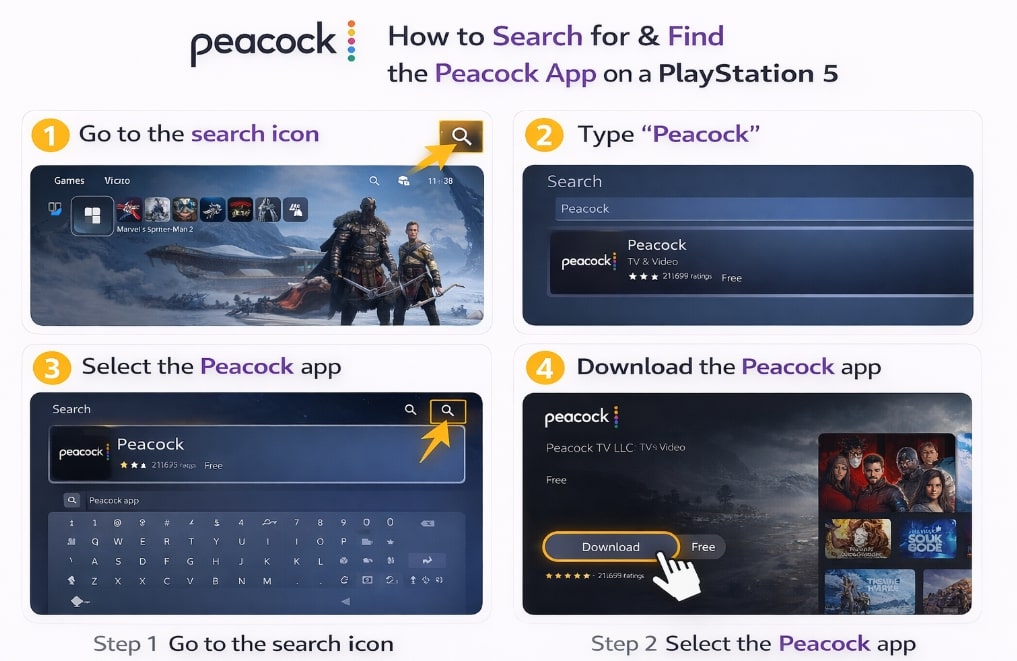
Download Peacock on PS5
Peacock Not Working on PS5? Common Reasons and Solutions
Sometimes, you might follow the steps correctly, but still can’t find the Peacock app. This is a common point of frustration, but it usually stems from one of two specific issues: regional restrictions or a simple store cache error. Before you assume does PS5 support Peacock is a ‘no’ for you, let’s troubleshoot.
The most significant factor determining Peacock console availability is your PlayStation Network (PSN) account’s region. The Peacock app on PlayStation is primarily available in the United States. If your PSN account is registered to a country where the service hasn’t launched on the platform, the app will not be visible in your PlayStation Store.
Here’s another key insight: the app you’re downloading is the PS4 version running via backward compatibility. Because it isn’t a native PS5 app, it’s rarely featured on the main Media page, making a manual search necessary.
If you are in a supported region and still can’t find it, try these solutions:
- Confirm Your PSN Account Region: A simple way to check is to navigate to Settings > Users and Accounts > Account > Payment and Subscriptions > Add Funds. The currency displayed for your wallet confirms your account’s registered region.
- Perform a Full System Restart: A temporary glitch in the store’s cache can prevent apps from appearing. Instead of using Rest Mode, completely power down your PS5. Wait for 30 seconds before turning it back on. This simple procedure often resolves display issues.
- Use the Manual Search Function: Do not rely on the featured apps list. Always navigate to Media > All Apps > Search to query the entire store database directly.
Peacock on PS5 vs. PS4: A Performance Comparison
If you’re upgrading from a previous console, you may wonder how the experience compares. Since the answer to “Is Peacock on PS4?” is also yes, it’s important to understand that the PS5 runs the same PS4 application through its powerful backward compatibility engine. There is no native, dedicated PS5 version of the app at this time.
The difference in experience comes entirely from the PS5’s superior hardware. The console’s powerful CPU and ultra-fast SSD provide a significant performance boost.
Here is a quick comparison of what to expect:
| Feature | PlayStation 4 (Pro) | PlayStation 5 |
| App Startup Time | Moderate; can take several seconds to load. | Faster; the app launches noticeably quicker. |
| UI Responsiveness | Generally smooth but can lag when loading new content. | Very fluid; scrolling and navigation feel snappier. |
| Content Loading | Slower; thumbnails and video libraries take time to populate. | Near-instant; content libraries load much faster. |
| Max Resolution | Up to 1080p (HD), limited by Peacock’s service. | Up to 1080p (HD), limited by Peacock’s service. |
| Overall Stability | Stable, but can occasionally crash or freeze. | Highly stable due to more powerful hardware. |
While the streaming quality itself is identical, the overall user experience of navigating and using Peacock on PlayStation 5 is tangibly better.
Streaming on PS5 vs. Downloading for Offline Viewing
Having Peacock on your PS5 is an excellent solution for convenient streaming. However, the streaming model has inherent limitations that can impact your viewing, such as buffering, ads, and content that disappears from the library without warning. Understanding these trade-offs helps you choose the best method for your needs.
Let’s compare streaming on your console with the alternative: downloading content for offline viewing.
| Consideration | Streaming on PS5 | Downloading with a Tool (e.g., Keeprix) |
| Internet Dependency | Required. A stable, high-speed connection is mandatory. | Not Required for Playback. Watch anywhere without Wi-Fi or mobile data. |
| Content Permanence | Temporary. Shows and movies can be removed at any time due to licensing. | Permanent. You own the downloaded file and can keep it forever. |
| Ad-Free Experience | Requires Premium Tier. Otherwise, viewing is interrupted by ads | Always Ad-Free. Tools can remove ads even from ad-supported plans. |
| Regional Locks | Enforced. You cannot access content unavailable in your PSN region. | Bypassed. Download content from any region, overcoming geographical restrictions. |
| Portability | Low. Viewing is tethered to your console and television. | High. Transfer files to a laptop, tablet, or phone for viewing on the go. |
For Ultimate Flexibility: Download Peacock Shows with Keeprix
When the limitations of streaming become a barrier, a dedicated tool like Keeprix Downloader provides a powerful and reliable solution. It’s designed to solve the most common frustrations users face, from regional restrictions to the temporary nature of streaming libraries.
If you encounter the Peacock app not appearing in the PlayStation Store due to your location, Keeprix offers a direct fix. Its ability to remove regional restrictions means you can access and download shows that are otherwise unavailable to you, completely bypassing the PS5 app issue.
- Keeprix also provides a permanent solution to content availability and ad interruptions.
- By saving videos in high-quality MP4 or MKV format, you keep them permanently, safe from being removed from Peacock’s library.
- The downloader also automatically removes all ads, even from ad-supported plans, ensuring a seamless viewing experience.
- For users who need to watch on alternative devices, these downloaded files are fully portable, ready for a laptop, tablet, or smartphone.
How to save Peacock videos via Keeprix Downloader
Step 1. Download Keeprix Downloader and install it on your computer.
Step 2. Open Keeprix Downloader and choose Peacock from the main menu. Then sign in to your Peacock account.
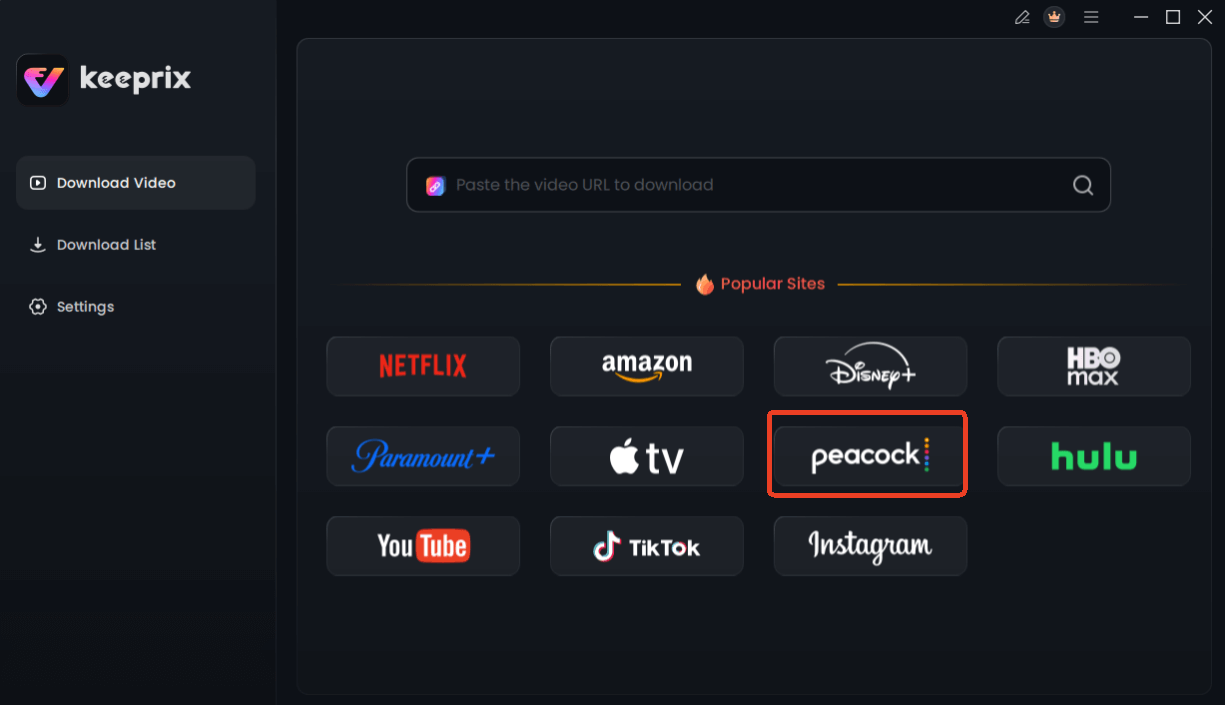
Choose Peacock in Keeprix Downloader
Step 3. Use the integrated browser to find the movie or TV show you want to save. Alternatively, you can paste the video’s URL into the downloader. Then click Download.
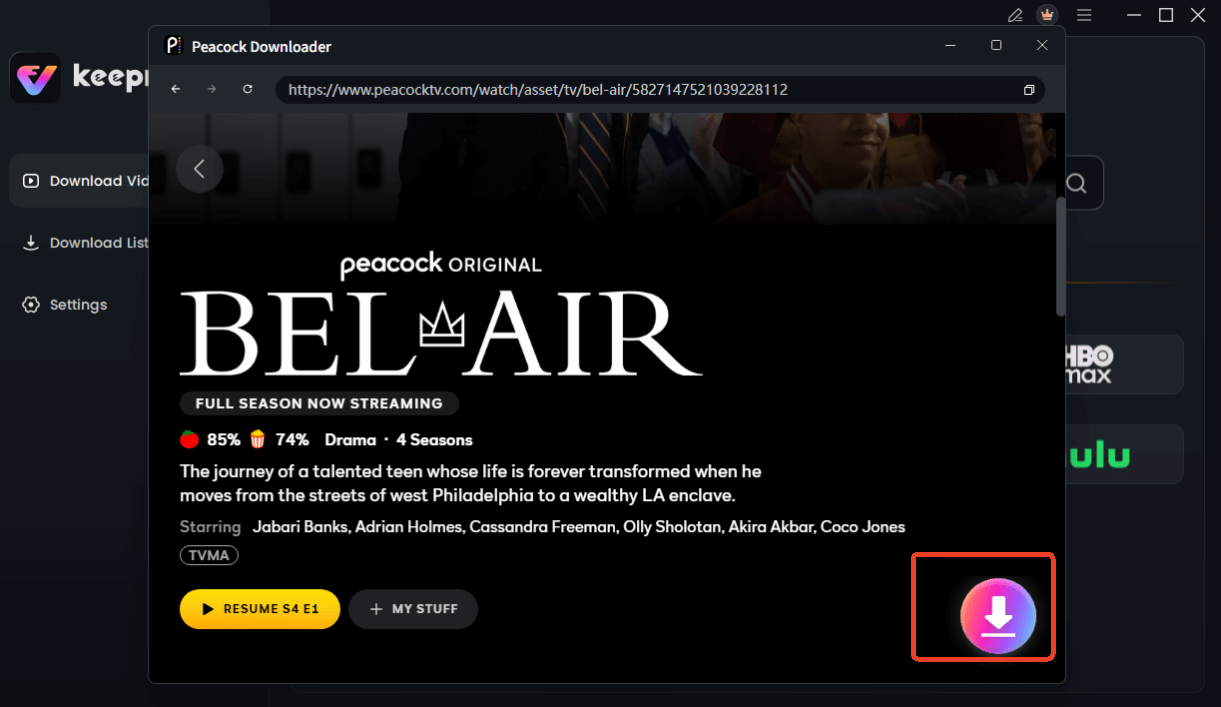
Choose Peacock Video to Download
Step 4. You can then choose your preferred video quality (up to 1080p), audio language, and subtitle format.
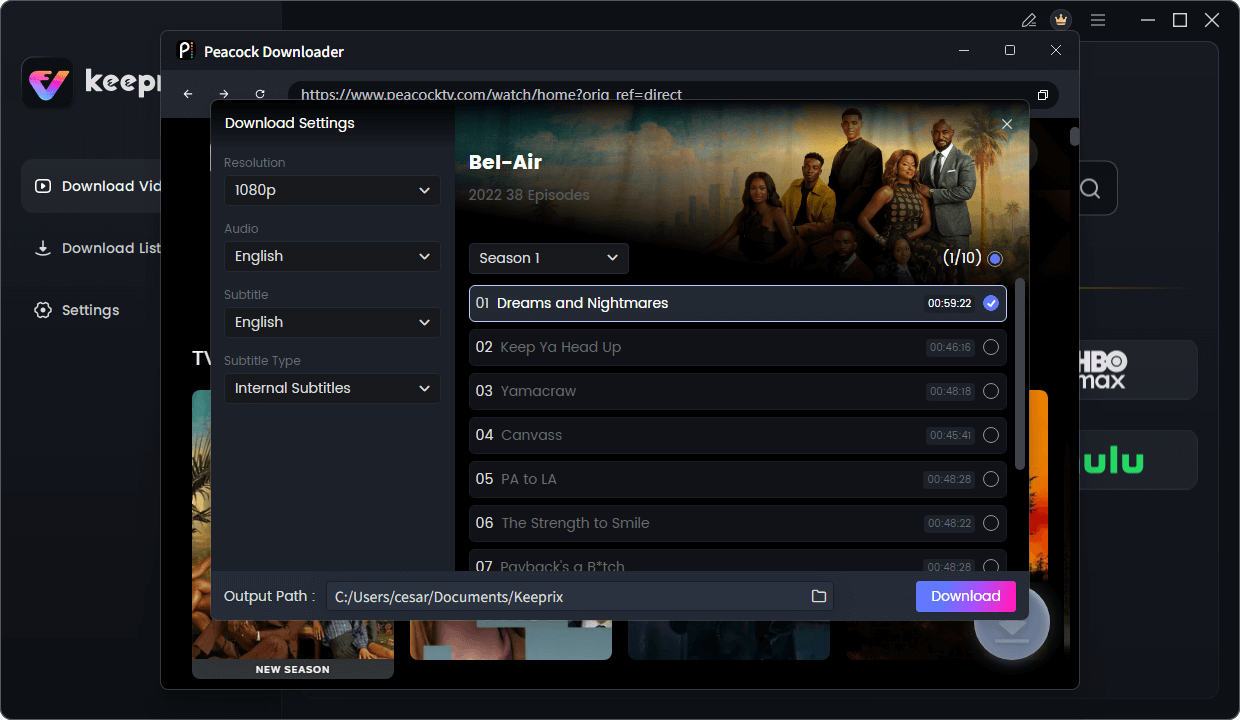
Configure Peacock Download Settings
Step 5. Click the Download button. The software will process the video, remove ads, and save the permanent file to your computer.
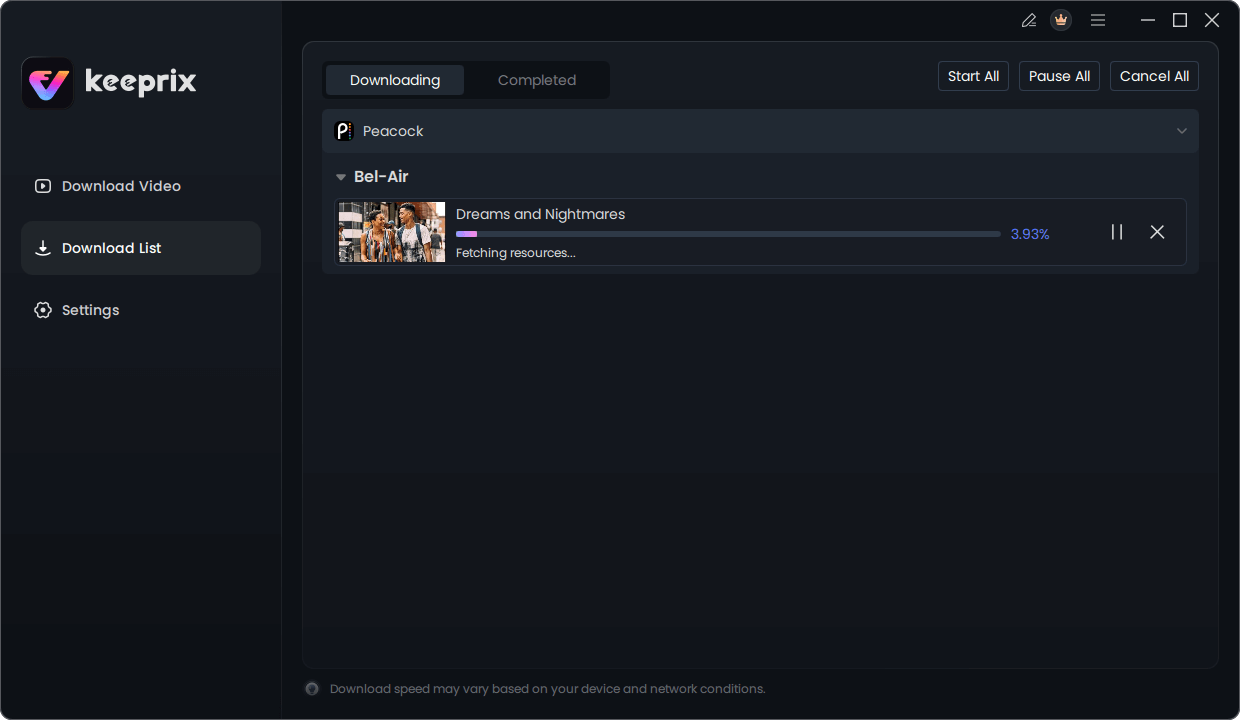
Downloading Peacock Video
Frequently Asked Questions (FAQ)
Q1. Is Peacock available on PS5?
Yes, the Peacock app is available for download on the PlayStation 5 via the PlayStation Store. It allows you to stream the service’s entire content library.
Q2. How do I install Peacock on PS5?
From the PS5 home screen, go to the ‘Media’ tab, select ‘All Apps,’ use the search function to find “Peacock,” and then select the ‘Download’ button from the app’s store page.
Q3. Why can’t I find Peacock on my PS5?
The most common reason is a regional mismatch. The Peacock app on PlayStation is primarily available to users with a US-based PlayStation Network (PSN) account. If your account is set to another region, the app will not appear.
Q4. Does Peacock work the same on PS5 as PS4?
It works very similarly because the PS5 runs the PS4 version of the app. However, users will experience better performance on the PS5, including faster load times and a more responsive interface, thanks to the console’s superior hardware. [Internal Link Suggestion: Link the preceding phrase to ‘/ps5-backward-compatibility-explained’]
Q5. Do I need a Peacock subscription to use the PS5 app?
Yes. The app itself is free to download, but you must sign in with a Peacock account to watch content. This can be a free-tier account or a paid Premium/Premium Plus subscription.
Q6. Is Peacock free on PS5?
The Peacock app is available for free download. Peacock also offers a free, ad-supported viewing tier with a limited amount of content. To access the full library of shows, movies, and live sports, a paid subscription is required.
Conclusion
Ultimately, you can confidently use your console as one of your primary Sony PlayStation video apps for streaming. Knowing that Peacock on PlayStation 5 is not only possible but also offers a smooth experience should resolve any uncertainty. For moments when streaming falls short—whether due to regional locks, internet instability, or the fear of your favorite show disappearing—a tool like Keeprix Downloader provides the perfect backup plan. It puts you in complete control, ensuring you can watch what you want, when you want, without any restrictions.
Don’t let streaming limitations dictate your viewing experience. Explore the features of Keeprix Downloader and discover the freedom of true content ownership.