Disney Plus MP4 Download: The Expert Guide to True Offline Viewing (2026)

Planning a family trip is stressful enough without finding your entertainment trapped on a single device. Like many parents, you want to save Disney movies and Pixar shorts to keep the kids entertained during long flights or road trips. The official app works well on an iPad, but those downloads consume massive storage, require periodic internet revalidation, and cannot be transferred to other devices.
If you want to play videos on a laptop, a USB drive, or a hotel TV, you need to download the video as a standard MP4 file. The frustration of being locked into an app when you want true cross-device playback is a common headache for travelers. In this guide, we cut through the confusion of screen recording failures, official restrictions, and third-party tools. We will show you safely and objectively how to save your favorite shows as standard video files to secure your offline viewing.

Disney Plus MP4 Download
The Hidden Limits: Why Official Disney+ Downloads Aren’t MP4s
A frequent source of confusion begins with the official “Download” button. Users understandably assume tapping this icon will save a standard video file to their device. However, there is a strict technical difference between standard Disney+ offline viewing and a true MP4 or MKV file.
Official Disney+ app downloads are not standalone files. When you tap the download icon on an iPhone, iPad, Android, or Fire tablet, the application generates a cluster of encrypted data fragments. These fragments are hidden deeply within the system’s application cache folders. For instance, Android users often ask where these files go; they are usually buried away in the Android/data/com.disney.disneyplus directory .
Even if you connect your phone to a computer and locate these files, you cannot move them to an external hard drive or play them on VLC. They lack a standard video container format.
The Problem with App Lock-In
This architecture creates severe restrictions for offline viewing. Official downloads are governed by an expiration protocol, requiring a mandatory 30-day reconnection to the internet. If the app cannot verify your active subscription status by phoning home to the server, the downloaded videos will expire.
Furthermore, official downloads are limited strictly to the phone or tablet where they were saved. TVs and computers are not supported for downloads through official channels—meaning you cannot simply transfer an official app download to laptop storage for a larger screen experience.
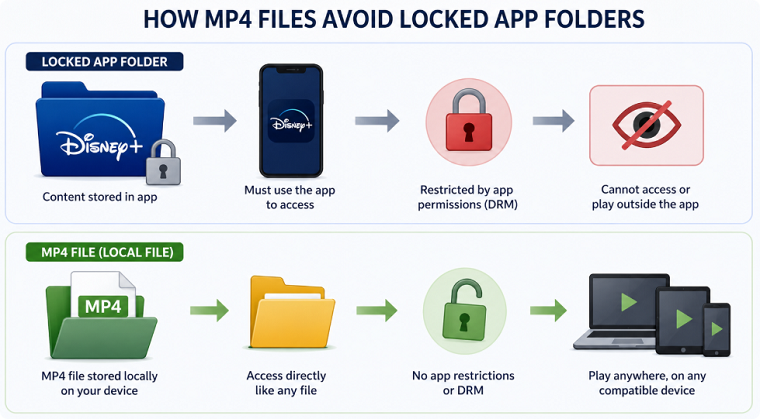
How Mp4 Files Avoid Locked App Folders
DRM Protection: Why Screen Recording Causes a Black Screen
To escape these limits, many users attempt to capture their screen using basic recording software like OBS Studio or QuickTime. Unfortunately, this manual technique almost always results in an immediate technical failure: the video turns entirely black, leaving only the audio playing.
This is not a glitch. It is an intentional security feature driven by Digital Rights Management (DRM) protection. DRM is specialized code designed to manage copyright. When you stream a movie, your browser communicates directly with your graphics hardware to ensure the visual output is securely encrypted. If a standard screen recorder attempts to capture the display, the DRM protocols instantly detect the intrusion and block the video feed .
Additionally, screen recorders require you to play the entire movie in real-time, frequently drop 5.1 surround sound audio, and fail to capture SRT subtitles. This makes manual recording a terrible method for building a travel library.
Comparing Offline Methods: App vs. Web Tools vs. Desktop Software
When choosing a method to watch offline, it is crucial to understand the tools available. Below is an objective comparison of the four primary procedures:
| Feature | Official App Downloads | Screen Recording | Online Web Tools | Desktop Downloader Software |
| Output Format | Encrypted cache files | Flawed video files | Often fake/malware | Clean MP4/MKV output |
| Device Support | iOS, Android, Fire tablets | Windows, Mac | Web browsers | Windows / Mac |
| Cross-Device Playback | No (Locked to device) | Yes (If successful) | N/A | Yes (Universal compatibility) |
| Download Quality | Up to 1080p | Lossy, prone to lag | Highly unreliable | Up to 1080p (DRM pending) |
| Safety & Privacy | 100% Safe (Official) | Safe | High Risk | Moderate (TOS gray area) |
| Best For | Casual, mobile-only viewing | Not recommended | Avoid completely | Media libraries, USB, Travel |
Users looking to avoid expiration dates or black screen errors generally rely on the fourth column: dedicated desktop software. However, it is vital to know that “Online Web Tools” promising free Disney+ downloads are almost universally scams that will spam you with ads or attempt to steal your login credentials. Always avoid them.
Evaluating Third-Party Desktop Software
If your goal is to prepare a laptop or USB drive for a long trip without Wi-Fi, specialized desktop software is the only viable route. These tools function as dedicated, secure browsers that parse the video and audio streams directly from the source and reassemble them into standard files.
There are a few major players in this space, including StreamFab, AnyStream, and Keeprix Video Downloader. While they all perform similarly, we used Keeprix for our hands-on testing because of its straightforward interface for managing subtitles and audio tracks.
Keeprix: Pricing, Trial Limits, and Important Notes
Before installing any third-party video downloader, it is worth knowing what you get in the free trial and what requires a paid plan.
- Trial Limits: Keeprix offers a free trial that lets you test the software with 2 full video downloads. This trial quota is shared across Keeprix downloaders, so it is best used to test the platform, video quality, subtitle options, and download workflow before upgrading.
- Pricing:Keeprix is paid desktop software for Windows and Mac. The All-in-One Downloader currently offers monthly, yearly, and one-time purchase plans. Pricing may change during promotions, so you should always check the official pricing page before buying. Paid plans unlock unlimited downloads from supported video downloaders, free upgrades during the subscription period, and customer support.
Important Notes Before You Use Keeprix
Keeprix is intended for personal, private, and non-commercial use only. Downloaded videos should not be redistributed, uploaded, shared with others, or used for commercial purposes.
Download results may also vary depending on the title, your account region, the source platform, and current platform updates. Video quality, subtitles, audio tracks, and download speed can differ by platform and by video. For Disney+, Keeprix supports saving videos in MP4/MKV format for offline playback, but users should test the free trial first to confirm whether the output quality and subtitle options meet their needs.
The Risks and Drawbacks:
It is important to understand what you are getting into. Using third-party downloaders technically violates Disney’s Terms of Service (TOS). While account bans for personal, non-commercial use are incredibly rare, the risk technically exists. Furthermore, because streaming services constantly update their DRM protection, a software tool might occasionally be locked out of 1080p downloads. During these DRM updates, your downloads might temporarily drop to 720p resolution until Keeprix pushes a software update to catch up.
Step-by-Step Procedure
If you decide desktop software is right for your trip, here is how to use Keeprix Disney Plus Downloader:
Keeprix Video Downloader
Download streaming videos from hot platforms without restrictions. Enjoy seamless offline watching on Windows and Mac computers.
Step 1. Download and install Keeprix Video Downloader on your Windows or Mac device and choose Disney.
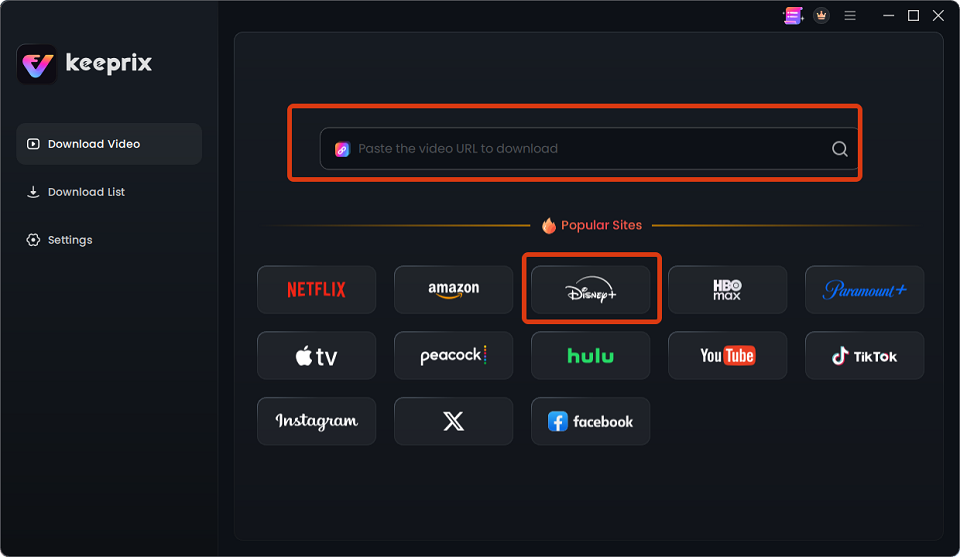
Choose Disney
Step 2. Open the Keeprix video downloader and select the Disney+ option. Then, put your Disney+ login credentials.
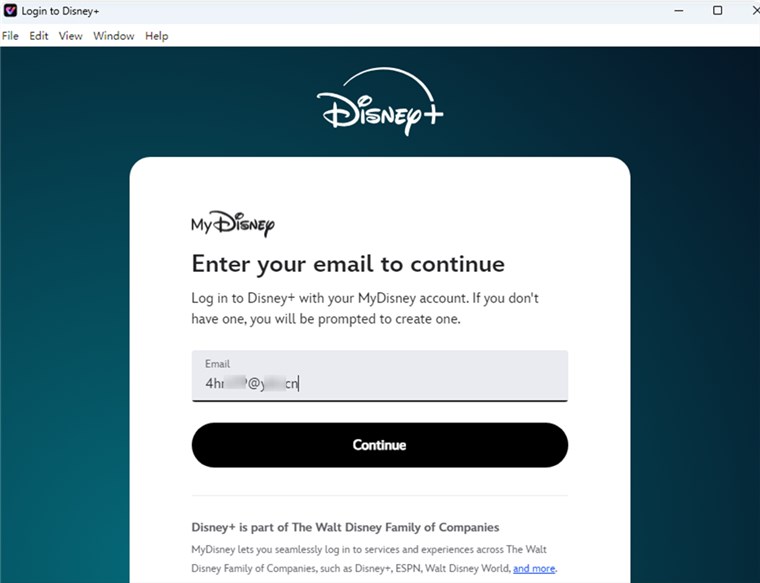
Log into Disney Plus Account
Step 3. Copy and paste the Disney Plus video link into Keeprix or use the built-in browser to find the video.Press the “Download” icon and choose your preferred resolution, audio, subtitle type, and output path.
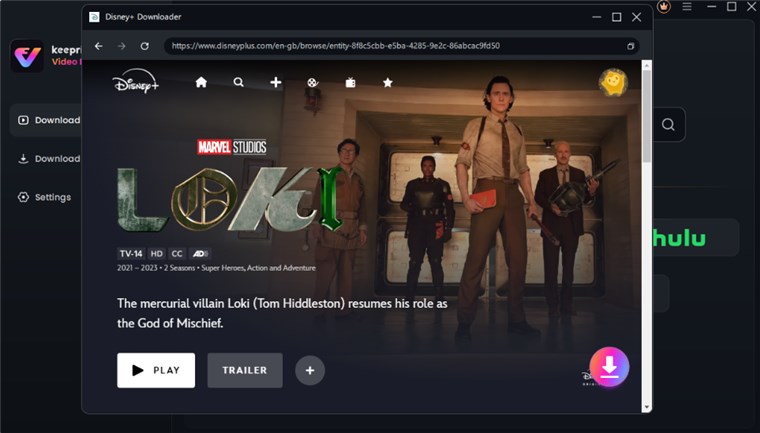
Download Disney Plus Video
Step 4. Finally, click the “Download” button. Once the download is complete, you can locate the video in the “Download List” section.
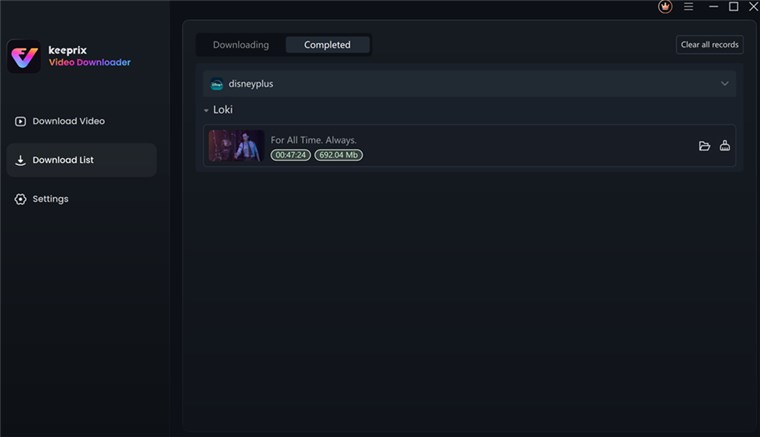
Disney Plus Video Downloaded
File Size Estimate: Be prepared with adequate storage. A standard 2-hour movie downloaded in 1080p resolution will take up roughly 3.5GB to 4GB of hard drive space.
You might like: 2026 Review: 9 Best Disney Plus Video Downloaders
The Traveler’s Offline Viewing Checklist
Before you start saving files for your trip, you must understand the boundaries of copyright compliance.
Copyright & Safety Warning:
Downloading streaming content using third-party applications bypasses standard terms of service. These tools must be employed strictly for personal use only. You should only download videos to which you have lawful access via an active subscription. Never redistribute, sell, re-upload, or share copyrighted media.
With ethics established, preparing for a trip requires practical organization. Follow this Pre-Flight Checklist to ensure your family’s entertainment works flawlessly:
The Pre-Flight Tech Checklist:
1. Assess Available Storage: Ensure your laptop or external hard drive has sufficient space. Remember, expect about 2GB per hour of 1080p video.
2. Verify Audio and Subtitles: Open the file before leaving home. Confirm that the SRT subtitles you selected are visible and that you downloaded standard Stereo audio if you are relying on basic TV speakers.
3. Test Media Library Playback: Play your downloaded videos on VLC Media Player or QuickTime . Do not rely solely on your operating system’s default video player, as they sometimes lack the necessary codecs.
Frequently Asked Questions
Can I play official Disney+ downloads in VLC or QuickTime?
No. Official mobile downloads cannot be played on VLC or QuickTime due to DRM encryption. However, if you extract the content as an MP4 or MKV file using desktop software, the resulting file will play flawlessly on any standard media player.
Can I download movies directly to my laptop?
Yes, but not through official channels. The official app limits downloads to iOS, Android, and Fire OS tablets/phones. To save movies directly to a Windows or Mac laptop, you must use specialized third-party desktop software.
Do I need a Premium subscription to download videos?
If you rely on the official app, the offline viewing feature is strictly restricted to the ad-free Premium plan. However, third-party download tools often support ad-supported plans, allowing you to save the video while the software automatically filters out the embedded commercial breaks.
Will my desktop MP4 downloads expire?
Official app downloads are subject to expiration, requiring a 30-day reconnection to the internet to verify your subscription. Standard MP4 files do not have this limitation. Because tools like Keeprix are regularly updated by their developers to bypass new DRM changes, the files you successfully generate are yours to keep indefinitely, ensuring your travel library remains accessible long after the 30-day app revalidation limit.
Conclusion
In short, official Disney+ downloads are useful for simple mobile viewing, but they are not true MP4 files and cannot solve every travel scenario. If you need to watch Disney+ videos on a laptop, USB drive, media player, or hotel TV, you need a more flexible offline viewing method.
Keeprix Disney Plus Downloader offers a desktop-based way to save Disney+ videos as MP4/MKV files for personal use. Before upgrading, users should test the free trial, check the available quality and subtitle options, and make sure they only download content they can legally access through an active Disney+ account.With the right setup, your offline Disney+ library will be ready before the trip begins — no expired downloads, no black screens, and no last-minute Wi-Fi panic.

Keeprix Video Downloader
- Download streaming videos on Windows & Mac.
- No restriction on the downloaded videos.
- Support downloading from Netflix, Amazon Prime and more.
- Up to 4K videos without DRM protection.