How Long Do Netflix Downloads Last? (2026 Travel Survival Guide)

Quick Answer: How Long Do Netflix Downloads Last?
Netflix downloads do not have a single, universal expiration timer. Unwatched titles generally remain valid for 7 to 30 days depending on the specific studio contract. However, the moment you press “Play,” a strict 48-hour expiration clock begins. Fortunately, you do not have to guess your timeline: the Netflix app will explicitly display a countdown timer on your Downloads tab once a title has less than 7 days remaining.
Preparing for a long trip without reliable Wi-Fi can be stressful, especially when it comes to securing your offline entertainment. Many users carefully download movies onto their tablets or phones, only to discover mid-flight that their titles have unexpectedly expired.
The expiration rules governing your saved media are notoriously confusing, largely because they are dictated by a web of different studio licensing agreements. This guide cuts through the confusion. We will explain exactly how to check your remaining time, how to fix expired files, and how to safeguard your travel entertainment without the guesswork.
How Long Do Netflix Downloads Last ?
Pro Tip: Do Not Test-Play Your Downloads
If you take one piece of advice from this guide, make it this: never test your downloaded files the night before your trip. Opening an episode for even two seconds to “make sure it works” triggers a rapid 48-hour countdown. Instead, simply open your Downloads tab to verify the status icon shows the file is fully saved, and save the first ‘Play’ for when you are actually traveling.
How to Check Your Remaining Download Time Immediately
You do not need to wait until a title expires to find out when it will disappear. While the baseline expiration window for an unwatched video is 7 to 30 days, Netflix builds a helpful early-warning system directly into the app.
To verify your timeline right now:
1. Open the Netflix app on your device.
2. Tap the Downloads tab at the bottom right of your screen.
3. Look directly next to or below the title of your downloaded movie or show.
4. If you have less than 7 days remaining, you will see an explicit countdown (e.g., “Expires in 6 days” or “48 hours left”).
5. If there is no text next to the title, your download is safely outside the 7-day warning window and will not expire imminently.
The 4 Expiration Clocks: Why Do Downloads Expire?
To fully understand your offline viewing limits, you must recognize that you are dealing with multiple background conditions at once. Here is the strict four-clock framework governing your stored media:
- Before Playback Starts (The 7-to-30-Day Window): If left completely unseen, most videos remain valid for 7 to 30 days after the initial Wi-Fi download. The exact length depends entirely on the specific studio contract for that particular movie or show.
- After Playback Starts (The 48-Hour Trap): As highlighted above, the moment you initiate playback, a rapid 48-hour clock begins. This applies even if you immediately pause the video and exit the app.
- Title Removal (Instant Expiration): If a movie or show is removed from the global Netflix catalog due to expiring licensing rights, your offline version will instantly fail and become unplayable, regardless of how much time was left on your local timer.
- Account Cancellation (Complete Wipe): Any stored media is automatically and deleted the moment your billing cycle ends after canceling Netflix. Offline access requires an active, paid subscription at all times.
Official Rules vs. Real-World User Experiences
Understanding the difference between what the platform states in its help files and how the app actually behaves in the wild is critical for travel prep.
| Scenario | Official Netflix Rule | Real-World User Experience |
| Expiration Timers | Downloads expire after a period of time | Unwatched titles generally last up to 30 days, but clicking “Play” universally triggers a harsh 48-hour countdown. |
| Offline Viewing | Watch TV shows and movies offline | If you force-close the app and restart it without internet access, it may occasionally demand a connection to verify your account status before allowing playback. |
| Renewal Limits | Some titles can only be downloaded a limited number of times per year | Studios often set this hidden limit at 2 or 3 downloads per year. Hitting this limit means you are completely locked out of offline viewing for that specific title until next year. |
| Storage Limits | You can have up to 100 active downloads per device | Studios often set this hidden limit at 2 or 3 downloads per year. Hitting this limit means you are completely locked out of offline viewing for that specific title until next year. |
Understanding Netflix Download Limits by Plan and Device
Beyond expiration clocks, strict technical limits and subscription tiers dictate your offline capabilities.
Plan Limitations
If you subscribe to an ad-free plan (Standard or Premium), you can maintain up to 100 active downloads per device simultaneously.
However, if you are on the Standard with Ads plan, your limit is significantly more restrictive: you are capped at exactly 15 downloads per device per calendar month. This is a hard limit. Hitting this monthly ceiling means you cannot save any new offline media until your next billing cycle begins, even if you delete your current downloads.
Device Compatibility Scope
You can legally save media on your local device storage (or store downloads on a verified SD card) using a wide variety of modern mobile hardware. Ensure your app and operating system are fully updated. Compatible devices include:
- iPhone and iPad: Supported across iOS and iPadOS. (Practical examples: iPhone 12 through 16 series, iPad Air, and iPad Pro).
- Android Phones and Tablets: Must be running a recent version of Android. (Practical examples: Samsung Galaxy S, A, and Z series, Galaxy Tab S and A series, Google Pixel devices).
- Amazon Fire Tablets: Must be running Fire OS 7 or later.
- Google Chromebooks: Must have the Google Play Store installed to download the official Android version of the Netflix app. Normal browser-based streaming on ChromeOS does not support offline storage.
Important Desktop Clarification: According to official troubleshooting guidance, native Netflix offline downloads are not available on Windows or Mac devices. You cannot save movies via your desktop browser or the current Windows app.
How to Renew or Redownload Expired Titles
If you encounter an expired file, recovering it is usually straightforward, provided you have a network connection.
- Connect your device to Wi-Fi or cellular data.
- Open the Downloads tab.
- Tap the orange exclamation mark next to the expired file.
- Select Renew from the pop-up menu.
What if the “Renew” option is missing?
If you do not see the option to renew, it means you have hit the studio’s specific renewal limit for that title. In this scenario, you must tap the exclamation mark, select “Delete Download,” and then search for the movie to redownload it from scratch.
The Ultimate Pre-Travel Netflix Download Checklist
Preparing your flight or hotel entertainment requires careful timing. To ensure your media survives your trip, run through this practical pre-travel checklist.
- Download Close to Departure: Execute your Wi-Fi downloads 24 to 48 hours before you leave. This maximizes your 7-to-30-day unseen window and ensures you have the freshest license verification.
- Do Not Update or Reinstall the App: Never update, delete, or reinstall the Netflix app right before leaving for the airport. Doing so can clear your local app cache and permanently wipe your downloaded files.
- Verify via the Downloads Tab: Remember the golden rule: do not hit ‘Play.’ Open your app and check the download status icon to confirm the file is saved locally.
- Disable Smart Downloads: Verify your available storage space. Features like Smart Downloads or Downloads for You will automatically delete watched episodes or download random titles, consuming precious storage space. Turn these features off in your App Settings so the platform does not overwrite your carefully chosen media.
- Stay Signed In: If you log out of the app, all offline media is instantly erased. Always remain signed in during your travels.
- Track Your Linked Devices: Ensure you do not have too many mobile devices registered to your account, which will block you from saving new files on your primary tablet.
Alternative Solutions for Permanent Offline Viewing
While carefully managing your in-app expiration timers is the best way to handle native mobile downloads, some users have different needs. If you require offline viewing on a Windows or Mac computer—which the official app blocks—or if you simply want to store your media permanently without worrying about 48-hour traps during a long vacation, you may want to explore third-party desktop tools.
Software like Keeprix Video Downloader is designed as an alternative for cross-platform desktop use. Instead of temporarily renting encrypted space within the mobile app, Keeprix allows users on Windows and Mac to save media as standard, high-definition MP4 or MKV files.
Tools like this remove the 30-day and 48-hour viewing constraints, and because they operate outside the mobile app environment, they also bypass the ad-tier limit of 15 downloads per month. While these are premium, paid software solutions, they offer a highly effective failsafe for users who require absolute control over their local media library, multi-language audio support, and guaranteed offline access.
How to Download Netflix Movies Without Any Restrictions:
Keeprix Video Downloader
Download streaming videos from hot platforms without restrictions. Enjoy seamless offline watching on Windows and Mac computers.
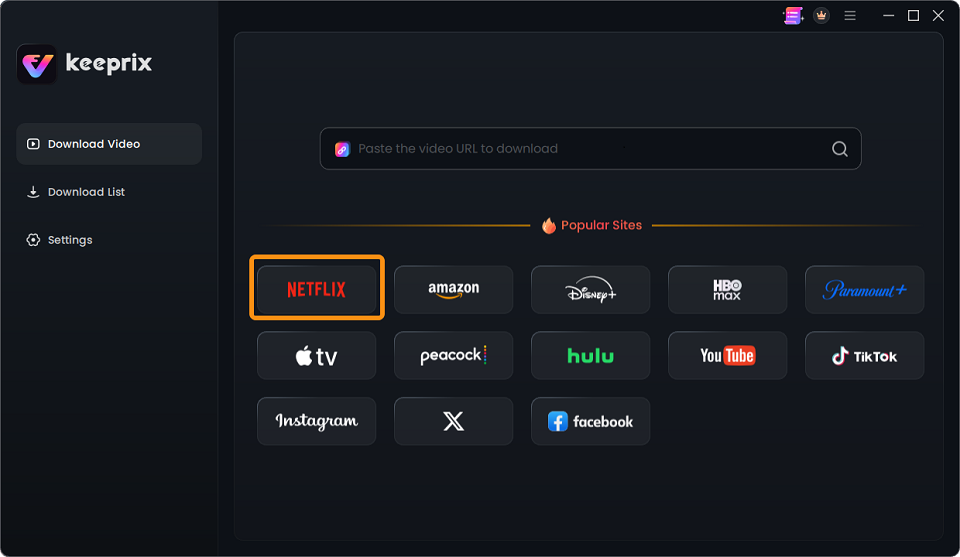
Step 1. Free download and launch Keeprix Video Downloader and choose Netflix from the options. You can directly paste a link to a specific movie or show in the search box to search for it.
Choose Netflix
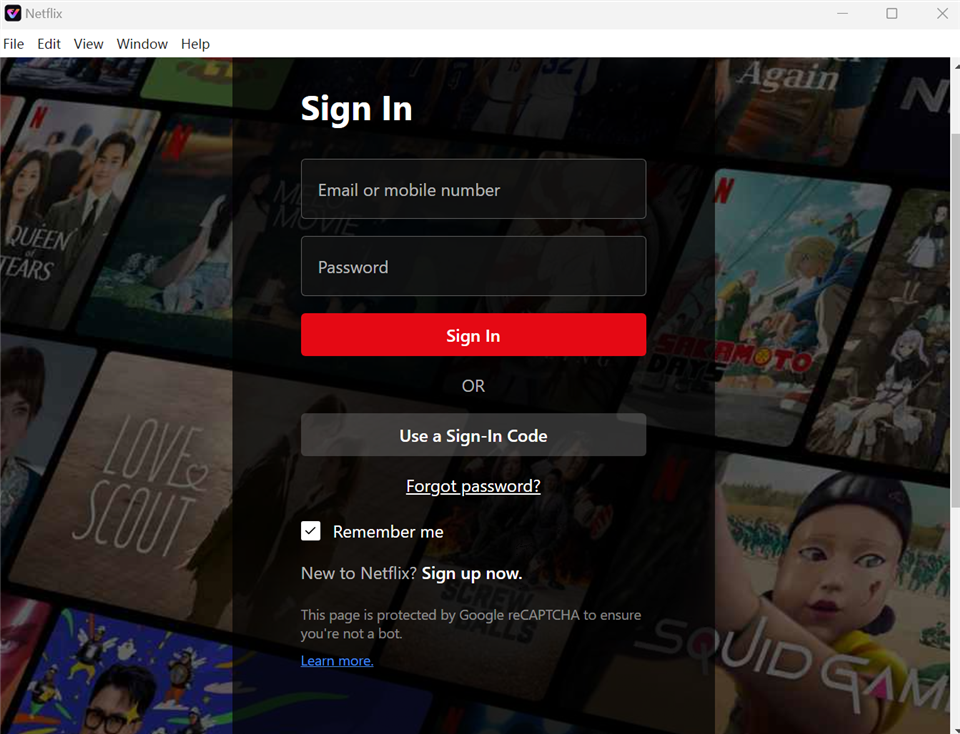
Step 2. Sign into your Netflix account with your credentials. Your credentials will be used exclusively to access video content and will be secure.
Sign In to Your Netflix Account
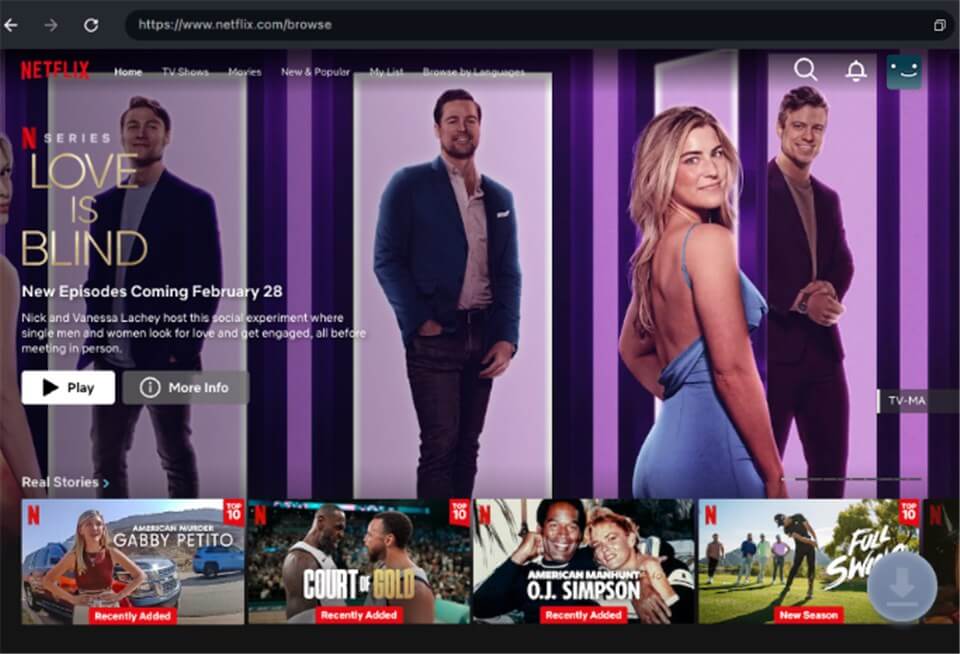
Step 3. Pick the movie or show you want to download. Once the link is pasted, the software will automatically display the video. Choose the episode or movie and click the download icon.
Download Movies Without Netflix Download Limit
Step 4. Select your preferred video quality (up to 1080p), language for audio, type of subtitle (internal or external), and directory to output. Then click on the download button.
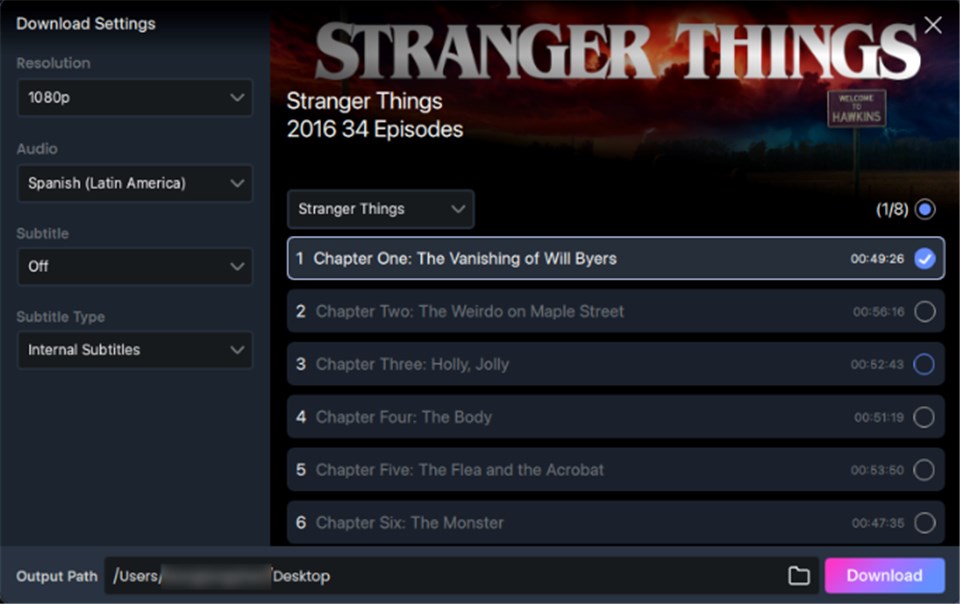
Customize Download Setting
Step 5. Wait for the downloading completed. Then you will successfully save videos without Netflix download limit.
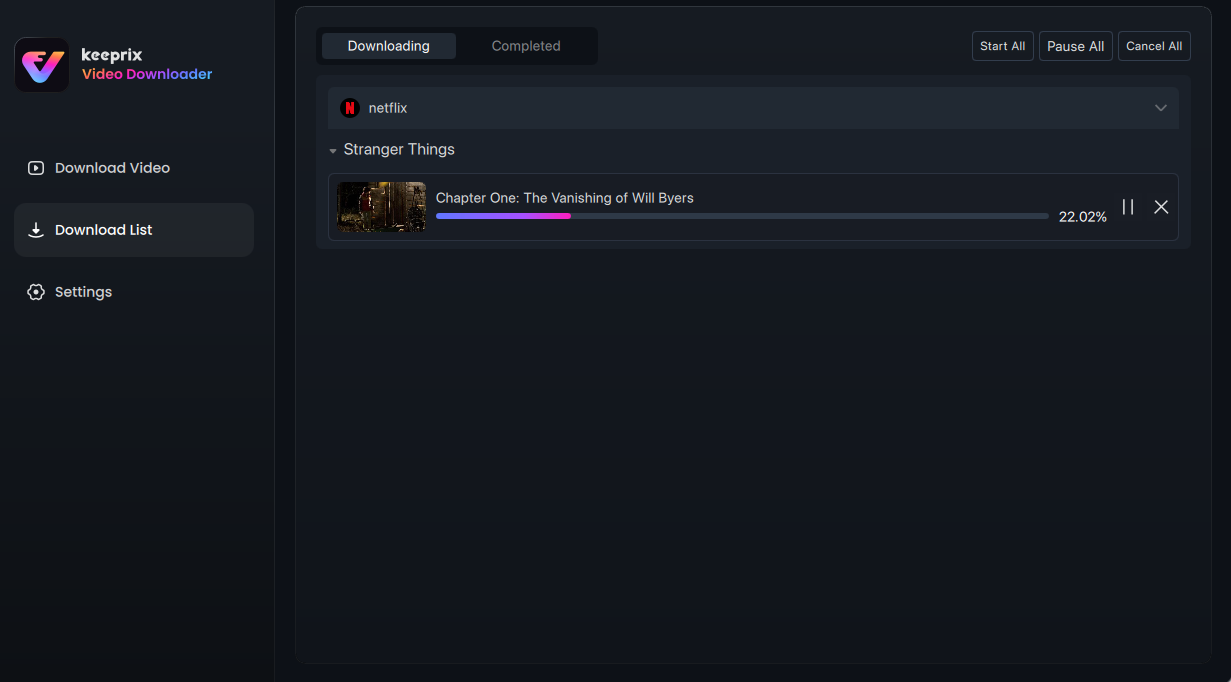
Downloading Netflix Videos
Frequently Asked Questions About Netflix Offline Viewing
When does the 48-hour download timer start?
The 48-hour clock begins the exact second you press the ‘Play’ button. Even if you only watch five seconds of the video to test the audio and then pause it, the expiration countdown cannot be stopped.
Can I watch an expired title without the internet?
No. Once a file reaches its expiration time, it locks down. You must connect to a Wi-Fi or cellular network so the app can verify your account status and renew the media license.
What happens if a movie or show leaves Netflix after I download it?
If a title is removed from the global catalog, your downloaded file will immediately expire and become unplayable, regardless of your local expiration timer.
Do my downloads still work after I cancel my account?
No. All downloaded content is inaccessible and permanently the moment your current billing cycle ends.
Why does the app say “Download Max Reached”?
This error appears for three primary reasons: you hit the 100-title limit on an ad-free plan, you hit the 15-title monthly limit on an ad-supported plan, or you have too many separate mobile devices linked to your account.
Does “Download Next Episode” delete episodes automatically?
Yes. If you have the Smart Downloads feature enabled, the app will automatically delete an episode once you finish watching it and attempt to download the next one (provided you are connected to Wi-Fi).
Regain Control of Your Offline Entertainment
Facing an expired media file when you need it most can put a severe damper on your travel plans. Fortunately, you no longer have to guess how long your files will last. By understanding the 7-day warning system on your Downloads tab, properly managing your storage space, and strictly avoiding the urge to test-play your videos early, you can safely protect your offline entertainment. Check your timers, follow the travel checklist, and enjoy your trip with total peace of mind.

Keeprix Video Downloader
- Download streaming videos on Windows & Mac.
- No restriction on the downloaded videos.
- Support downloading from Netflix, Amazon Prime and more.
- Up to 4K videos without DRM protection.