KeepStreams Not Working? Fix Download Issues

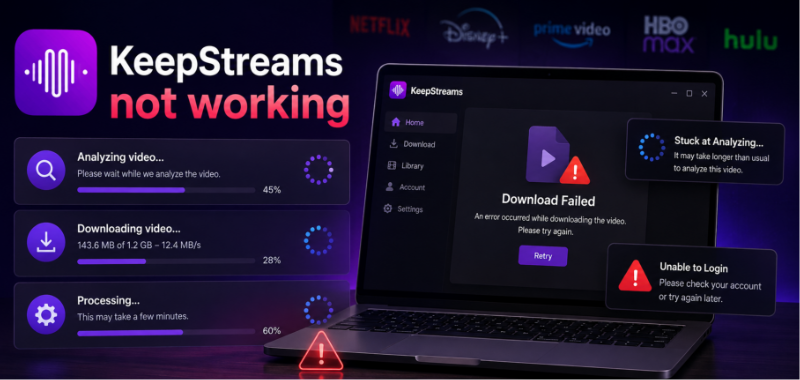
Is KeepStreams not working when you try to download a movie or TV show? You’re not alone. KeepStreams can sometimes stop analyzing videos, fail to start a download, get stuck during processing, or work with one streaming service while failing with another.
The good news is that the problem isn’t always your computer or account. Streaming platforms regularly change their websites, authentication systems, and content protection technologies. When this happens, third-party downloaders may temporarily lose compatibility until a software update is released.
KeepStreams not working
Here’s how to identify what’s causing the problem and what you can try before giving up.
Why Is KeepStreams Not Working?
KeepStreams may stop working because a streaming service has changed its website or DRM system, your KeepStreams version is outdated, your login session has expired, the title is unavailable in your region, or you’ve reached a download limit.
If only one streaming service is affected, the problem is often service-specific rather than a problem with your computer.
The fastest way to troubleshoot the problem is to identify whether one title, one streaming service, or the entire application is affected.
| What you’re experiencing | Possible cause |
| One title won’t download | Title, account, or regional restriction |
| An entire streaming service fails | Platform compatibility issue |
| KeepStreams is stuck at “Analyzing” | Website or DRM-related change |
| Downloads fail immediately | Login, network, or compatibility issue |
| Multiple services stop working | App, network, or software issue |
| Download reaches the end but fails | Storage or processing problem |
One of the most common reasons for KeepStreams not downloading is a change made by the streaming platform itself. Services can modify their website structure, authentication process, or content protection systems. When this happens, KeepStreams may suddenly stop recognizing videos or remain stuck at the analysis stage.
KeepStreams stuck at analyzing is another common symptom. If the software remains on the analyzing screen for an unusually long time, first try another title from the same service.
If other titles also fail, test a different streaming platform. If everything except one service works, the problem is more likely to be service-specific than an issue with your installation.
Is KeepStreams Down Right Now?
Is KeepStreams down or is the streaming service the problem? It’s important to distinguish between KeepStreams being unavailable and KeepStreams being incompatible with a particular streaming service.
The KeepStreams website being accessible does not necessarily mean every supported streaming platform will work correctly in the application.
A simple three-test diagnosis can help:
- Test 1: Try another title on the same service.
- Test 2: Try another supported streaming service.
- Test 3: Play the same title normally through the service’s official website or app.
If only one service fails while everything else works, the problem is likely service-specific. If every service fails, check the application version, login session, network connection, and installation.
How to Fix KeepStreams Not Working
Try these solutions in order, starting with the simplest.
Fix 1. Check for a KeepStreams Update
Install the latest available version before attempting more complicated fixes. Compatibility updates are particularly important when only one streaming service has stopped working.
Fix 2. Log Out and Log In Again
An expired authentication session can cause analysis or download failures. Sign out of the relevant service inside KeepStreams and sign in again.
Fix 3. Restart KeepStreams
Completely close the application and reopen it. Temporary errors can sometimes disappear after a clean restart.
Fix 4. Test Another Video
Try a different movie or episode from the same service. If another title works normally, the issue may be specific to the original title.
Fix 5. Test Another Streaming Service
This is one of the most useful troubleshooting tests.
If Netflix works but another service doesn’t, for example, reinstalling KeepStreams probably isn’t the first thing you should try. The problem may be related to that specific platform’s compatibility.
Fix 6. Check Your Network and Storage
A weak connection, firewall, VPN configuration, or insufficient disk space can interrupt downloads. Make sure you have enough free storage and that your network connection is stable.
✒️Manage your expectations: If a major streaming platform just updated its backend DRM, clearing your cache or reinstalling the software will not fix a “stuck on analyzing” loop. Basic troubleshooting only works for local glitches; backend protocol updates require you to wait for a developer patch or find an alternative tool.
The Real Root Cause: Streaming Protocol Updates
If basic troubleshooting didn’t work, it helps to understand why these outages happen so frequently. Streaming platforms frequently update their backend systems, video delivery protocols, and DRM protections. When these systems change, they instantly break the parsers of third-party video downloaders.
Once an update rolls out, developers must manually investigate the new protocols, rewrite their software’s code to catch up, and push a new patch to users. Figuring out how to download protected videos is an unavoidable cat-and-mouse game within the video downloading ecosystem.
The main pain point for users is the wait time. Depending on the complexity of the platform’s update, a patch can take anywhere from a few days to several weeks to release. If you only have a short window to save a video before a trip, a subscription ends, or a video is removed, waiting weeks for a patch leaves you stranded without a working tool.
What If KeepStreams Still Doesn’t Work?
If you’ve updated KeepStreams, checked your account, tested multiple titles, and confirmed that your network is working, the problem may require a compatibility update from the software developer.
In that situation, constantly reinstalling the application usually won’t help if the underlying issue is a change on the streaming platform.
You can wait for an official compatibility update, contact KeepStreams support, or test another compatible downloader to determine whether the problem is specific to KeepStreams.
For example, Keeprix Video Downloader provides another option for users who want to download supported streaming content for offline viewing. It supports Windows and Mac and offers MP4 and MKV output, making it possible to keep downloaded videos in a more flexible local media library instead of relying solely on an app’s internal download list.
Because different downloaders often use different parsers, a platform update that breaks one tool might not affect another. Keeprix provides a reliable local-file workflow for Windows and Mac users, allowing you to bypass app-only limitations and continue saving streaming or social media videos as flexible MP4 or MKV files for personal offline viewing.
Here is how you can get your downloads moving again with Keeprix:
Step 1. Download and install Keeprix on your computer. Launch the desktop app and choose a platform you want to download videos from, for example: Paramount+.
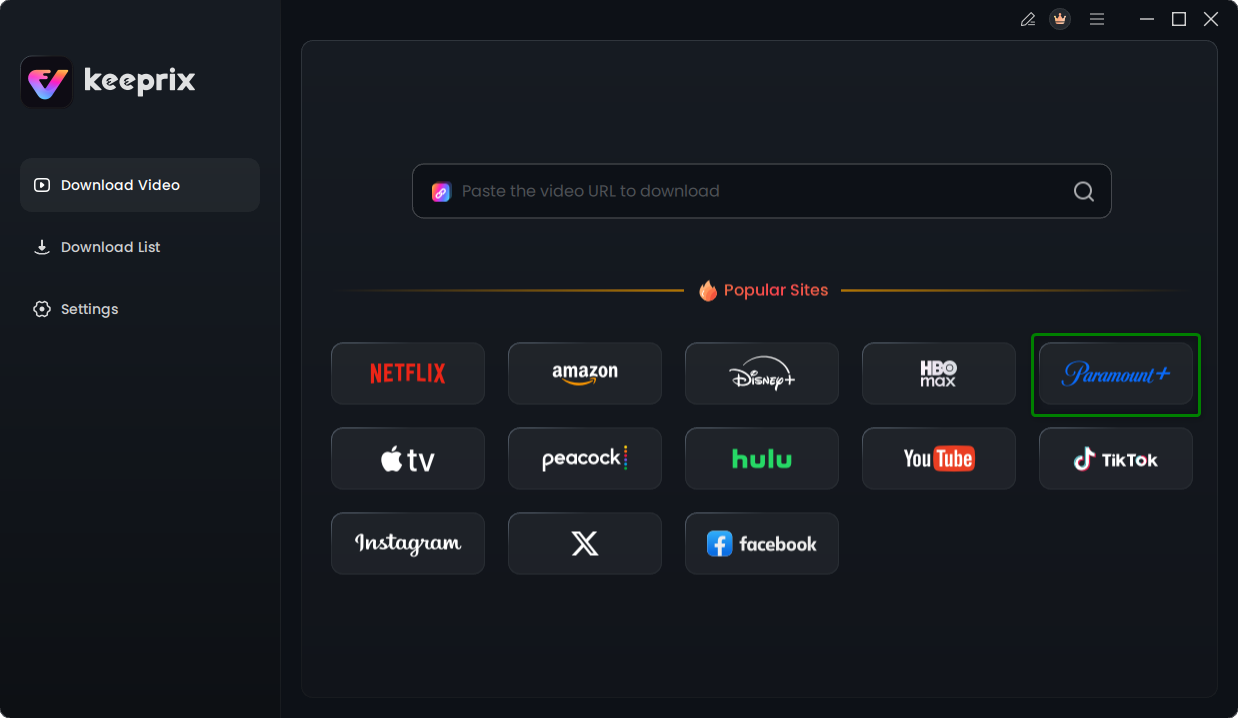
Step 2. Log into your platform: Use the built-in browser to securely access your supported streaming account. Then, select the episode, movie, or batch of videos you want to save.
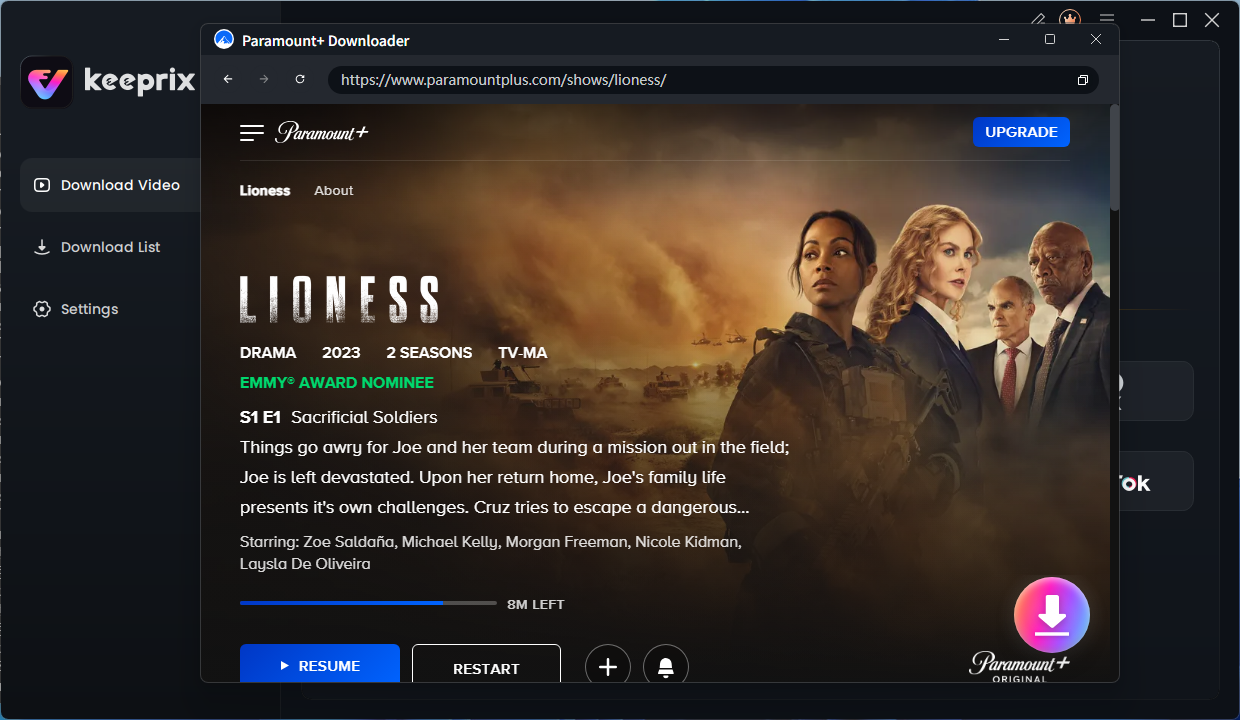
Step 3. Select MP4 or MKV, and pick your preferred audio tracks and subtitles. Click the Download button to start.
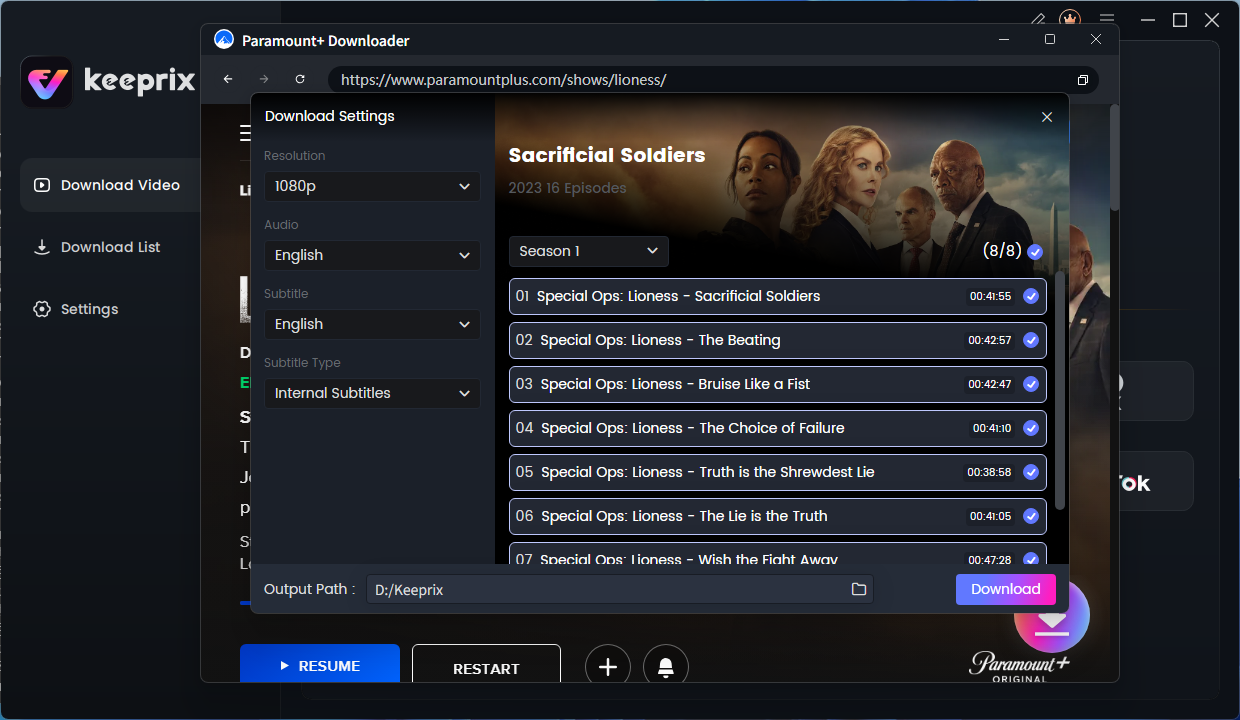
Step 4. Save the video directly to your local drive for flexible offline playback. Once activated, Keeprix removes the trial download quota for uninterrupted video downloads, making it the ideal choice to get your watchlist ready before a trip.
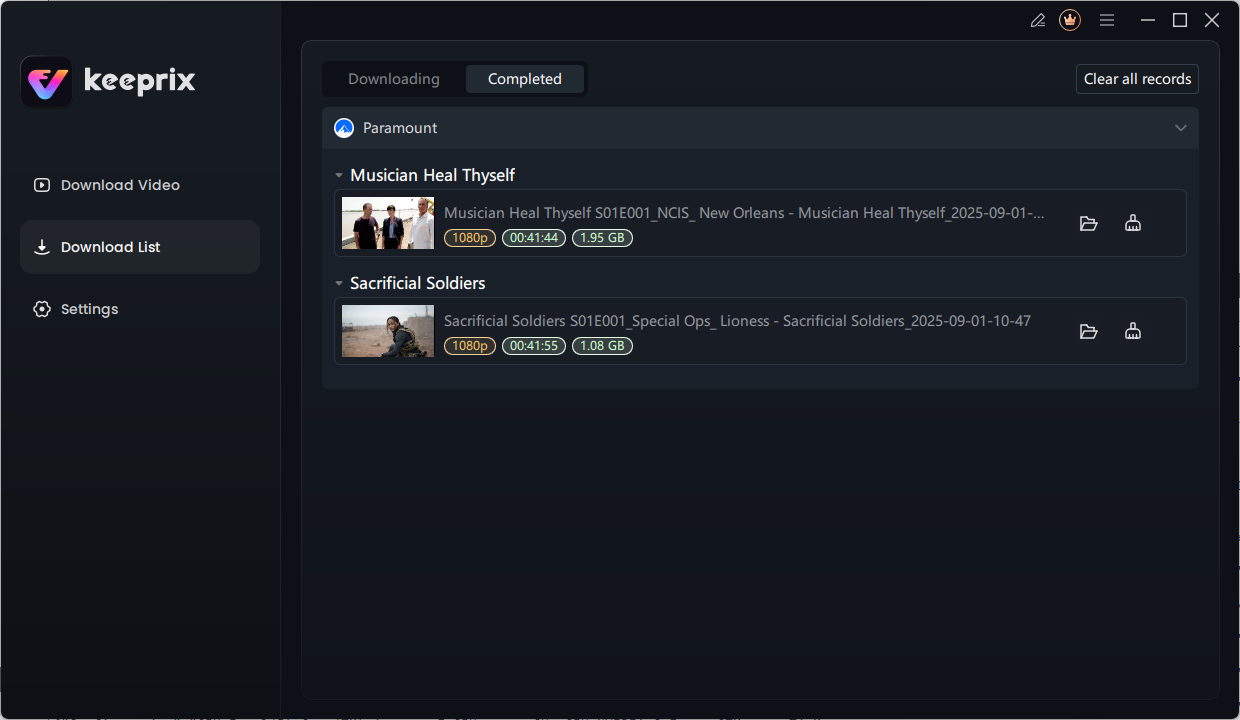
Using the activated version of Keeprix removes the trial download quota for uninterrupted watching. It is a highly practical backup tool to build a personal offline library when your main downloader is out of commission, much like when users seek a reliable KeepStreams alternative during widespread outages.
Frequently Asked Questions
1. Why is KeepStreams not working?
Common causes include streaming-service changes, outdated software, login problems, regional restrictions, network issues, and temporary application errors.
2. Why is KeepStreams stuck at analyzing?
This can happen when KeepStreams has difficulty processing a particular streaming service or when the service has changed its website or protection system. Updating the software and testing another title can help determine the cause.
3. Why won’t KeepStreams download my video?
Check whether the title plays normally through the streaming service, then test another title and another service. This helps determine whether the problem is related to the content, platform, account, or software.
4. Will reinstalling KeepStreams fix the problem?
Reinstalling can help with local application problems, but it won’t necessarily fix a compatibility issue caused by a recent change on a streaming platform. In that case, a software update may be required.
5. What should I do if KeepStreams still doesn’t work?
After completing the basic troubleshooting steps, check for an official update or contact support. If the issue appears to be specific to KeepStreams, testing another compatible downloader can also help determine whether an alternative works with the affected service.
Bottom line: when KeepStreams isn’t working, don’t assume the entire application is broken. First determine whether the problem affects one title, one streaming service, or every service. That simple distinction can save you from spending time on fixes that won’t address the actual cause.
Final Thoughts: What to Do When Your Downloader is Down
Dealing with a “stuck on analyzing” loop or sudden download failures can be incredibly frustrating, especially when you are trying to prepare videos for a trip or back up your watchlist. While clearing your cache or reinstalling might help with minor bugs, the root cause is almost always a backend streaming protocol update.
Waiting days or weeks for a developer patch is an option, but it isn’t very helpful if you need those video files today. If you are tired of relying on unpatched software, Keeprix is an immediate, reliable desktop alternative. It allows you to continue saving the videos you can access as flexible MP4 or MKV files, so you can manage your personal offline media library without missing a beat. Stop waiting for patches and start building your offline watchlist today.
Keeprix Video Downloader
Download streaming videos from hot platforms without restrictions. Enjoy seamless offline watching on Windows and Mac computers.