VidHub vs Infuse for Apple TV: Pricing, Playback, and Libraries

Infuse Pro is a good starting point if you want clearly documented Dolby Vision and Dolby Atmos support on Apple TV 4K. VidHub is worth trying if you want an Apple TV-only purchase option or keep your videos on a service such as Baidu Netdisk.
Both apps can play media from a NAS and connect to Plex, Jellyfin, and Emby, so the better choice depends on where your files live and how they play on your equipment.
This comparison covers VidHub – Video Library & Player from Oka Apps, listed on the App Store under Nanjing Oumi Software Development Co., Ltd. Check the developer name when searching for VidHub on Apple TV.

VidHub vs Infuse at a glance
| Feature | VidHub | Infuse |
| Pricing options | Free to try. Monthly, yearly, and lifetime options are listed, including device-specific purchases. | Free tier. Infuse Pro offers monthly, yearly, and lifetime options. |
| NAS and network shares | SMB and WebDAV | SMB, NFS, FTP, and WebDAV |
| Media servers | Plex, Jellyfin, and Emby | Plex, Jellyfin, and Emby, with Direct Mode and Library Mode |
| Cloud storage examples | Google Drive, Dropbox, OneDrive, Aliyun Drive, and Baidu Netdisk | Google Drive, Dropbox, OneDrive, and Aliyun Drive, among others. Add the connection on an iPhone, iPad, or Mac for Apple TV playback. |
| HDR and home theater audio | The developer lists HDR and Dolby Vision. Check your specific video profile and audio track on Apple TV. | Infuse Pro documents Dolby Vision Profiles 5 and 8 and Atmos with E-AC3 tracks on compatible equipment. |
Pricing and lifetime plans
VidHub: The App Store lists monthly, yearly, and lifetime purchases, including an option labeled for Apple TV only. If you also watch on a Mac or iPad, check which devices the selected purchase covers before paying. A lower-priced TV-only option makes sense when the living room is the only place you use the app.
Infuse: You can start with the free tier and move to Infuse Pro if your files or sources require it. Firecore offers monthly and yearly subscriptions as well as a one-time lifetime purchase. Compare the plan shown in your regional storefront. See Firecore’s purchase and Family Sharing guide.
Playback on Apple TV 4K: Dolby Vision, Atmos, and subtitles
For a basic MP4 or MKV library, try a few of your own files in each app. The file extension tells you the container, while the video codec, audio track, and subtitle format determine how that file plays on your setup. A simple MP4 with stereo audio and an MKV with HDR, surround sound, and image-based subtitles can give you different results.
Dolby Vision: Firecore documents Dolby Vision Profiles 5 and 8 in Infuse Pro on compatible hardware. Oka Apps also lists Dolby Vision for VidHub. If your library relies on a specific profile, play an example through your Apple TV and check the video mode reported by your television. See Infuse’s playback specifications. See VidHub’s feature guide.
Dolby Atmos: Firecore documents Atmos for Dolby Digital Plus (E-AC3) tracks. If your files use Dolby TrueHD with Atmos, expect a different result on Apple TV. Infuse can deliver decoded multichannel PCM, while TrueHD Atmos object metadata is unavailable through that playback path. Check the source track and your receiver’s display if Atmos is important to you. See Firecore’s Apple TV audio guide.
Library setup: NAS, cloud drives, Plex, and Jellyfin
For a NAS or shared Mac folder: Start by adding the same SMB share to both apps. Try a movie and a TV episode. Compare how the apps display titles, group seasons, and resume playback. If your NAS already uses NFS, Infuse lists NFS among its supported connection types.
For Plex, Jellyfin, or Emby: Try the connection to your existing server before setting up another copy of your library. Infuse offers Direct Mode, which fetches server information as you browse, and Library Mode, which includes server content in the Infuse library. Check how each app handles the features you use most, such as watched status, episode order, and newly added titles. See Firecore’s media-server setup guide.
For cloud storage: Both support common providers such as Google Drive, Dropbox, and OneDrive. Check the exact provider you use. Oka Apps lists Baidu Netdisk for VidHub, while Firecore documents connecting an Infuse cloud source on an iPhone, iPad, or Mac before using it on Apple TV. See VidHub’s file-source guide. See Infuse’s cloud setup guide.
Which should you choose for Apple TV?
- Try Infuse first if you want to match a Dolby Vision Profile 5 or 8 library or E-AC3 Atmos tracks to documented support, or if you want a choice between direct server browsing and a combined library view.
- Try VidHub first if the Apple TV-only lifetime option suits your setup or VidHub supports a cloud account you already use.
- If you mainly watch MP4 or MKV files from a NAS, compare both with the same folder and network connection. Add one new episode, check how it appears, then play an HDR title with your usual audio and subtitle tracks. That test gives you a basis for choosing the app and plan that fit your library.
Preparing local files for either player
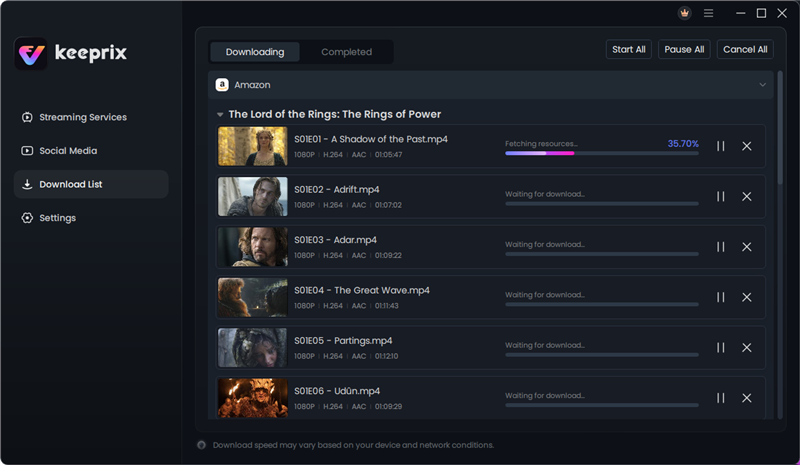
VidHub and Infuse play media from sources you connect, such as an existing library on your Mac, NAS, or media server. To add a new video that you’re allowed to save, Keeprix Video Downloader can save supported videos as MP4 or MKV on Windows or Mac. You can then copy the file into your shared folder and open it in the player. Check the available audio and subtitles for that video before saving it.
Keeprix’s free trial covers one full video per supported streaming service. Downloads from supported social platforms are free and do not count toward that streaming allowance. See the Keeprix guide for supported sources and trial details.
VidHub vs Infuse FAQs
Do I need Plex or Jellyfin to use VidHub or Infuse?
You can connect either app directly to an SMB share on your Mac or NAS. A media server is another way to organize the library if you want shared metadata and watched status across compatible clients.
Can I add the same NAS folder to both apps?
Yes. Point both apps at the same shared folder and use it to compare playback and organization. Your files stay in one place while each app builds its own view of the collection.
Does a lifetime plan cover both Apple TV and Mac?
Firecore offers Infuse Pro across its supported Apple devices. VidHub lists device-specific purchases as well as lifetime options, so check the device scope of the offer you select, especially if it says Apple TV only.
Can I open Netflix or Apple TV app downloads in either player?
In-app downloads stay in the service’s own app for playback. To use VidHub or Infuse, add a source that contains regular video files you can access, such as a shared folder on your Mac or NAS.